Step-by-Step Screenshot Reference
11 Step-by-Step Screenshot Reference
Every captured screen in setup order. Click any image to open the full-size version in a new tab.
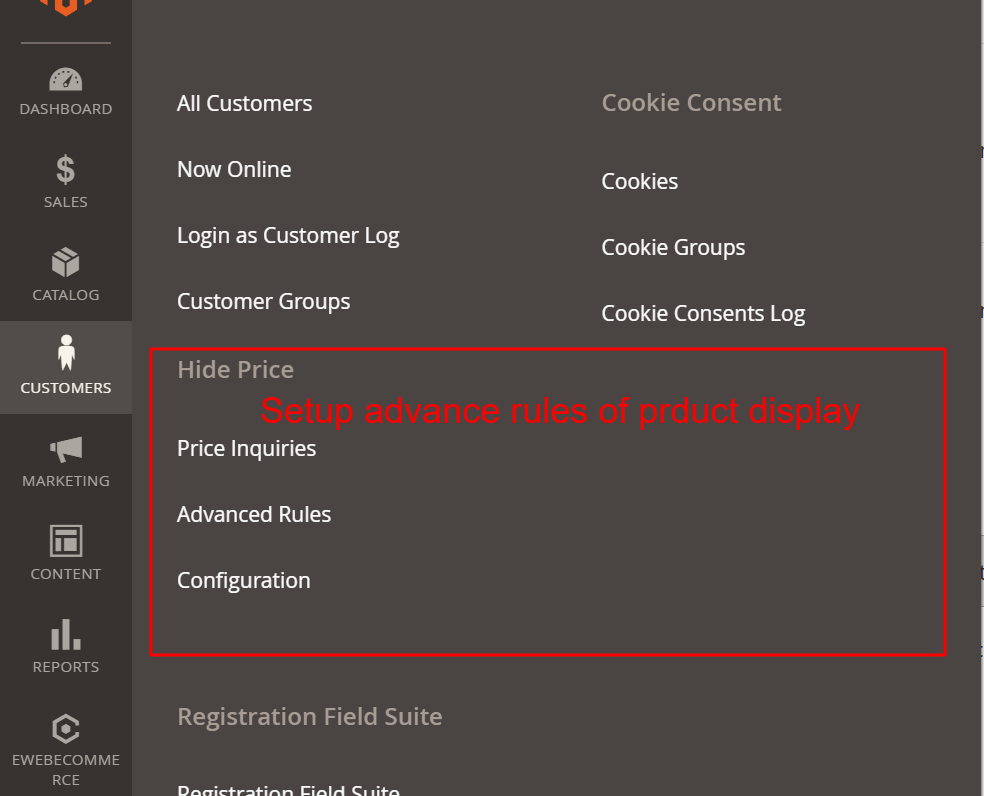
Admin: Customers > Hide Price Menu
What this shows: This screenshot displays the menu items under the ‘Hide Price’ section, including options for Price Inquiries, Advanced Rules, and Configuration.
In this section of the admin panel, users can access settings related to the ‘Hide Price’ functionality. The menu offers navigation to configure price inquiries, set advanced rules, and adjust general configurations. This setup is vital for managing how product prices are displayed or hidden from certain user roles, ensuring that only authorized views are allowed.
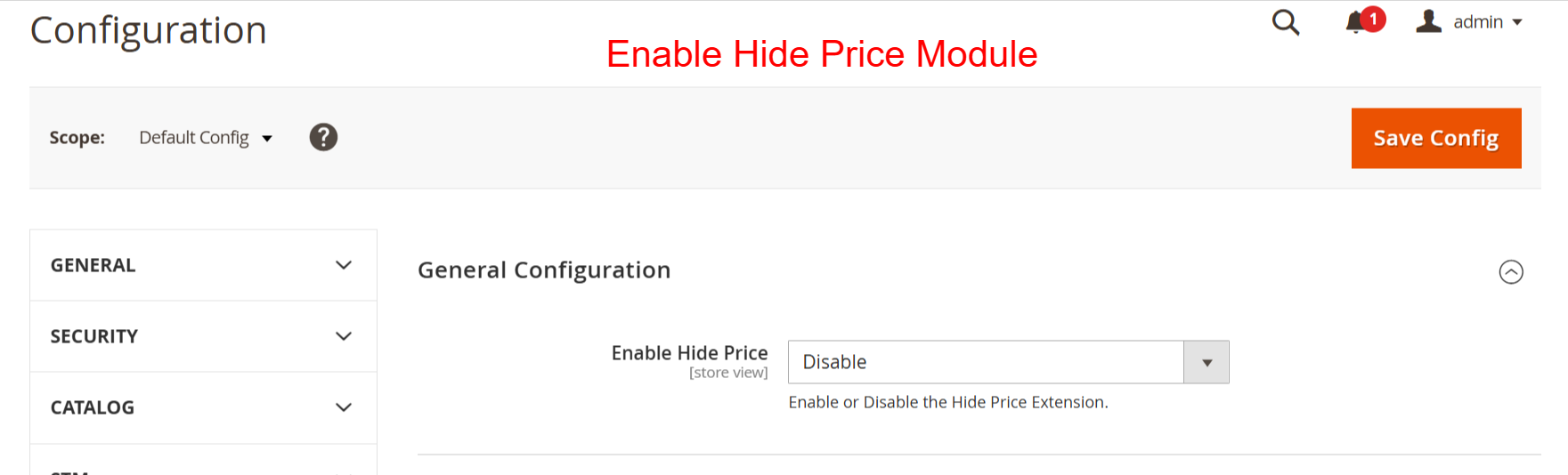
Admin: Enable Hide Price Module
What this shows: This configuration page features a dropdown to enable or disable the ‘Hide Price’ module and a ‘Save Config’ button.
Administrators use this interface to activate the Hide Price module by selecting ‘Enable’ from the dropdown menu. It’s crucial as it determines whether the Hide Price functionalities are applied throughout the store. Activating this module allows control over who sees product prices, which is essential for stores targeting specific customer groups.
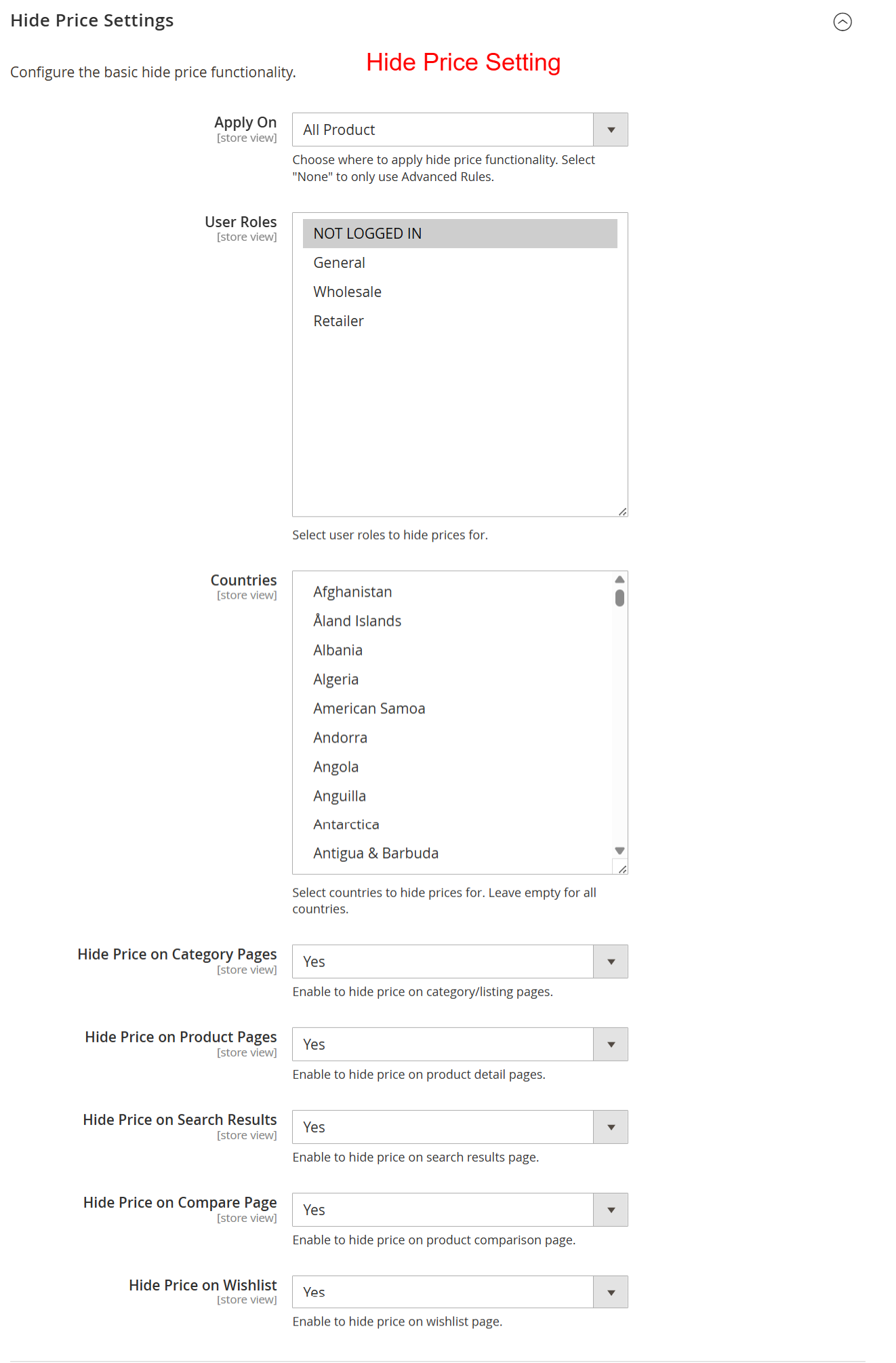
Admin: Hide Price Settings Configuration
What this shows: The settings allow configuration of the hide price functionality, specifying conditions like products, user roles, and countries. Options to hide prices on various pages are also visible.
Here, administrators can define how and where the hide price feature applies by selecting specific products, user roles, and geographical locations. Enabling these settings ensures that only authorized users, such as logged-in users or selected regions, can see product prices, enhancing security and personalization.
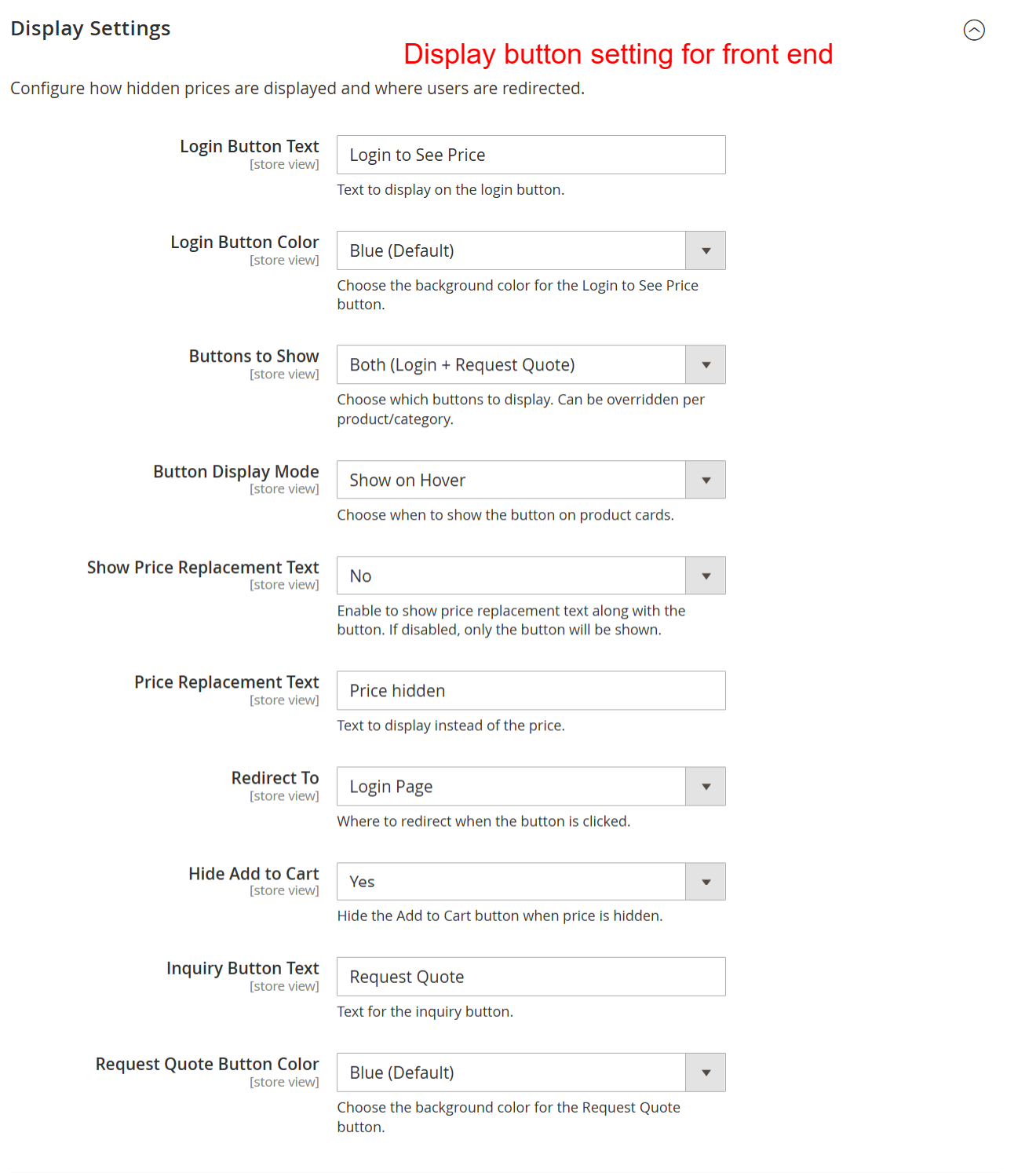
Admin: Display Button Settings for Front End
What this shows: This page allows customization of button texts, colors, and visibility settings to replace displayed prices with call-to-actions like ‘Login to See Price’.
Users can tailor how hidden prices are handled on the frontend by editing button text and appearance, setting conditions for showing buttons, and deciding on redirections. This customization is vital for maintaining user engagement, guiding them towards actions like logging in or requesting a quote instead of simply seeing unavailable prices.
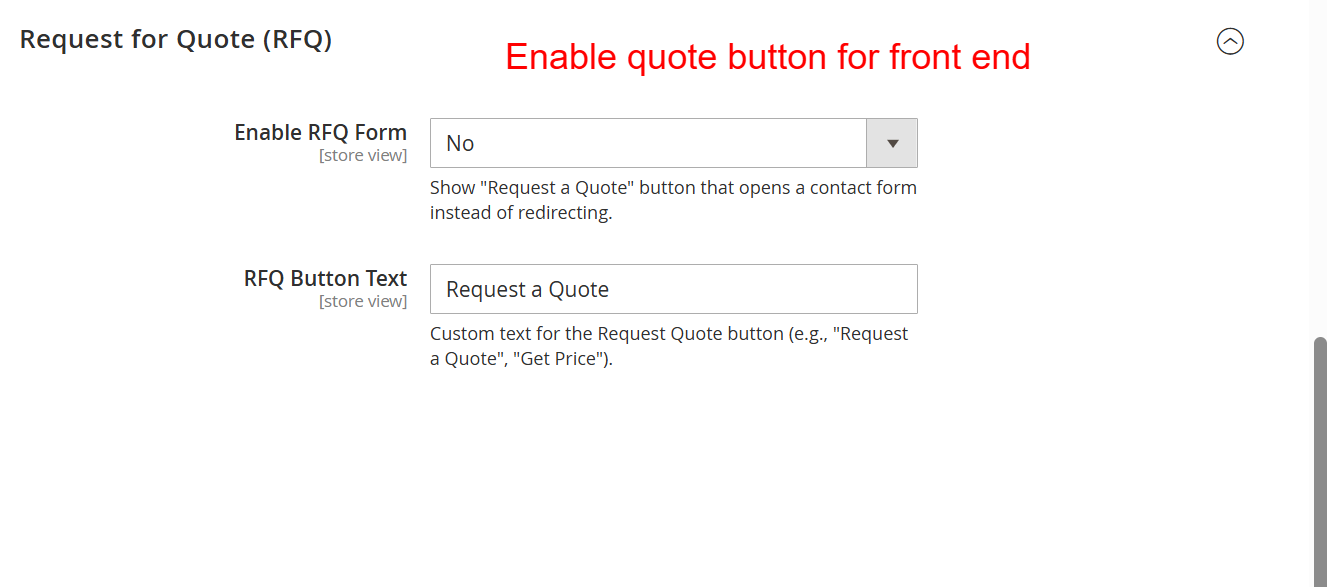
Admin: WhatsApp Integration Settings
What this shows: Settings for enabling WhatsApp inquiries include fields for WhatsApp number, message, button text, and visibility conditions.
By setting up WhatsApp integration, stores can directly connect with customers through pre-configured inquiry messages. This feature is beneficial for offering instant communication, thereby enhancing customer service and facilitating quick responses to price inquiries, making it easier for stores to convert interest into sales.
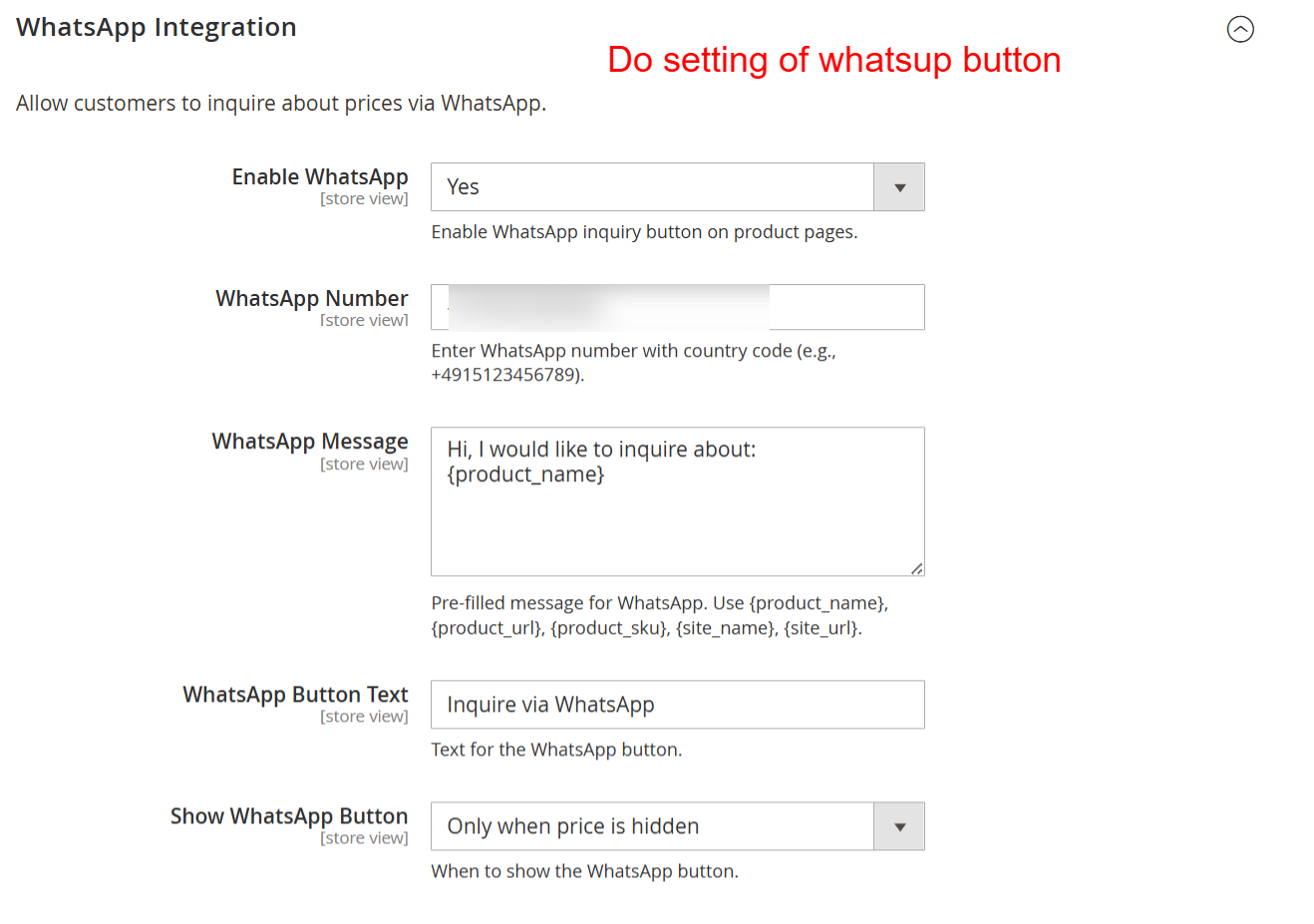
Admin: Access Control Setting
What this shows: The screen provides options to control access for non-logged-in users, including forcing login, hiding shop pages, and setting login messages.
These settings are crucial for managing user access to the online store. Administrators can restrict visibility to non-logged-in users, requiring them to log in to view product details or prices. It strengthens store security and ensures sensitive information is protected behind authentication layers.
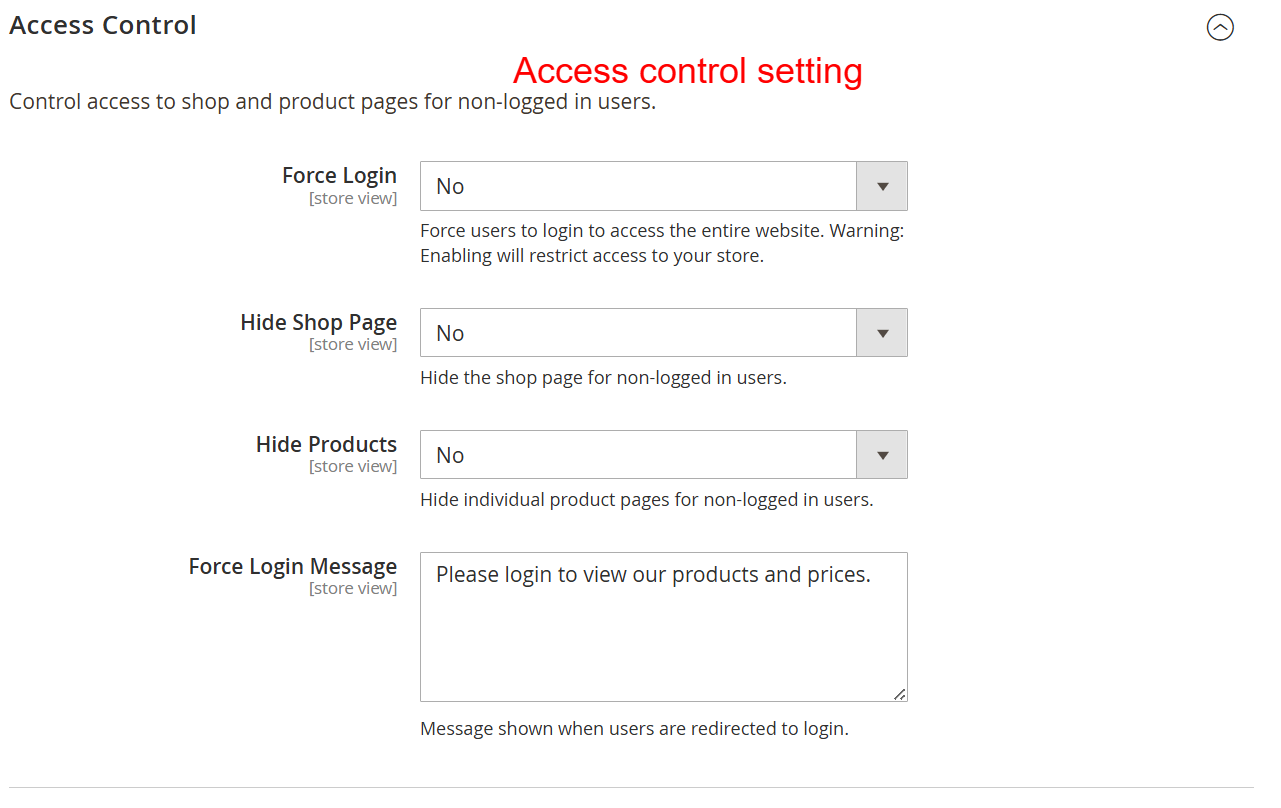
Admin: Email Notification Settings
What this shows: The configuration includes fields for enabling email notifications, setting admin email addresses, subjects, templates, and customer copies.
Through this interface, admins can enable email alerts for price inquiries, directing them to selected email addresses with specific subject lines and templates. This system of notifications ensures that inquiries from customers do not go unnoticed, aiding in prompt response and effective customer relationship management.
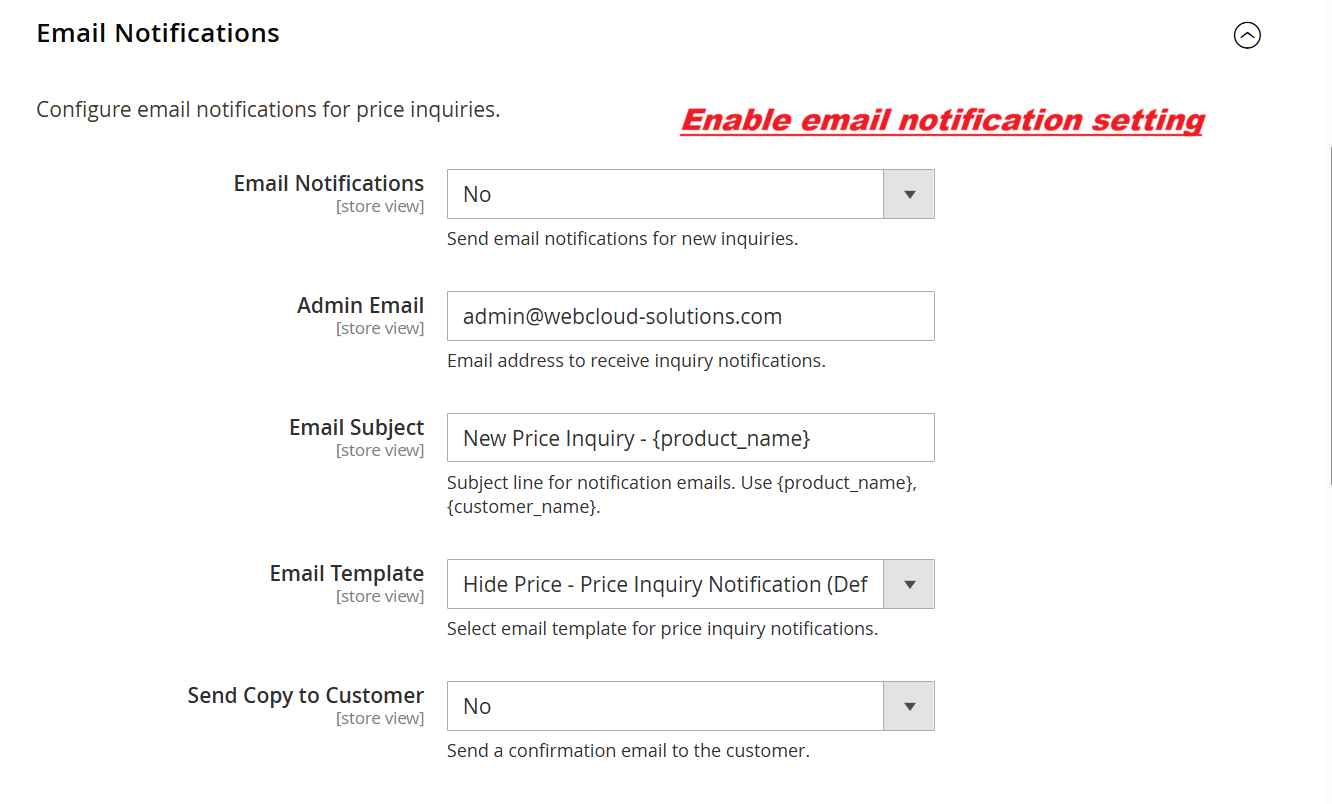
Admin: Request for Quote (RFQ) Button Configuration
What this shows: Settings for enabling the RFQ form include options for activating the form and customizing the button text.
Store admins use this page to activate the Request for Quote feature, which replaces price views with a quote request form. Adjusting the button text enables clear communication to customers, inviting them to inquire further on pricing, a feature that is pivotal for stores offering customizable or negotiable price points.
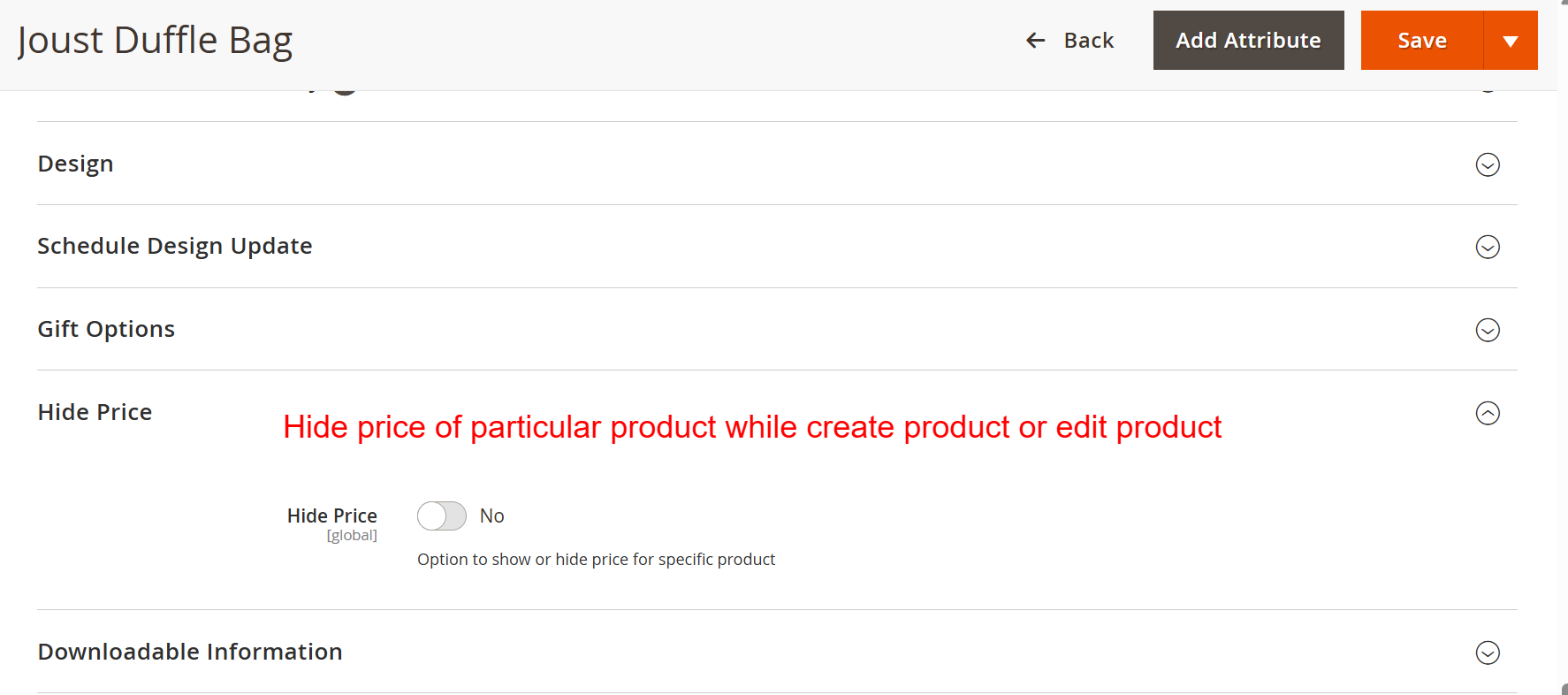
Product Edit: Hide Price Toggle
What this shows: A toggle switch labeled ‘Hide Price’ with options ‘Yes’ or ‘No’, located under the ‘Hide Price’ section in a product edit page.
This screen allows the admin to hide or display the price of a specific product. By toggling ‘Hide Price’ to ‘Yes’, the price will be hidden from specific customer groups, enhancing tailored pricing strategies for guests and logged-in customers.
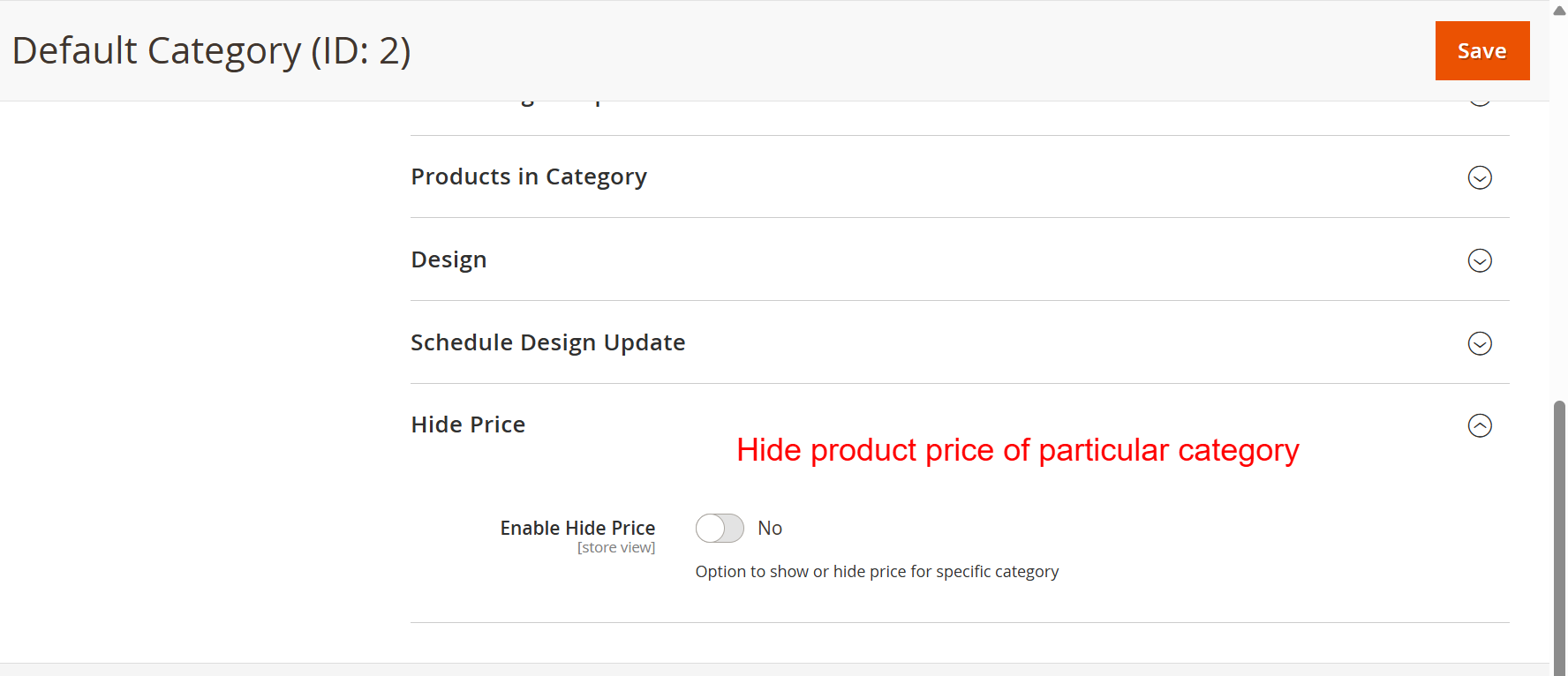
Category Edit: Hide Price Toggle
What this shows: A toggle switch labeled ‘Enable Hide Price’ in the ‘Hide Price’ section on a category edit page.
Admins can manage price visibility for an entire category using this setting. This is useful for segments where pricing should be restricted to certain users, thereby controlling how prices are displayed within specific product ranges.
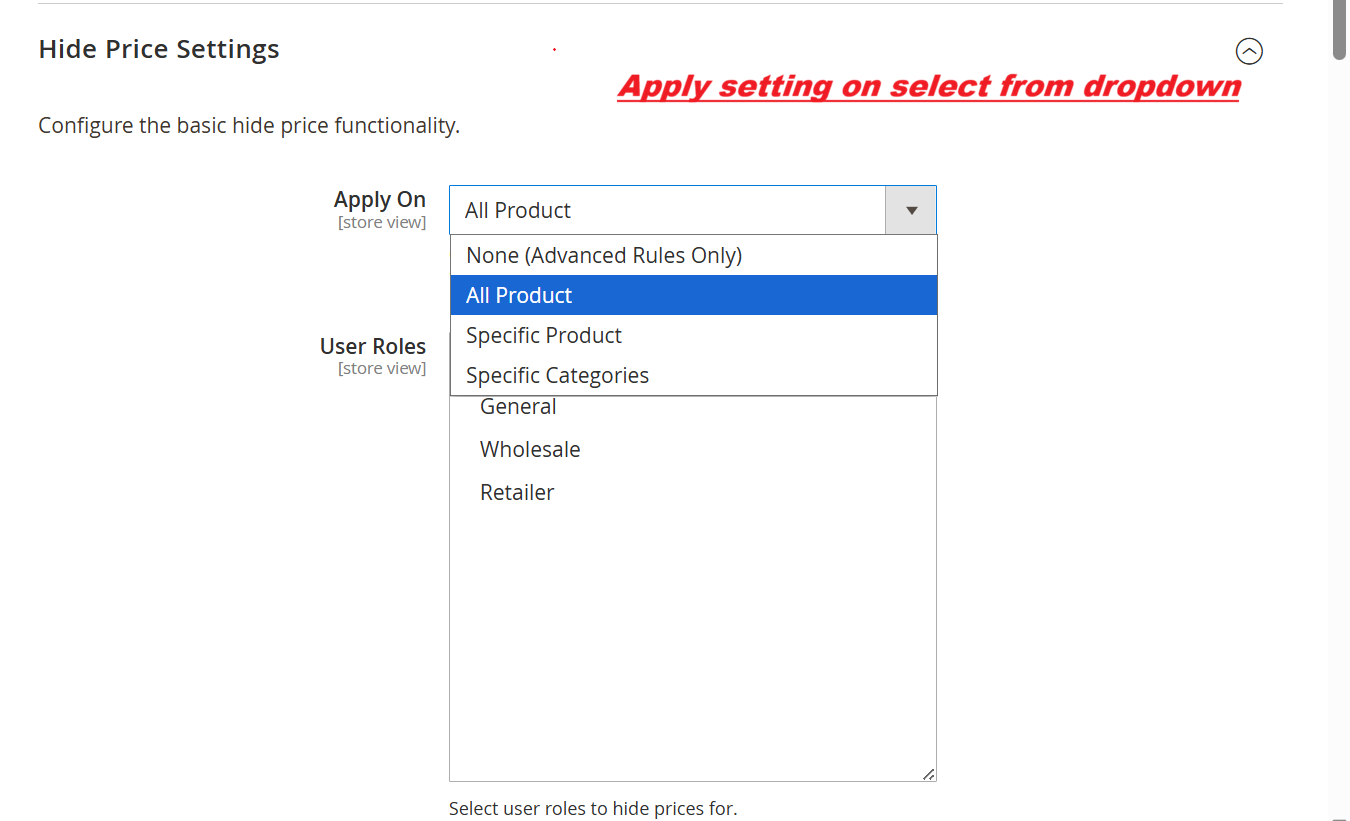
Admin: Apply Hide Price Settings
What this shows: Dropdown menus for ‘Apply On’ with options like ‘All Product’, ‘Specific Product’, and ‘User Roles’ with various roles listed.
In this settings screen, users can define how and where the hide price feature is applied. Selecting ‘All Product’ or ‘Specific Product’ customizes price visibility based on user roles, ensuring that pricing is only visible to appropriate customer segments.
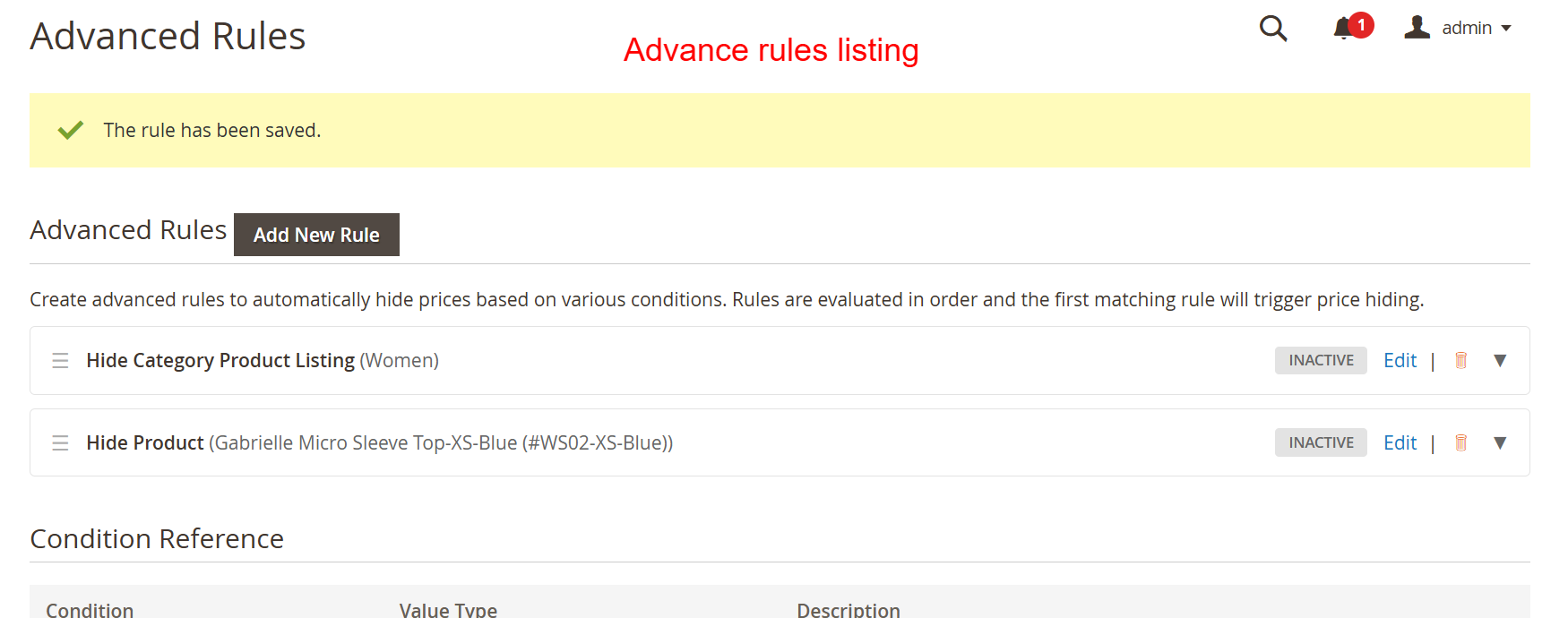
Advanced Rules: Listing
What this shows: A list of advanced rules with options to ‘Edit’ or ‘Delete’, along with statuses shown as ‘INACTIVE’.
Here, admins can view and manage advanced rules for hiding prices based on specific product or category conditions. This rule-based system allows for dynamic and conditional price visibility adjustments to refine strategies according to evolving business needs.
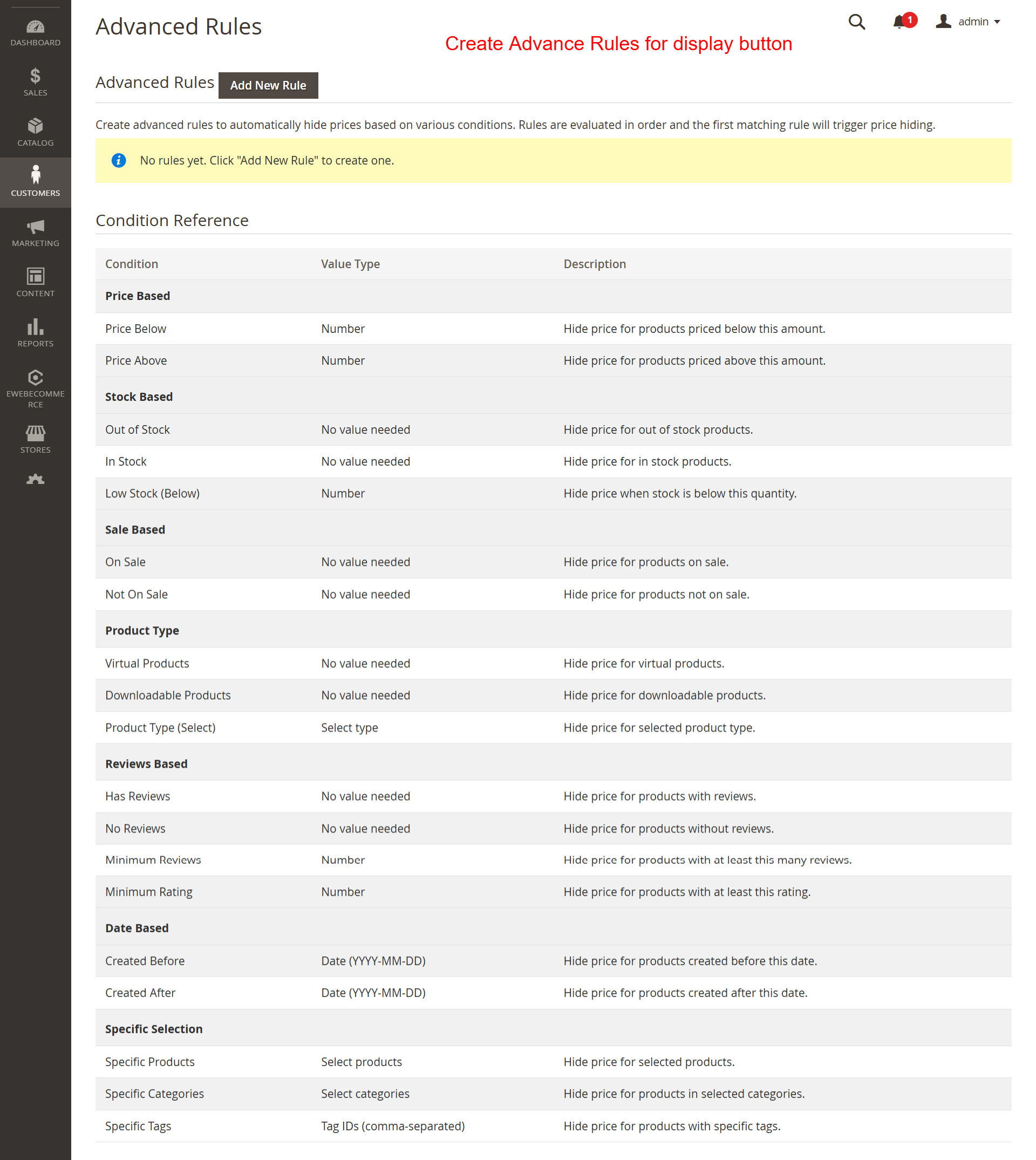
Advanced Rules: Condition Reference
What this shows: A detailed table listing ‘Condition’, ‘Value Type’, and ‘Description’ to apply specific price hiding rules.
This page provides a comprehensive view of conditions available for advanced rules enabling price hiding. It allows admins to establish customized conditions like price thresholds or customer group settings, crucial for implementing more granular pricing strategies.
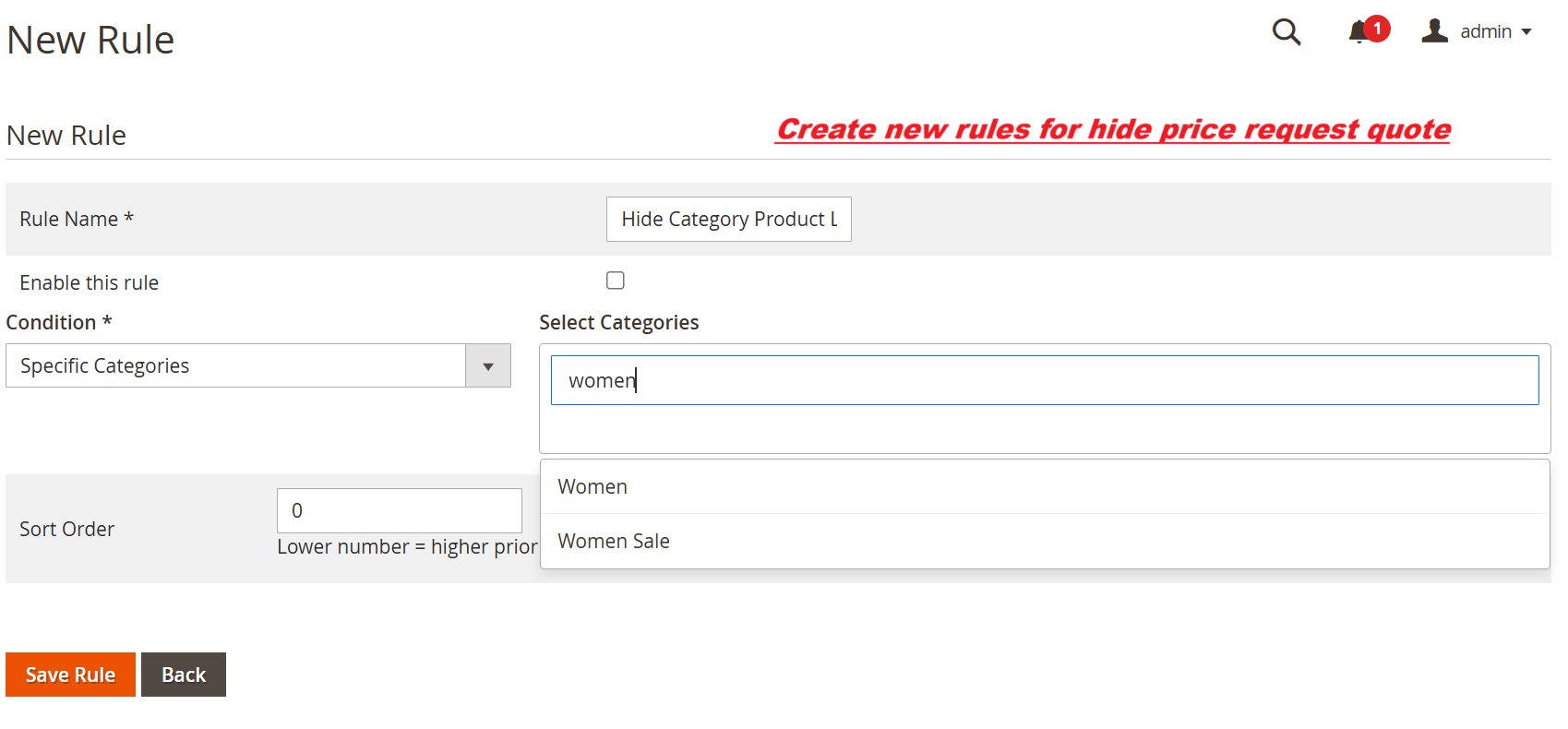
New Rule Creation
What this shows: Fields for ‘Rule Name’, a checkbox to ‘Enable this rule’, and condition type selection with a ‘Save Rule’ button.
On this interface, admins create new rules to manage price visibility. By defining rule conditions, such as specific categories, this feature allows businesses to leverage tailored pricing tactics, ensuring that visibility settings are aligned with marketing strategies.
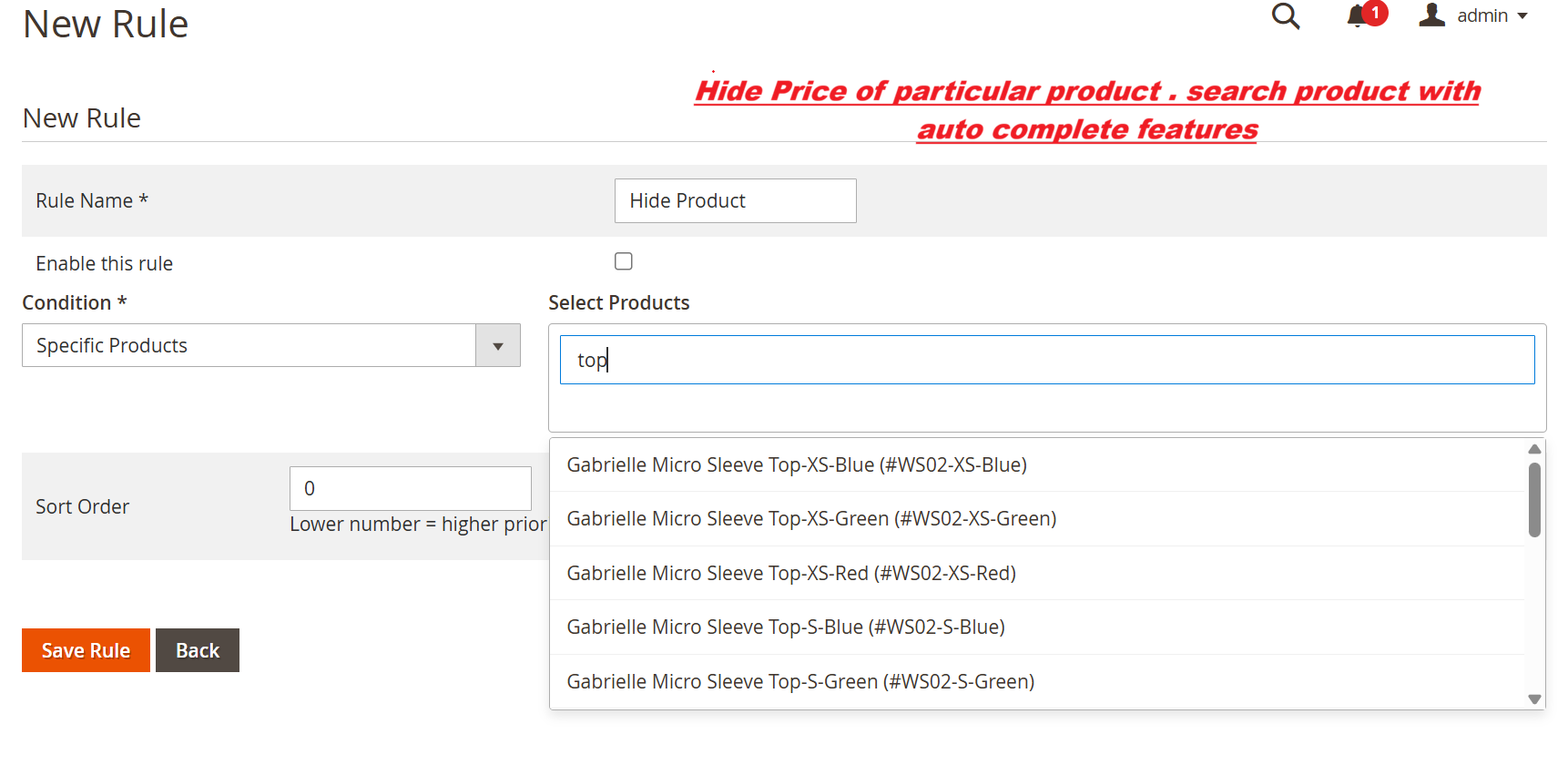
New Rule: Select Product
What this shows: Fields for entering ‘Rule Name’, a condition dropdown for ‘Specific Products’, and an autocomplete search for product selection.
Admins can specify individual products for which price visibility will be tailored. By using the autocomplete search, admins can efficiently pinpoint products, streamlining the rule creation process and ensuring precision in pricing strategy application.
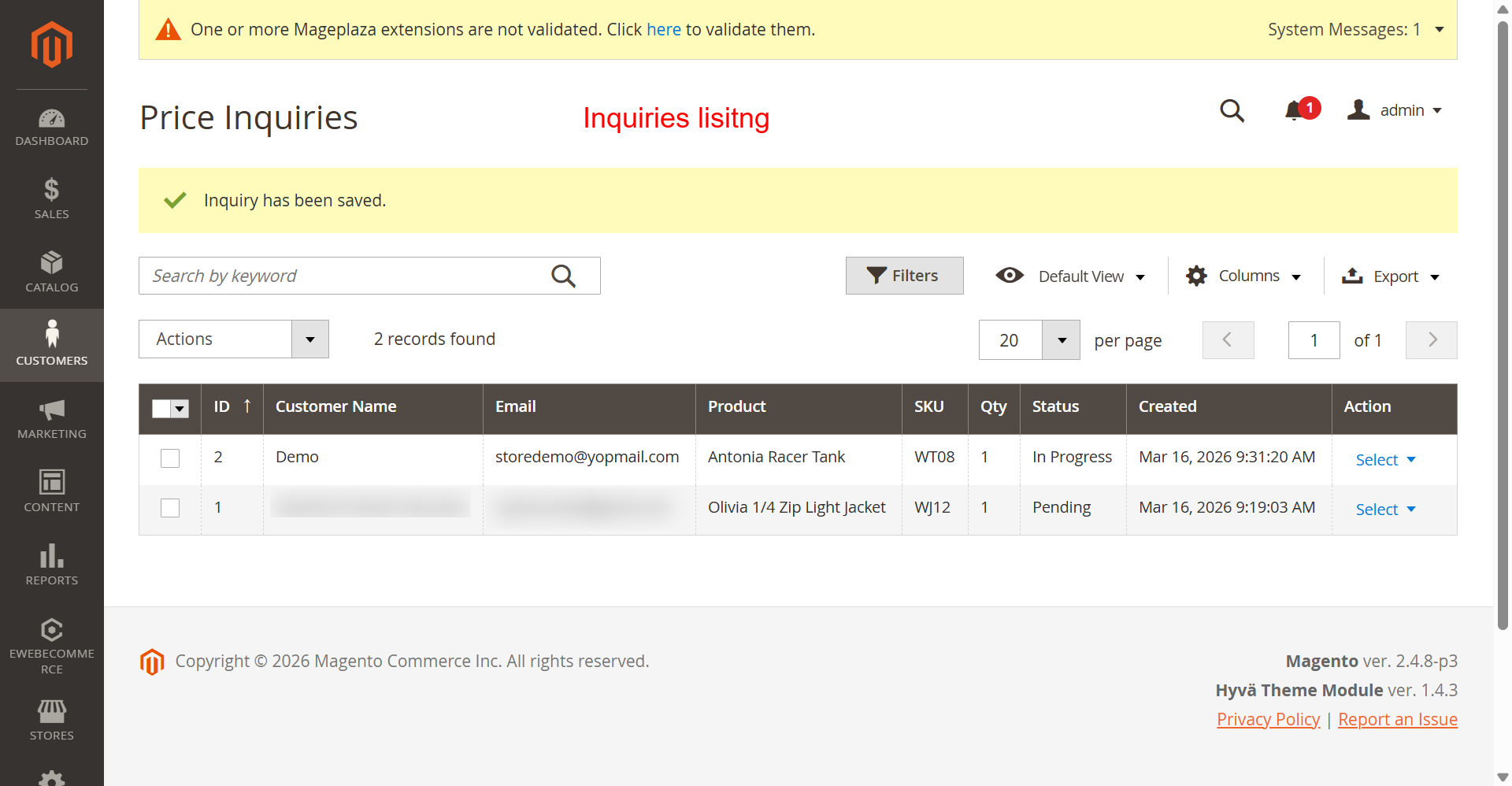
Admin: Price Inquiries List
What this shows: A table displaying columns such as ‘ID’, ‘Customer Name’, ‘Email’, ‘Product’, and ‘Status’.
The Price Inquiries list provides a view of all customer requests related to pricing. Admins can track and manage these inquiries, ensuring that customer queries are efficiently handled, which is crucial for maintaining satisfaction and conversion rates in e-commerce.
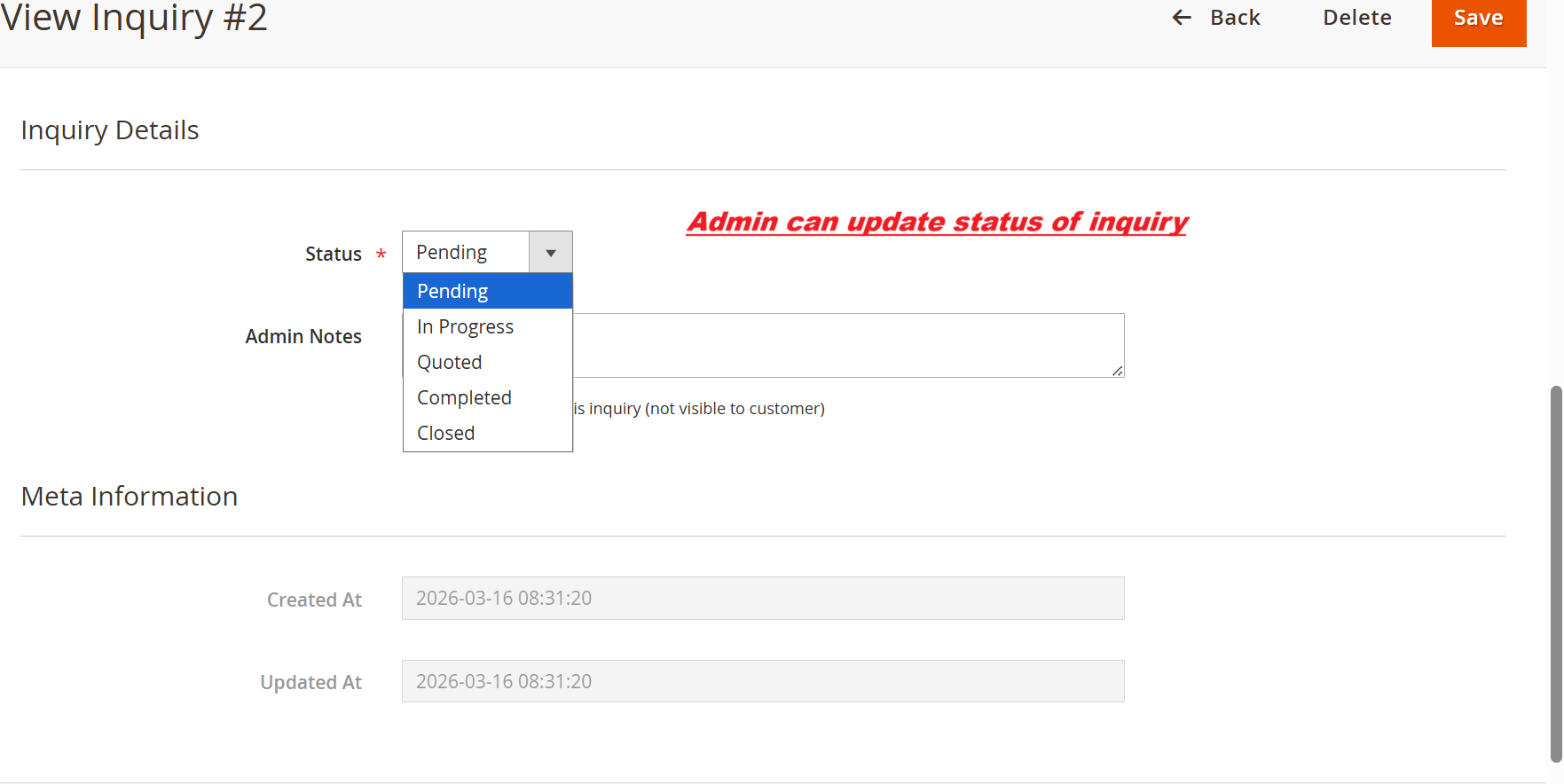
Admin: View Inquiry Status Update
What this shows: A dropdown menu to update inquiry status with options such as Pending, In Progress, Quoted, Completed, and Closed. It also displays admin notes and meta information about creation and update dates.
In this screen, the admin can update the status of a customer inquiry using the dropdown menu. This functionality is crucial for managing the request lifecycle and keeping customers informed about the progress of their inquiries. Admin can also add internal notes that aren’t visible to customers. This screen supports the primary function of tracking inquiries efficiently in the Ewebecommerce_HidePrice extension.
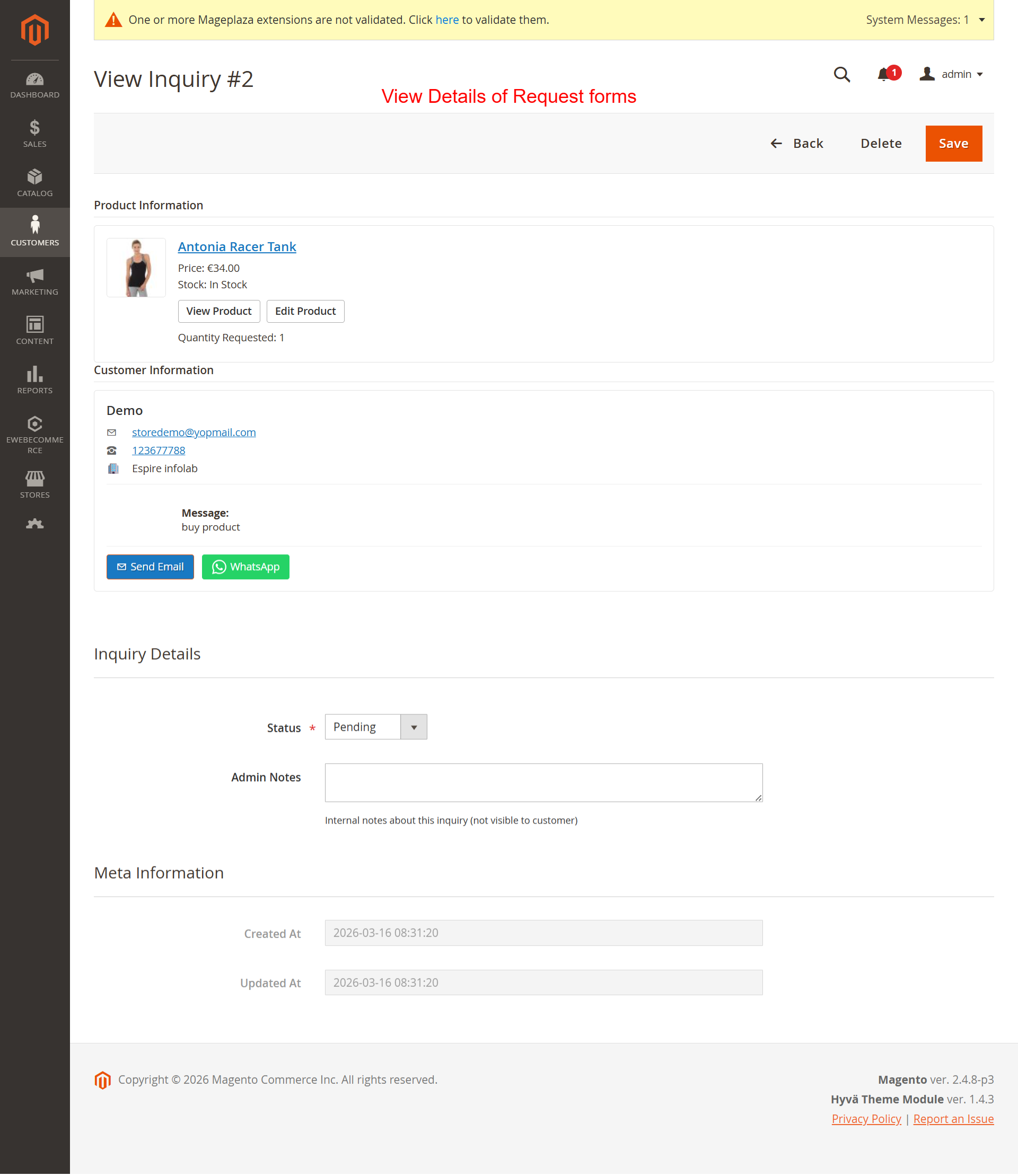
Admin: View Inquiry Price and Details
What this shows: This screen shows details of a product inquiry including product information, customer contact details, and options to contact the customer via email or WhatsApp.
Here, the admin can see detailed information about a customer’s inquiry. It includes product details like the name and price, as well as customer information such as email and phone number. Admins can respond to inquiries via integrated email or WhatsApp options. This feature ensures that inquiries can be handled promptly and with comprehensive context, enhancing customer service in the Ewebecommerce_HidePrice module.
Frontend: Product Listing – Add to Cart
What this shows: A product li…