Configuration Walkthrough
3 Configuration Walkthrough
Navigate to Stores → Configuration in Magento Admin and follow these steps:
Enable the Module
To activate the Hide Price functionalities in your store, navigate to Stores > Configuration > Ewebecommerce > Hide Price. Select ‘Enable’ from the dropdown menu and click Save Config. Activation ensures that the module’s features are applied, controlling product price visibility for specific customer groups.
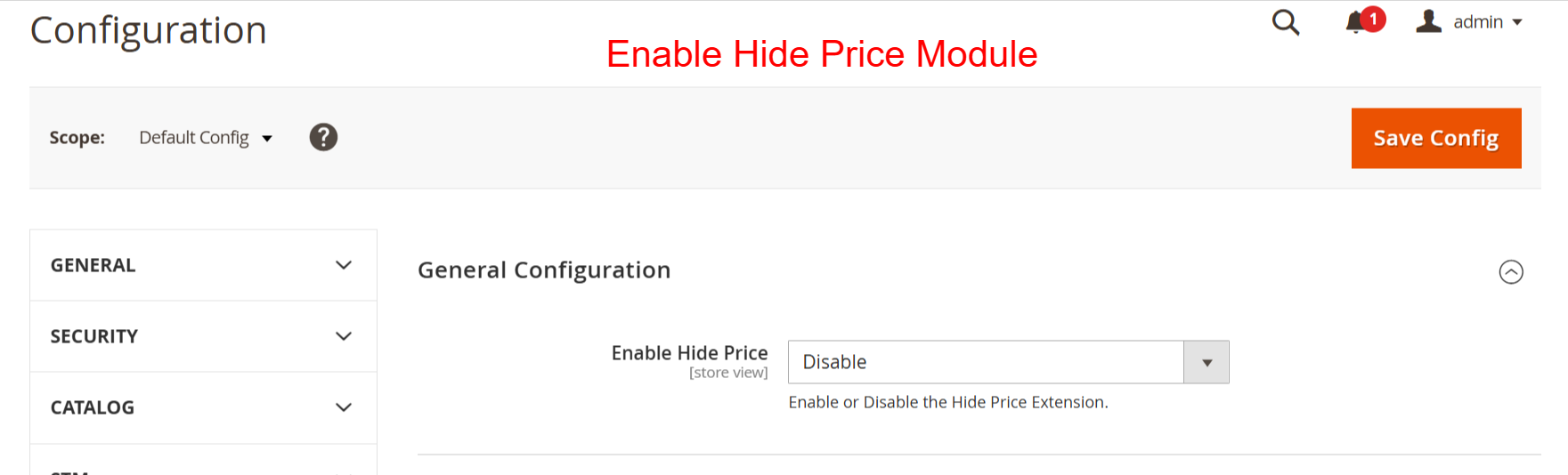
Administrators use this interface to activate the Hide Price module by selecting ‘Enable’ from the dropdown menu. It’s crucial as it determines whether the Hide Price functionalities are applied throughout the store. Activating this module allows control over who sees product prices, which is essential for stores targeting specific customer groups.
Configure Hide Price Settings
In Stores > Configuration > Ewebecommerce > Hide Price, set conditions under the Hide Price Settings group. Select applicable products, user roles, and countries where the feature applies. Adjust whether prices are hidden on category, product, wishlist, or search pages for full customization.
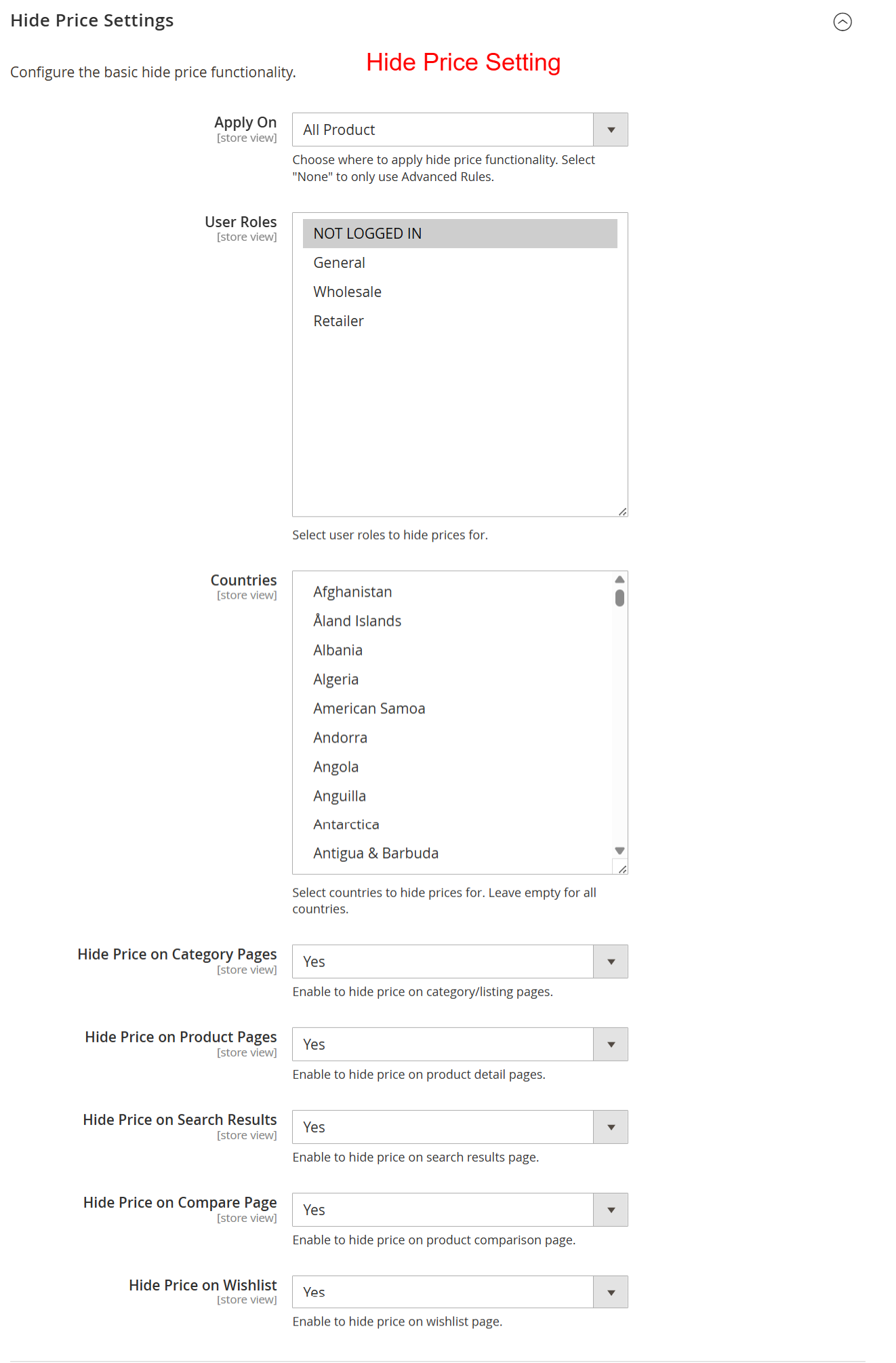
Here, administrators can define how and where the hide price feature applies by selecting specific products, user roles, and geographical locations. Enabling these settings ensures that only authorized users, such as logged-in users or selected regions, can see product prices, enhancing security and personalization.
Customize Login Button Text
Under the Display Settings group, alter the button text that appears when prices are hidden. Customize colors and text for calls-to-action such as ‘Login to See Price’, ensuring these elements align with your store’s branding and customer engagement strategies.
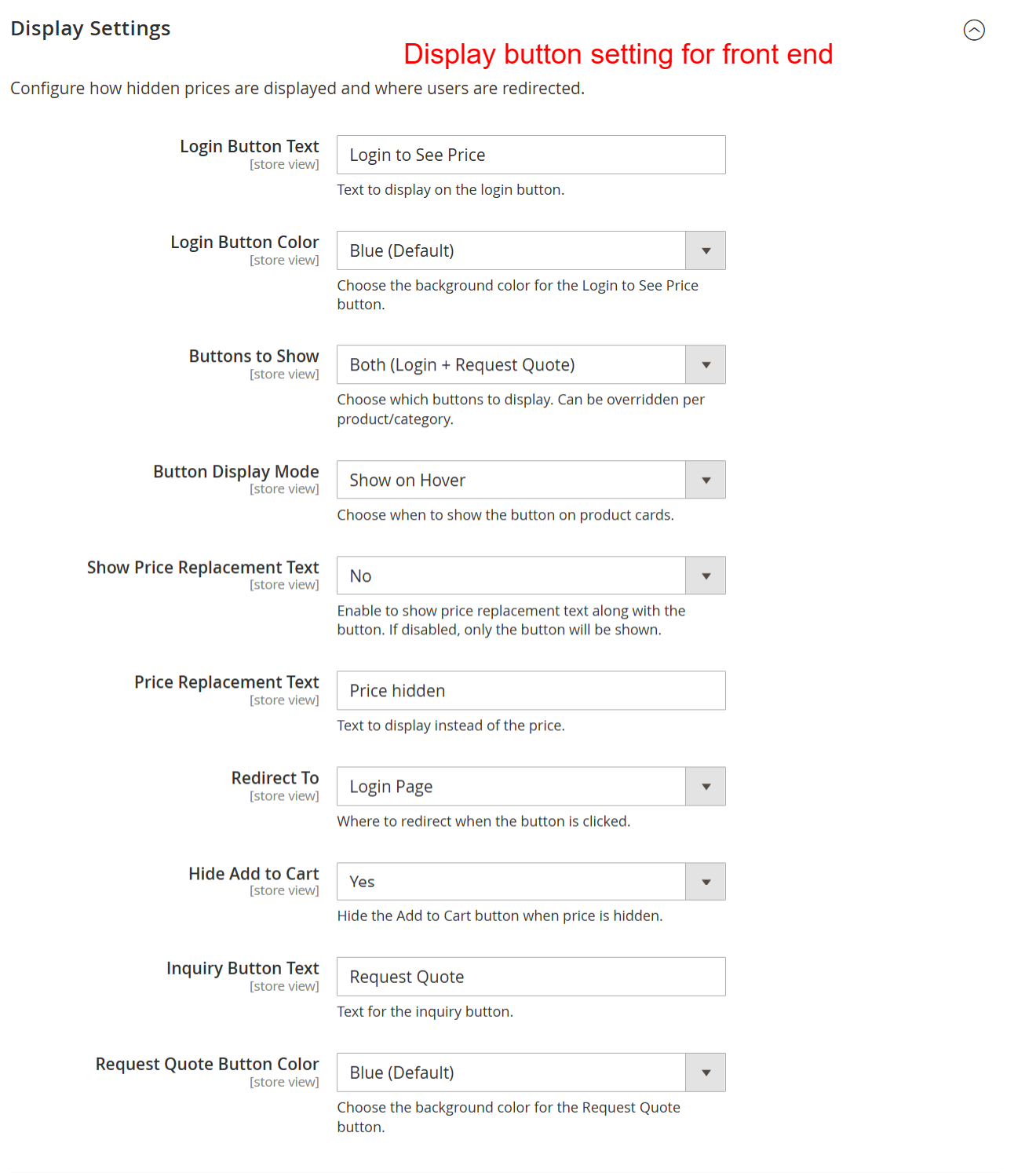
Users can tailor how hidden prices are handled on the frontend by editing button text and appearance, setting conditions for showing buttons, and deciding on redirections. This customization is vital for maintaining user engagement, guiding them towards actions like logging in or requesting a quote instead of simply seeing unavailable prices.
Apply Access Control Settings
In Stores > Configuration > Ewebecommerce > Hide Price, use the Access Control group to force login for comprehensive store access. These settings are vital for stores wanting to restrict product and shop page visibility to logged-in users, effectively securing sensitive pricing information.
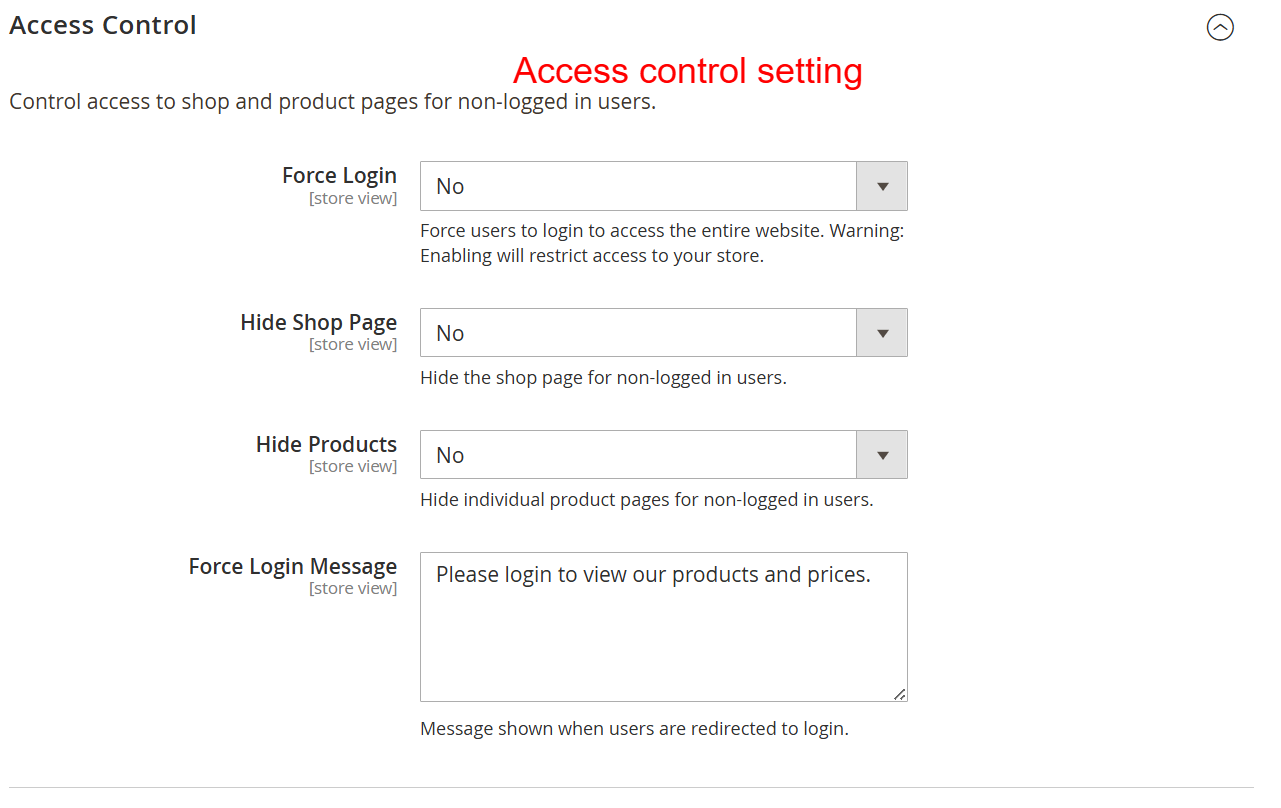
These settings are crucial for managing user access to the online store. Administrators can restrict visibility to non-logged-in users, requiring them to log in to view product details or prices. It strengthens store security and ensures sensitive information is protected behind authentication layers.
Email Notification Configuration
Set preferences in the Email Notifications group under Stores > Configuration > Ewebecommerce > Hide Price. Enable notifications for inquiries, specify admin email addresses, and customize templates to ensure responsive and organized communication with customers regarding their inquiries.
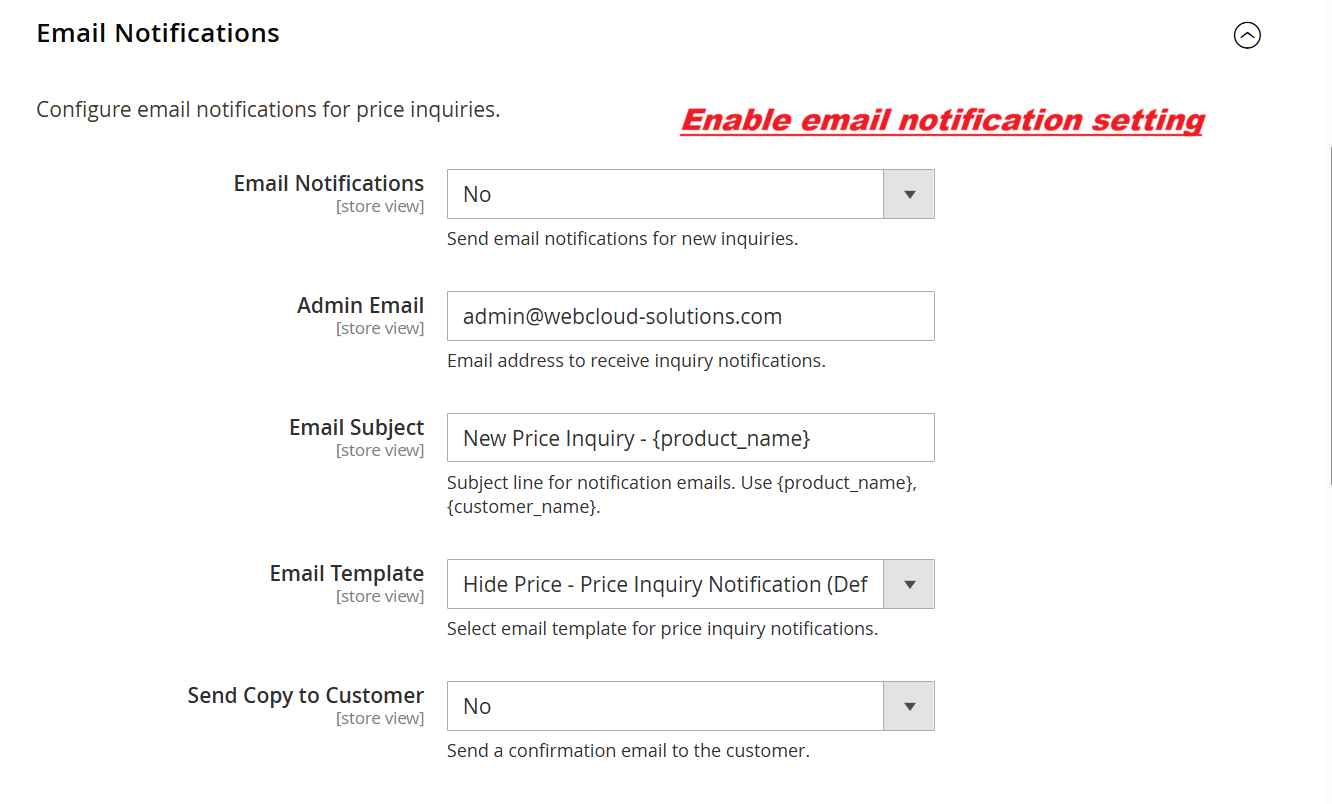
Through this interface, admins can enable email alerts for price inquiries, directing them to selected email addresses with specific subject lines and templates. This system of notifications ensures that inquiries from customers do not go unnoticed, aiding in prompt response and effective customer relationship management.
Activate Request for Quote Button
In the Request for Quote (RFQ) Button Configuration section, enable or disable the RFQ feature, allowing customers to request pricing quotes instead of direct purchases. This setting offers flexibility, appealing to customers seeking personalized quotes or considering bulk purchases.
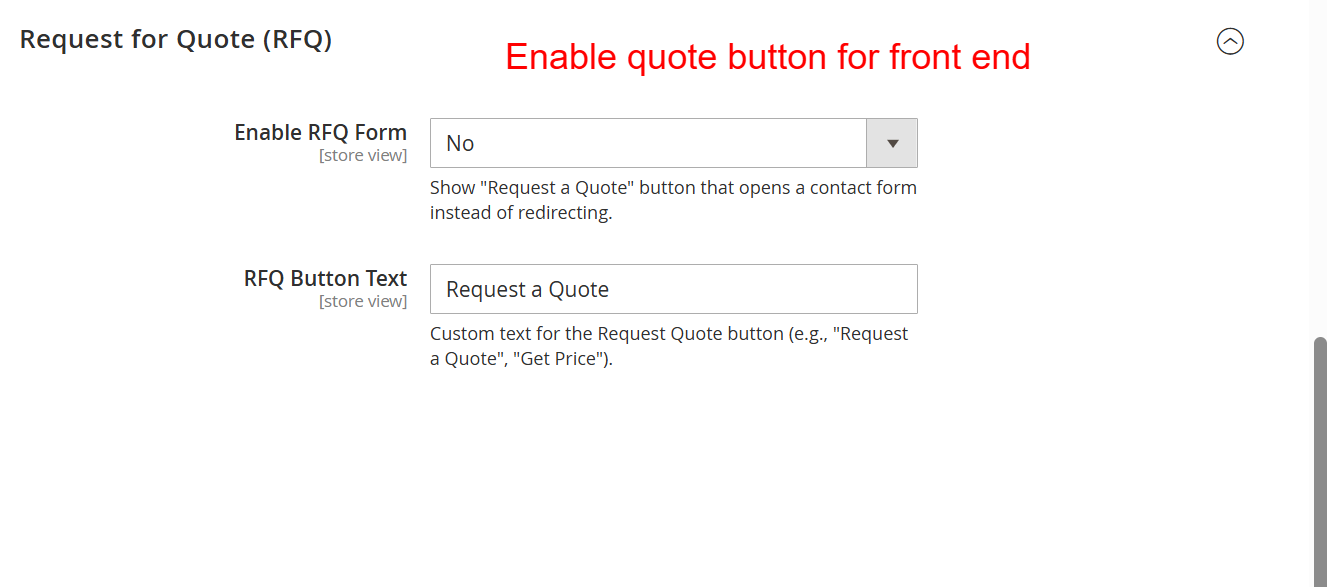
Store admins use this page to activate the Request for Quote feature, which replaces price views with a quote request form. Adjusting the button text enables clear communication to customers, inviting them to inquire further on pricing, a feature that is pivotal for stores offering customizable or negotiable price points.