Step-by-Step Screenshot Reference
Every captured screen in setup order. Click any image to open the full-size version in a new tab.
wp-admin: Plugin List Overview
What this shows: The list of installed plugins in the WordPress admin area. It includes the WC Hide Price Pro plugin with options for Settings, Inquiries, Deactivate, and a link to view the plugin site.
In the WordPress admin panel, navigate to the Plugins section to view all installed plugins. Here, you can activate or deactivate the WC Hide Price Pro plugin. Access additional configuration options or visit the plugin’s site for more information. This is essential to ensure the plugin is set up and active for use.

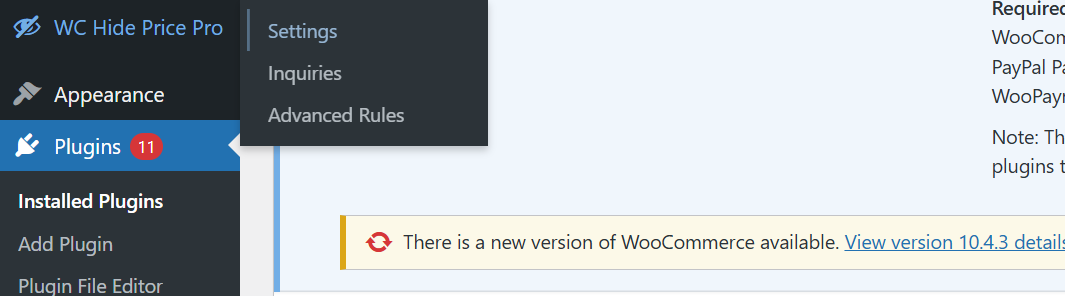
wp-admin: WC Hide Price Pro Menu
What this shows: The WordPress admin side menu with WC Hide Price Pro options including Settings, Inquiries, and Advanced Rules.
From the WordPress admin dashboard, you can access the WC Hide Price Pro settings via its own dedicated menu. This menu allows you to configure settings, manage inquiries, and define advanced rules, making it easy to tailor the plugin to your specific business needs.
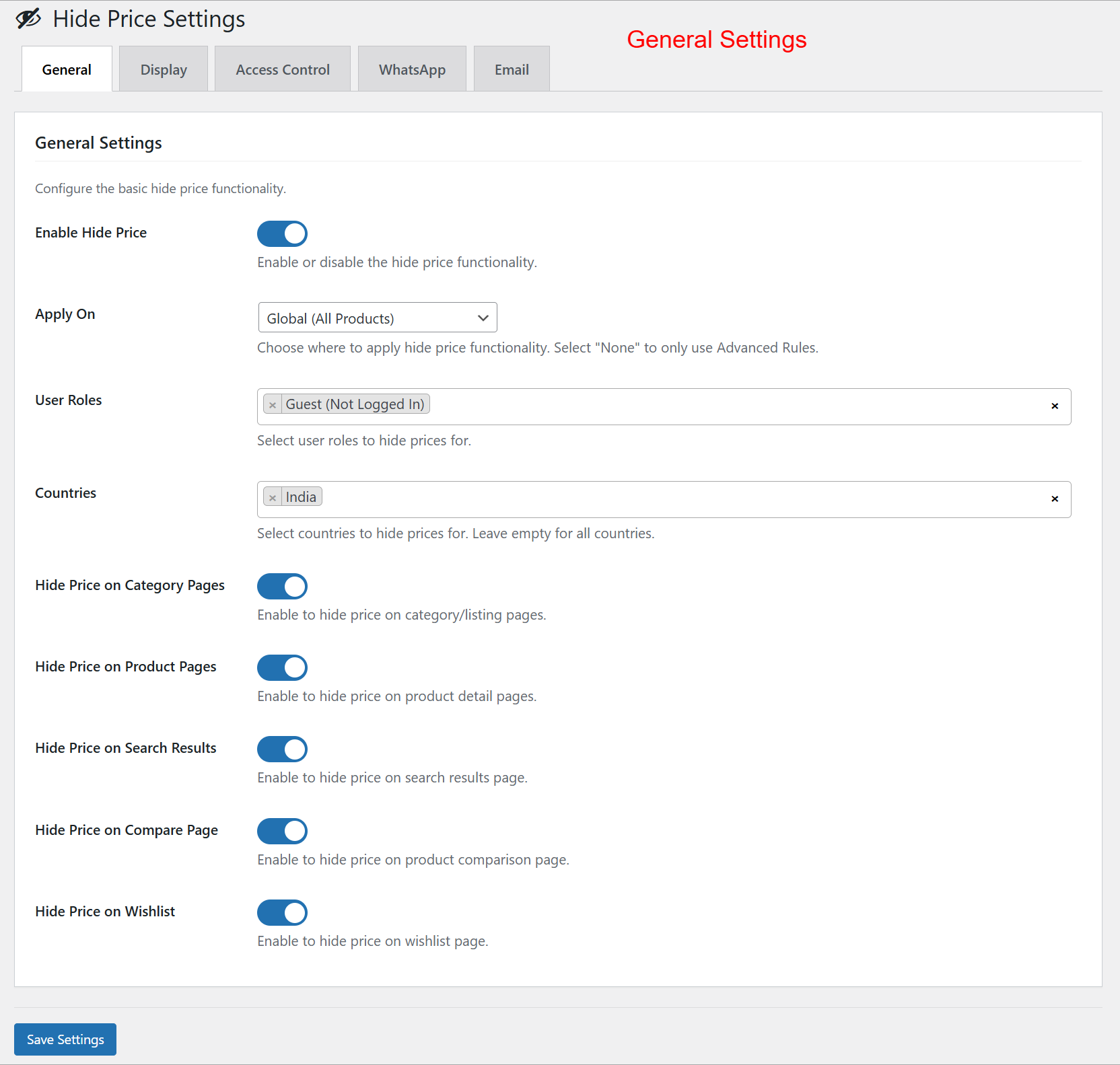
wp-admin: General Settings for WC Hide Price
What this shows: Settings for enabling the hide price feature globally, selecting user roles and countries, and toggling price visibility on different page types.
In the General Settings tab, you can enable the hide price functionality across your website. Choose to apply this setting globally or under specific conditions. Select user roles and countries for which prices should be hidden. These configurations help in managing price visibility effectively on various page types, ensuring a customized user experience.
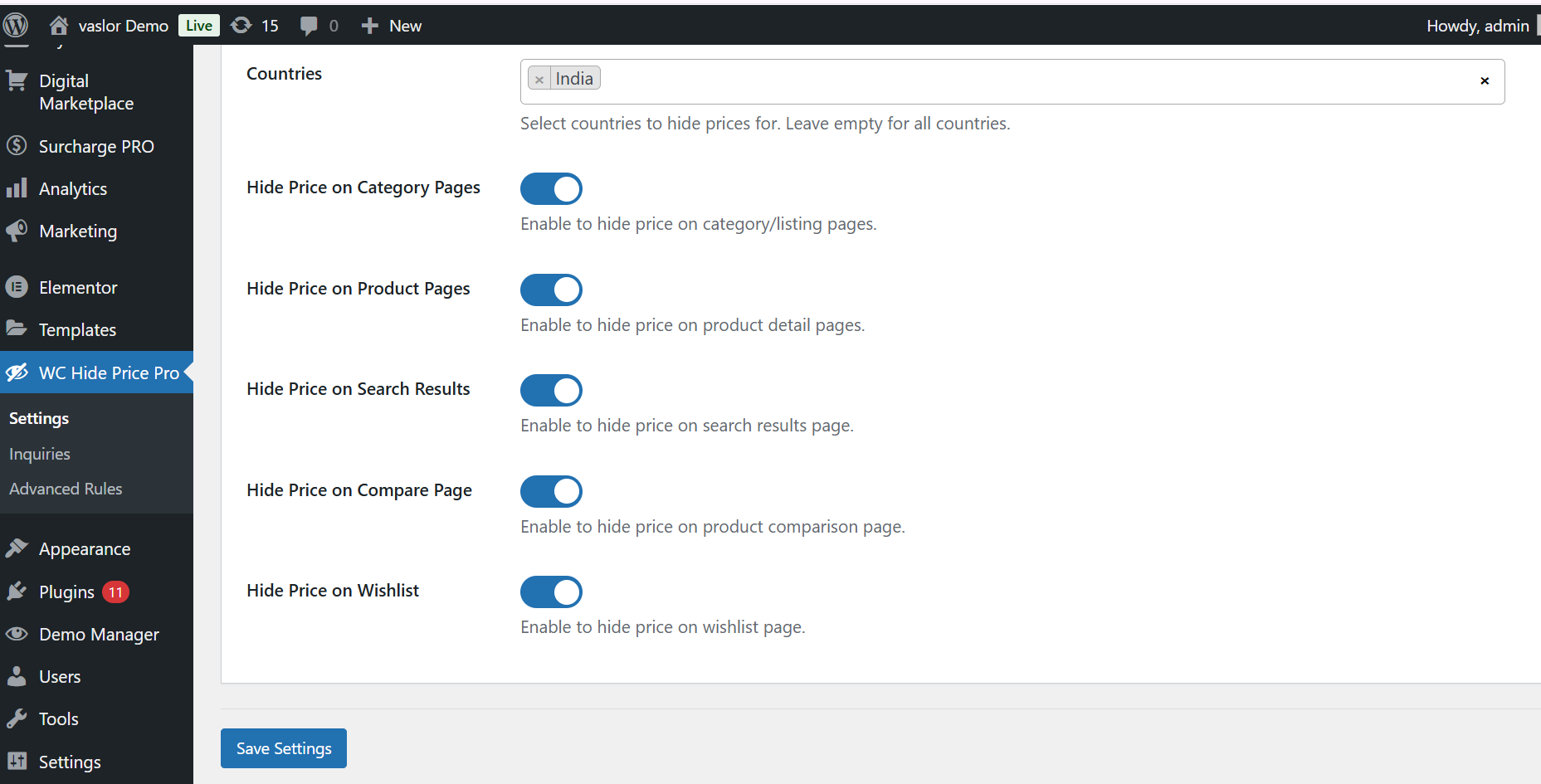
wp-admin: WC Hide Price Country Selection
What this shows: A list of countries for which prices can be hidden, along with toggles for price visibility on various WooCommerce pages.
Set the specific countries where you want the prices to be hidden. This screen also allows you to enable or disable price visibility across several types of pages, such as category listings or search results, ensuring precise control over who sees product prices based on geographic location.
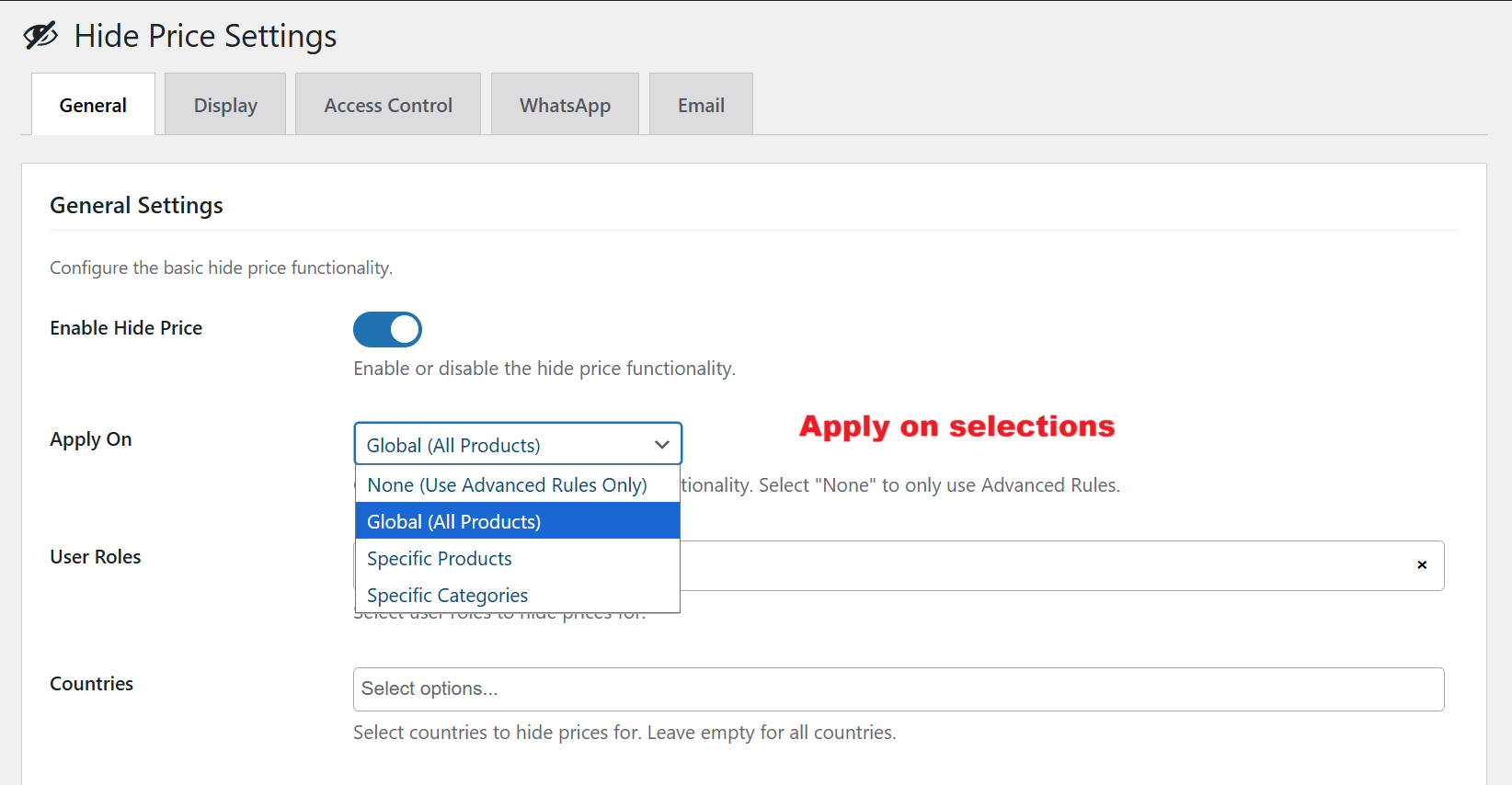
wp-admin: Apply On Options in General Settings
What this shows: Dropdown menu for selecting where to apply the hide price functionality—globally, on specific products, or categories.
The ‘Apply On’ selection provides flexibility in determining the scope of the hide price feature. Choose whether to implement this globally across all products or limit it to specific categories or items, allowing for tailored pricing strategies that align with your business model.
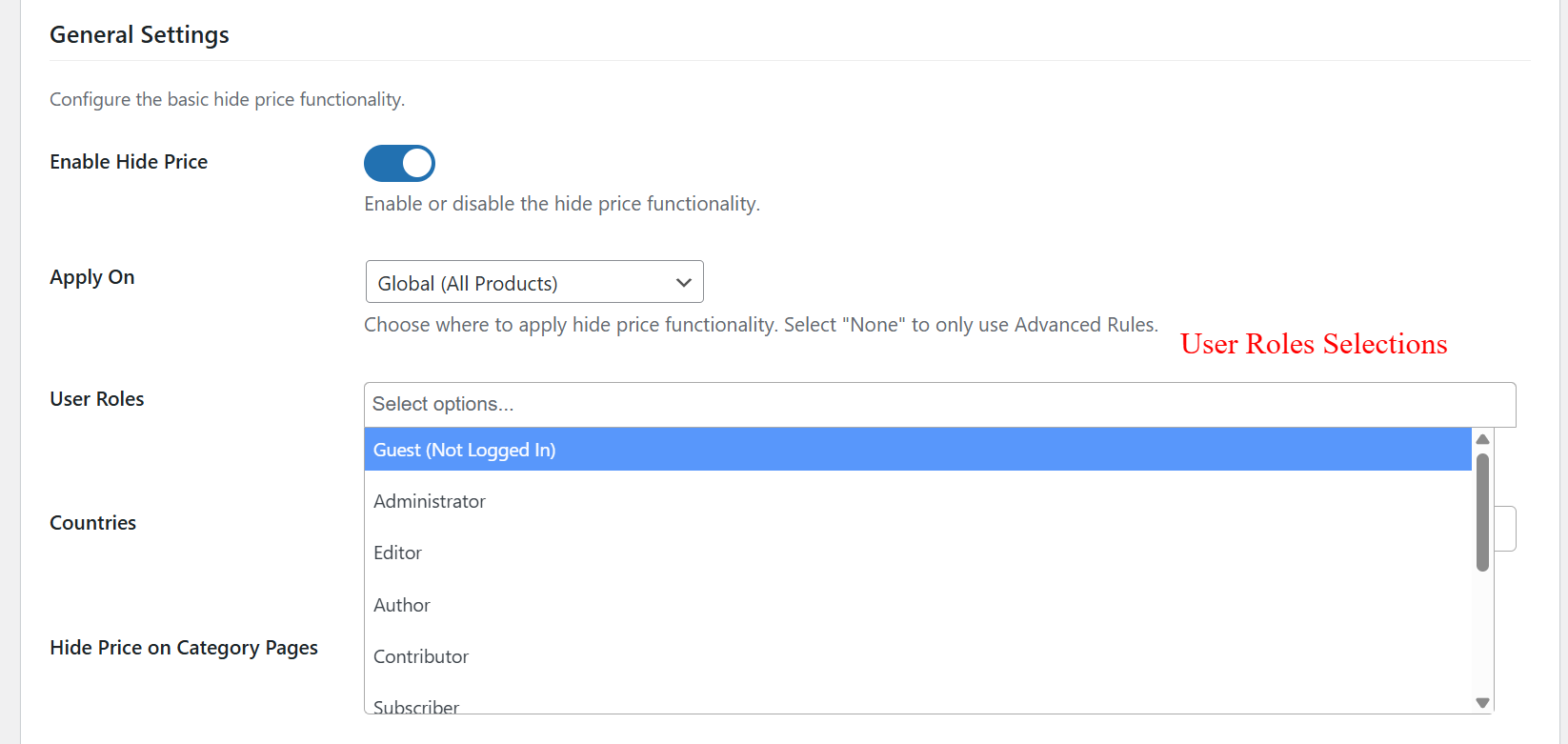
wp-admin: User Role Selection for Hide Price
What this shows: Dropdown for selecting user roles such as Guest, Administrator, Editor, etc., for whom prices should be hidden.
The User Roles selection lets you specify which user groups will be affected by the hide price functionality. This feature is crucial for businesses that need to provide differentiated pricing access levels, ensuring users only see what’s intended for their role, such as hiding prices from guests but showing them to logged-in members.
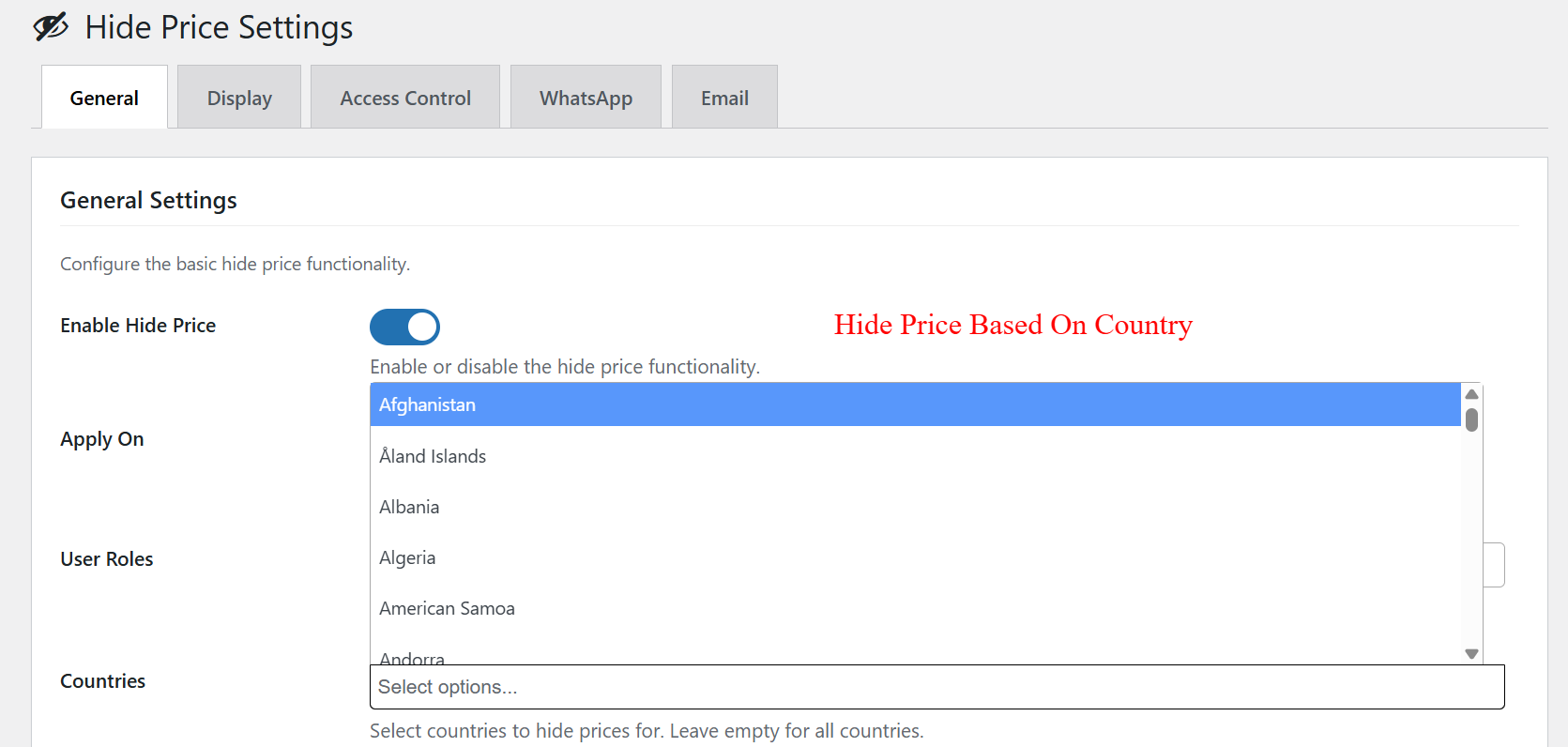
wp-admin: Country-Based Hide Price Configuration
What this shows: Dropdown for selecting countries where prices should be hidden, featuring a comprehensive list for selection.
Use the Country Selections dropdown to control price visibility based on geographical location. Selecting specific countries where prices should be hidden allows you to customize product presentation and pricing access, accommodating regional pricing policies or promotions.
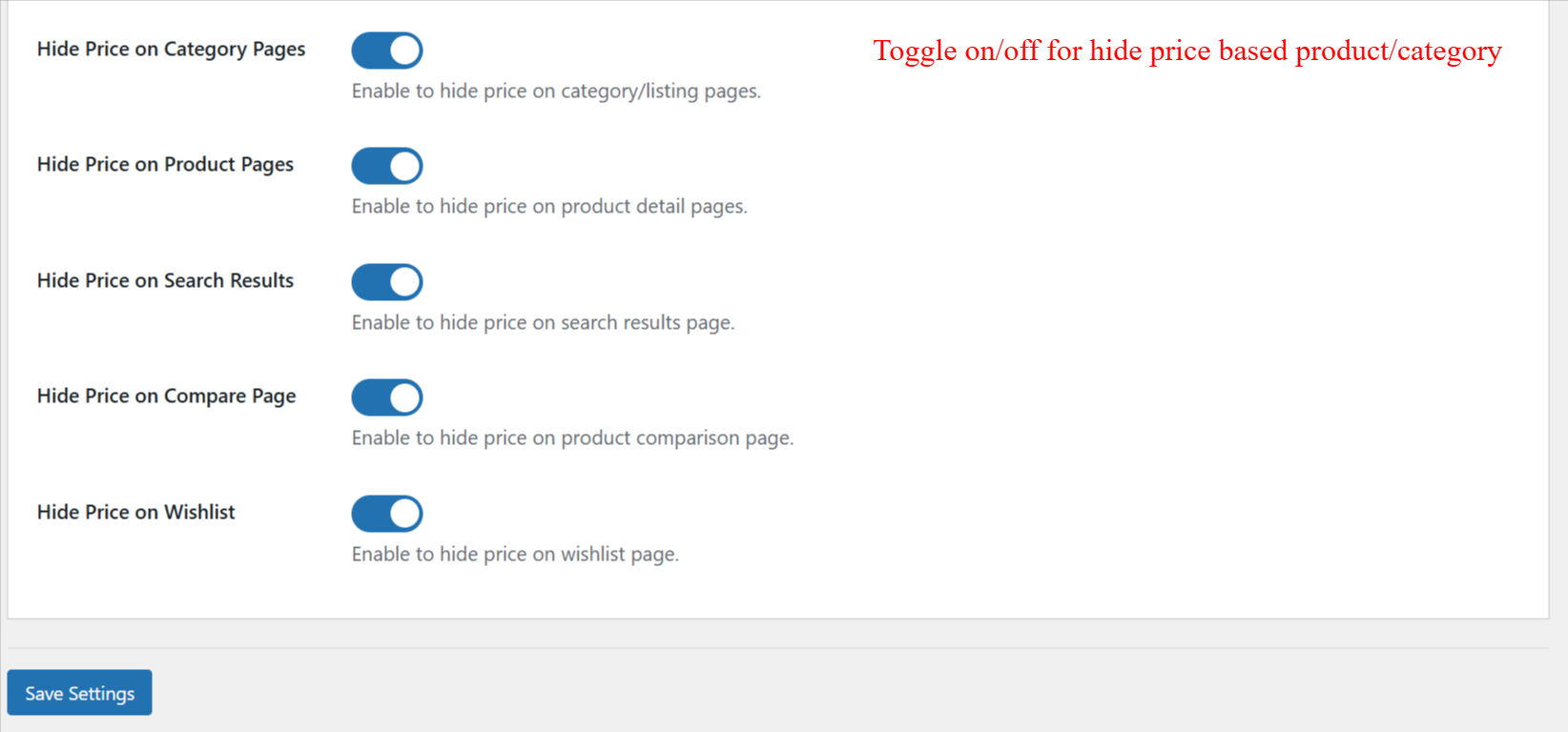
wp-admin: Toggle Settings for Price Visibility
What this shows: Toggles for enabling or disabling price visibility across different WooCommerce pages.
The Toggle Settings section allows you to manage where product prices are visible on your WooCommerce site, including category pages, product pages, search results, and more. This granular control helps you optimize user experience and meet business objectives, such as withholding prices to encourage direct contact or inquiries.
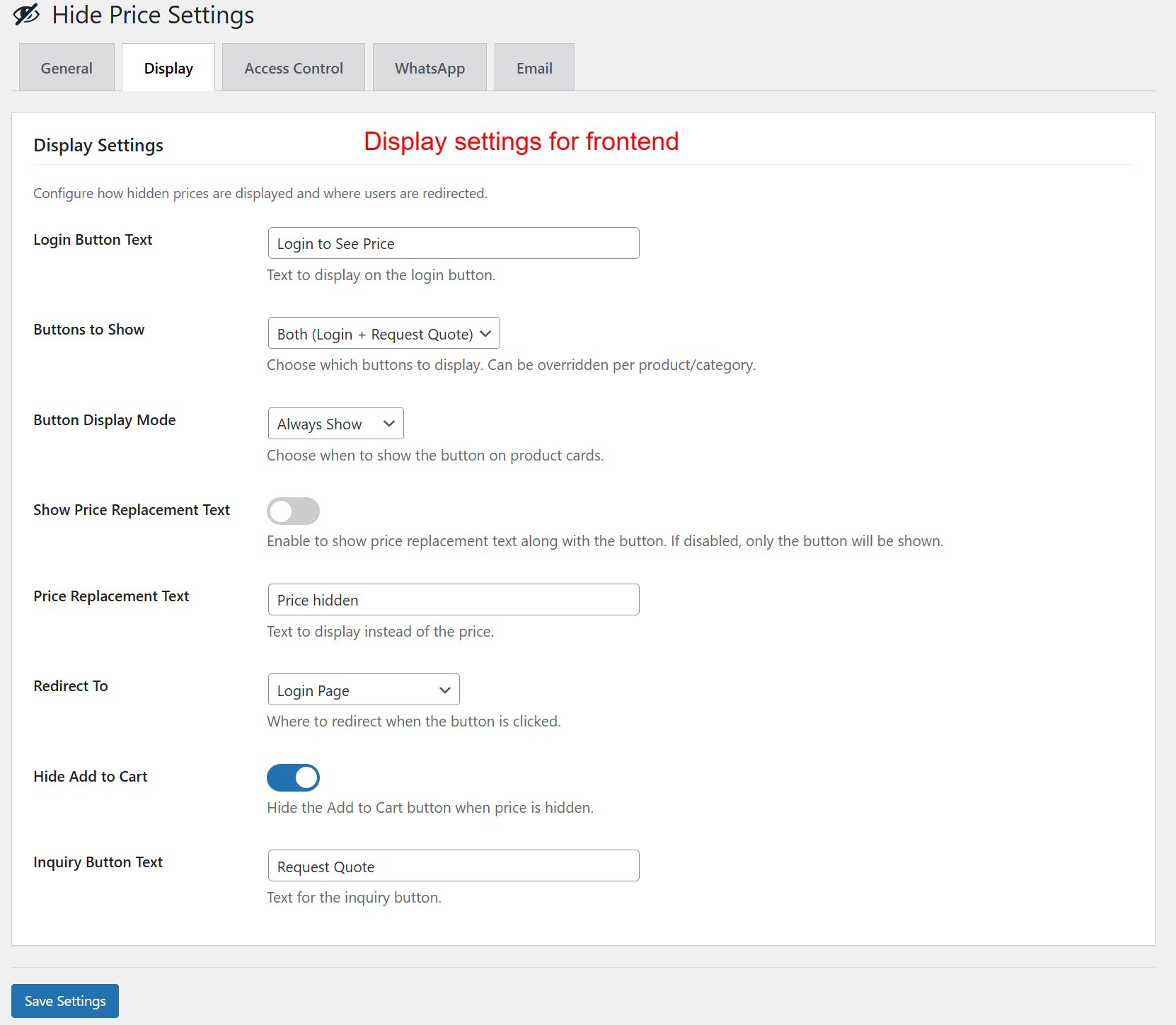
wp-admin: Display Settings > Frontend Configuration
What this shows: This screenshot shows fields for configuring display settings such as ‘Login Button Text’, ‘Buttons to Show’, ‘Button Display Mode’, ‘Price Replacement Text’, and toggles like ‘Show Price Replacement Text’ and ‘Hide Add to Cart’.
In this section, administrators define how prices and buttons are presented to users. Options include customizing the login button text, deciding which buttons to display (login, request quote, or both), and whether to replace prices with a placeholder text. This configuration is essential for tailoring the plugin to fit the visibility requirements of various pricing strategies.
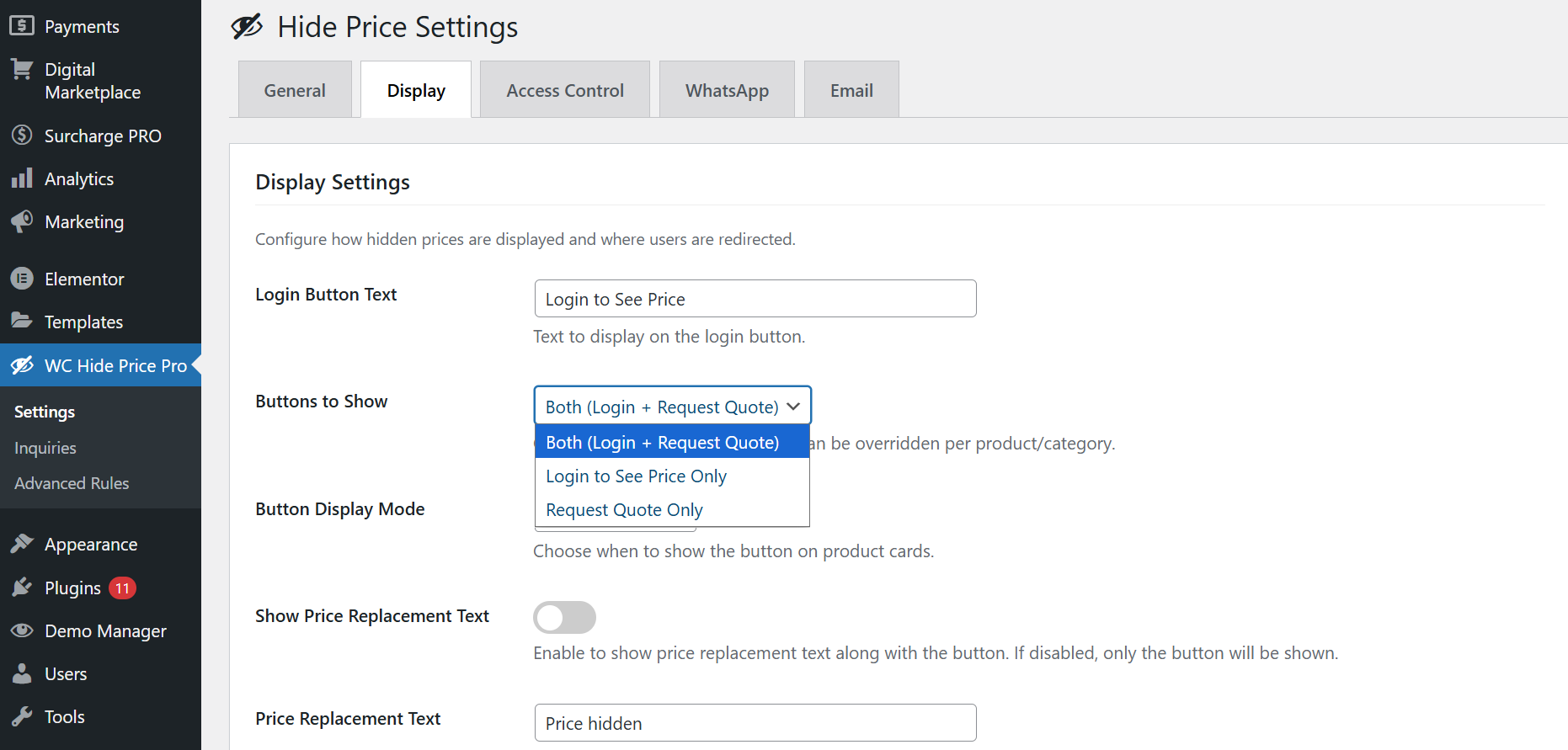
wp-admin: Display Settings > Button Options
What this shows: This screenshot highlights a dropdown for selecting ‘Buttons to Show’, with options for showing both login and request quote buttons, or either one individually.
Here, users can choose visibility options for interacting with hidden prices. The selection affects whether customers see options to log in, request a quote, or both, customizable at a global or per-product level. This allows businesses to tailor user interactions based on their operational needs, such as B2B communication protocols.
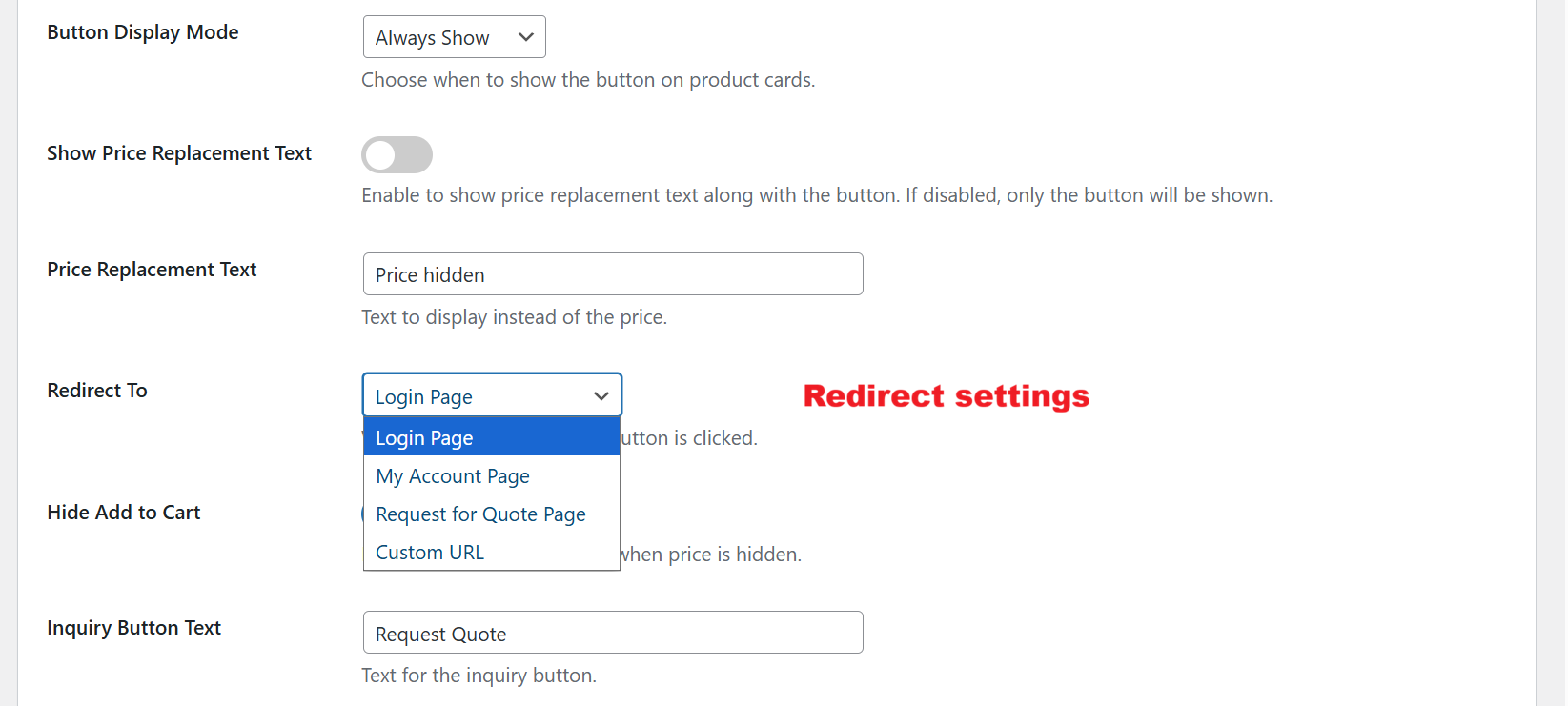
wp-admin: Redirect Settings > Button Click Behavior
What this shows: This image displays the ‘Redirect To’ dropdown where admins configure the page users are sent to upon button click, with options ranging from ‘Login Page’ to a ‘Custom URL’.
The redirect settings enable administrators to guide customer journeys by defining specific pages they should visit after interacting with buttons. By redirecting users to a login page or a custom URL, businesses can manage user flow and enhance navigation tailored to customer roles and needs.
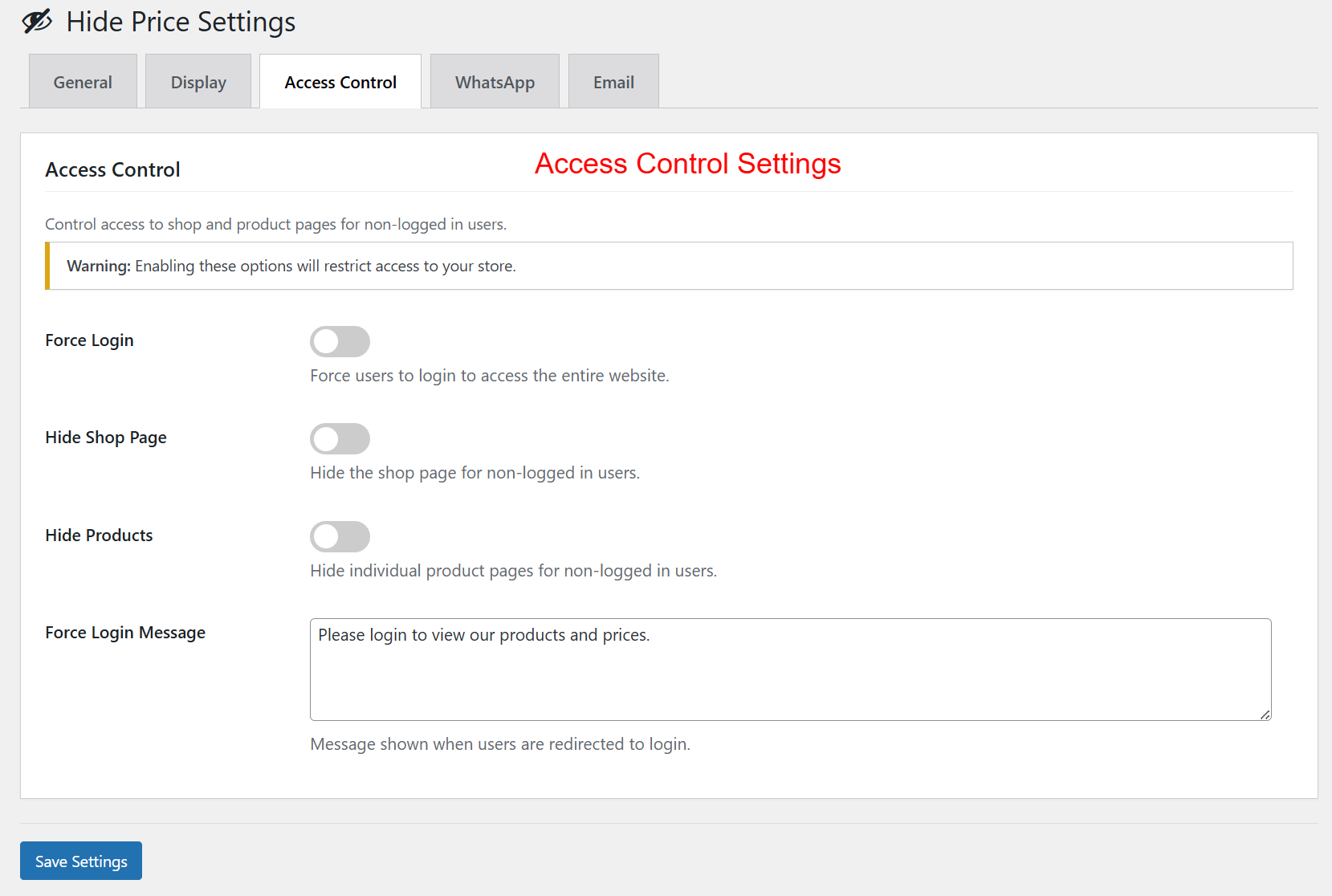
wp-admin: Access Control Settings > User Permissions
What this shows: This screenshot features toggle switches for ‘Force Login’, ‘Hide Shop Page’, and ‘Hide Products’ along with an input for ‘Force Login Message’.
This settings page is where admins control access levels for non-logged-in users, setting restrictions on viewing the shop and product pages. By enabling these controls, businesses can ensure sensitive pricing information is protected, while the message field allows customization of prompts to guide users toward login requirements.
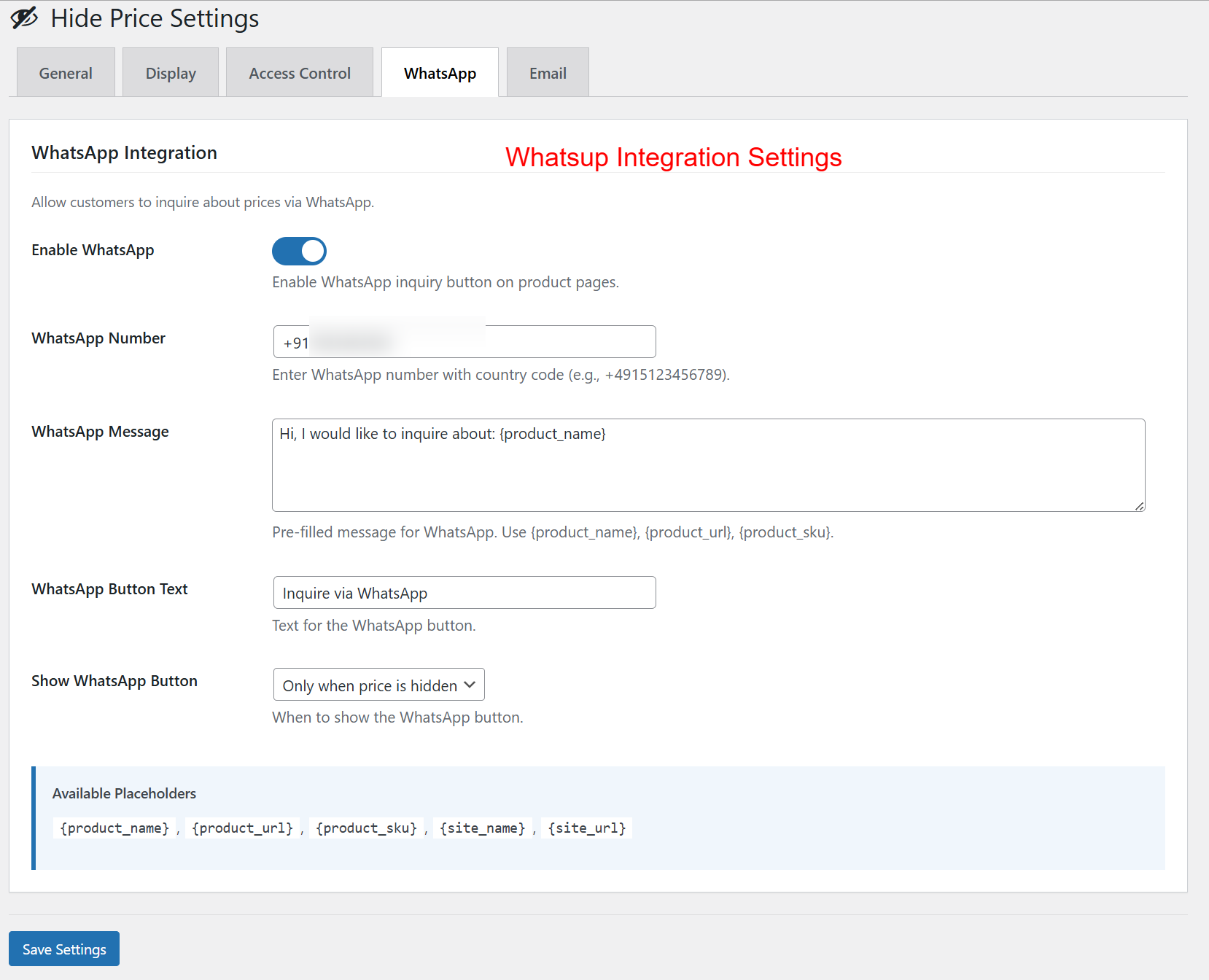
wp-admin: WhatsApp Integration Settings
What this shows: Displays settings for enabling WhatsApp inquiries, including fields for WhatsApp number, message template, and button text.
The WhatsApp Integration settings allow administrators to facilitate inquiries directly through WhatsApp. By specifying a contact number and customizing the inquiry message, businesses can leverage a popular communication channel to enhance customer support and streamline quote requests, especially when prices are hidden.
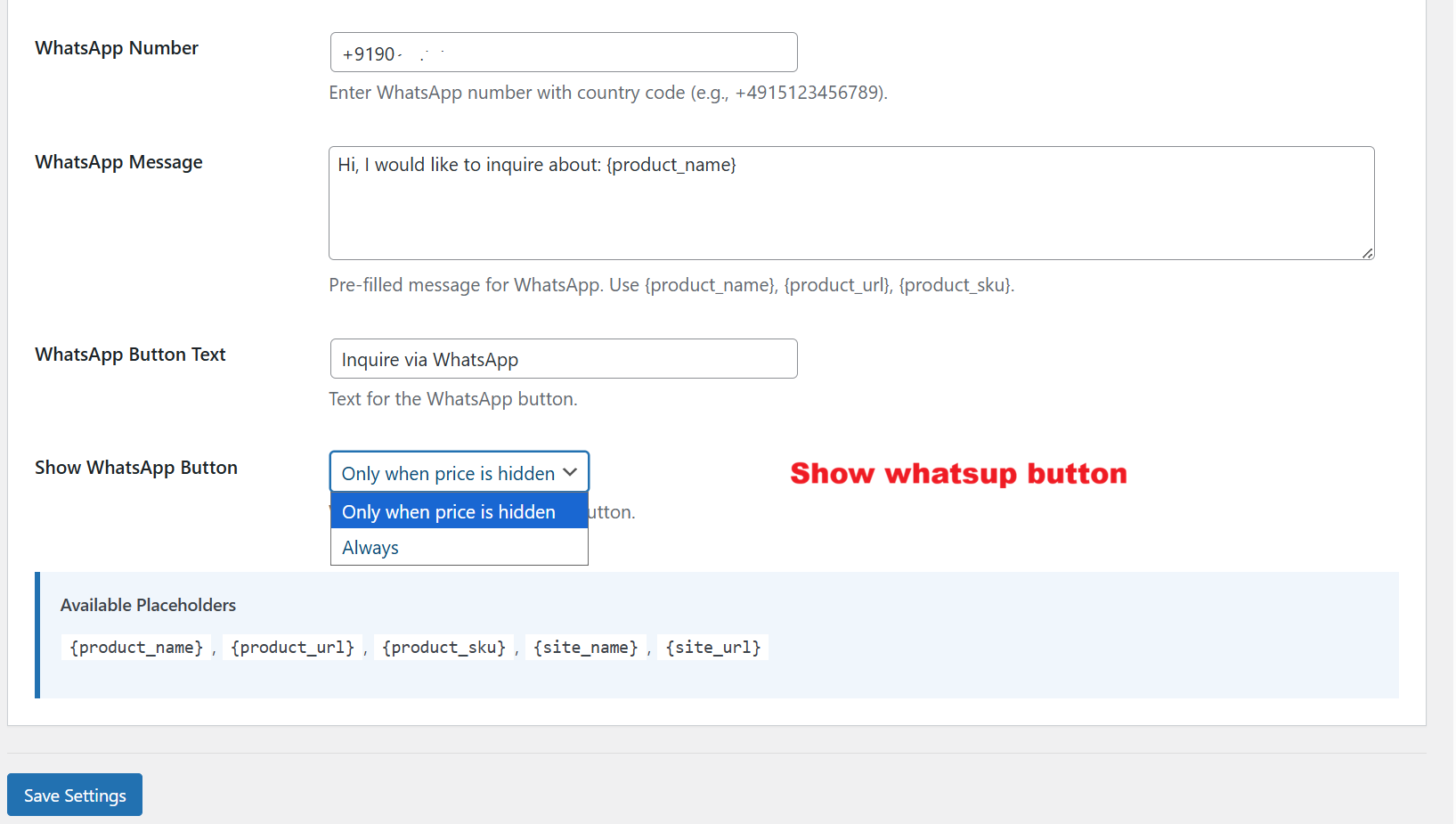
wp-admin: Show WhatsApp Button Options
What this shows: This screenshot shows the ‘Show WhatsApp Button’ dropdown, offering conditions like ‘Only when price is hidden’ or ‘Always’.
Admins can specify when the WhatsApp button is visible to customers. This allows the business to control interactions based on pricing visibility, ensuring that inquiry options are strategically offered to maximize customer engagement and streamline communication in accordance with pricing policies.
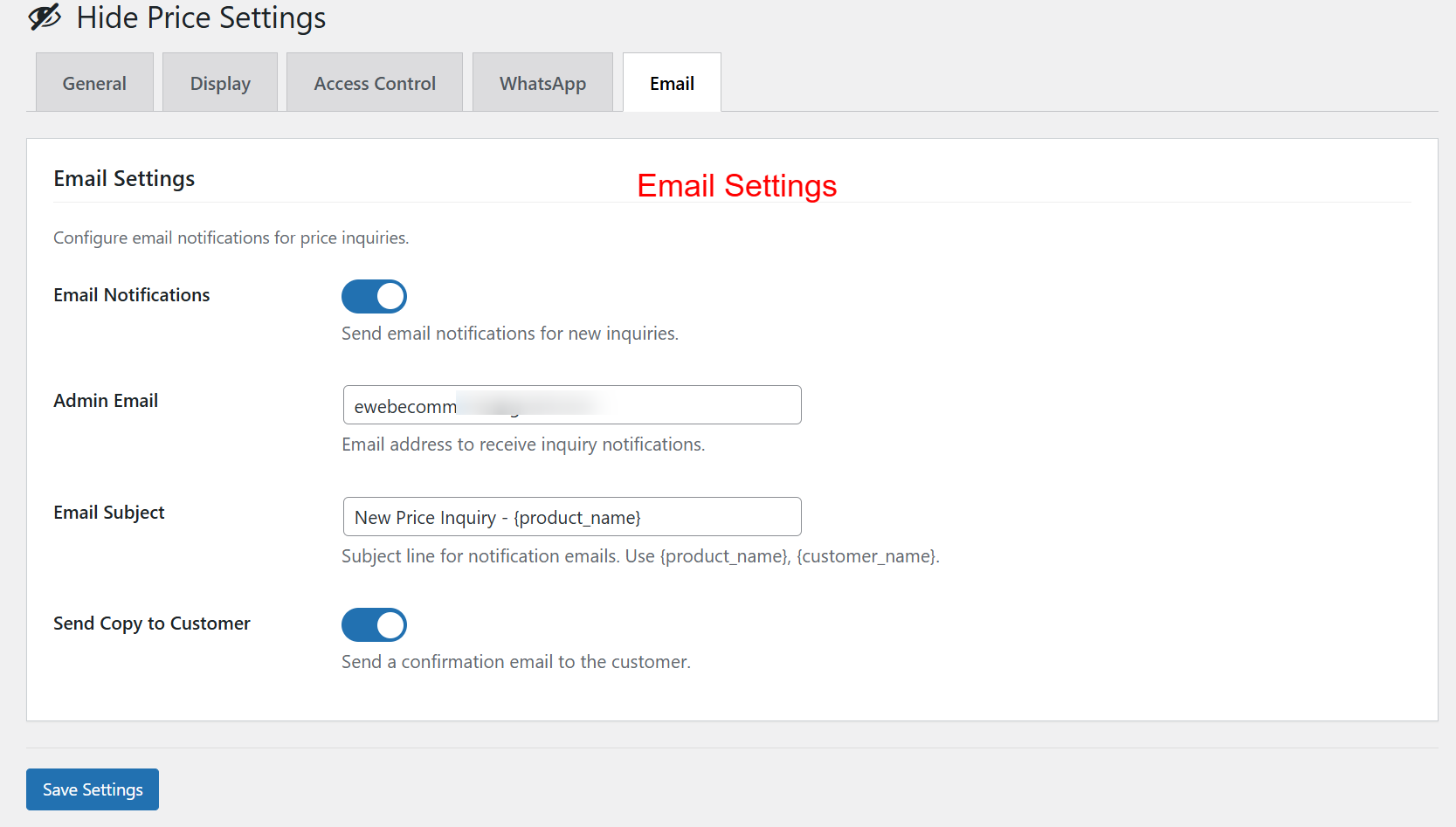
wp-admin: Email Settings > Inquiry Notifications
What this shows: Displays options to configure email notifications, including toggles for email notifications, designated admin email, email subject customization, and option to send a copy to the customer.
In this section, administrators set up email alerts for price inquiries, ensuring timely communication with customers and internal teams. By configuring the recipient’s email and modifying the subject line, businesses can personalize notifications to maintain a professional and effective communication channel.
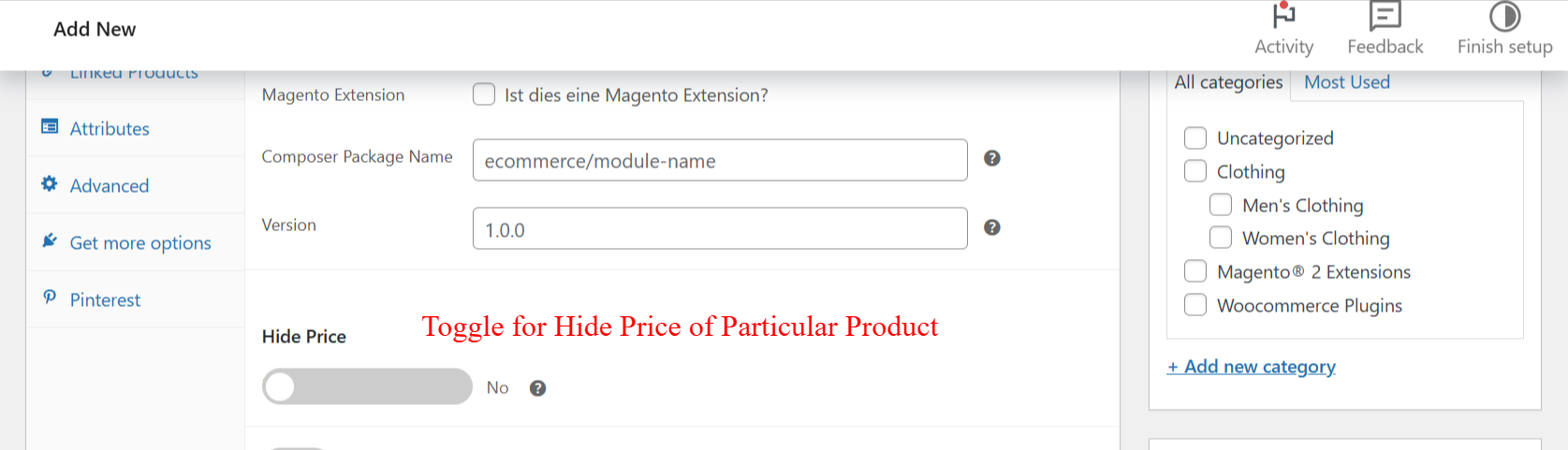
wp-admin: Product Settings > Hide Price Toggle
What this shows: Shows an individual product setting with a toggle to hide the price, alongside other product-specific settings.
This setting provides the option to hide prices on a per-product basis, granting fine-grained control over product visibility. It is essential for businesses that need to manage specific pricing strategies that vary across different products, such as promoting direct customer inquiries for customized quotes.
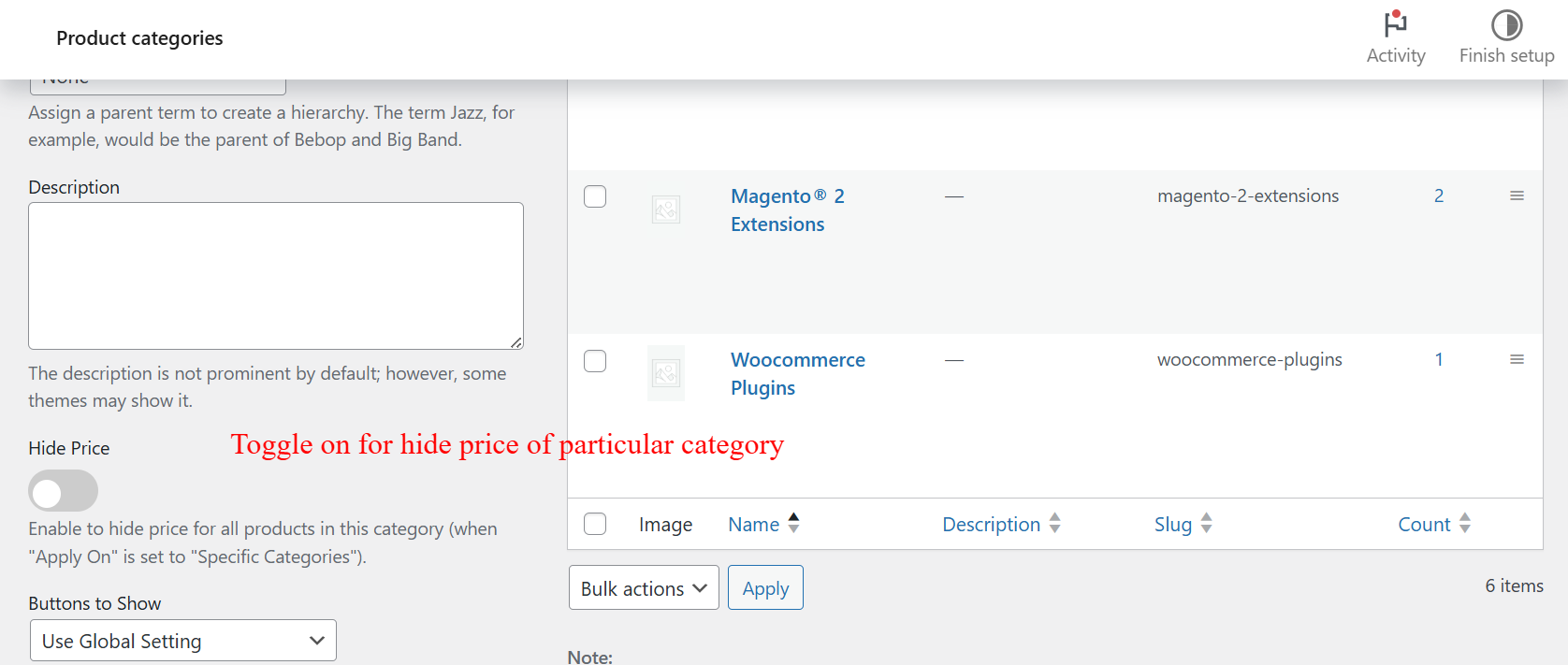
wp-admin: Product Categories > Hide Price Settings
What this shows: This screen shows a product categories list with options to toggle the ‘Hide Price’ setting for each category. It includes a ‘Hide Price’ toggle switch and a ‘Buttons to Show’ dropdown menu.
On this screen, an admin can decide whether to hide prices for all products within a specific category. By default, prices are visible, and this setting allows them to be hidden based on the category. Users can toggle the ‘Hide Price’ switch to enable or disable this feature for each category, which is useful for targeting specific customer groups or regions.
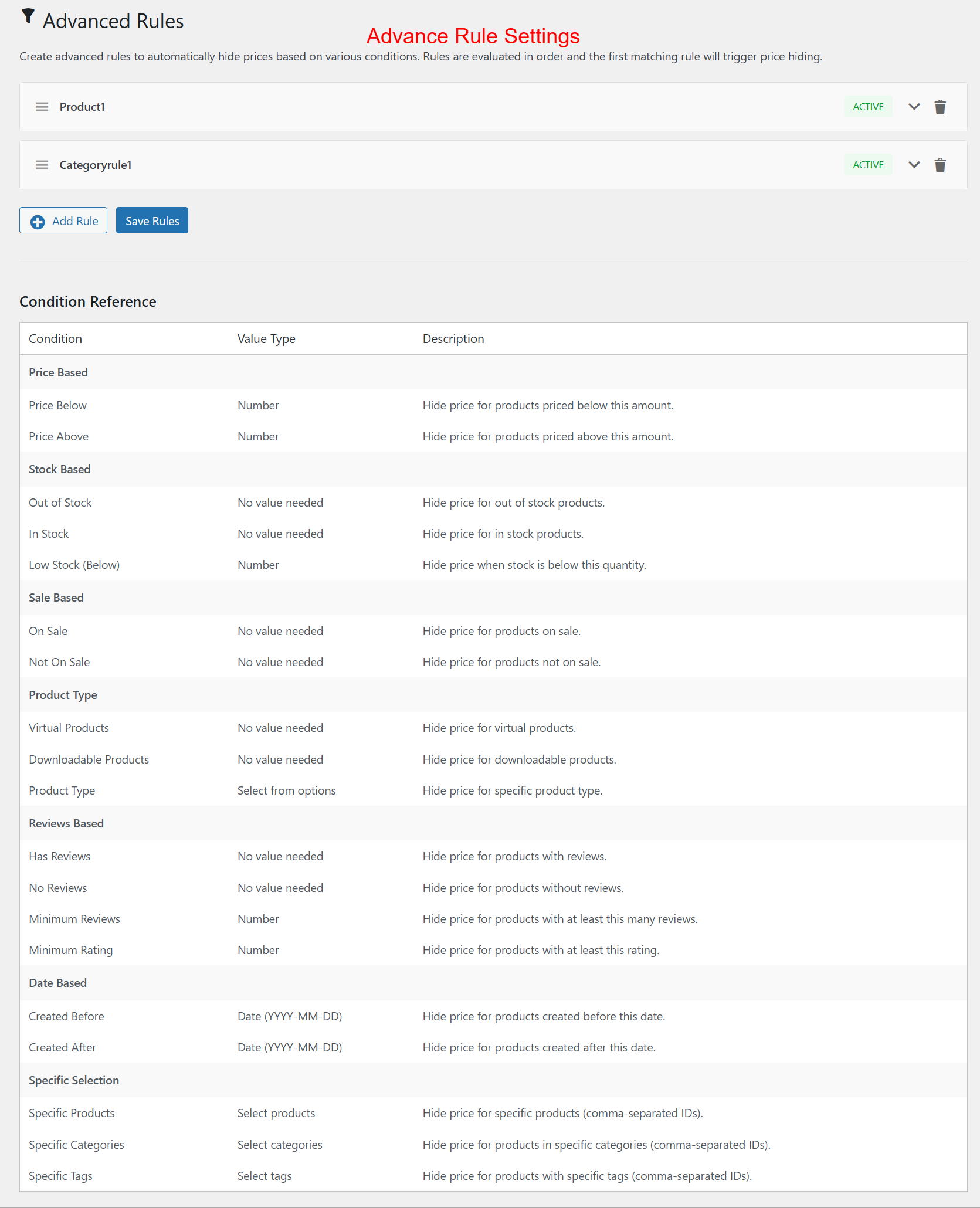
wp-admin: Advanced Rules > Rule Settings Overview
What this shows: This screen displays the Advanced Rules settings where various conditions for hiding product prices can be defined. It includes a list of existing rules and buttons for adding new rules.
The Advanced Rules screen provides a comprehensive interface for managing how and when product prices are hidden. Admins can add new rules that apply conditional logic to price visibility. Understanding these rules is critical for businesses that need to apply different pricing strategies under various conditions.
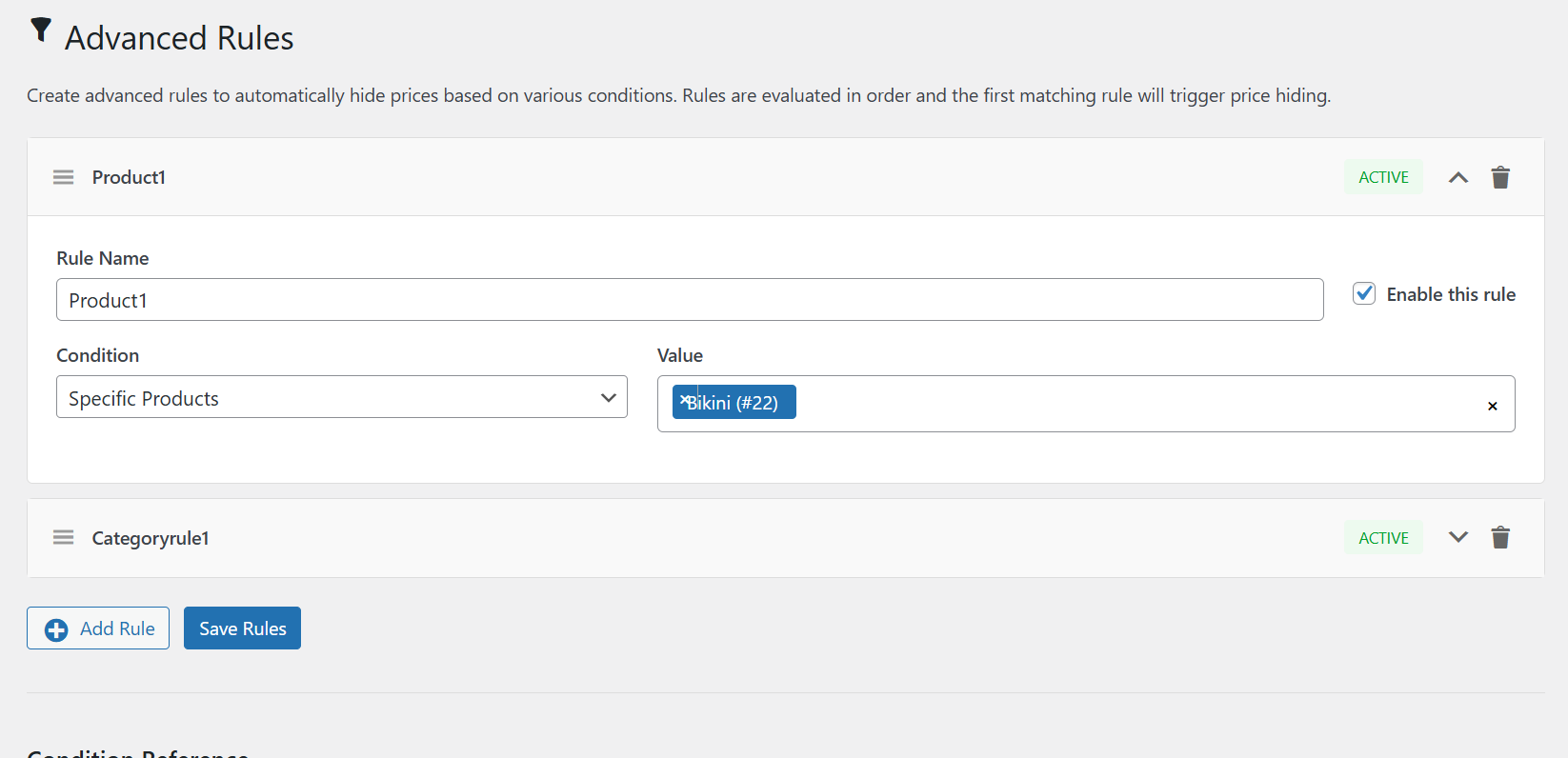
wp-admin: Advanced Rules > Create New Rule
What this shows: This screen shows the process of creating a new advanced rule with ‘Rule Name’, ‘Condition’, and ‘Value’ fields. It allows enabling or disabling the rule using a checkbox.
Admins use this interface to create new rules that manage price visibility. By selecting specific conditions such as ‘Specific Products’, they can tailor rules to fit business needs. This feature is crucial for dynamically controlling price visibility, which can be a significant competitive advantage.
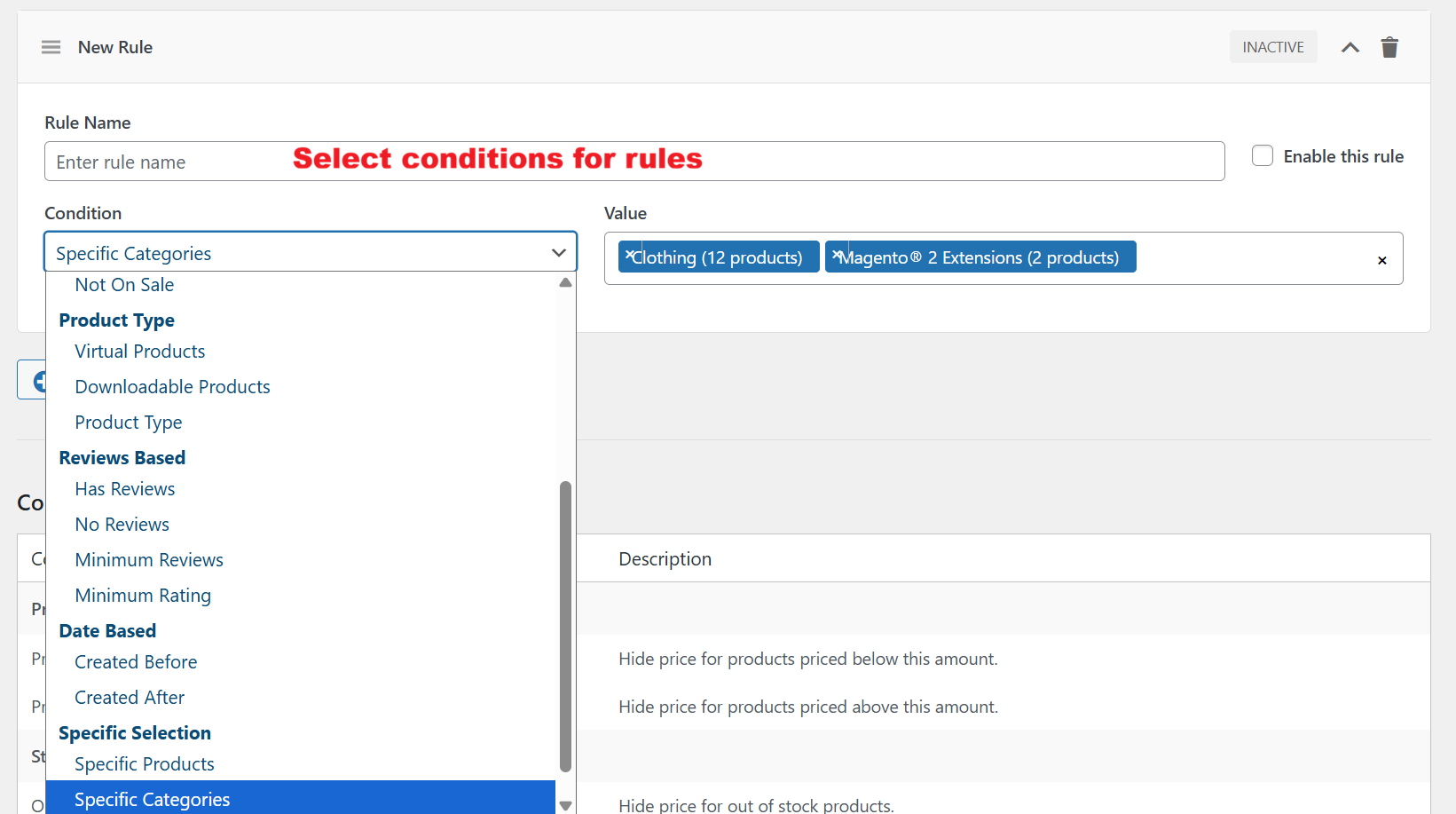
wp-admin: Advanced Rules > Condition Selection
What this shows: A drop-down menu displaying various conditions such as ‘Specific Categories’, ‘Product Type’, and ‘Reviews Based’ for configuring rules.
This screen allows admins to select from a list of conditions which determine under what circumstances a product’s price will be hidden. Each condition enables more refined control, essential for businesses with diverse product lines or pricing needs.
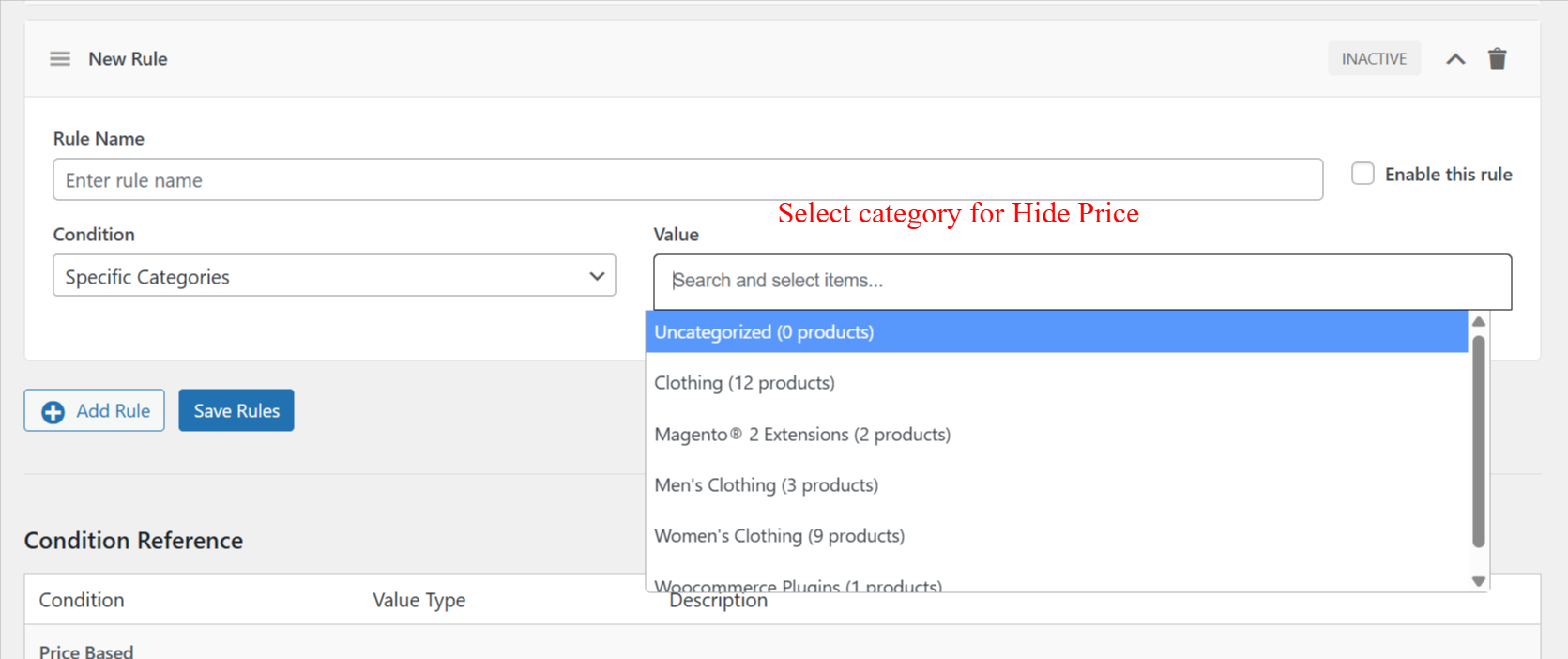
wp-admin: Advanced Rules > Category Selection
What this shows: A searchable and scrollable list of product categories, allowing selection for the ‘Specific Categories’ condition setting of a rule.
Admins can select categories for which price hiding rules apply, using this interface. This capability is invaluable for special promotions or exclusive sales strategies, targeting specific product lines without altering global settings.
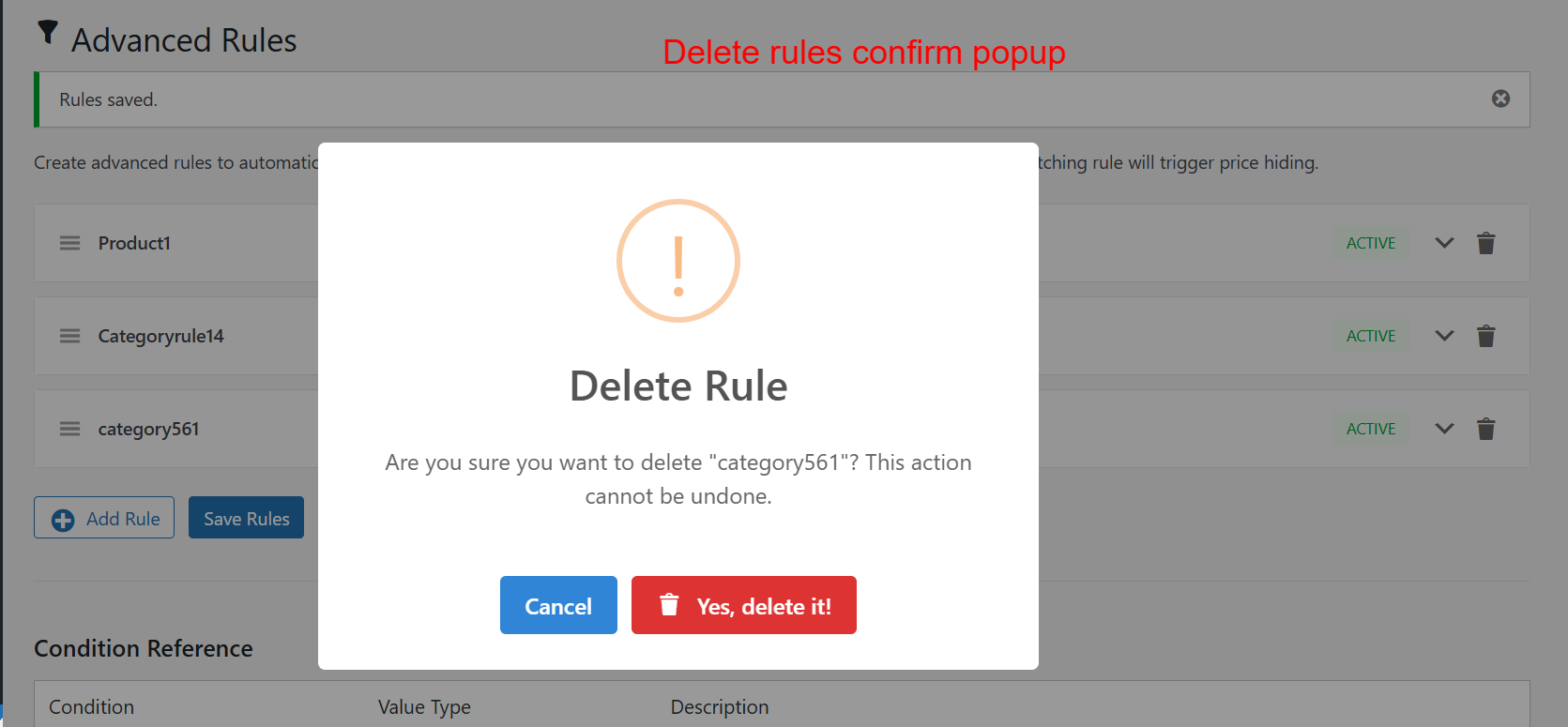
wp-admin: Advanced Rules > Delete Rule Confirmation
What this shows: A popup confirmation for deleting a rule, with options to ‘Cancel’ or ‘Yes, delete it!’
The delete confirmation popup protects against accidental removal of important pricing rules. By requiring admin verification before deletion, this feature ensures that crucial pricing mechanisms aren’t lost inadvertently, maintaining control over product visibility.
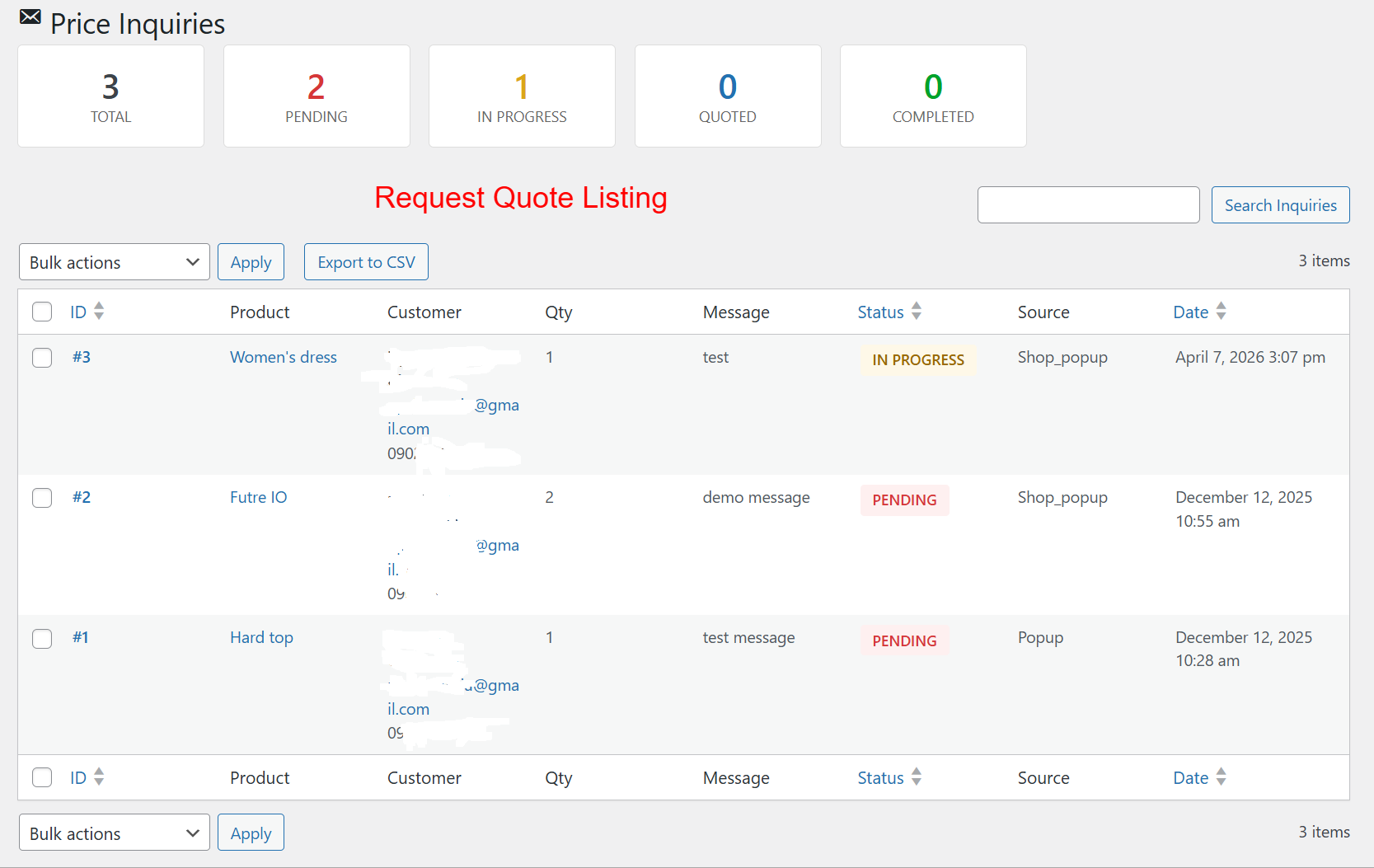
wp-admin: Price Inquiries > Request Quote Listing
What this shows: List view of price inquiries received, showing ID, Product, Customer, Quantity, Message, Status, Source, and Date.
This screen provides a comprehensive overview of all incoming price inquiries. Admins can manage and track the status of each quote request. Efficient management of this list ensures timely responses to potential customers, supporting fluid business operations.
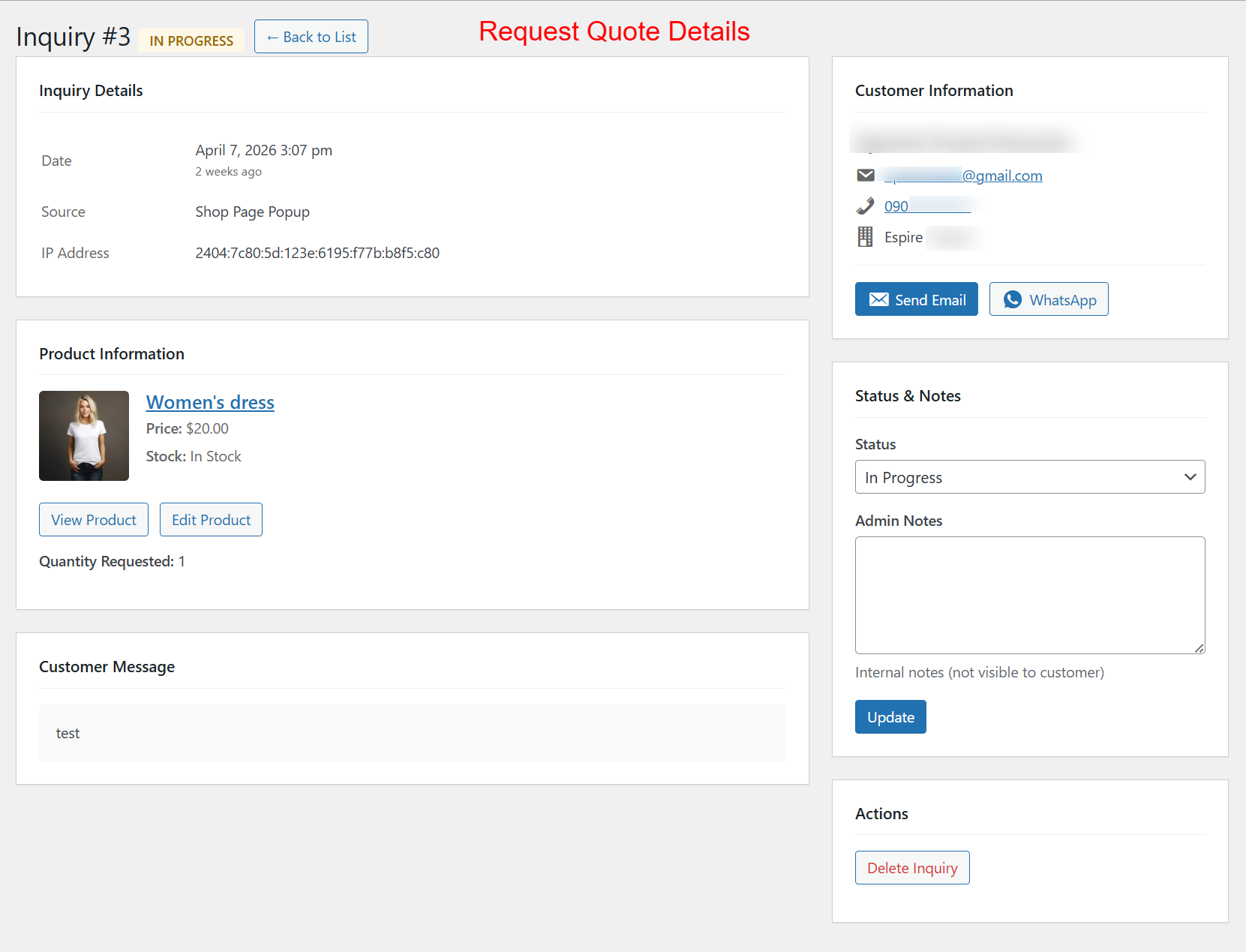
wp-admin: Price Inquiries > Request Quote Details
What this shows: Detail view for a specific inquiry including Inquiry Details, Product Information, Customer Information, Status & Notes, with options to send an email or message via WhatsApp.
Admins use this detailed view to process individual price inquiries. It allows them to review request details, update status, and directly communicate with the customer via email or WhatsApp. The ability to update and manage this information centrally assists in fostering customer relationships and ensuring proposals are handled efficiently.
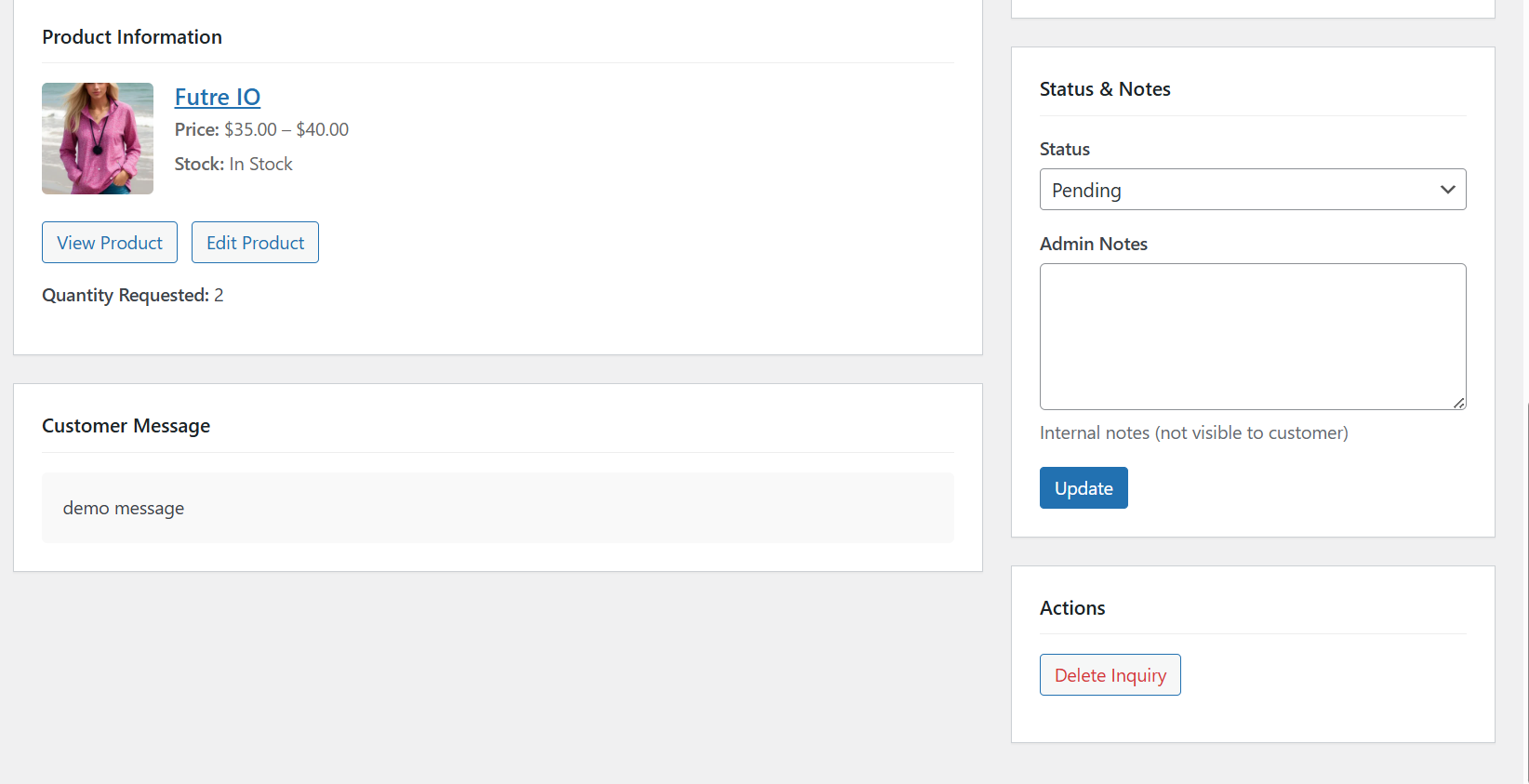
wp-admin: Advanced Request for Quote Reply
What this shows: Admin interface showing product information, customer messages, and a status update section with a dropdown. Includes buttons for ‘View Product’, ‘Edit Product’, and ‘Delete Inquiry’.
In this admin screen, you can review and respond to customer inquiries about product quotes. You have options to update the inquiry status, add internal admin notes, and delete inquiries if necessary. This feature streamlines communication with customers by centralizing quote requests and processing them efficiently.
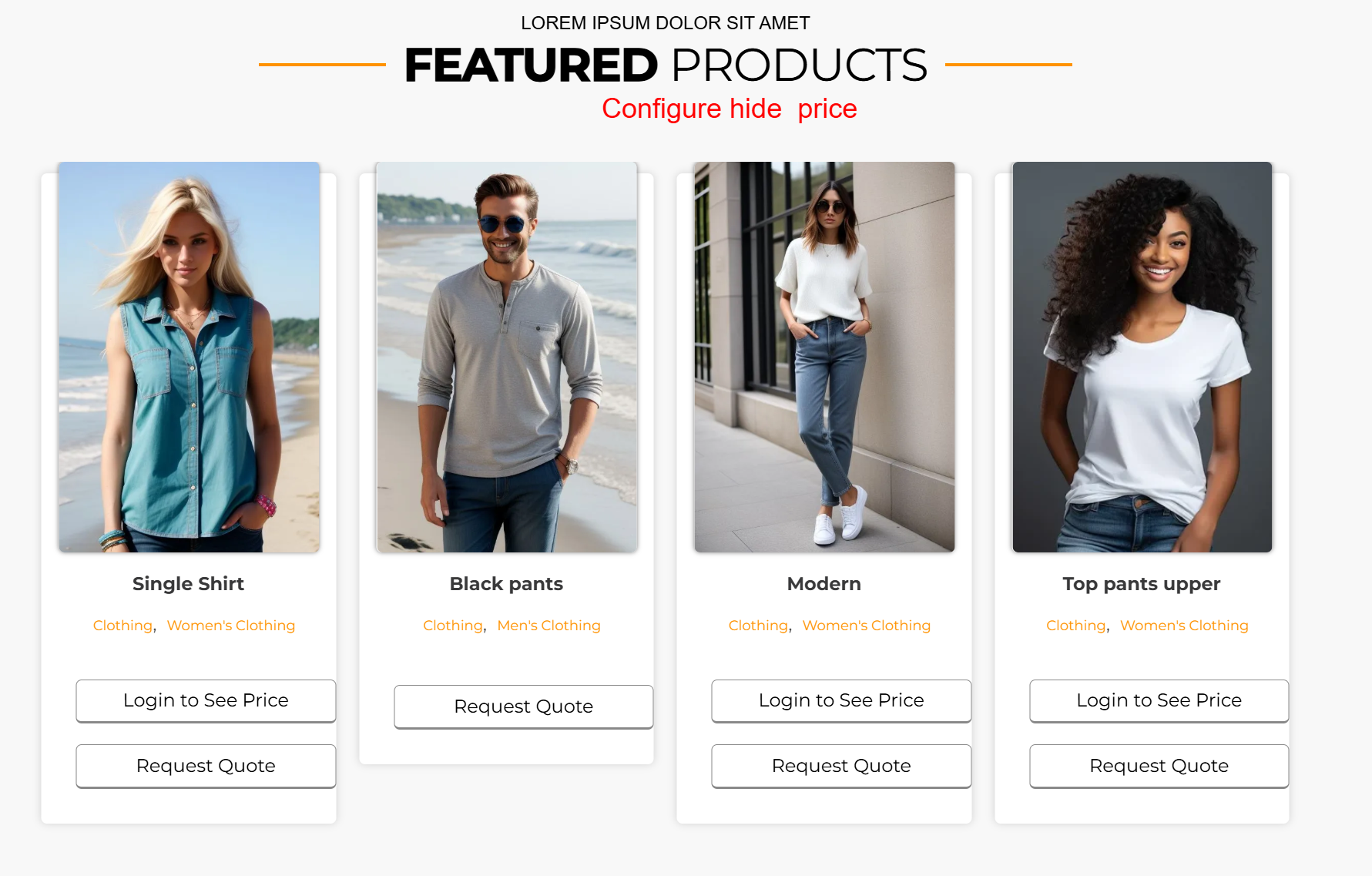
Shopfront: Login to See Price / Quote
What this shows: Product listing page showing items with a ‘Login to See Price’ or ‘Request Quote’ button below each product.
This front-end shop display hides the product prices from unlogged users, encouraging them to log in for price visibility or to request a quote. Such functionality helps retailers customize their pricing strategy and collect potential customer information through the login and quote request actions.