Configuration Walkthrough
Activate the Plugin
In the WordPress Dashboard, navigate to Plugins → Installed Plugins. Find WC Hide Price Pro in the list and click Activate. This activates the plugin and enables its features site-wide.

In the WordPress admin panel, navigate to the Plugins section to view all installed plugins. Here, you can activate or deactivate the WC Hide Price Pro plugin. Access additional configuration options or visit the plugin’s site for more information. This is essential to ensure the plugin is set up and active for use.
Access General Settings
Go to Hide Price → Settings. In the General Settings tab, toggle the Enable Hide Price feature to activate global settings. Adjust visibility according to user roles and countries.
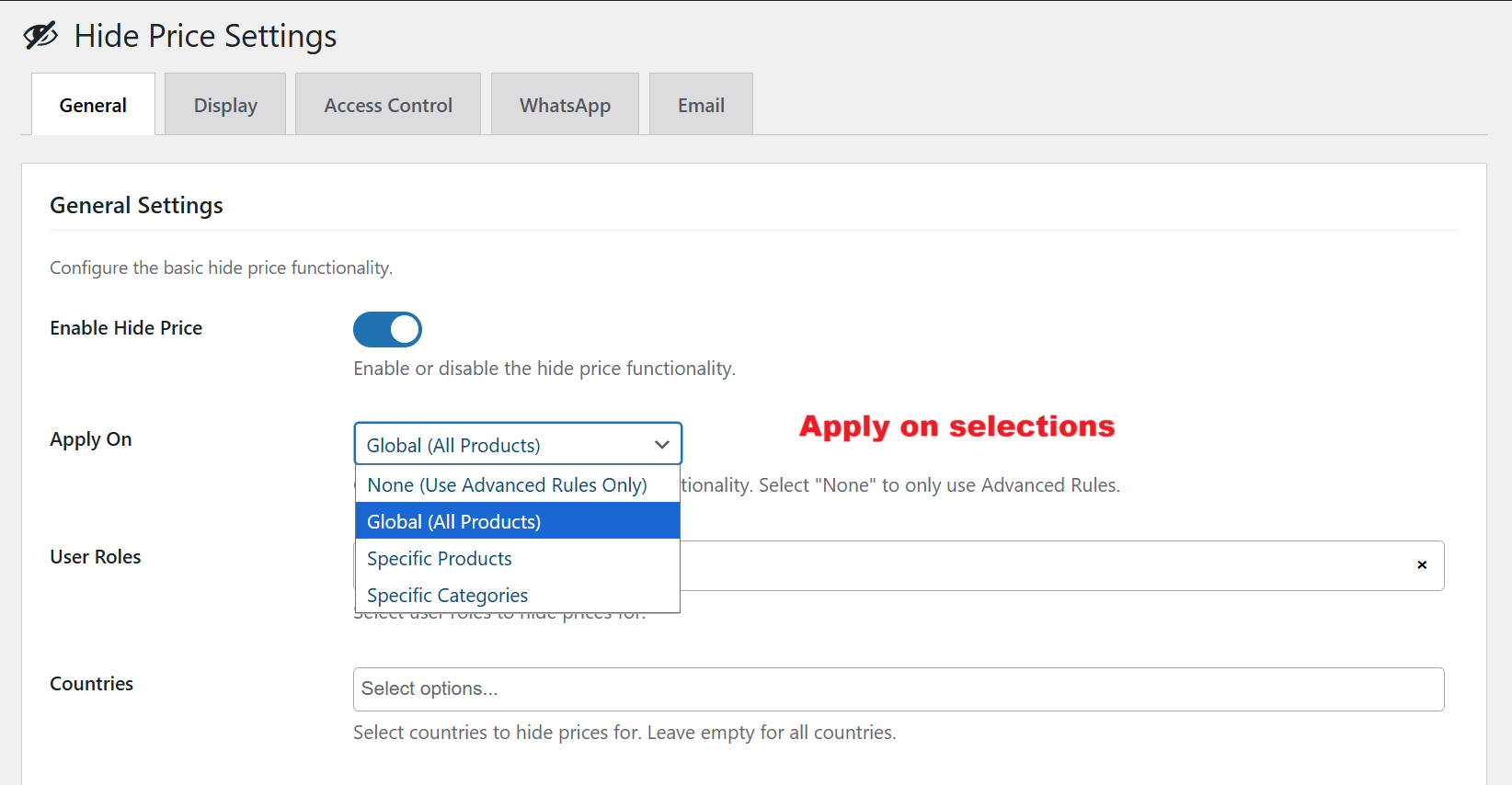
The ‘Apply On’ selection provides flexibility in determining the scope of the hide price feature. Choose whether to implement this globally across all products or limit it to specific categories or items, allowing for tailored pricing strategies that align with your business model.
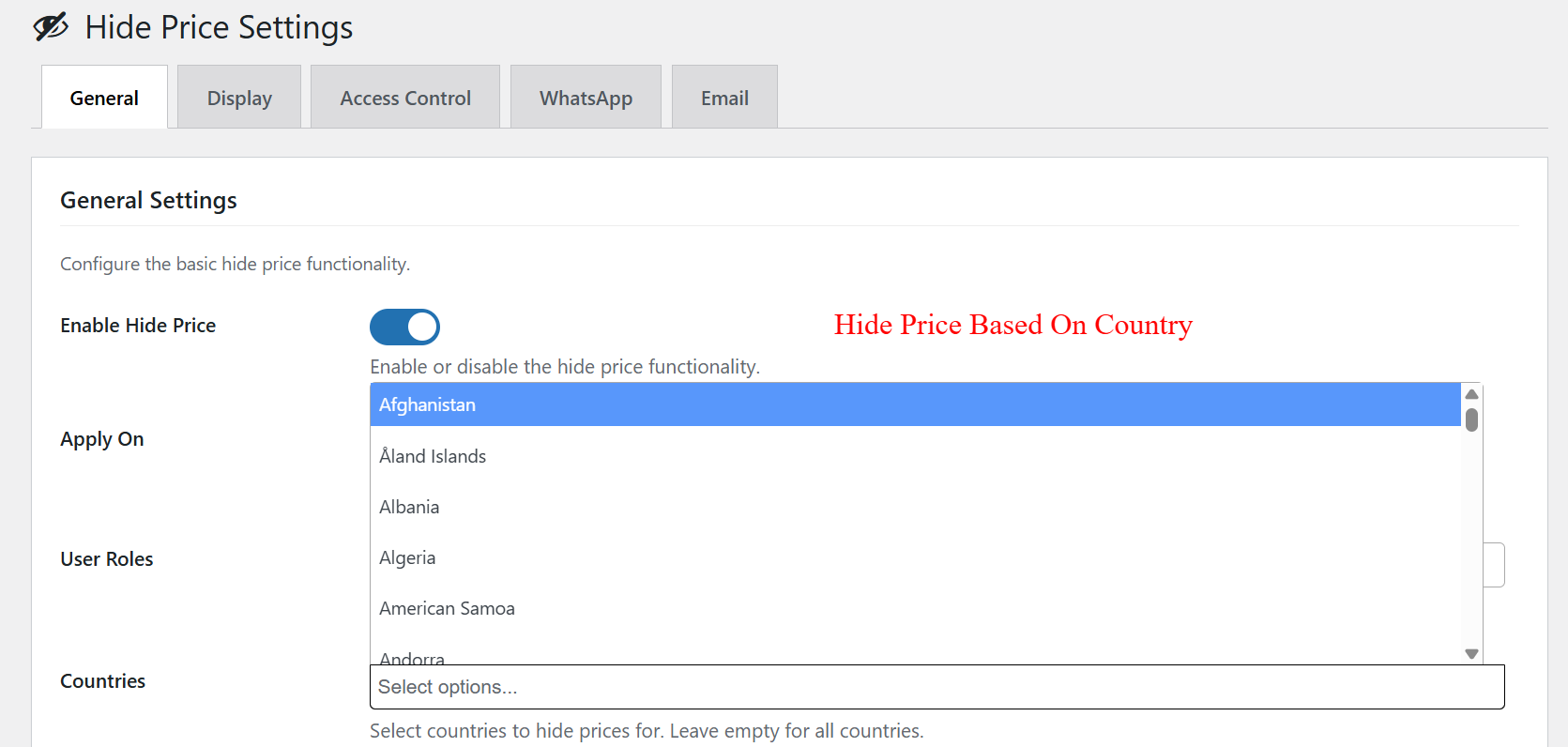
Use the Country Selections dropdown to control price visibility based on geographical location. Selecting specific countries where prices should be hidden allows you to customize product presentation and pricing access, accommodating regional pricing policies or promotions.