3. Configuration
Navigate to Stores → Configuration in Magento Admin and follow these steps:
Enable the Module
To enable the Ewebecommerce_MinOrderSurcharge module, navigate to Stores > Configuration > Minimum Order Surcharge PRO > General Settings. Set Enable Surcharge Module to Yes. This will activate the module’s functionality across your store.
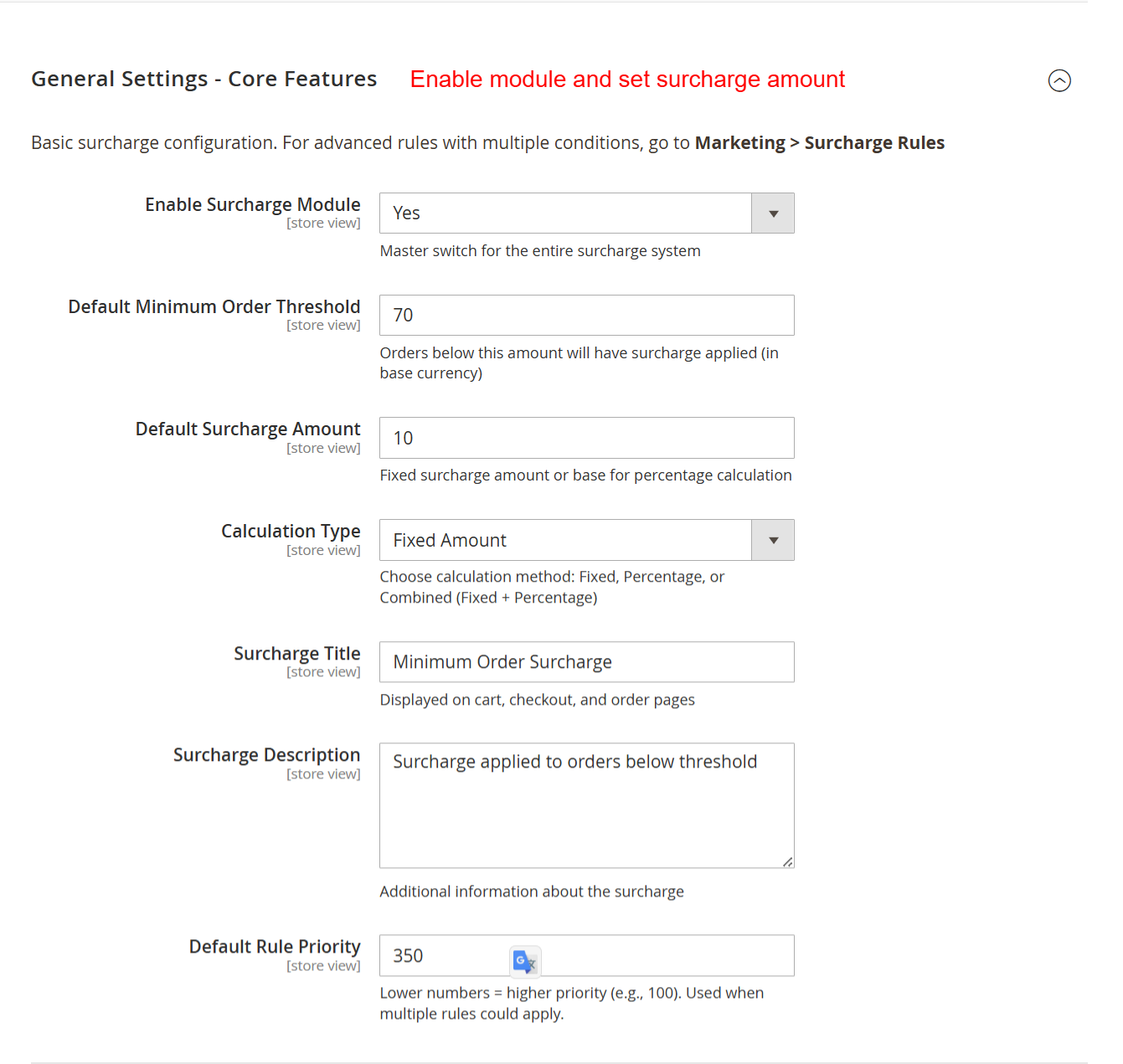
This screen allows you to configure core settings for the surcharge module, including enabling the module, setting thresholds, and defining surcharge amounts and calculation types. Adjust these settings early to ensure surcharges apply correctly to orders below a specified threshold.
Set Default Thresholds and Amounts
Within the General Settings, set the Default Minimum Order Threshold and Default Surcharge Amount. These parameters determine the standard criteria for surcharge application unless further customization is added through rules.
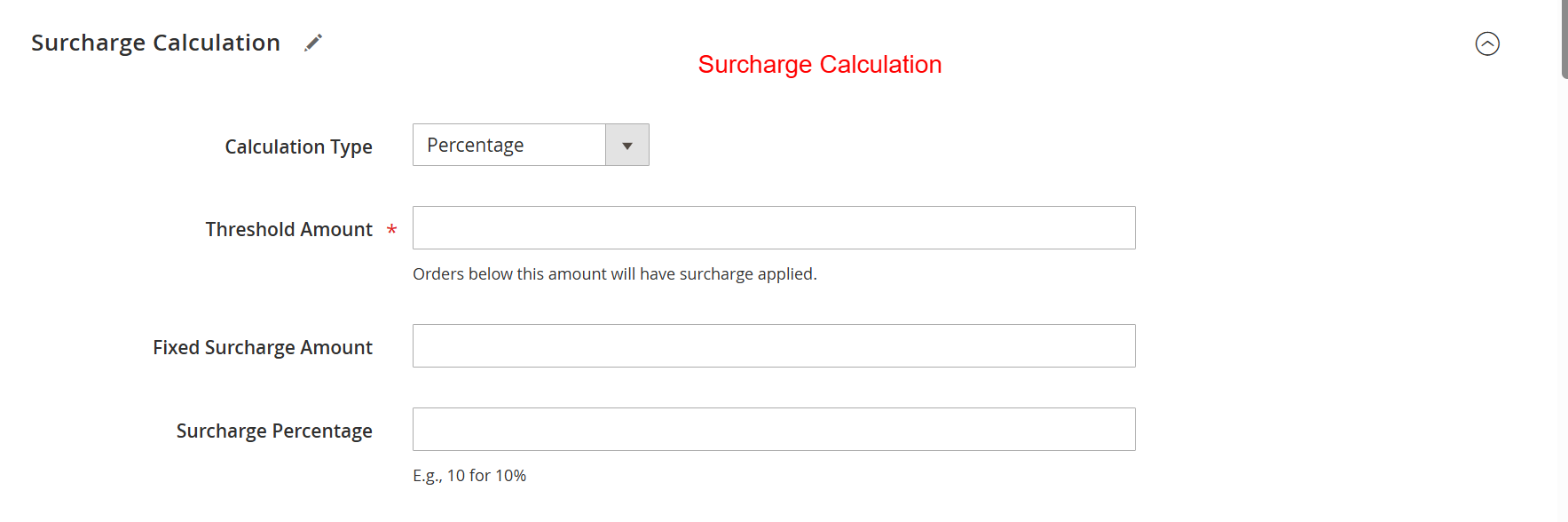
Define how surcharges are calculated by choosing between fixed amounts or percentage-based strategies. Specifying threshold amounts ensures that surcharges are appropriately applied, reinforcing the structure of your pricing model and enhancing revenue management.
Configure Display Options
To manage where and how surcharges are displayed, go to Display Options in the same configuration path. Enable features to show surcharge details on the shopping cart, checkout, and order view pages to enhance customer transparency.
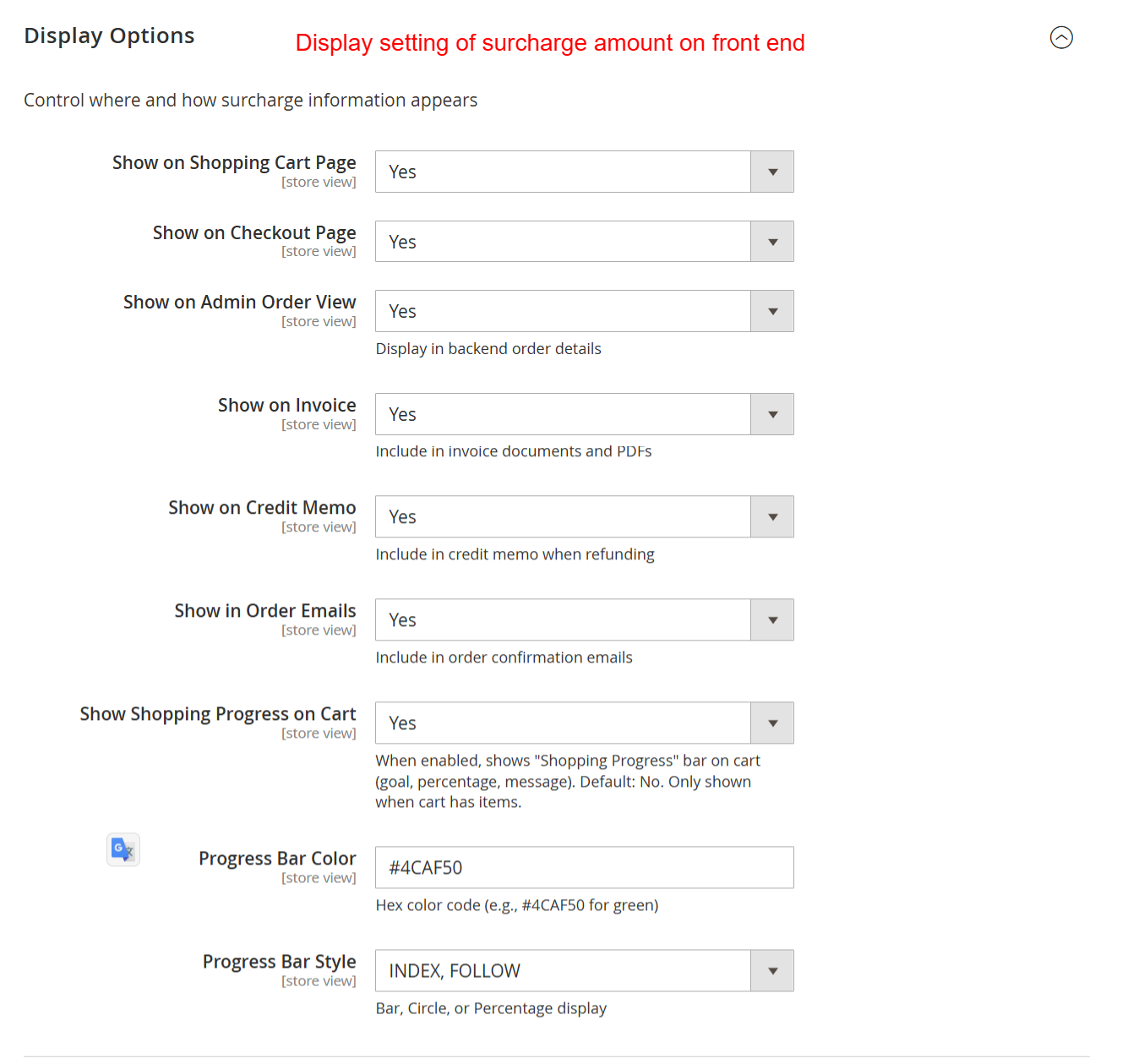
Control how surcharge information displays across various customer touchpoints like shopping carts and invoices. Ensuring visibility enhances transparency with customers, helping them understand any additional costs associated with their orders.
Set Notification Templates
Under Notifications & Messages, configure settings to alert customers about surcharges using dynamic message templates. This functionality aids in reducing cart abandonment by providing clear surcharge rationale.
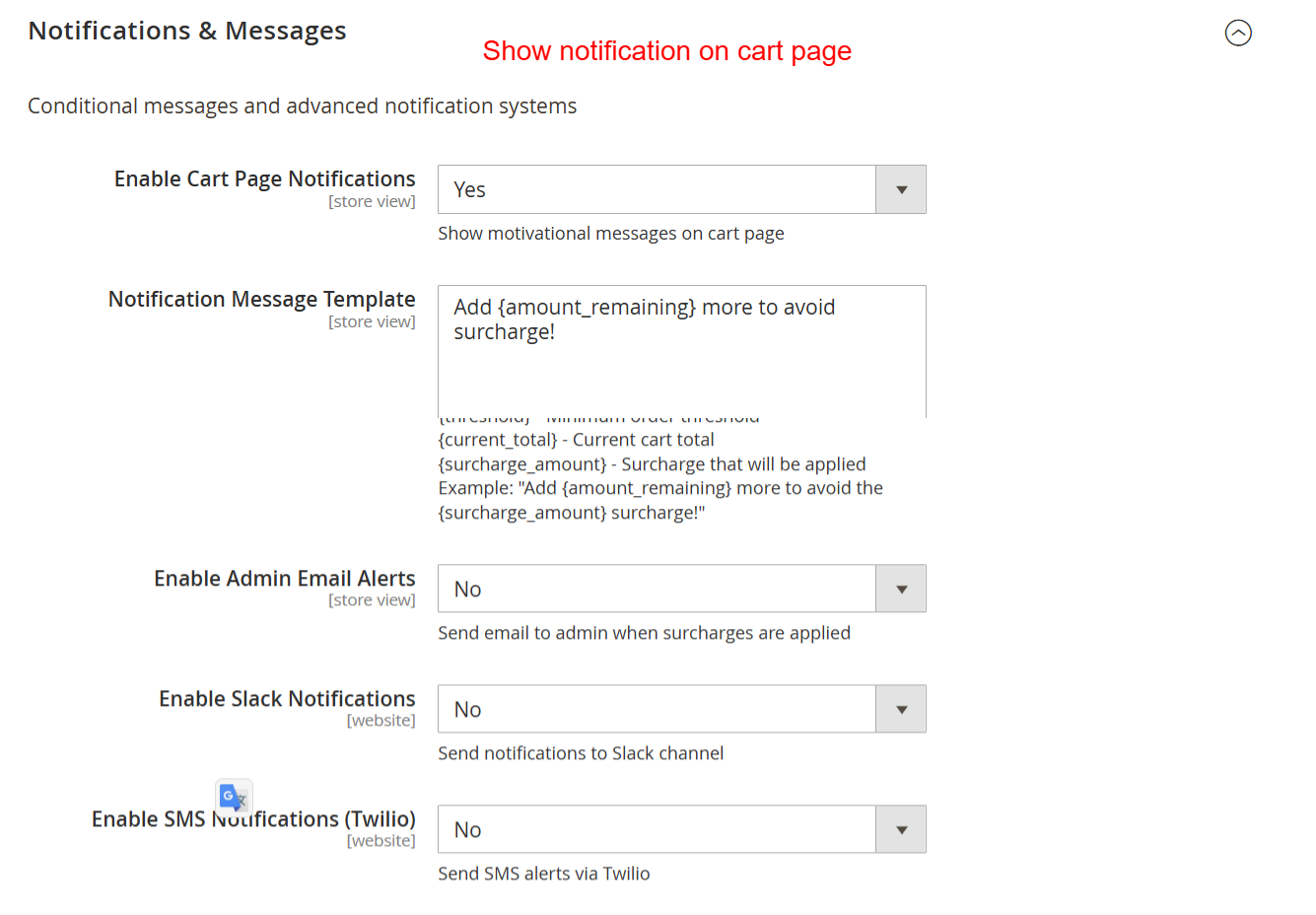
Configure notification settings to alert customers about surcharges directly on the cart page and using customized messages. This allows administrators to maintain clear communication about additional costs, improving the buying experience and reducing cart abandonment.
Enable Geolocation Rules
For location-specific surcharge applications, enable geolocation settings in the Geolocation Surcharge section. You can configure rules based on customer location via IP detection to personalize surcharge strategies effectively.
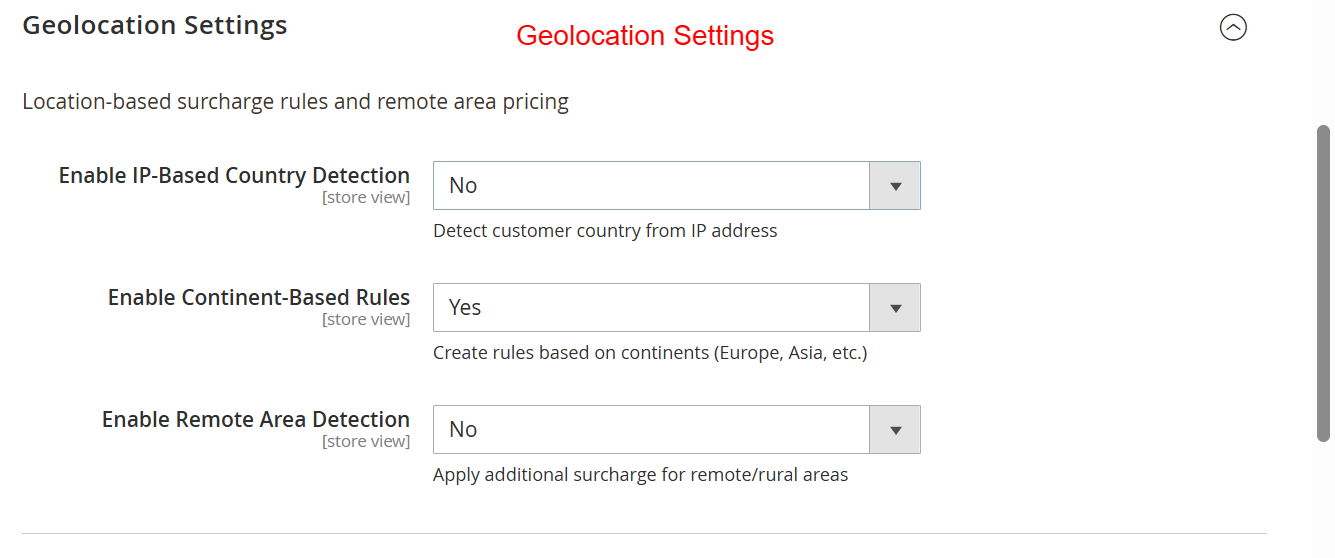
This screen allows you to configure location-based surcharge rules. By enabling IP-based country detection, retailers can apply different surcharges based on customer’s geographic locations, thereby enhancing the flexibility and precision of pricing strategies.
Manage Coupon Interactions
Navigate to Coupon Integration to define how coupons interact with surcharges. Set exclusions or requirements such as applying surcharges only when certain coupons are used, to fine-tune your promotional strategies.
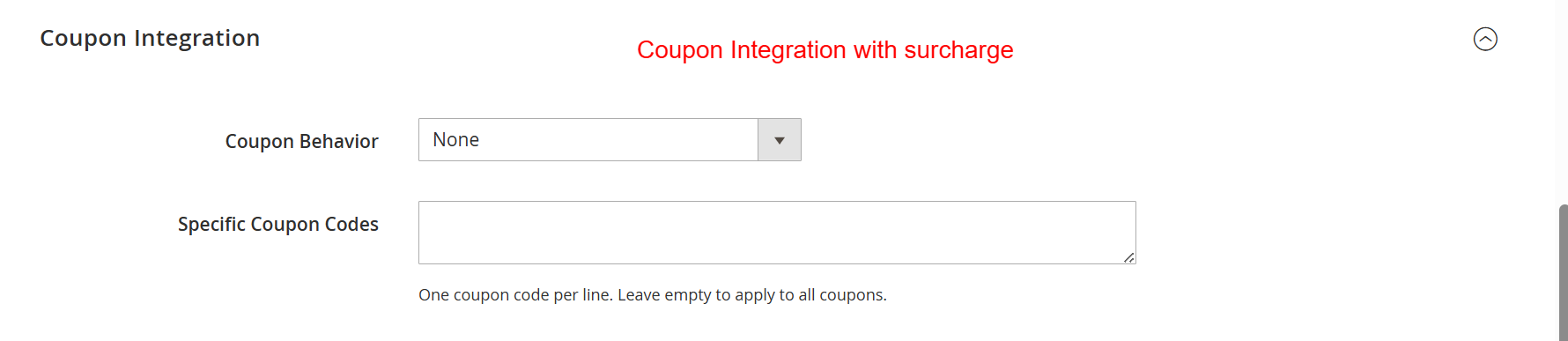
Administrators use this screen to determine how coupons interact with surcharges. They select behavior from options like ‘None’, which disregards coupons, or specify coupon codes that might exempt certain conditions. This configuration allows businesses to maintain promotional flexibility alongside surcharge policies.
Set Up Tax Calculations
Under Tax Configuration, define whether surcharges are calculated before tax. Ensure the correct tax class is selected to integrate surcharge calculations into your tax setup, maintaining legal compliance and accurate reporting.

This screen allows administrators to define whether the surcharge is applied before taxes and to associate a tax class if needed. Correct tax configuration is essential for legal compliance and accurate financial reporting, ensuring the surcharge integrates smoothly with fiscal policies.