User Journey
Access Marketing Menu for PDF Options
Start by accessing the PDF Customiser via the Marketing menu. From here, admins can choose options to manage templates, build themes, and configure PDF-related settings, beginning the setup and customization journey.
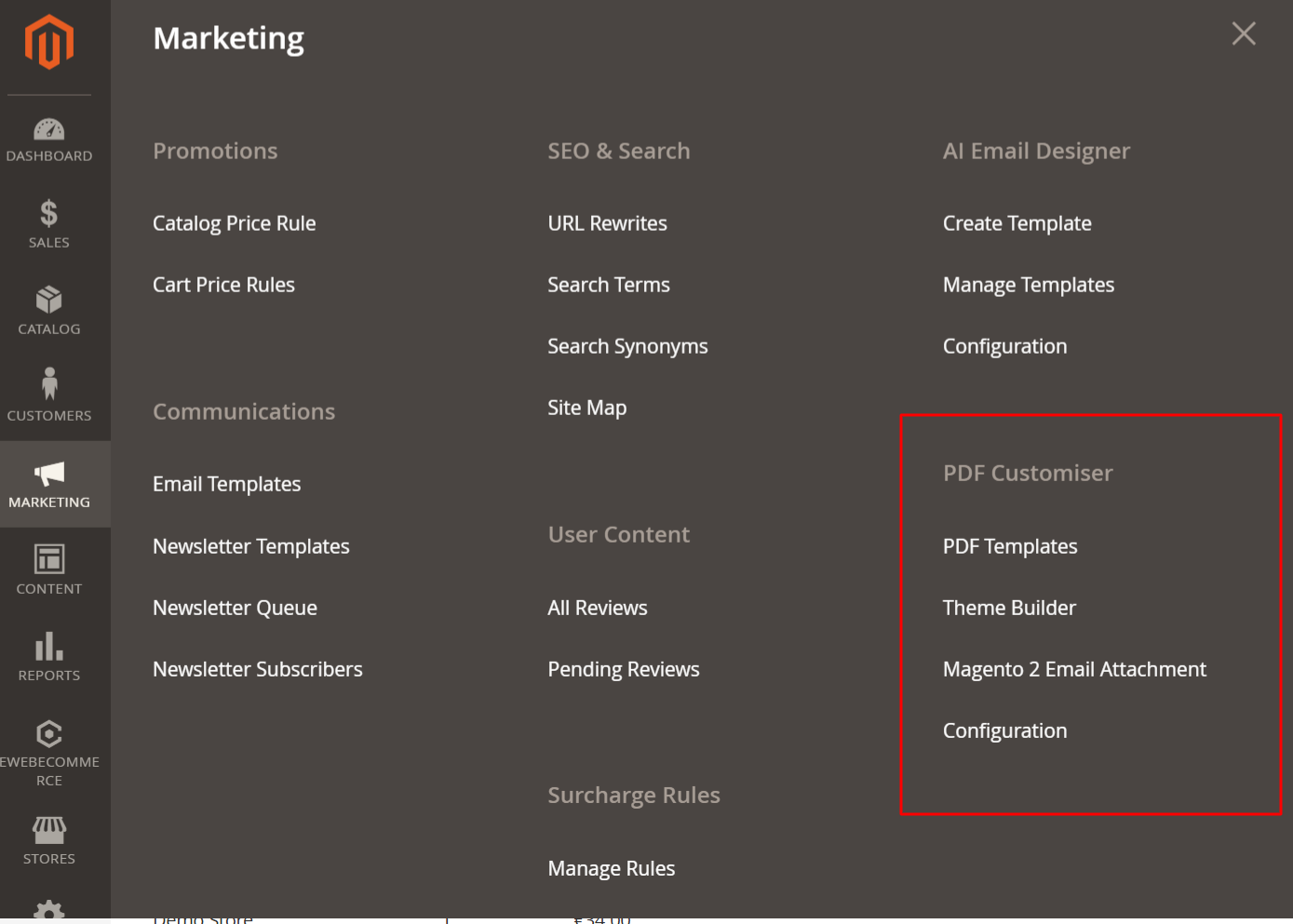
This screen is accessed through the Marketing menu and provides access to the PDF Customiser options. Users can manage their PDF templates, build themes, configure email attachments, and access general settings. This entry point is crucial for setting up and managing PDF customization features.
Template Customization with Theme Builder
Leverage the PDF Theme Builder to drag and drop elements and customize layouts. Use this interface to apply AI-generated designs and tweak existing templates to ensure they meet branding criteria.
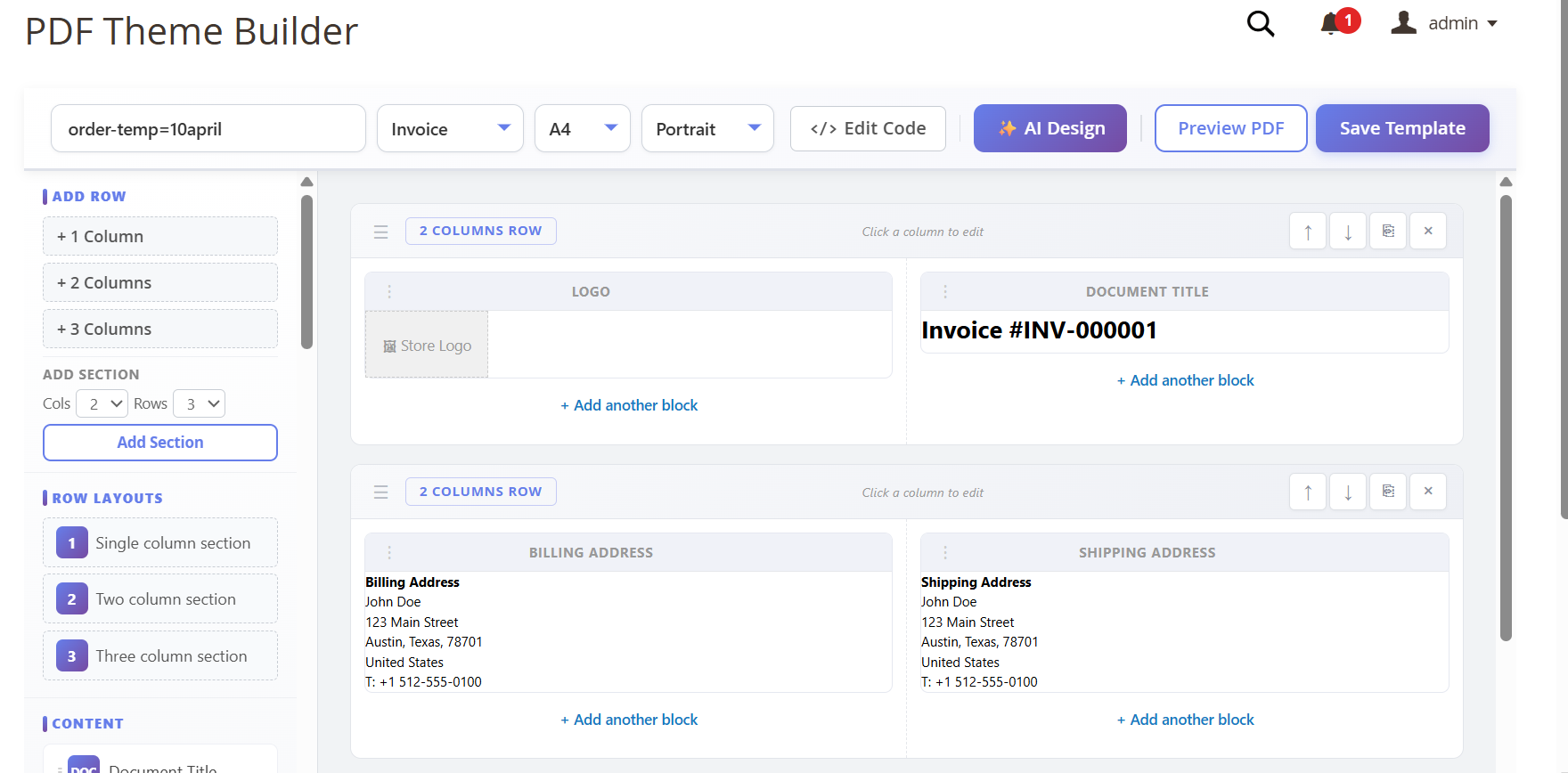
The builder allows detailed customization of PDF themes, supporting multiple column layouts and advanced design elements. Users adjust sections like billing and shipping addresses or document headers to match business needs, enhancing the professional appearance through the module’s editing tools.
Generate and Review PDF with Live Data
Use the order preview functionality to check how dynamic data populates within the PDF. This ensures that customer-specific information reflects accurately in the document before finalizing and sending.
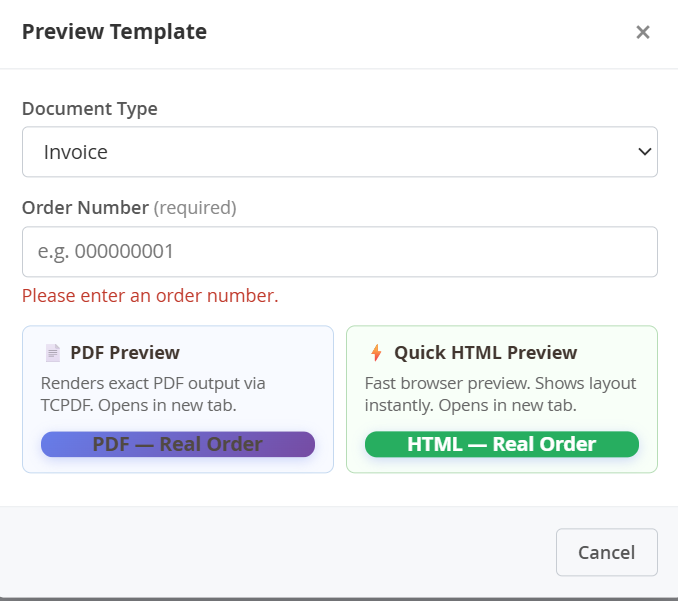
This screen allows the user to input an order number to preview an invoice document. Selecting a document type and entering an order number is crucial for generating accurate previews. The ‘PDF Preview’ button renders the exact PDF, while the ‘Quick HTML Preview’ provides a fast layout check in the browser. This supports efficient template testing.
Customize Document Layout and Components
Adjust layouts using the PDF Template Component Selection to include branding elements and comprehensive customer details, supporting tailored document styling for diverse enterprise needs.
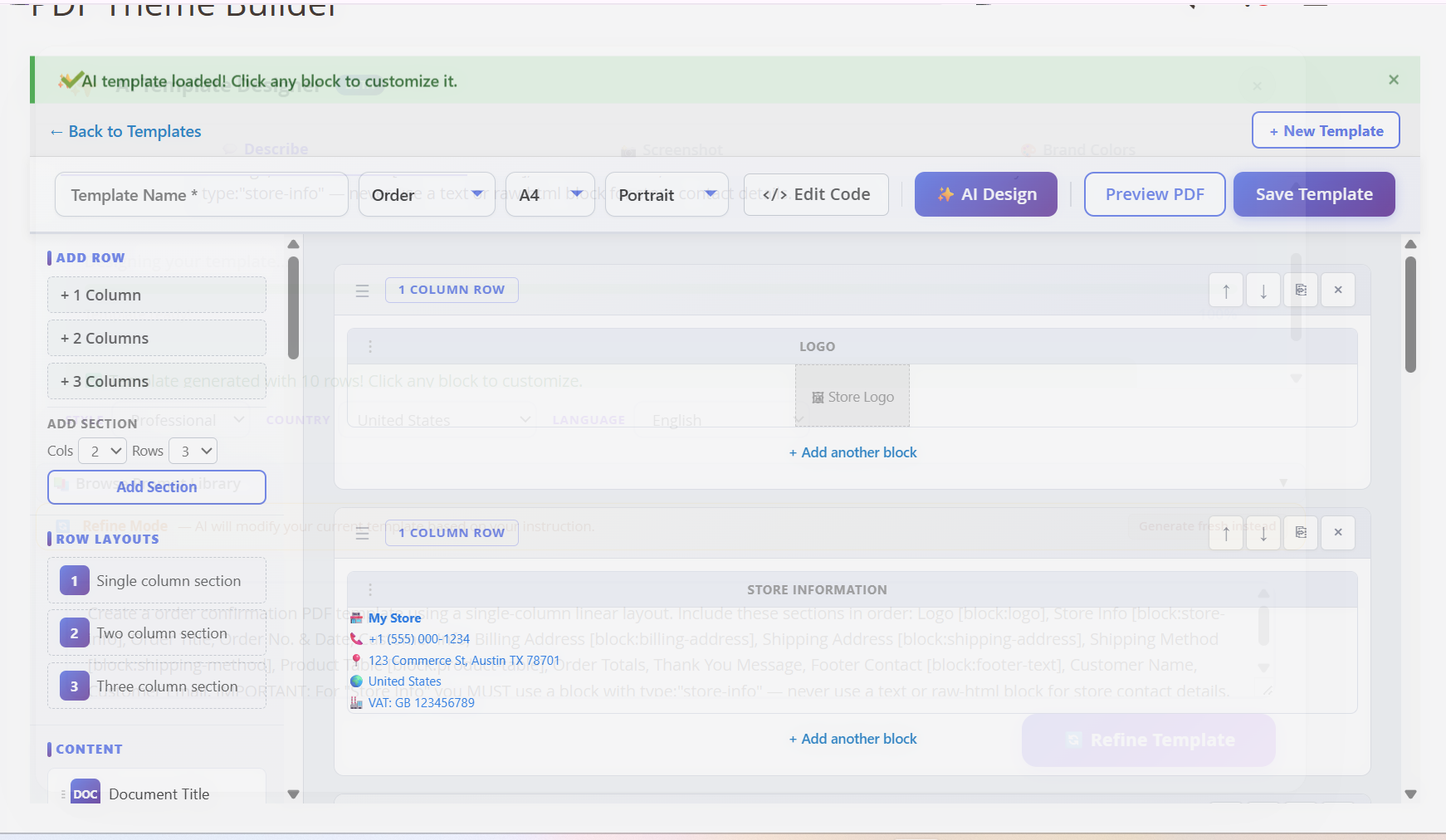
Upon loading, the template is displayed on the canvas editor, signaling that it’s ready for further customization. Administrators can proceed to refine their design by rearranging, adding, or removing sections and blocks, thus ensuring the document aligns with their company’s standards.
Finalize and Generate the Template
After adjustments, save your configurations and use the Preview PDF and Save Template options to view and finalize your document, ensuring it is ready for distribution.
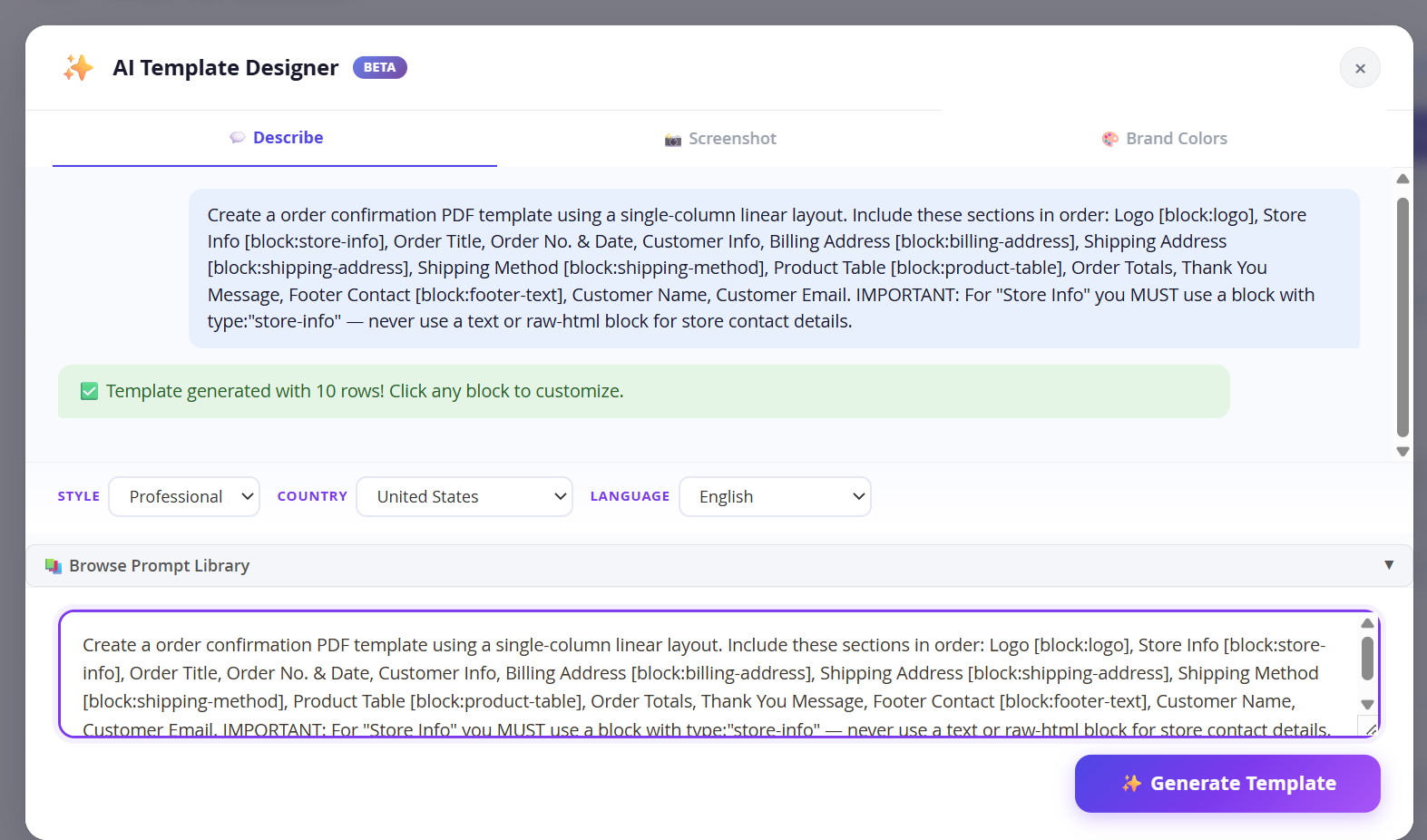
This message confirms the successful generation of a PDF template using AI, providing the administrator with confidence that the core layout meets their specifications. The admin can now click on any block to make customizations, tailoring the document to specific business requirements.