Step-by-Step Screenshot Reference
Every captured screen in setup order. Click any image to open the full-size version in a new tab.
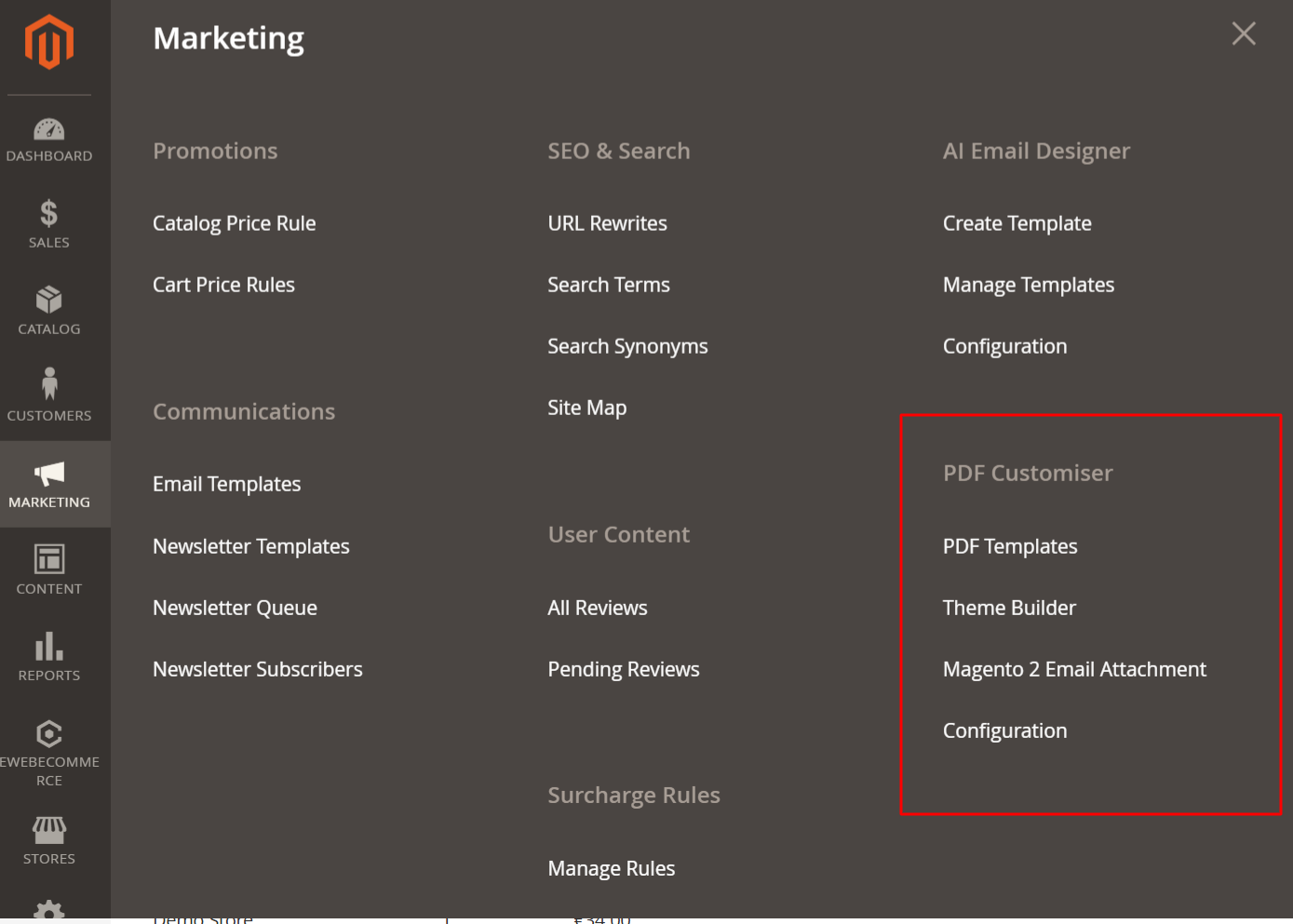
Admin: Marketing > PDF Customiser
What this shows: The Marketing menu in Magento 2 Admin with the PDF Customiser options highlighted. Options include PDF Templates, Theme Builder, Magento 2 Email Attachment, and Configuration.
This screen is accessed through the Marketing menu and provides access to the PDF Customiser options. Users can manage their PDF templates, build themes, configure email attachments, and access general settings. This entry point is crucial for setting up and managing PDF customization features.
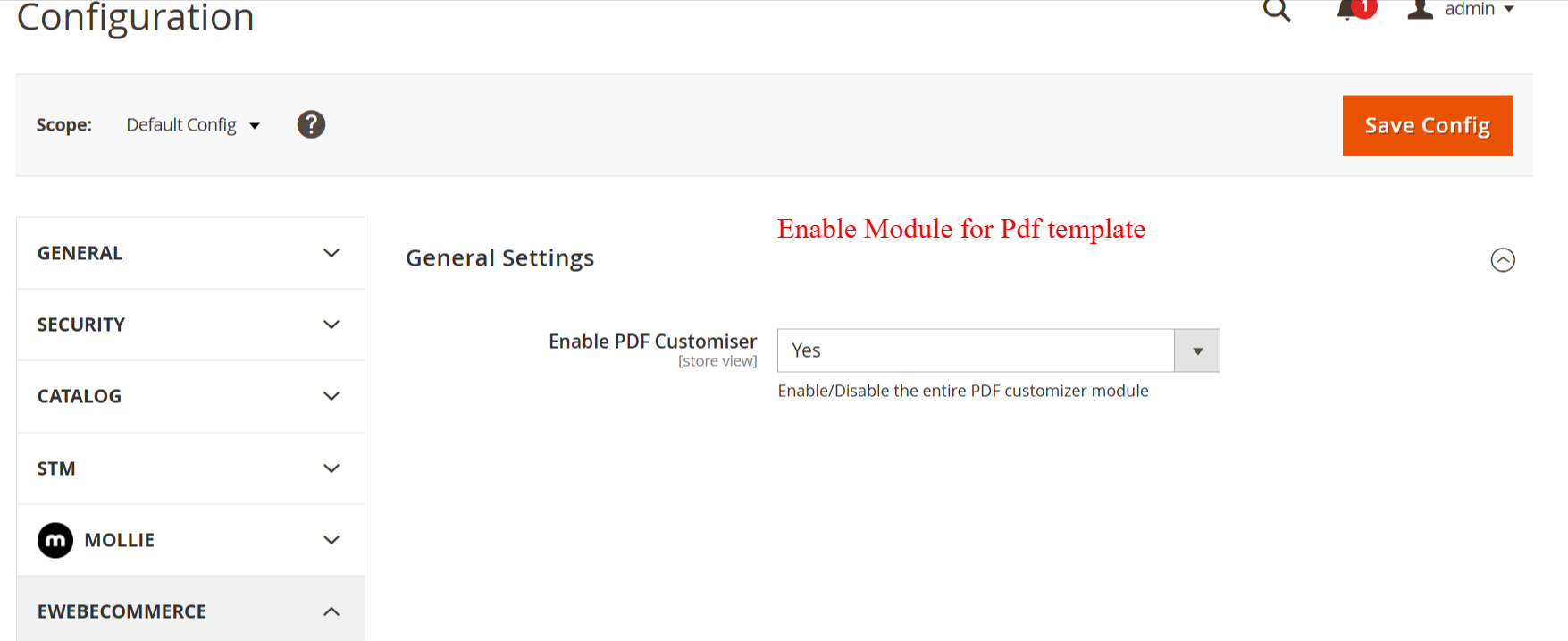
Admin: Configuration > General Settings
What this shows: General Settings configuration page with the ‘Enable PDF Customiser’ option set to Yes or No.
In this section, administrators can enable or disable the Ewebecommerce_PdfCustomiser module. Activating this module allows users to access all PDF customization features, making it essential for users who want to utilize the full capabilities of PDF customization.
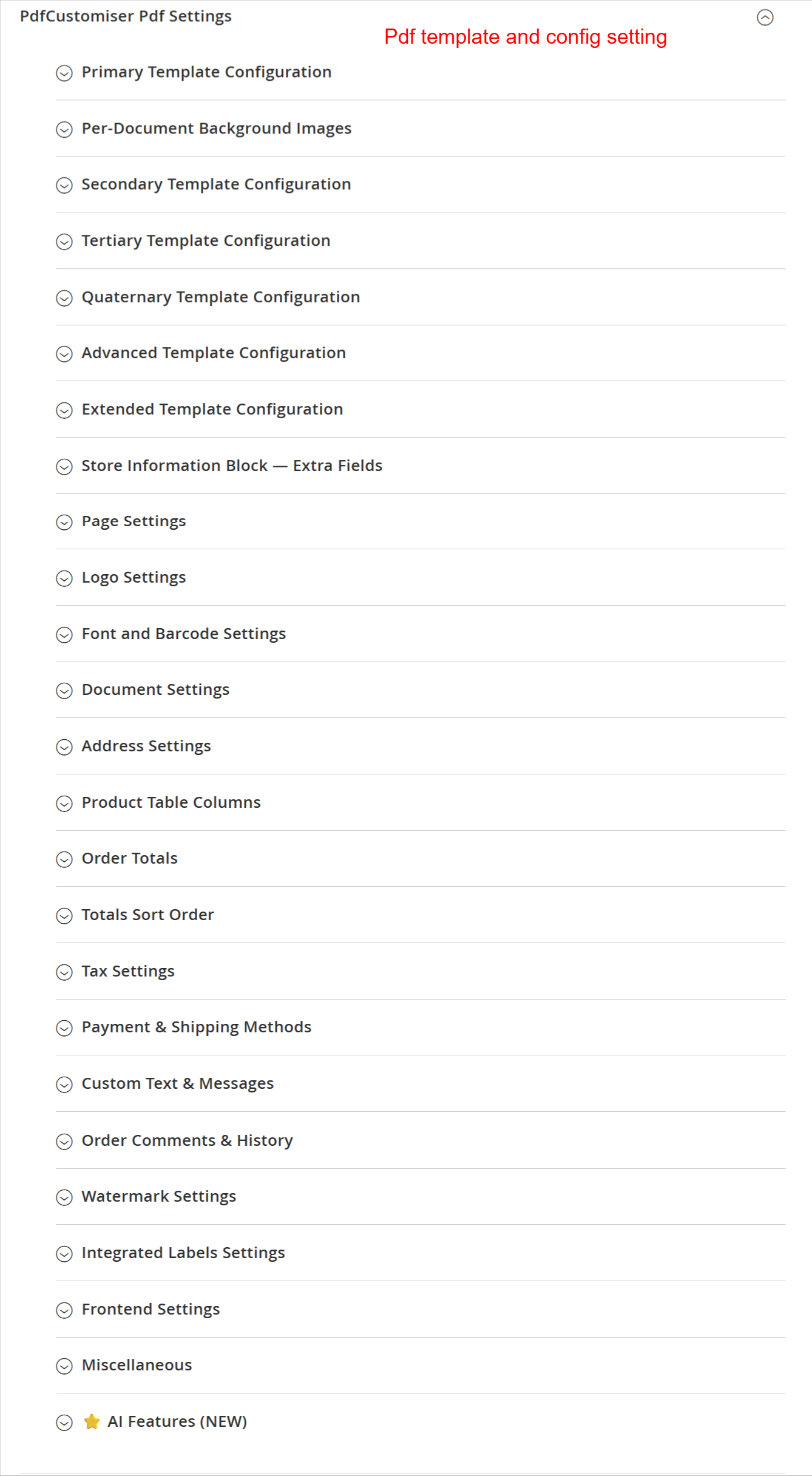
Admin: PDFCustomiser PDF Settings Overview
What this shows: A comprehensive list of configurable PDF settings, including template configurations, background images, store information, and AI features.
This overview provides a structured list of all configurable settings in the PDF Customiser module. Users can adjust primary, secondary, and advanced template settings, set up document backgrounds, and manage store information. This organization facilitates easy navigation through the extensive customization options available.
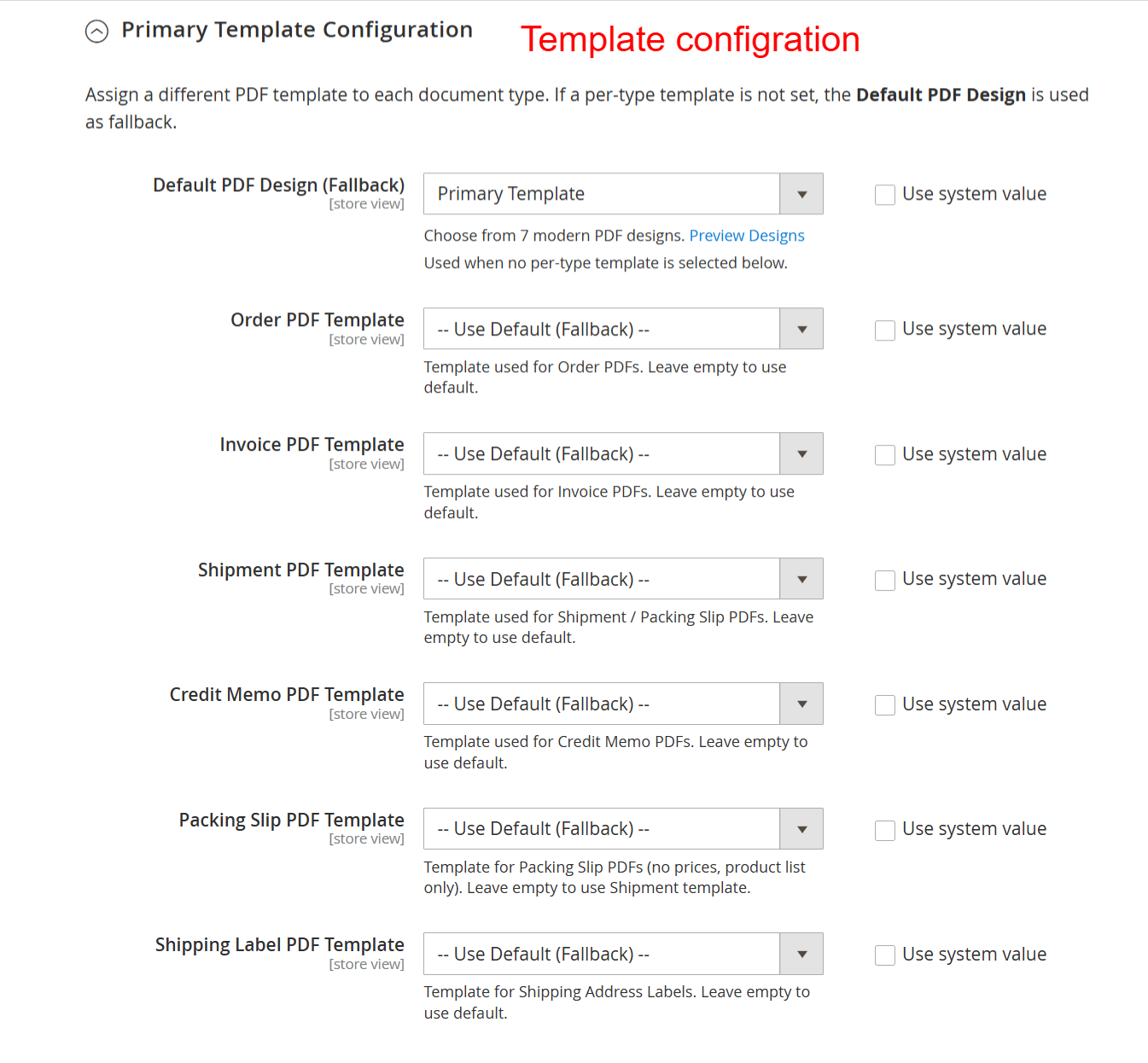
Admin: Primary Template Configuration
What this shows: Settings for assigning different PDF templates to document types with options for fallback settings.
On this screen, users can assign specific PDF templates to various document types such as orders, invoices, and shipments. Each document type can be customized with a primary template or fallback design, allowing for versatile document presentation aligned with brand aesthetics.
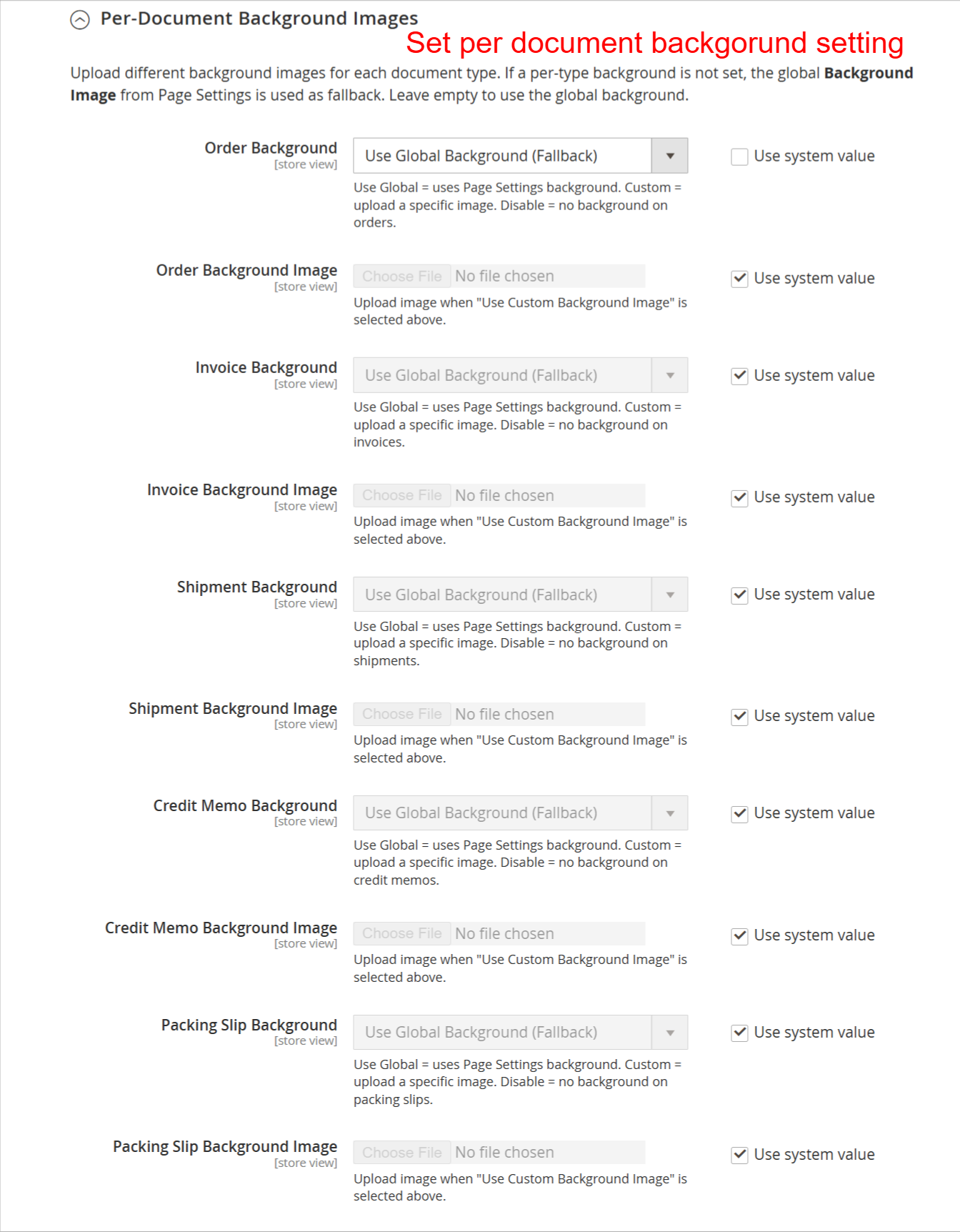
Admin: Per-Document Background Settings
What this shows: Configuration options for uploading and assigning background images to document types.
This page allows administrators to upload custom background images for each type of document. Users can choose to use global settings or specific images for documents like invoices and orders, ensuring a professional and branded appearance of PDFs.
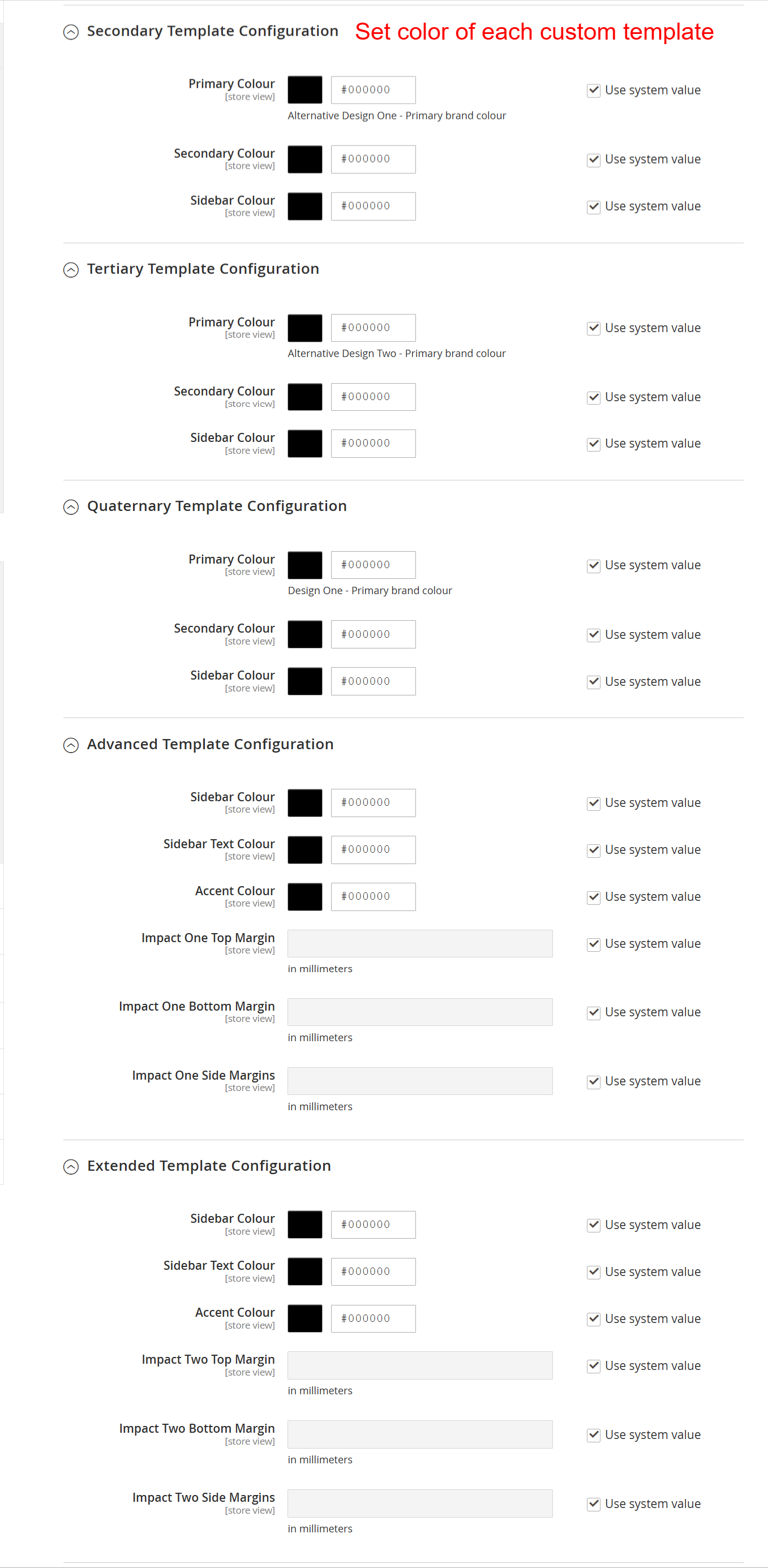
Admin: Template Color Configuration
What this shows: Color configuration for various templates, including primary, secondary, and advanced color settings.
This configuration screen allows users to set specific colors for multiple template designs. By adjusting primary and secondary colors, users can ensure their PDF documents align with company branding. This customization is key to maintaining visual consistency across all PDF outputs.
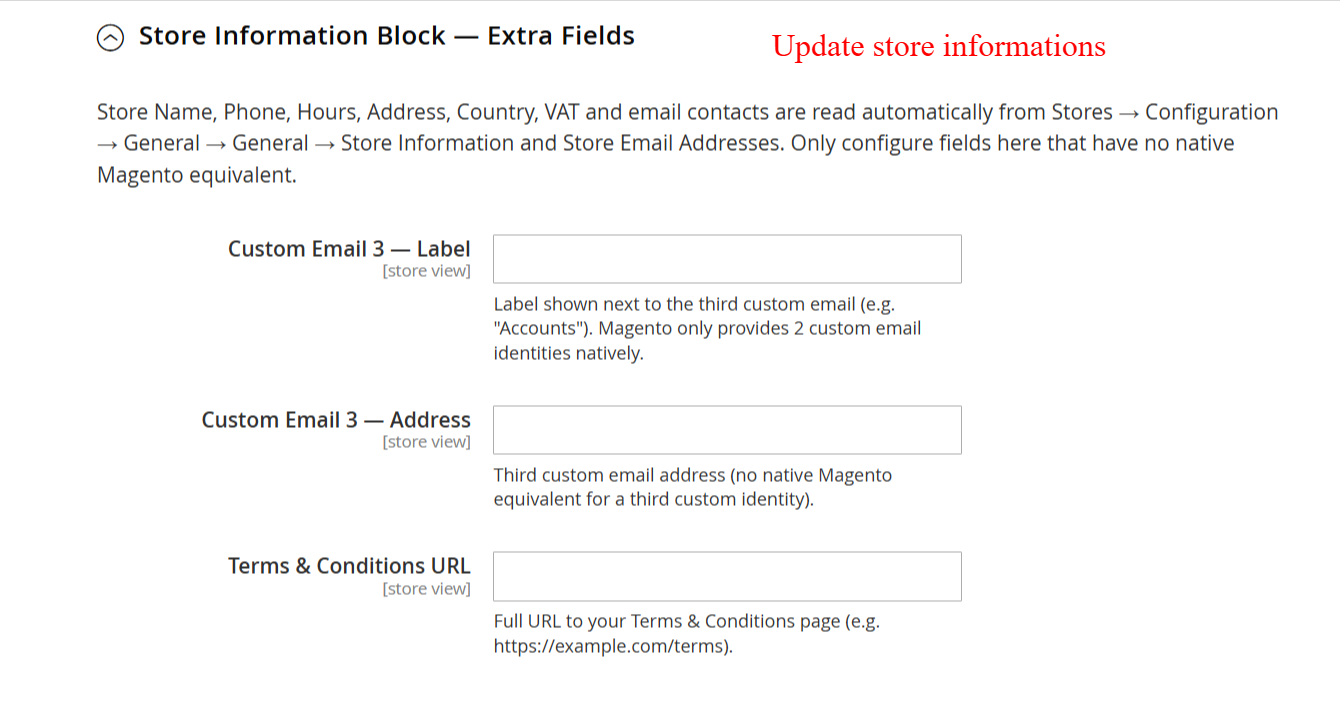
Admin: Store Information Block
What this shows: Extra fields for configuring custom email labels and URLs such as Terms & Conditions.
Administrators can use this screen to configure additional store information, including custom email addresses and Terms & Conditions URLs, ensuring all details are consistent and available in PDF documents. Filling in these fields enriches the informational value of the documents provided to customers.
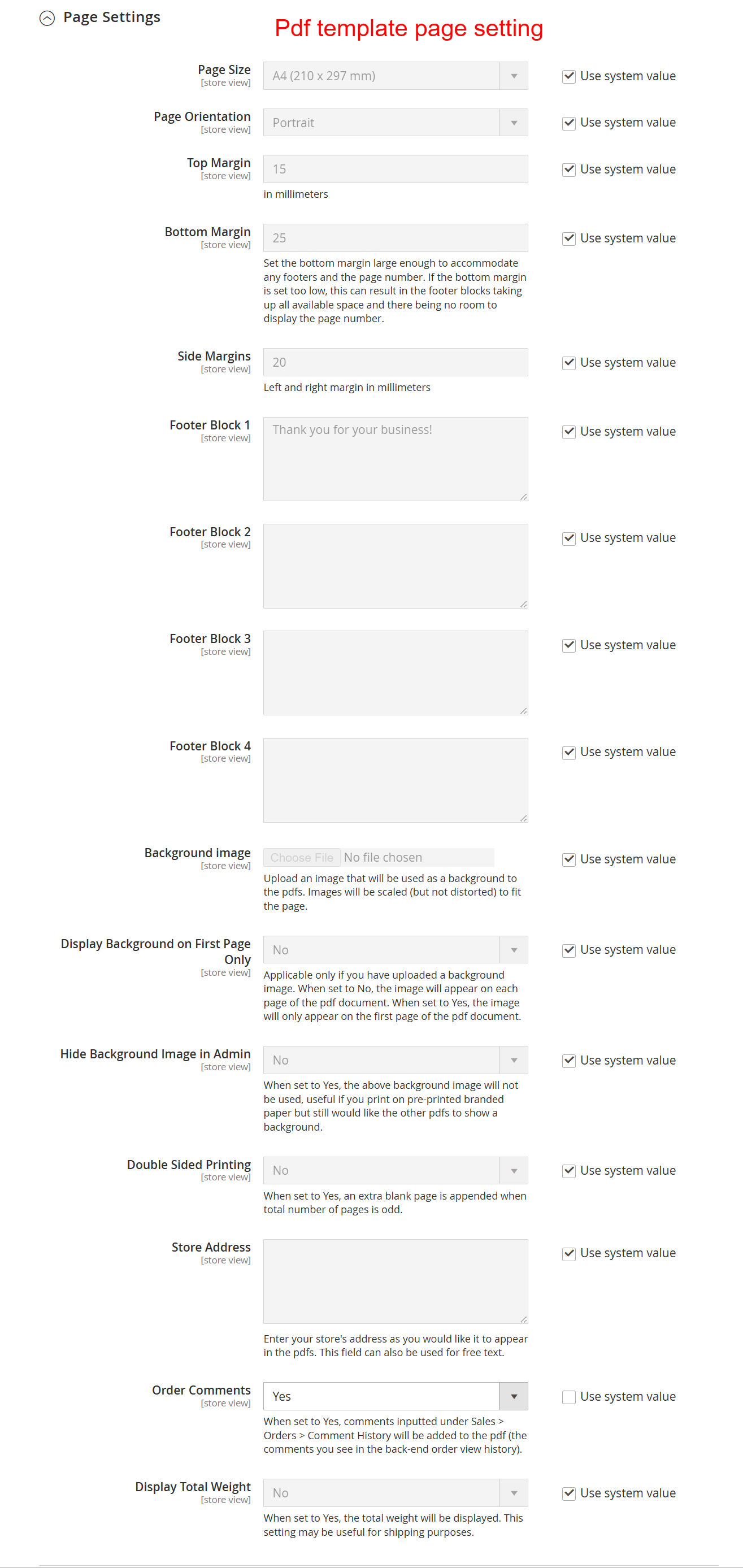
Admin: PDF Template Page Settings
What this shows: Settings for configuring page size, orientation, margins, footer blocks, and other page-specific settings.
On this page, users can fine-tune the presentation of PDF documents by setting page size, orientation, and margins. Users can also add custom footer content and configure background image usage, thus tailoring each PDF document to meet specific design and informational needs.
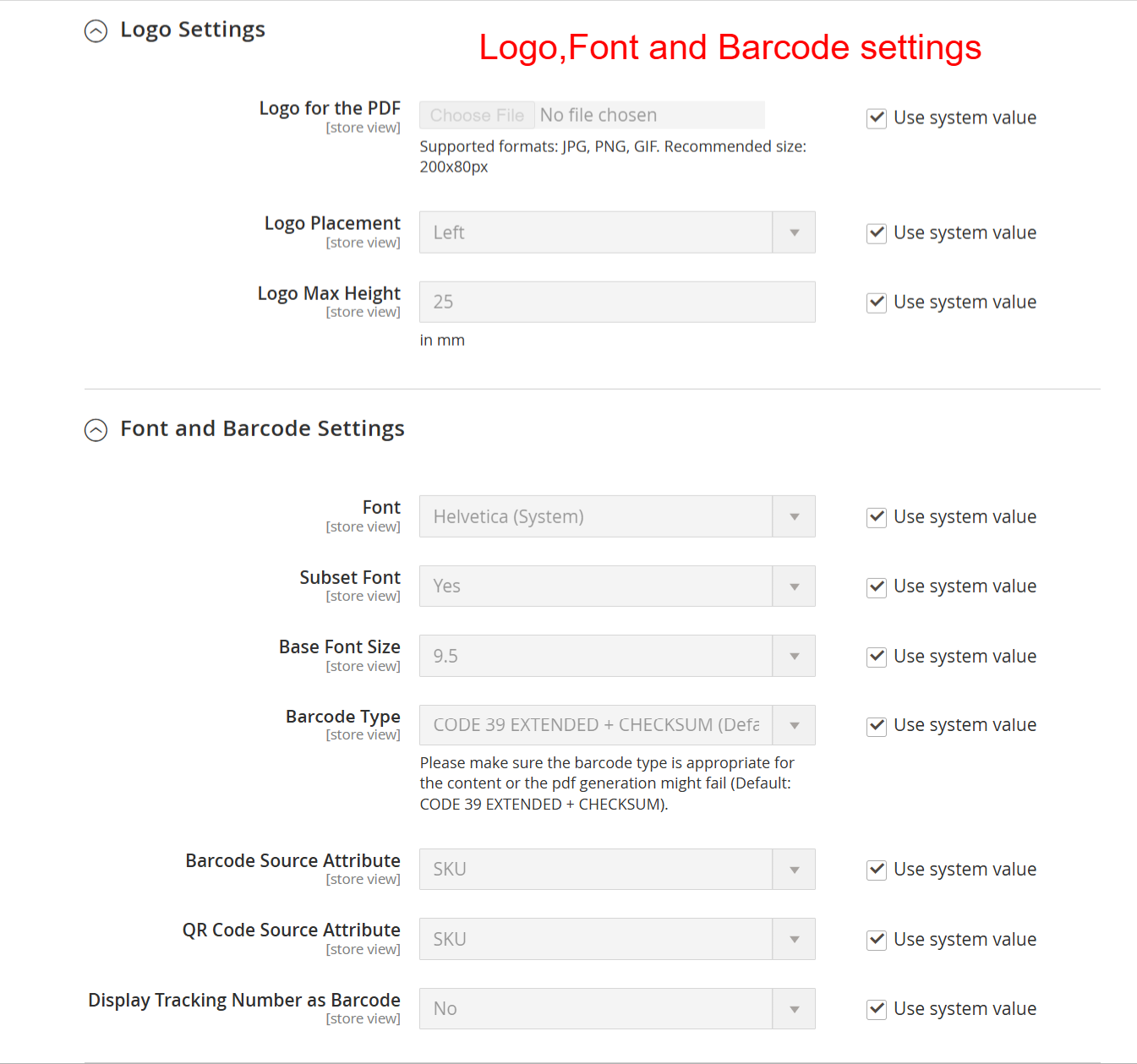
Admin: Stores > Configuration > Logo, Font, and Barcode Settings
What this shows: This shows form fields for configuring the logo for the PDF, including logo placement and max height. It also includes font settings and options for barcode and QR code attributes.
On this screen, admins can select and configure a logo for their PDF documents, choose its placement, and set the maximum height. Additionally, it allows the selection of fonts for the document and barcode settings, which are crucial for consistent branding and accurate information processing.
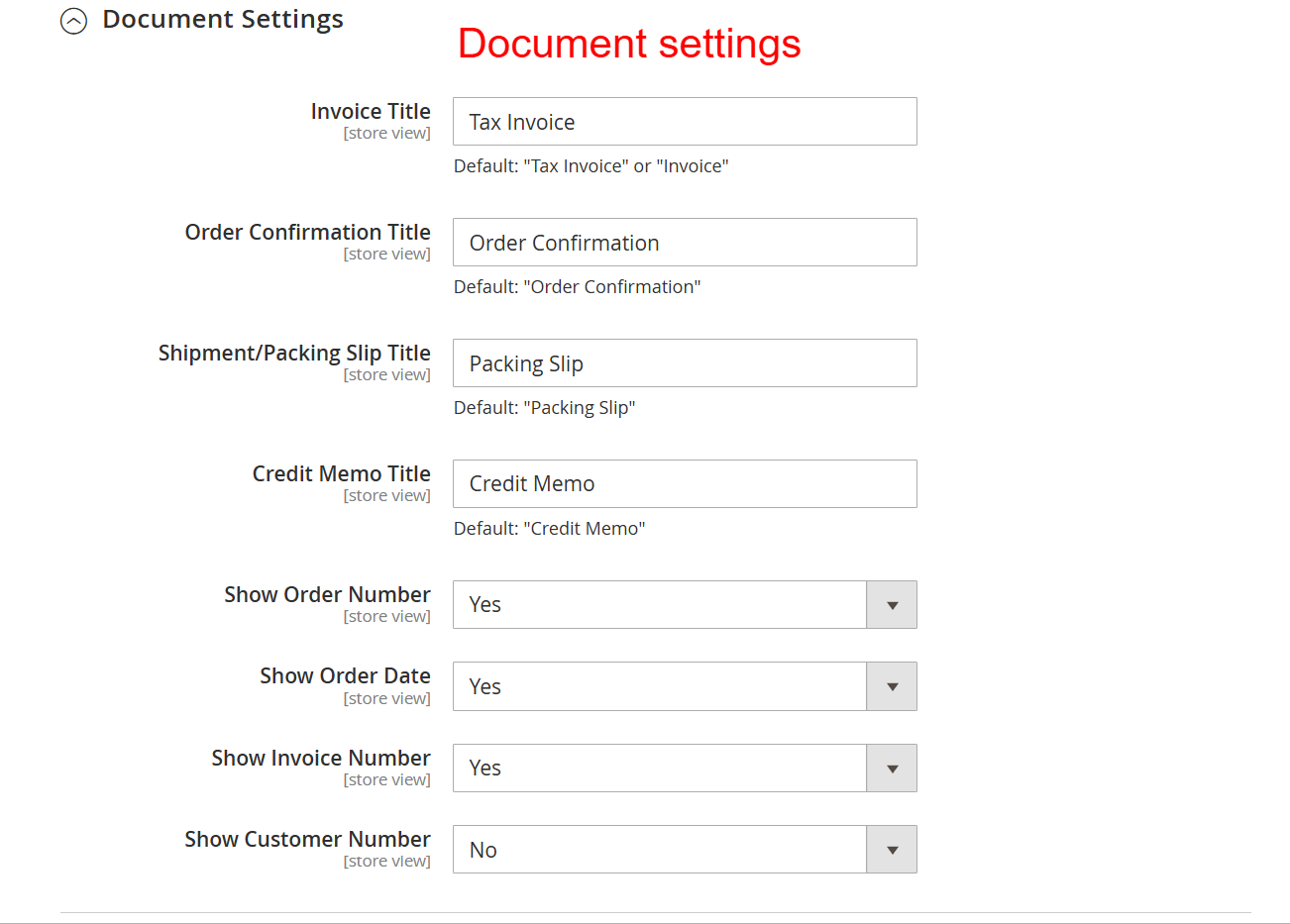
Admin: Stores > Configuration > PDF Document Settings
What this shows: This interface displays options for setting titles for various documents such as invoices and packing slips, as well as toggles to show order numbers, dates, and customer numbers.
This settings page allows for the customization of document titles, ensuring they reflect the necessary context in meeting business needs. Admins can also decide which numbers and identifiers to display, which is essential for tracking and customer service efficiency.
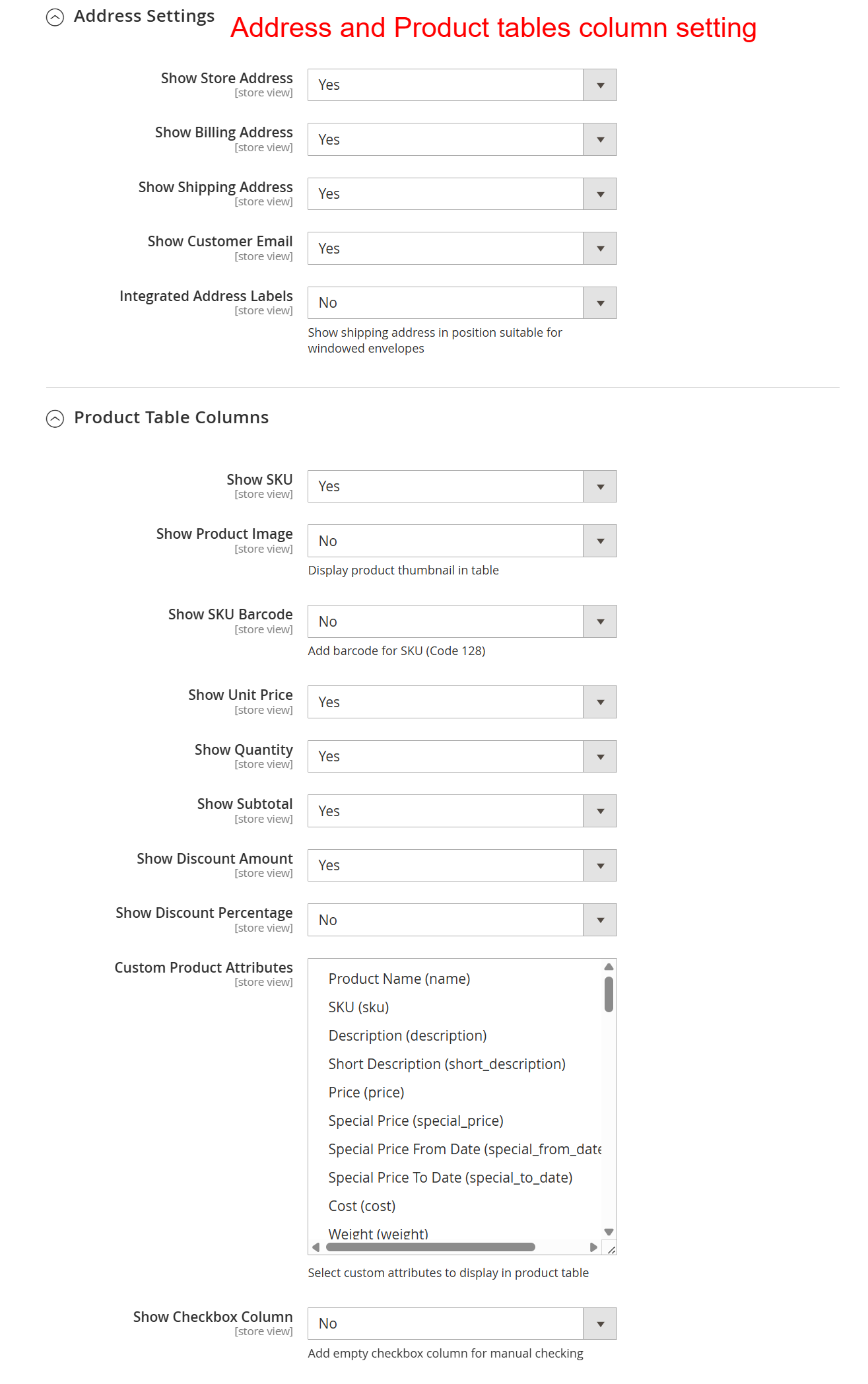
Admin: Stores > Configuration > Address and Product Tables Settings
What this shows: Provides options for showing store, billing, shipping addresses and customer email. It includes settings for product table columns like SKU, product image, and custom attributes.
This configuration page empowers users to choose which address information and product table details to include in their documents. This level of customization ensures that only relevant information is displayed, aligning document output with operational requirements.
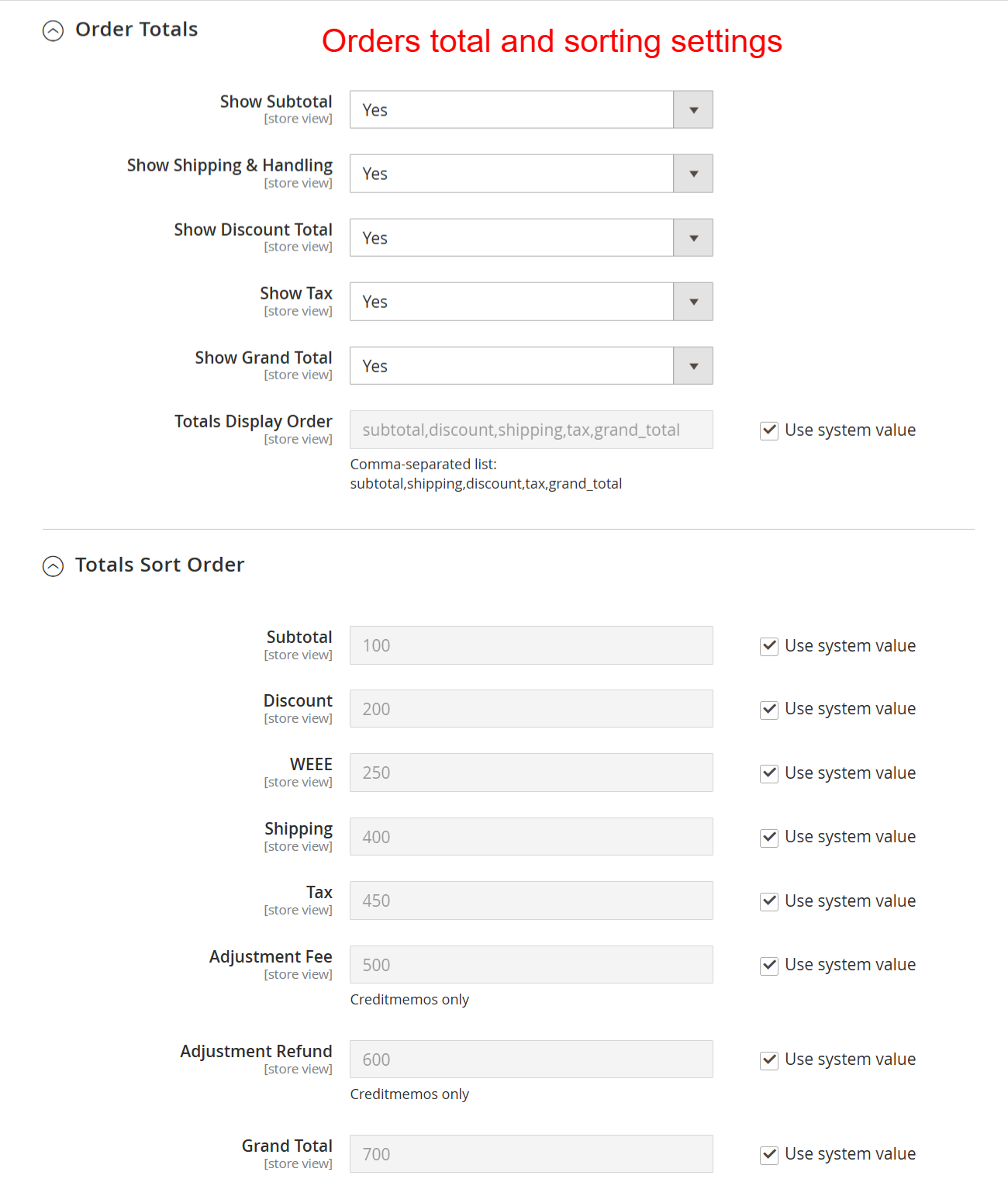
Admin: Stores > Configuration > Order Totals and Sorting Settings
What this shows: Shows toggles for displaying elements like subtotal and tax and allows customization of their sort order. Fields include Subtotal, Discount, and Grand Total.
Admins can configure which total figures are shown on customer-facing documents and how they are sorted. This customization is crucial for clear communication of financial details, ensuring that documents are both informative and compliant with accounting standards.
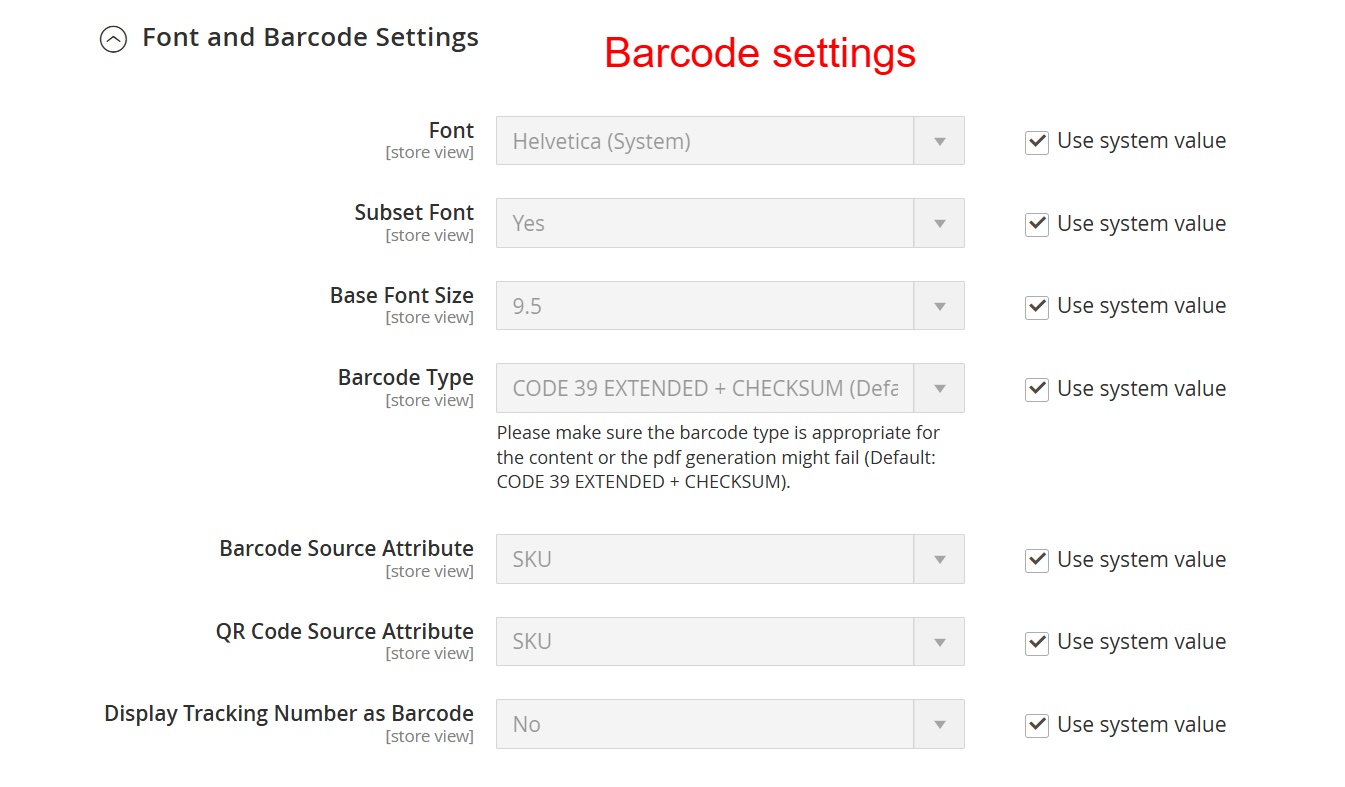
Admin: Stores > Configuration > Barcode Settings
What this shows: Features fields for configuring fonts, barcode types, and source attributes for SKU and QR codes. Options for displaying tracking numbers as barcodes are also present.
The Barcode Settings page lets users specify barcode details, ensuring accurate and efficient scanning for inventory and order management. Proper configuration here can enhance operational efficiency and data accuracy within the business process.
Admin: Stores > Configuration > Tax and Payment Settings
What this shows: Contains settings for showing business and customer tax numbers, and input fields for custom tax messages. Also includes settings for displaying payment and shipping methods.
This section allows customization of tax-related information on PDFs and displays appropriate B2B or B2C tax messages. It also includes options to show payment and shipping method information, ensuring transparency and compliance with tax regulations.