Step-by-Step Screenshot Reference
Every captured screen in setup order. Click any image to open the full-size version in a new tab.
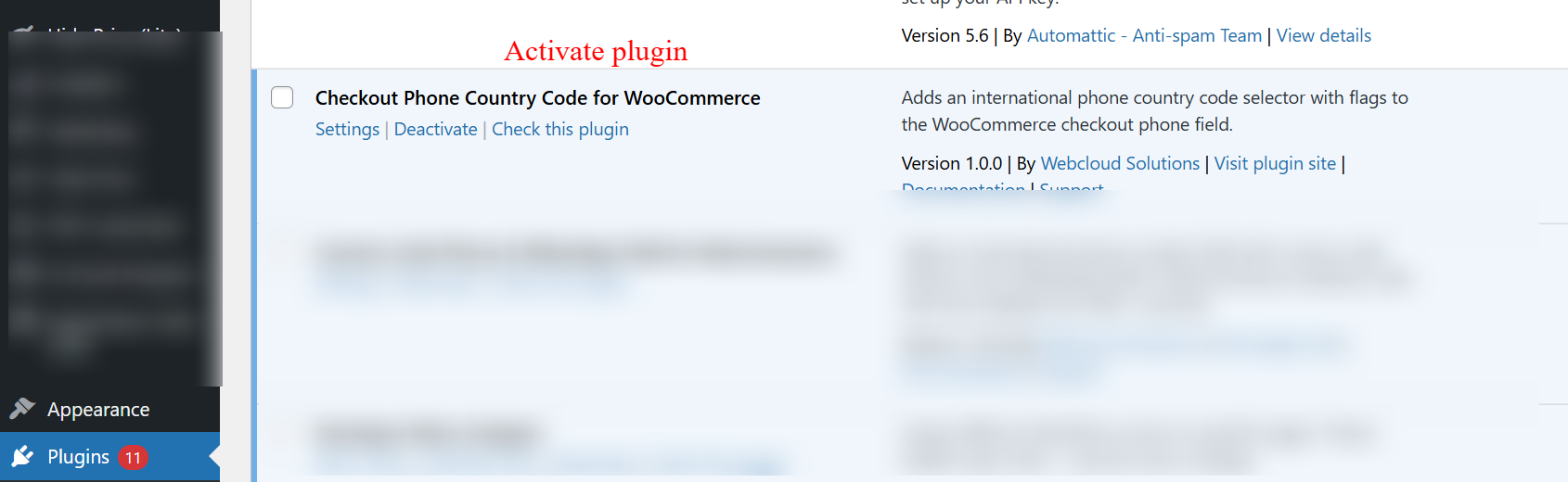
wp-admin: Plugins > Activate Plugin
What this shows: A list of installed plugins in WordPress with the option to activate, deactivate, or access settings for each. The ‘Checkout Phone Country Code for WooCommerce’ plugin is featured.
On this screen, the admin can manage installed plugins within WordPress. To enable the features of the Checkout Phone Country Code for WooCommerce plugin, the admin must activate it here. Activating the plugin is essential to display international phone country code selectors at checkout.
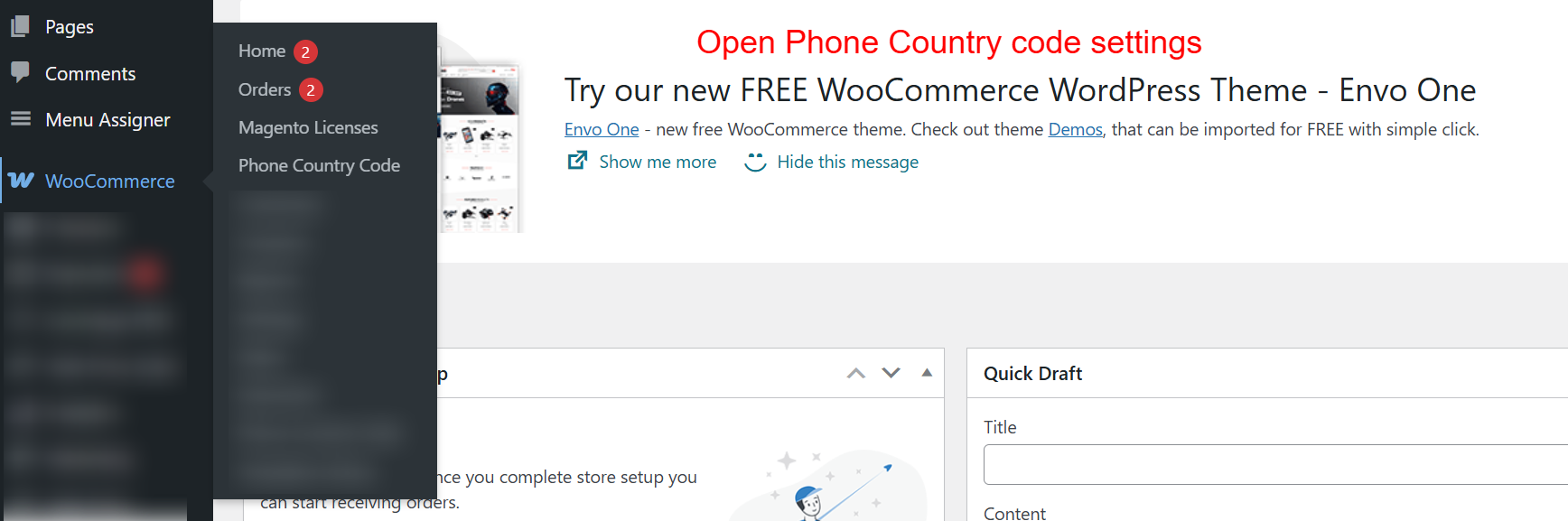
wp-admin: WooCommerce Menu > Phone Country Code
What this shows: The WooCommerce admin menu is expanded, showcasing the option to navigate to ‘Phone Country Code’ settings.
This screen allows the admin to access the Phone Country Code settings within the WooCommerce menu. Navigating here is the next step after activating the plugin, enabling the admin to configure how country codes appear during the checkout process.
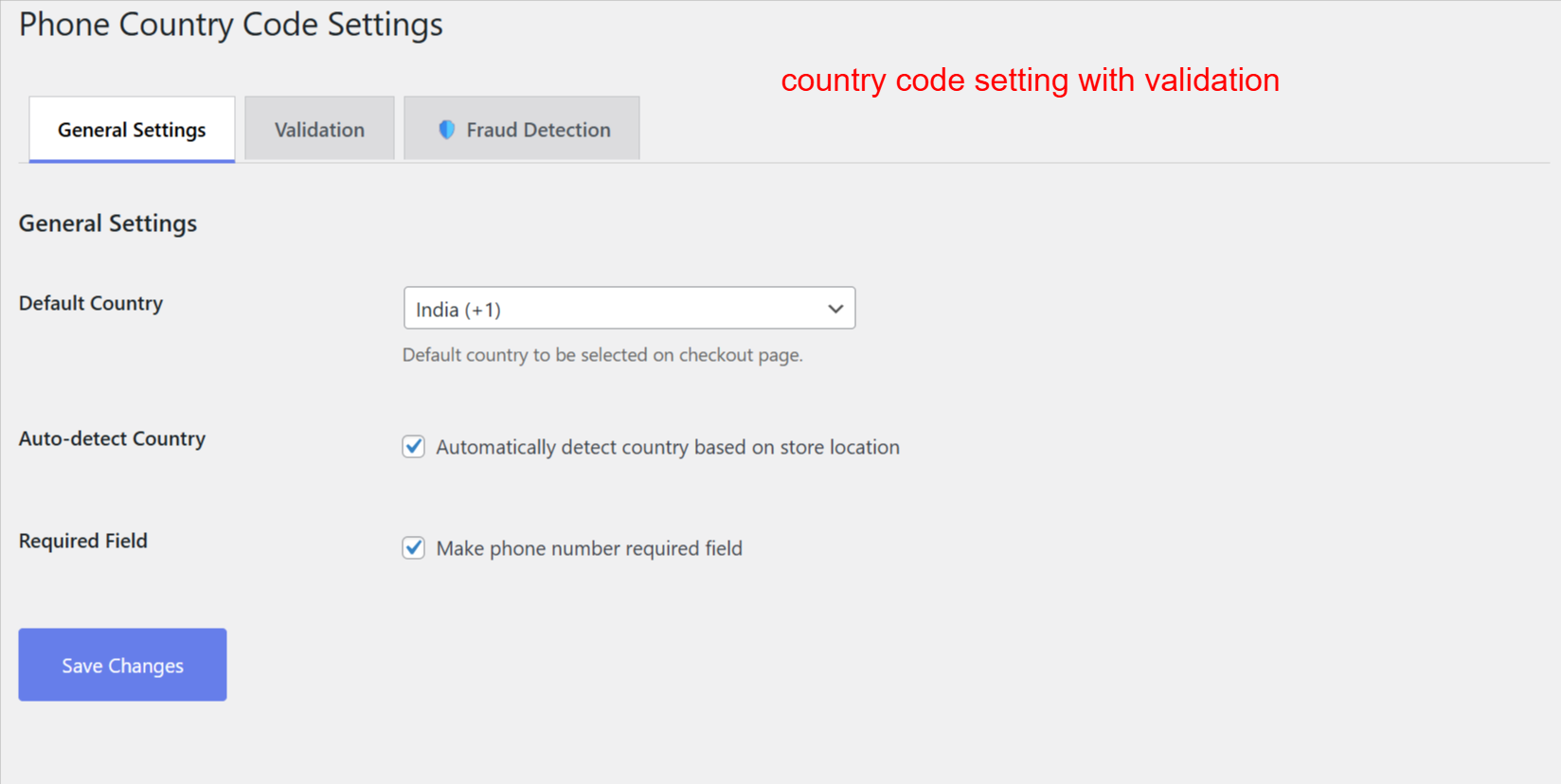
wp-admin: Phone Country Code Settings > General
What this shows: The General Settings tab for Phone Country Code Settings, featuring options like Default Country, Auto-detect Country, and Required Field.
Admins set the default country for phone numbers and can allow automatic detection based on store location. These settings refine the customer’s checkout experience, ensuring the correct country code is readily available, enhancing the order process efficiency.
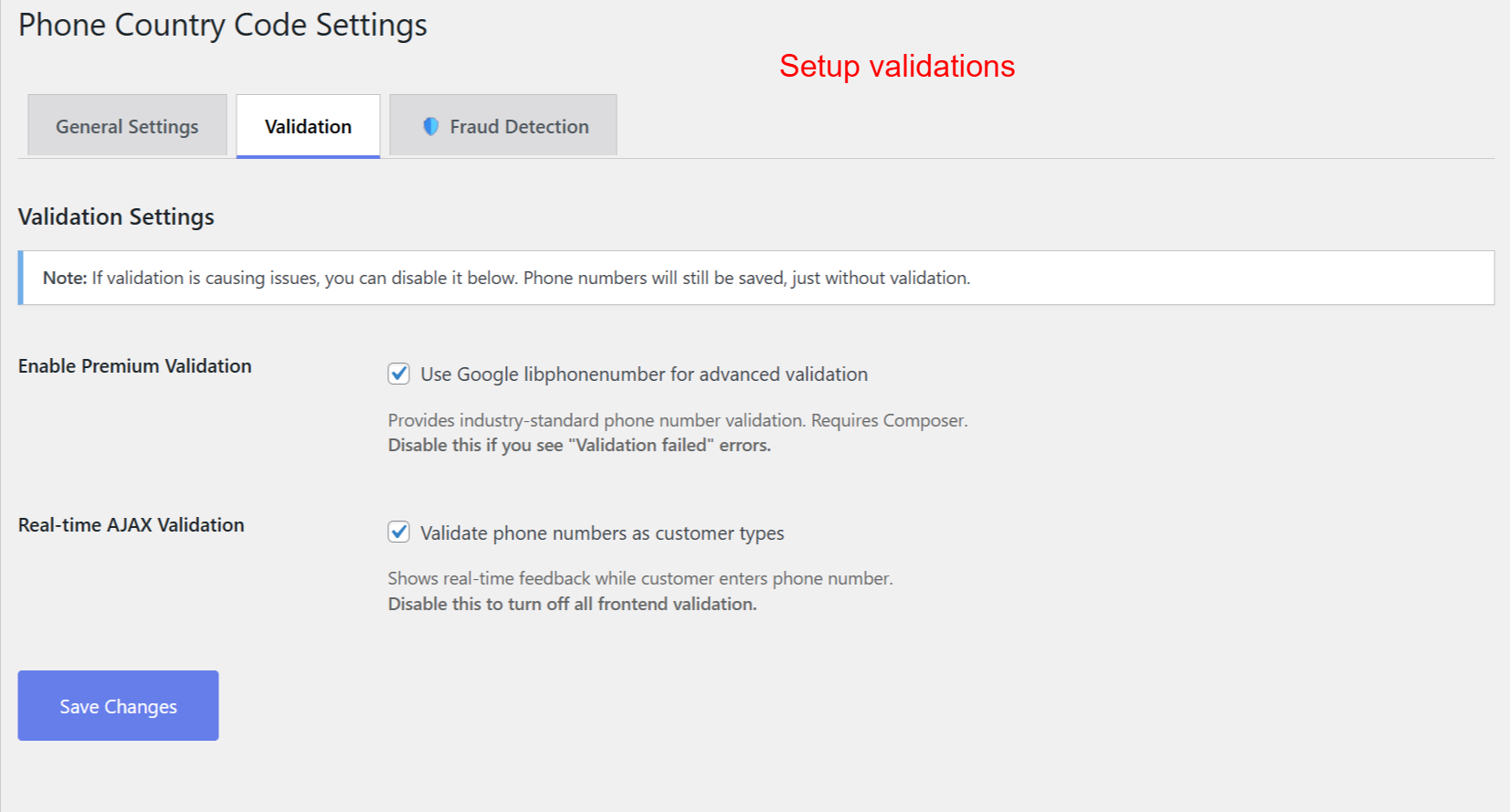
wp-admin: Phone Country Code Settings > Validation
What this shows: The Validation Settings tab with options for enabling Google libphonenumber for advanced validation and real-time AJAX validation.
Admins enhance phone number accuracy by enabling advanced validation tools. This ensures phone numbers are formatted and validated in real-time, reducing errors and increasing the quality of customer data collected at checkout.
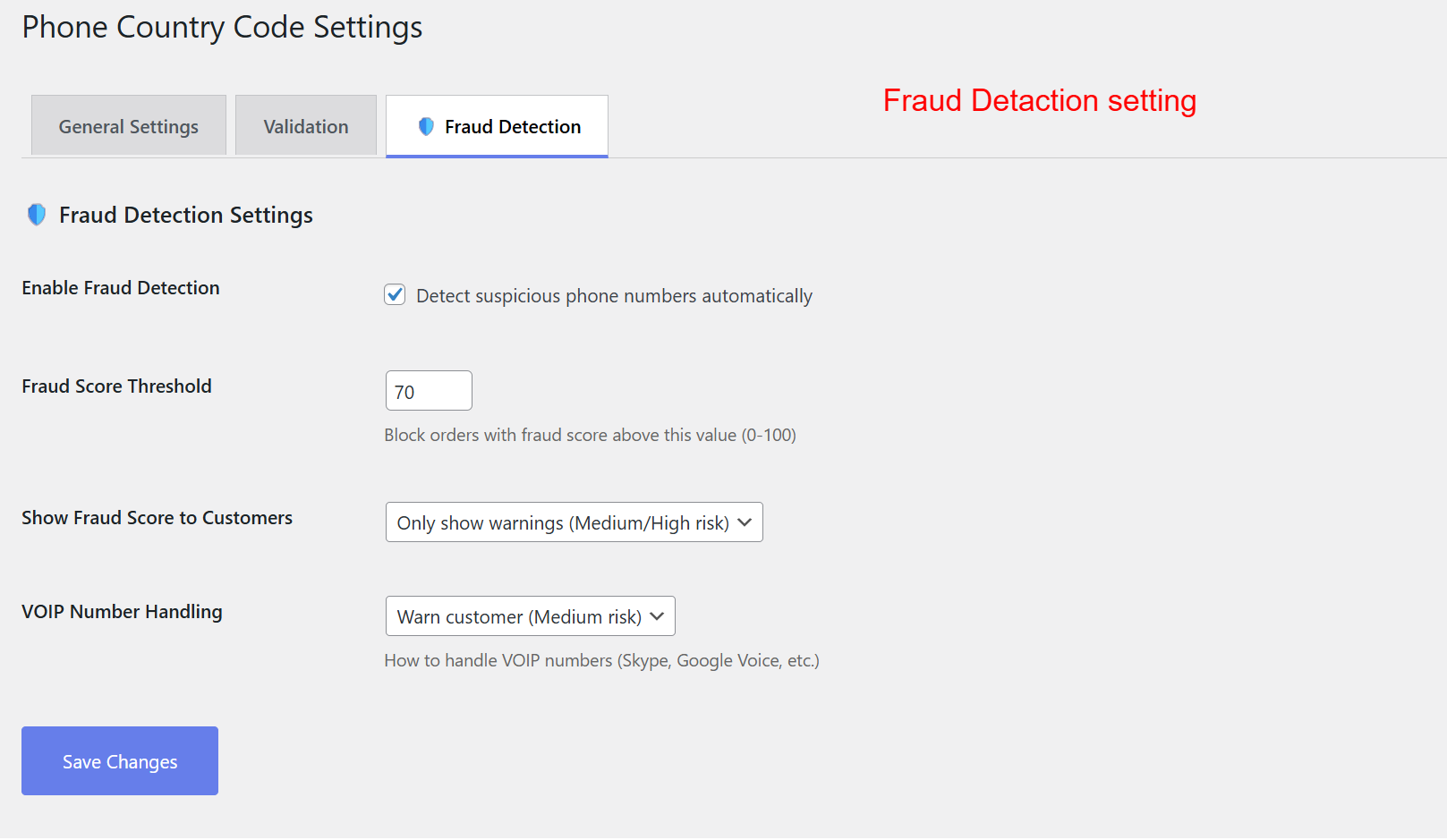
wp-admin: Phone Country Code Settings > Fraud Detection
What this shows: Fraud Detection Settings tab, including options to enable fraud detection, set fraud score thresholds, and handle VOIP numbers.
This page allows admins to configure settings that help identify and prevent fraudulent orders. By setting a fraud score threshold, they can control when the system flags suspicious phone numbers, thus safeguarding against potential fraud without inconveniencing genuine customers.
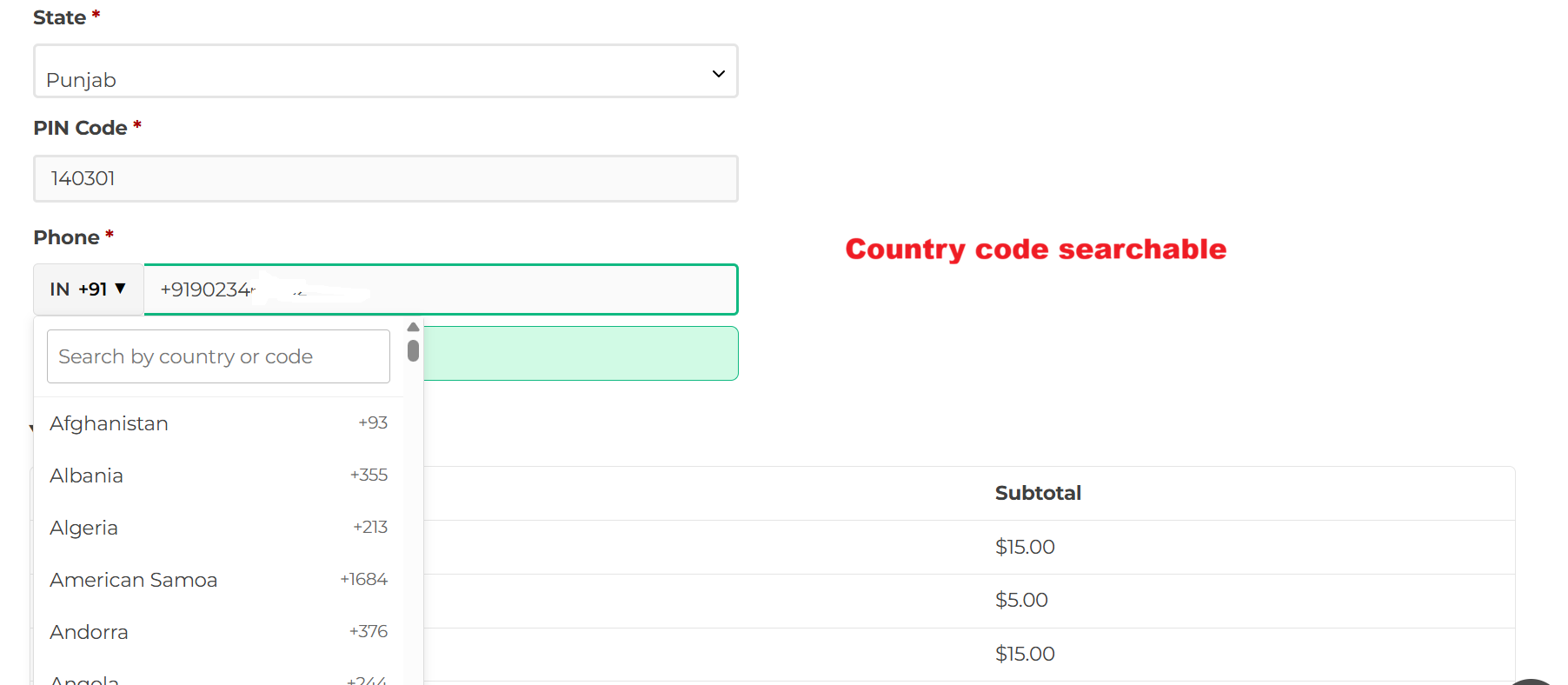
Checkout Frontend: Country Code Search
What this shows: The phone field on the checkout page showcasing a country code drop-down list with a search function for ease of selection.
Customers enter their phone number during checkout, utilizing a searchable drop-down list of country codes. This functionality enhances user experience by making it easier to select the correct country code, ensuring accurate data entry.
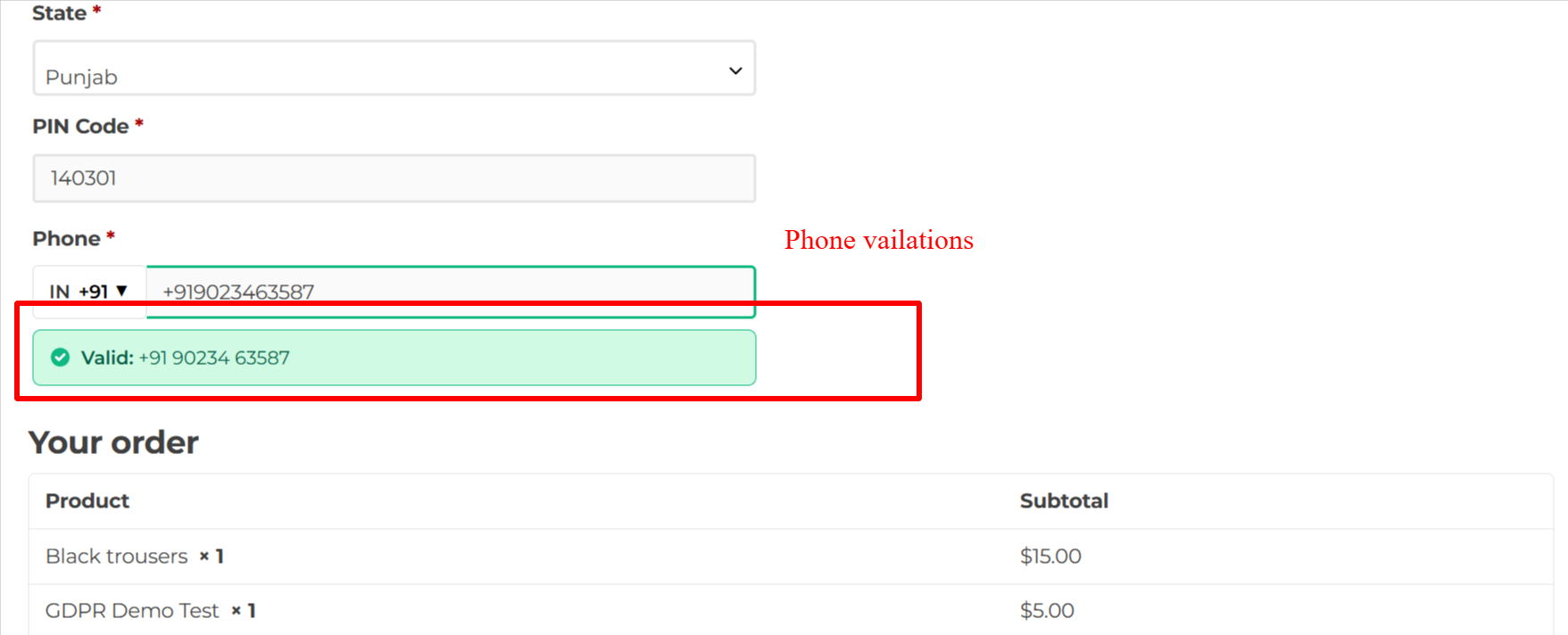
Checkout Frontend: Phone Validation Success
What this shows: Checkout phone field with a validation success message displayed below, confirming the phone number is valid.
When a customer enters a valid phone number, the system provides immediate feedback confirming the entry. This reassures the customer that their contact details are correctly formatted, improving accuracy and satisfaction.
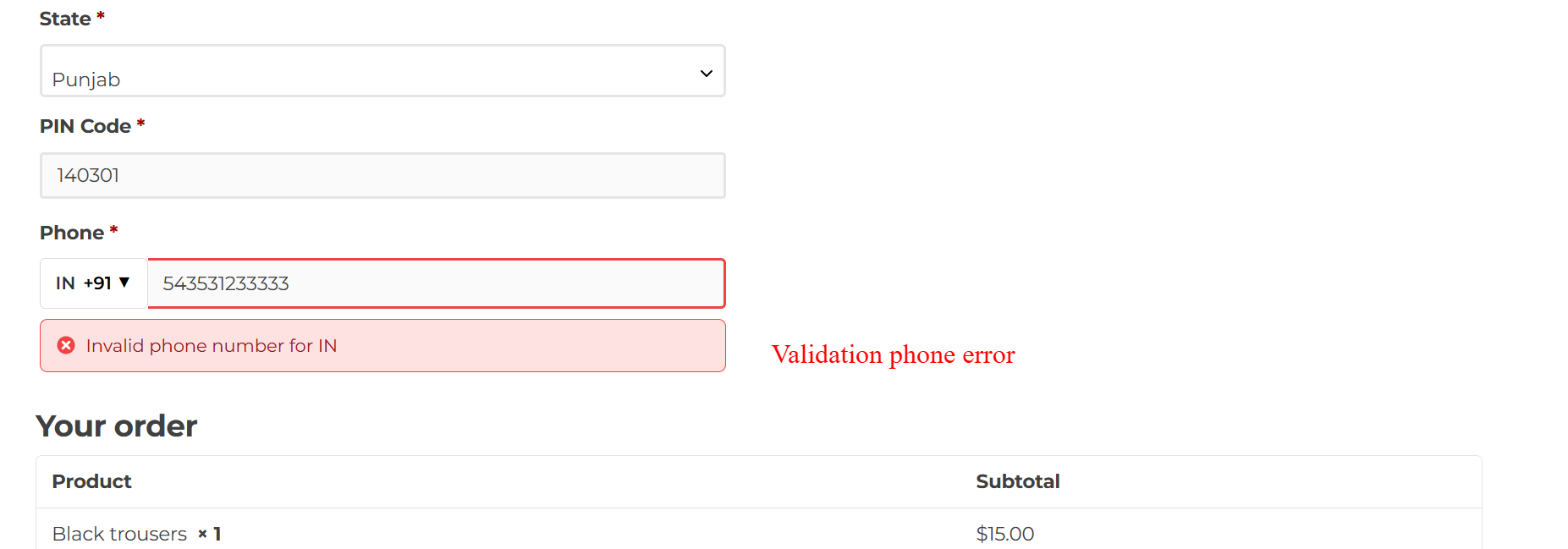
Checkout Frontend: Phone Validation Error
What this shows: Checkout phone field showing a validation error message indicating an invalid phone number entry.
If the phone number entered by a customer is incorrect, an error message prompts immediate correction. This helps ensure data integrity by preventing the submission of inaccurate contact information at checkout.
WooCommerce Frontend: Phone Country Code Display
What this shows: This screenshot shows the WooCommerce checkout form with a phone field. The field includes a country flag icon and a dropdown for selecting the phone country code, displaying ‘+91’. There is a ‘Save address’ button below the field.
On this WooCommerce checkout screen, customers can select a phone country code by choosing from a dropdown menu featuring country flags, ensuring they input their number with the correct international prefix. This functionality simplifies the checkout process for international customers, reducing phone number entry errors. After making their selection, customers can continue by clicking ‘Save address’ to proceed with their purchase.
