Configuration Walkthrough
Activate the Plugin
To begin using the plugin, navigate to Plugins > Installed Plugins within your WordPress admin panel. Locate Checkout Phone Country Code for WooCommerce and click Activate. This step will enable the plugin’s features on your shop’s checkout page.
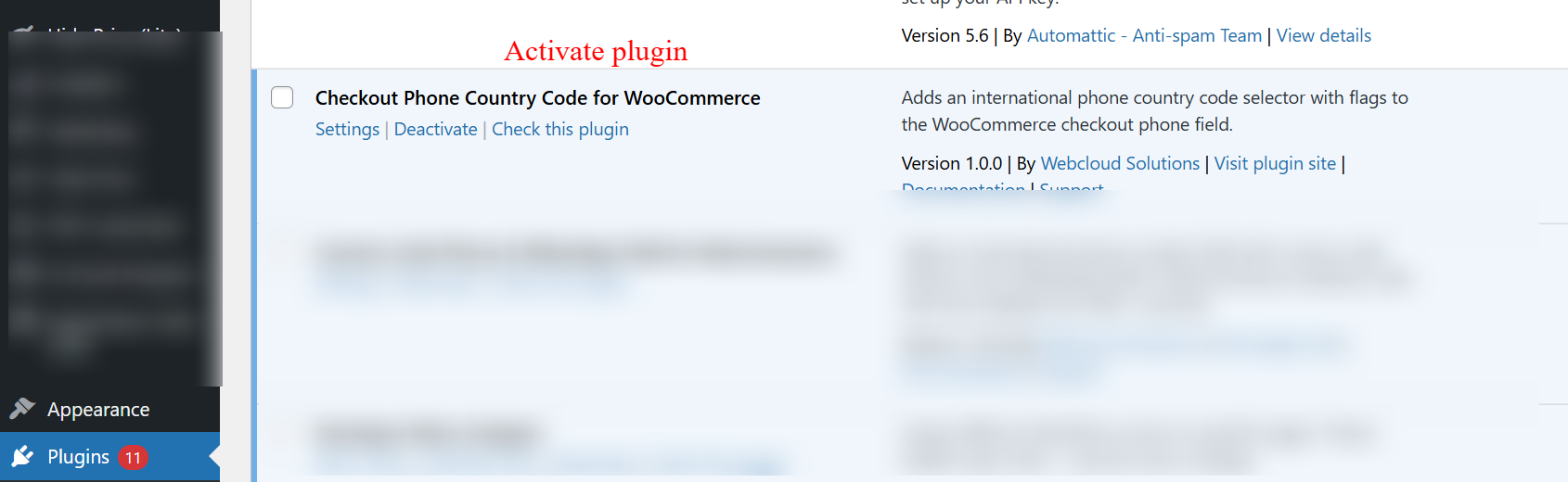
On this screen, the admin can manage installed plugins within WordPress. To enable the features of the Checkout Phone Country Code for WooCommerce plugin, the admin must activate it here. Activating the plugin is essential to display international phone country code selectors at checkout.
Access Phone Country Code Settings
After activation, head to WooCommerce > Phone Country Code from the sidebar to begin configuring the plugin settings. This menu provides all customization options.
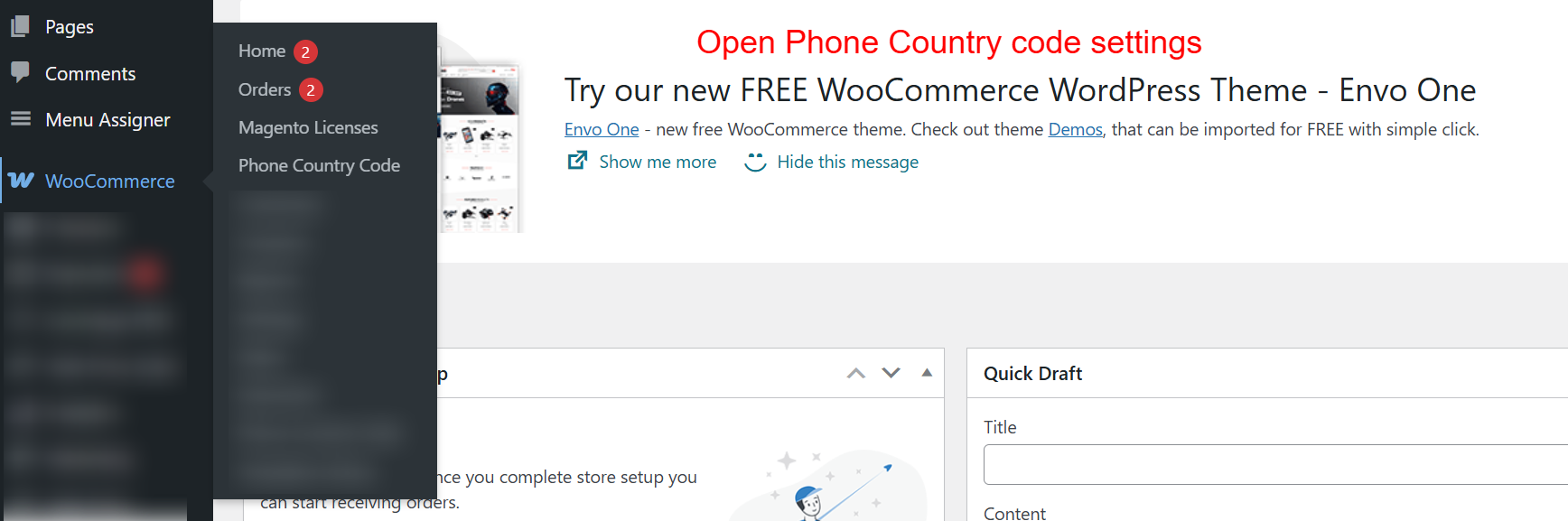
This screen allows the admin to access the Phone Country Code settings within the WooCommerce menu. Navigating here is the next step after activating the plugin, enabling the admin to configure how country codes appear during the checkout process.
Configure General Settings
Within the settings, configure the necessary general settings: set a default country and enable the auto-detect feature for ease of use based on visitor location.
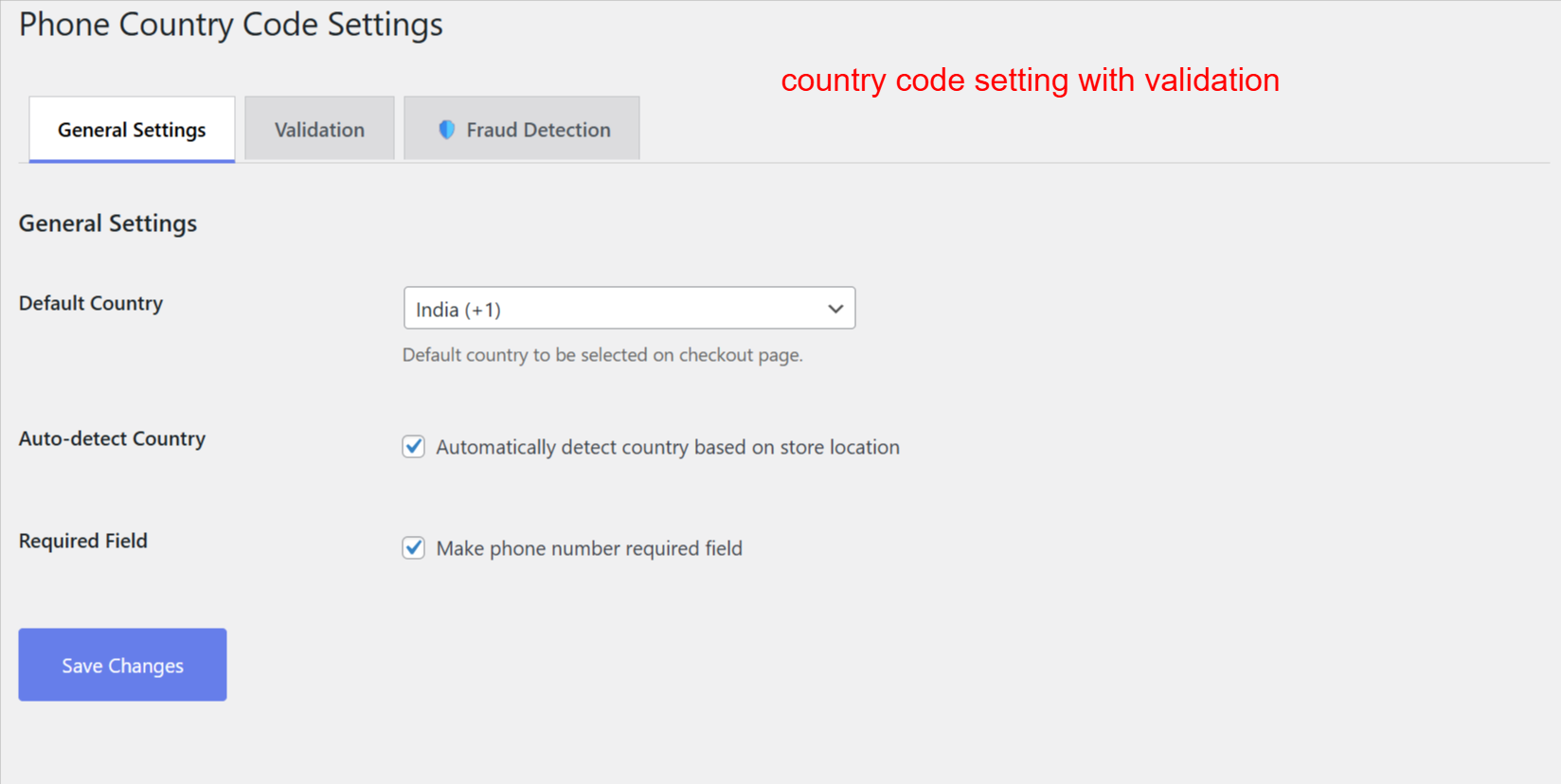
Admins set the default country for phone numbers and can allow automatic detection based on store location. These settings refine the customer’s checkout experience, ensuring the correct country code is readily available, enhancing the order process efficiency.
Enable Advanced Validation
Go to the Validation tab to activate advanced validation options. Utilize the Google libphonenumber library for precise validation and enable AJAX real-time checks for accuracy.
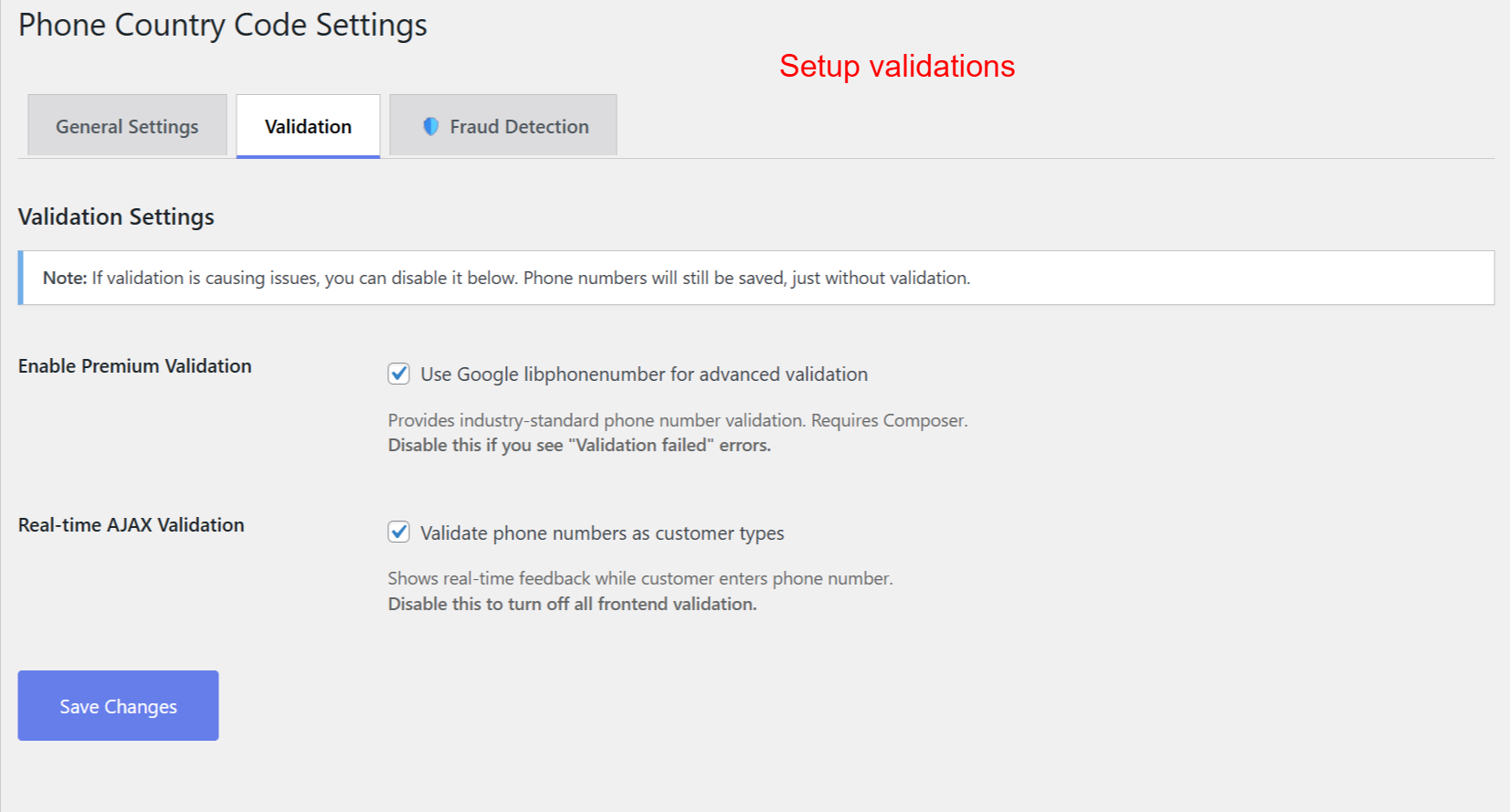
Admins enhance phone number accuracy by enabling advanced validation tools. This ensures phone numbers are formatted and validated in real-time, reducing errors and increasing the quality of customer data collected at checkout.
Set Up Fraud Detection
Access the Fraud Detection settings to protect your store from fraudulent activities. Configure detection sensitivity using fraud score thresholds and manage how VOIP numbers are handled.
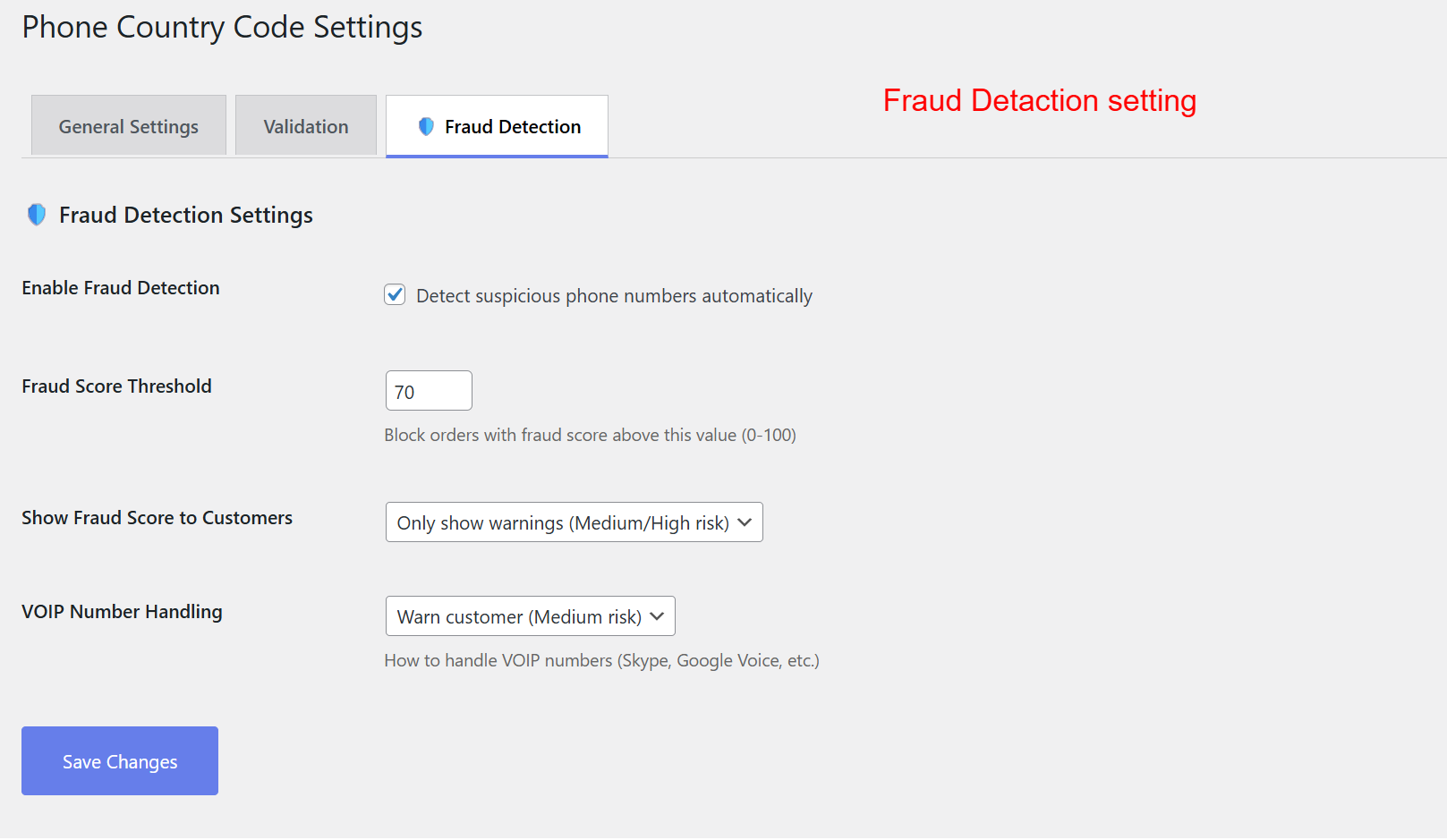
This page allows admins to configure settings that help identify and prevent fraudulent orders. By setting a fraud score threshold, they can control when the system flags suspicious phone numbers, thus safeguarding against potential fraud without inconveniencing genuine customers.