Step-by-Step Screenshot Reference
11 Step-by-Step Screenshot Reference
Every captured screen in setup order. Click any image to open the full-size version in a new tab.
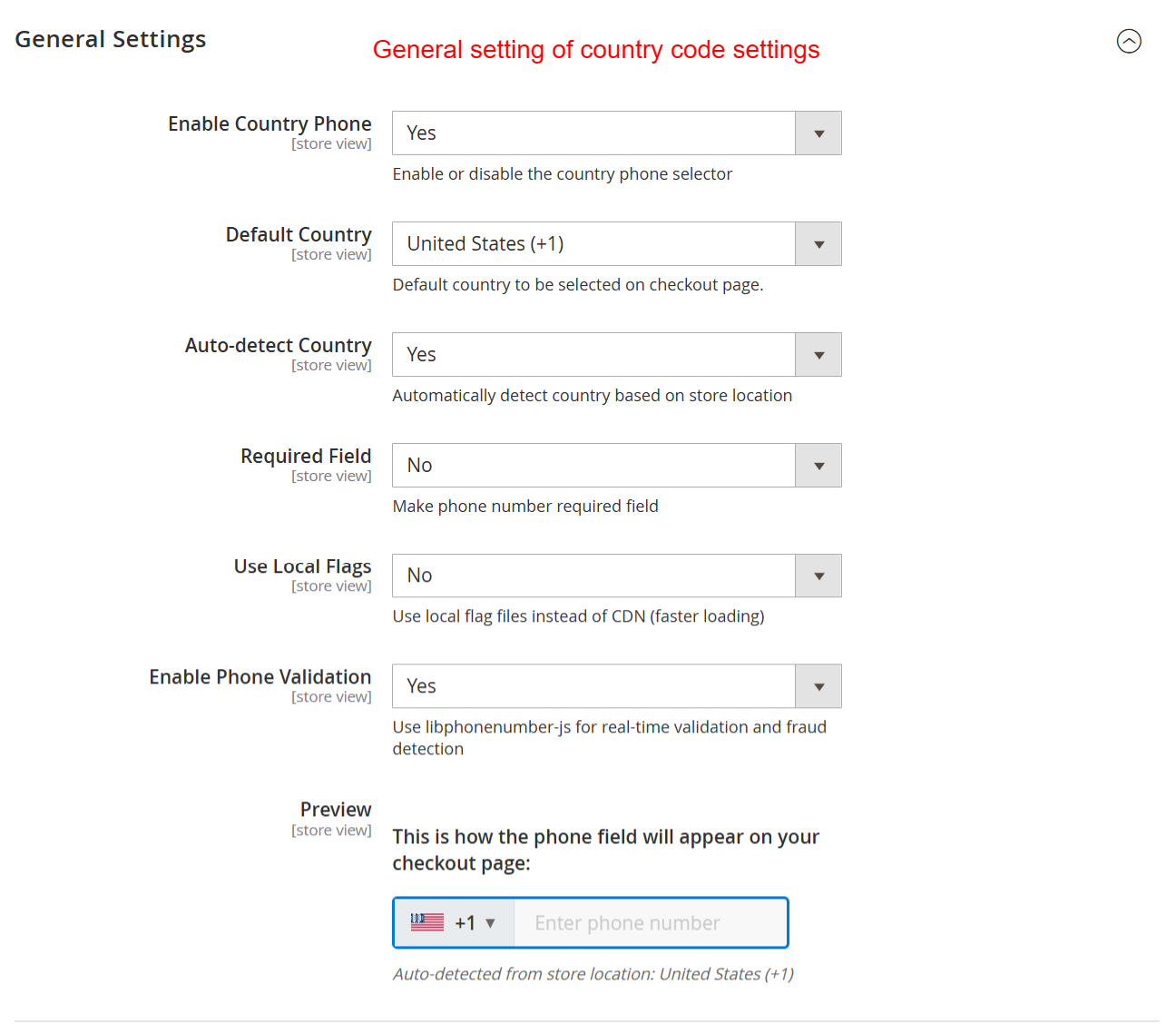
Admin: General Settings for Country Phone
What this shows: A configuration page with options to enable country phone, set a default country, auto-detect country, make the field required, use local flags, and enable phone validation.
In the ‘General Settings’ screen, admins can enable the country phone selector, set the default country, and choose whether to auto-detect the country based on store location. It is crucial for configuring how phone numbers are handled in checkout, ensuring users have a seamless experience while entering their numbers.
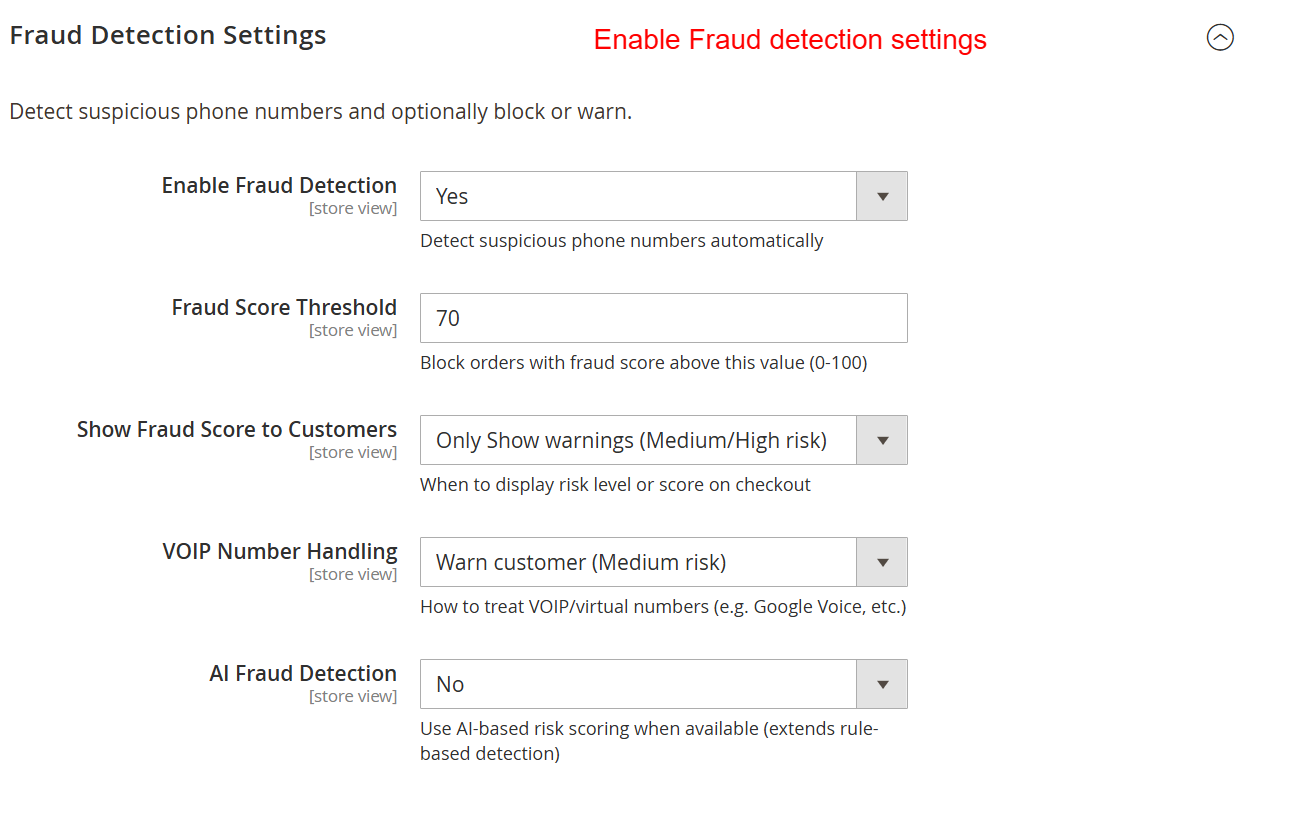
Admin: Fraud Detection Configuration
What this shows: Settings to enable fraud detection, set fraud score threshold, show fraud scores, handle VOIP numbers, and use AI for detection.
The ‘Fraud Detection Settings’ section allows you to configure how the system handles potentially fraudulent phone numbers by setting fraud score thresholds and displaying fraud scores to customers. This ensures that high-risk phone numbers are flagged, improving security during the checkout process.
Admin: WhatsApp Integration Settings
What this shows: Options to enable WhatsApp field, set default country, make the field required, and customize validation messages.
This screen is for configuring WhatsApp integration on checkout forms. Admins can enable the WhatsApp field, set a default country, and define validation messages. It adds convenience for customers to include their WhatsApp details, enhancing communication possibilities.
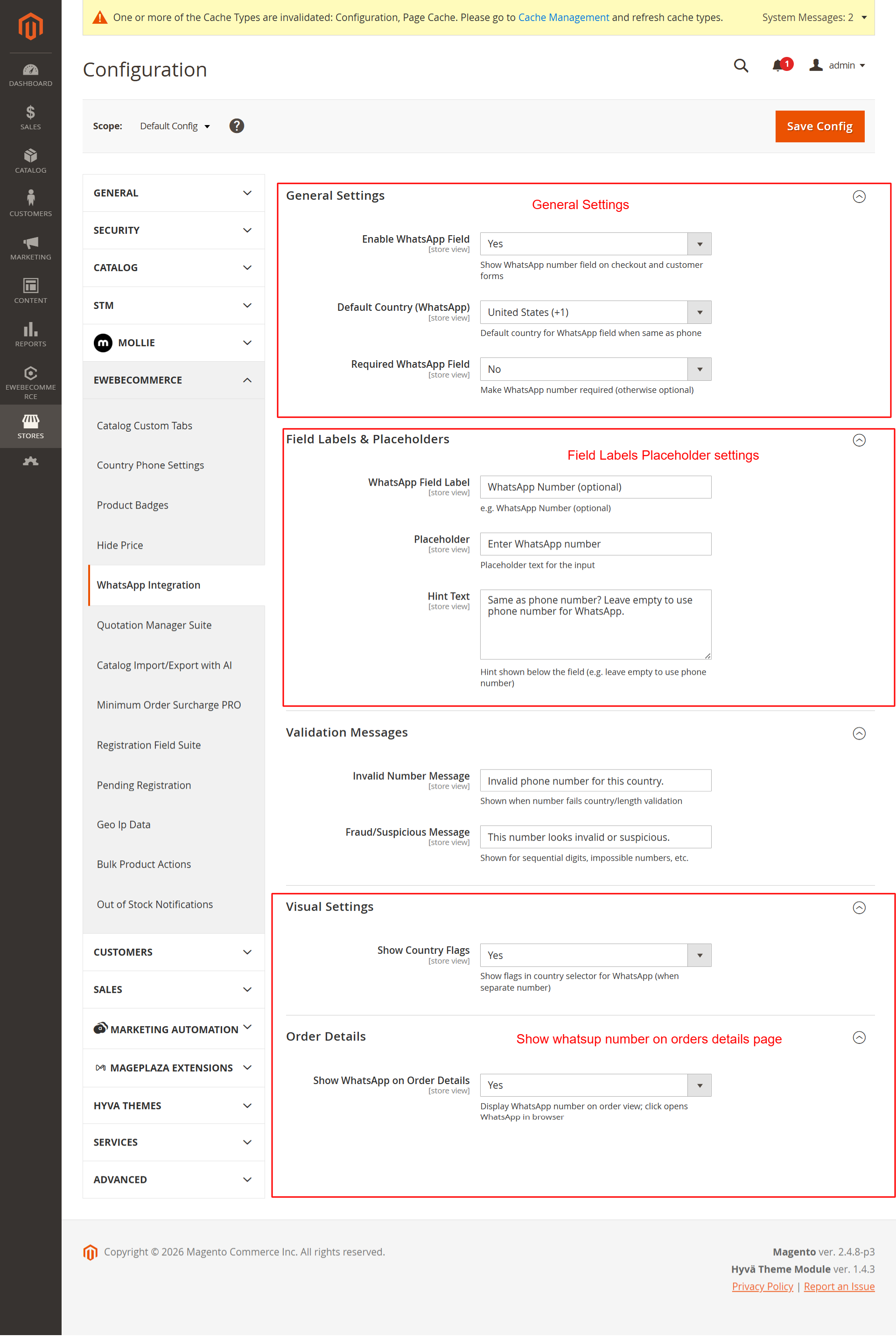
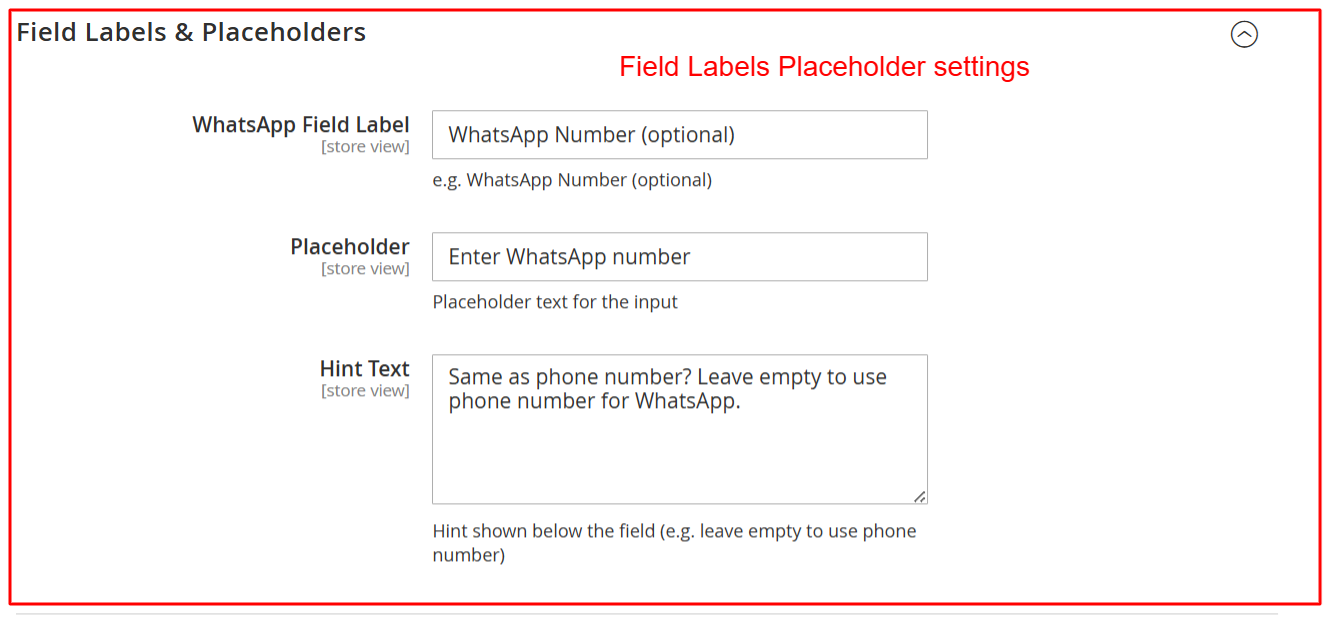
Admin: WhatsApp Field Placeholder Settings
What this shows: Fields to configure the label, placeholder, and hint text for the WhatsApp input field.
Use this screen to personalize the WhatsApp input field by setting its label, placeholder text, and hint text. This customization helps align the UI with the store’s branding and clarifies input expectations for customers.
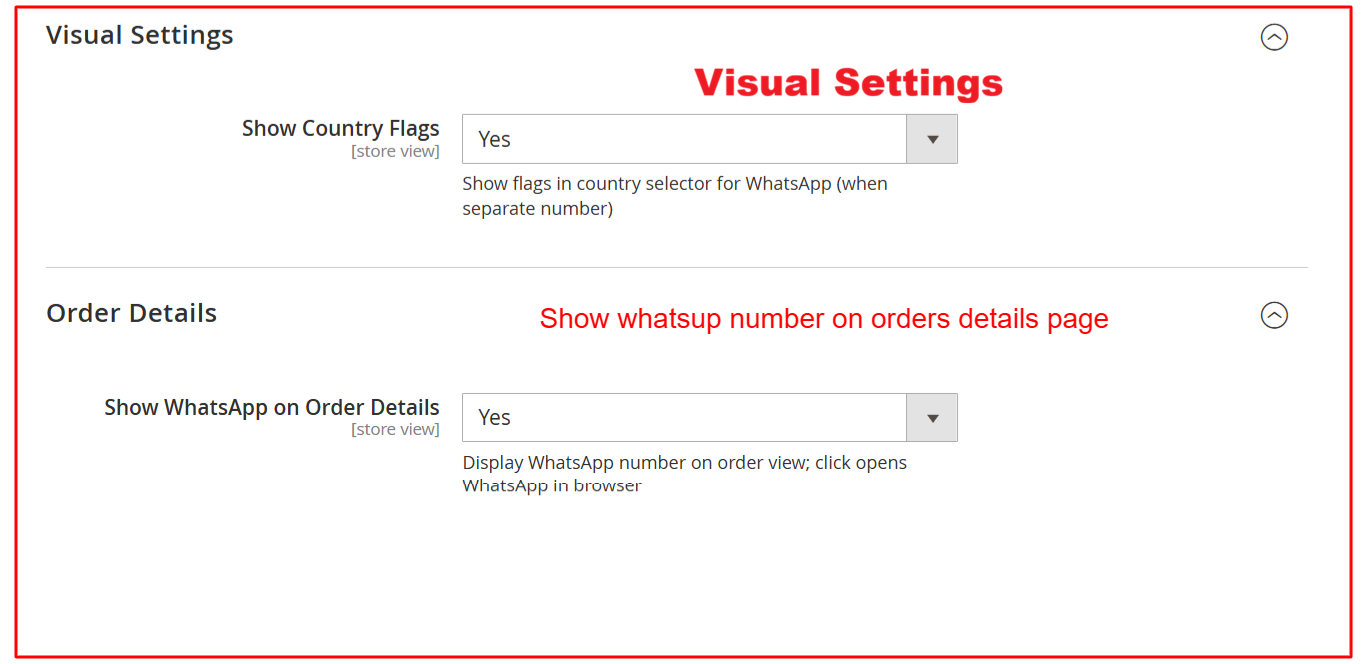
Admin: Visual Configuration for WhatsApp
What this shows: Options to show country flags in the selector and display WhatsApp on order details.
On the ‘Visual Settings’ page, set whether to display country flags in the WhatsApp selector and whether to show WhatsApp details on order views. These settings improve the visual appeal and functionality of your checkout process.
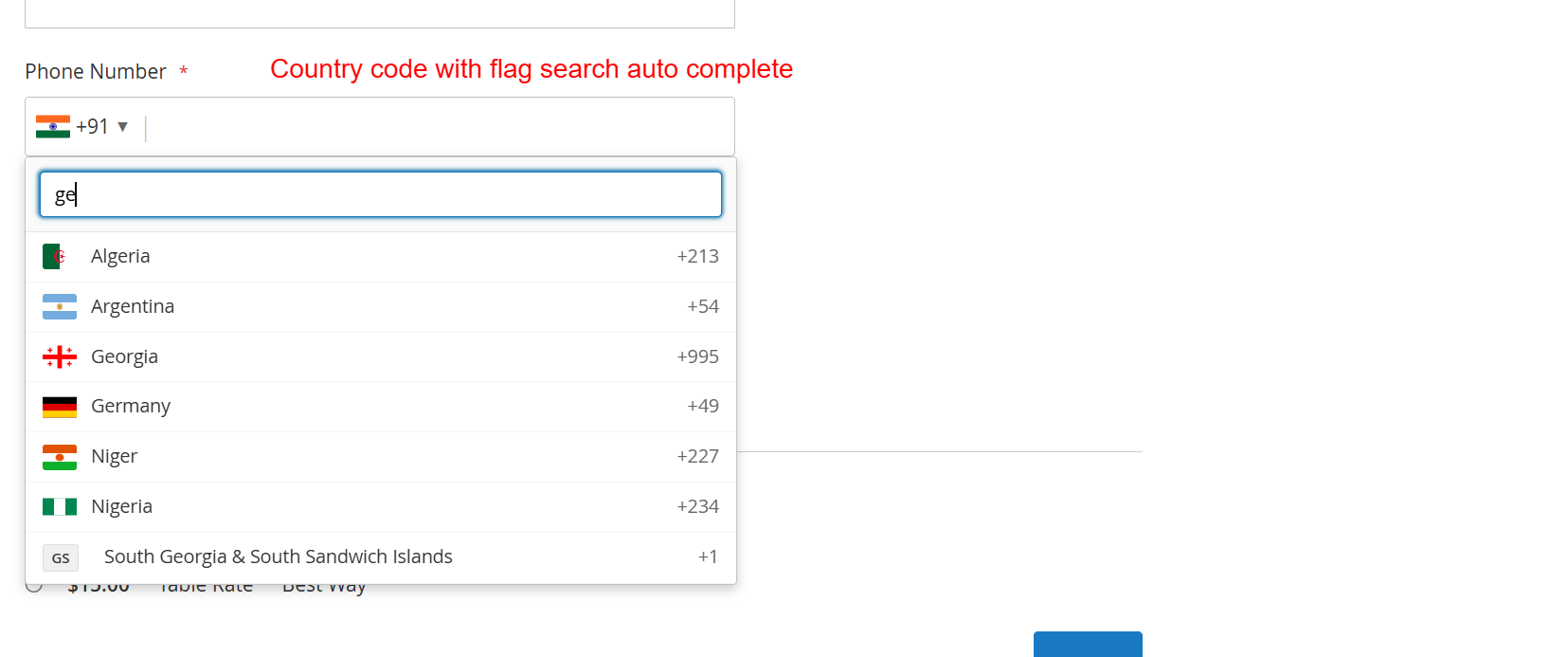
Frontend: Country Code Autocomplete Feature
What this shows: A customer-facing phone number input with an autocomplete dropdown showing country codes with flags.
Customers interact with a user-friendly phone number field that supports autocomplete for country codes, complete with flag icons. This intuitive feature speeds up the selection process and reduces data entry errors during checkout.
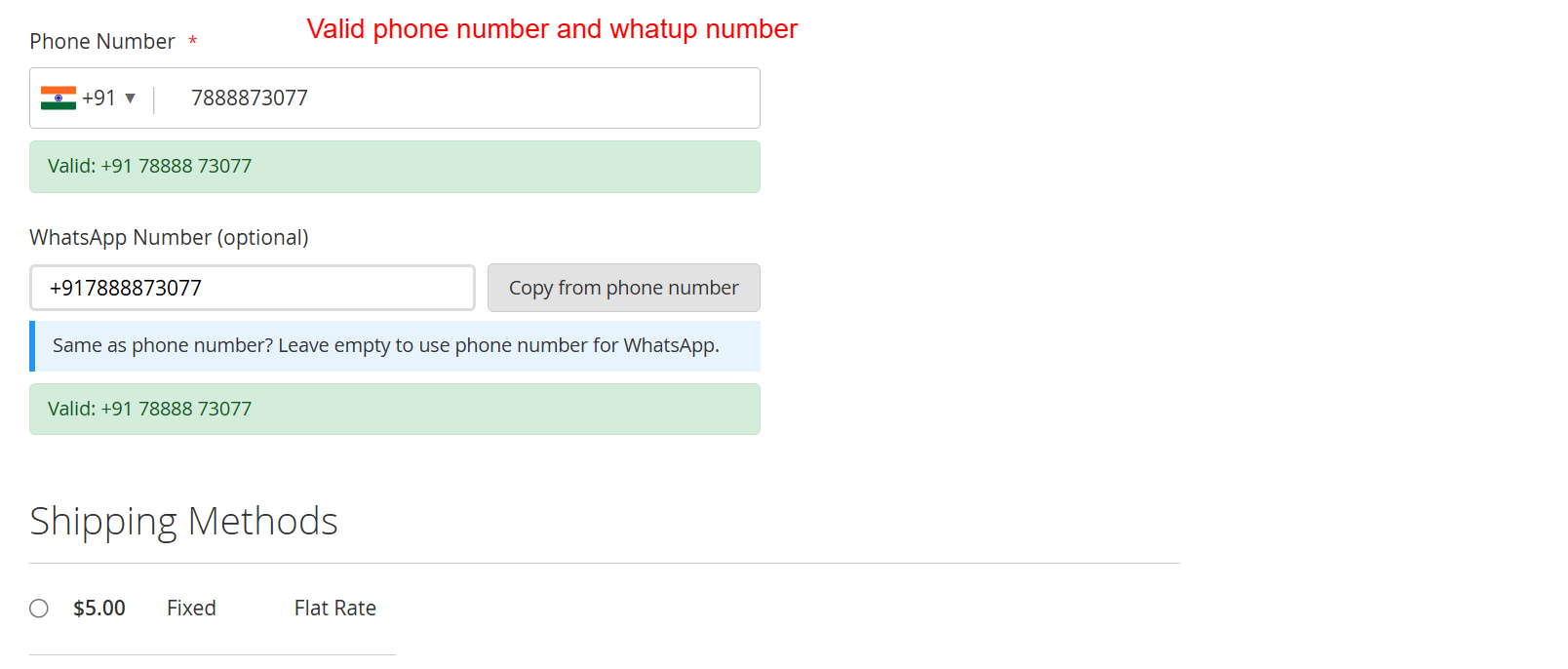
Frontend: Valid Phone Number Input
What this shows: A checkout screen showing a validated phone and WhatsApp number.
This screen shows the successful entry of a validated phone number and optional WhatsApp number with real-time feedback, ensuring data accuracy before purchase completion. It’s pivotal in confirming the user inputs are correct, minimizing errors.
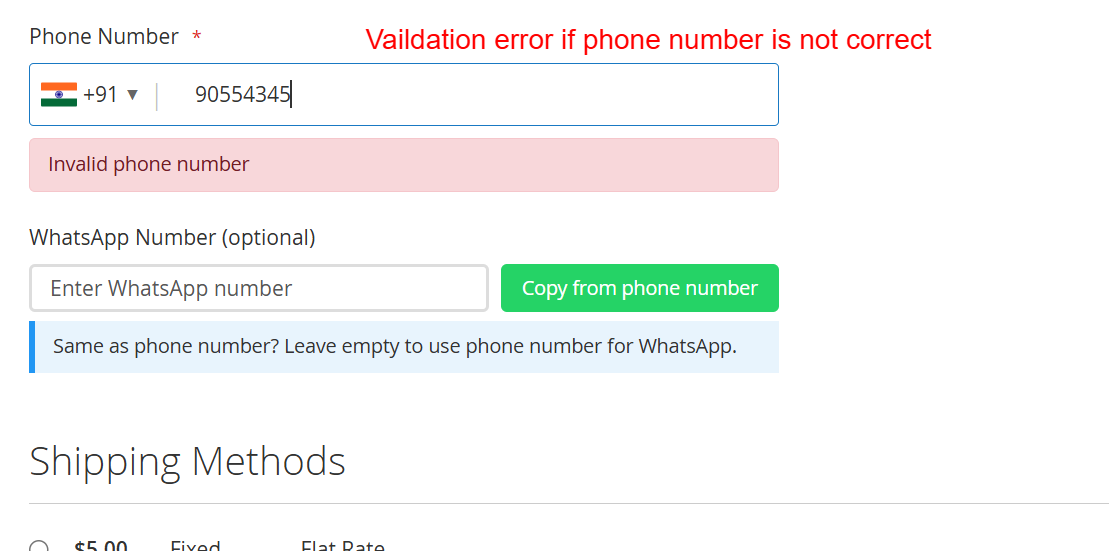
Frontend: Phone Number Validation Error
What this shows: A checkout form indicating an invalid phone number with a validation error message.
Displays error handling during phone number entry, highlighting when an invalid number is detected. Users receive immediate feedback to correct their inputs, which is essential for maintaining a smooth checkout process and ensuring valid data submission.
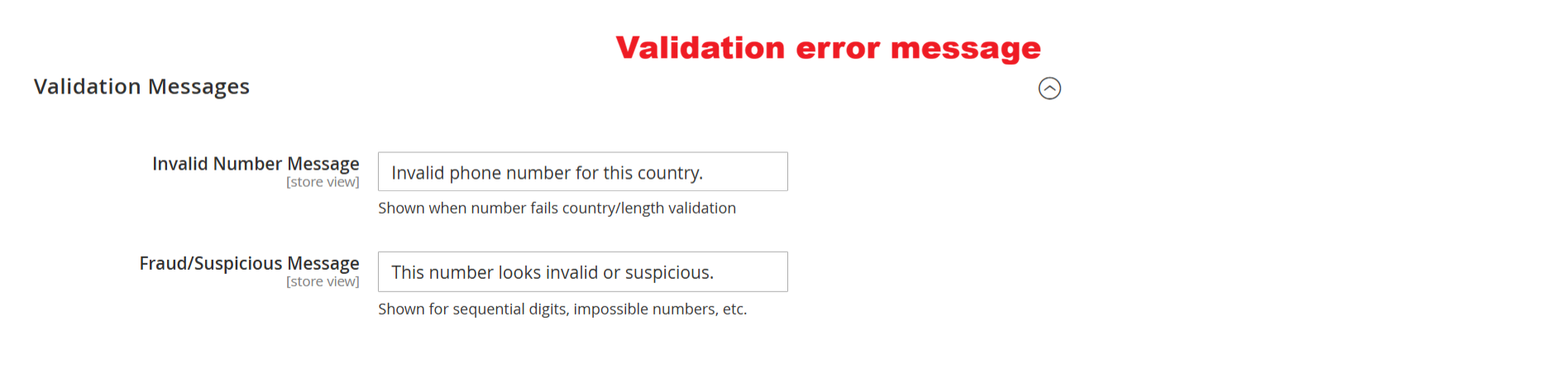
Configuration: Validation Messages Settings
What this shows: This screen displays fields for configuring validation messages. There are text input fields for ‘Invalid Number Message’ and ‘Fraud/Suspicious Message’, with descriptions indicating when each message will be shown.
On this screen, admins can customize validation messages for incorrect or suspicious phone numbers. These messages appear when the number fails country-specific length checks or is deemed potentially fraudulent. Configuring these messages helps enhance user communication and prevent input errors during the checkout process.
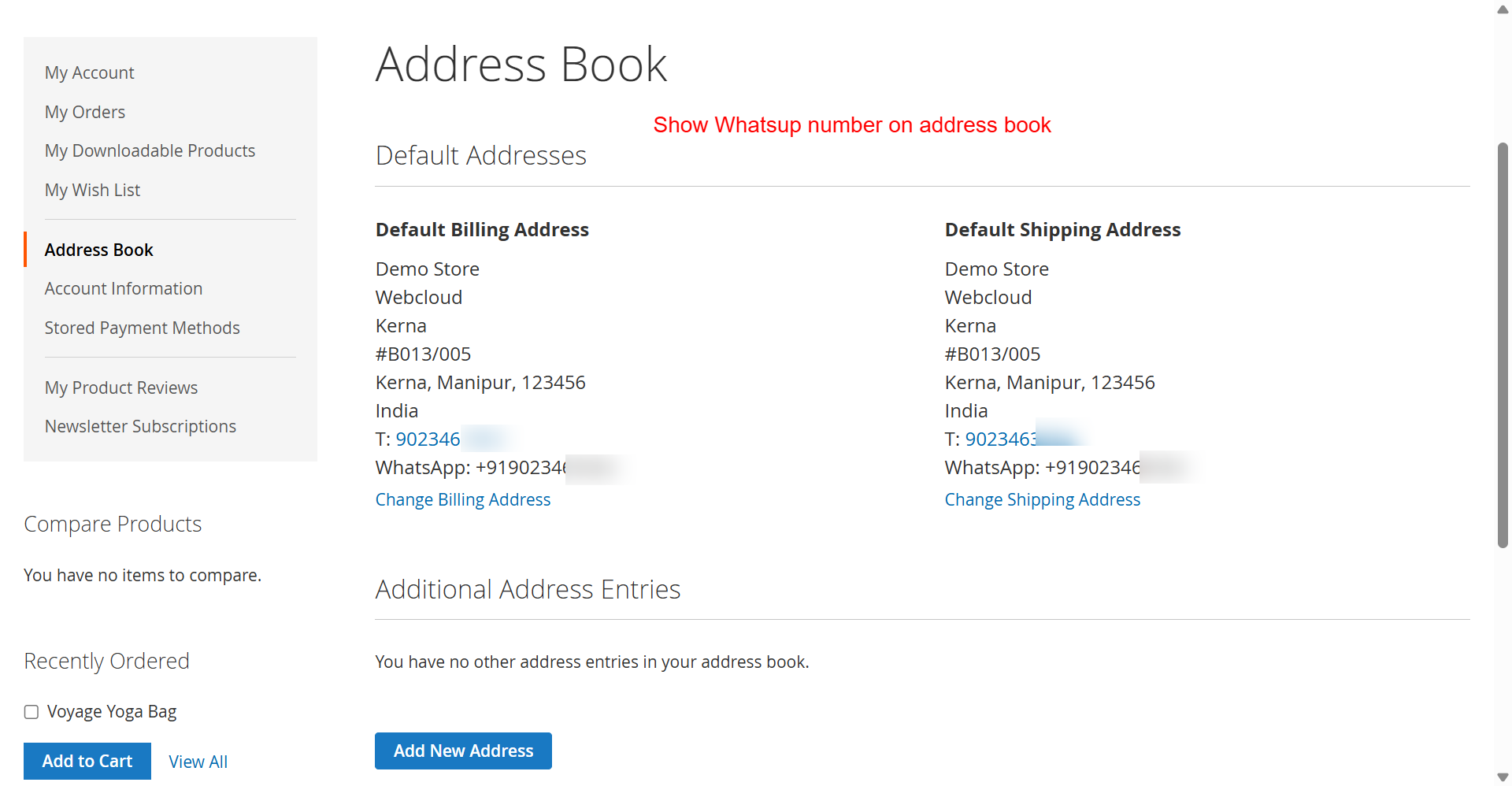
Frontend: Customer Address Book Overview
What this shows: The address book interface shows sections for ‘Default Billing Address’ and ‘Default Shipping Address’, each including a displayed WhatsApp number with options to change the addresses.
Customers can view and manage their default billing and shipping addresses, now with the added convenience of displaying associated WhatsApp numbers. This integration assists users in ensuring their contact information is current and widely accessible, enhancing communication possibilities.
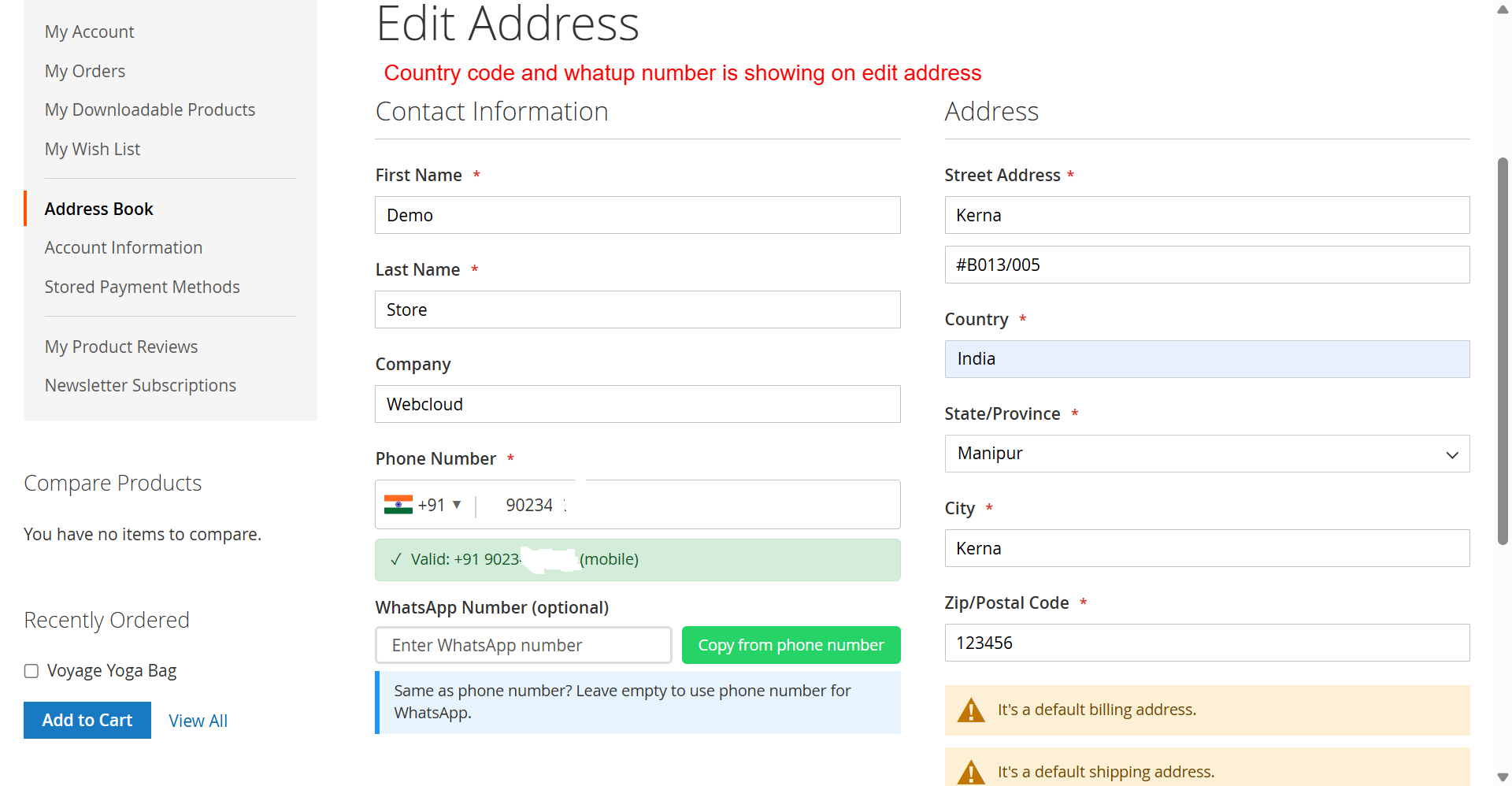
Frontend: Edit Customer Address
What this shows: An address editing form displaying fields for name, company, phone number with country code selector, WhatsApp number, and address details including country and city.
Customers edit their address details including phone and WhatsApp numbers on this screen. The integration of the country code selector ensures numbers are formatted correctly, enhancing validation and communication capabilities for further transactions.
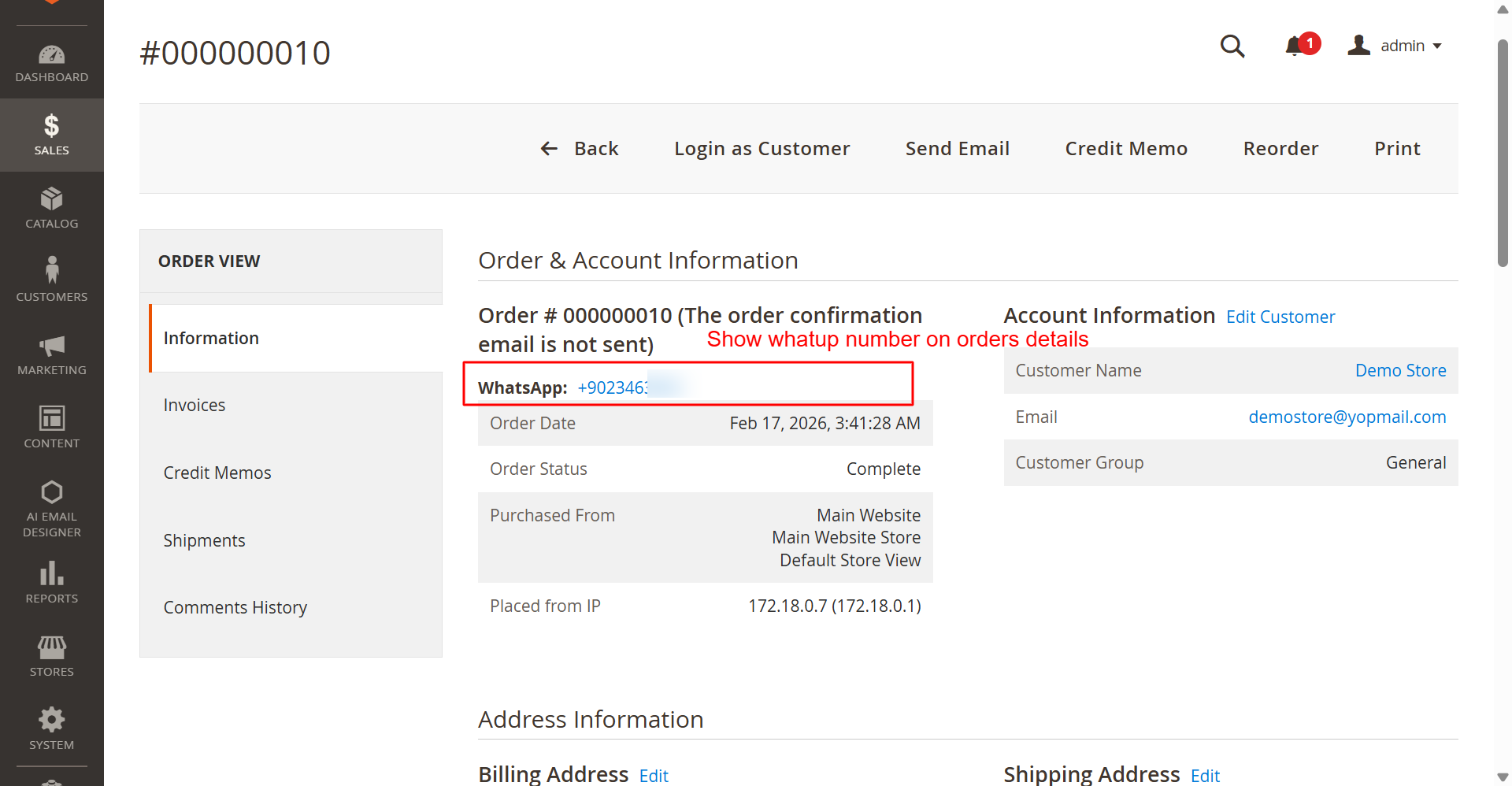
Admin: Order Details with WhatsApp Display
What this shows: Displays order overview information including WhatsApp number under ‘Order & Account Information’. Navigation includes options like Invoices, Shipments, and Comments History.
Admins can view customer order details, including their WhatsApp number, allowing for streamlined communication with customers about orders and inquiries. This feature supports better customer relationship management and efficiency in handling orders.
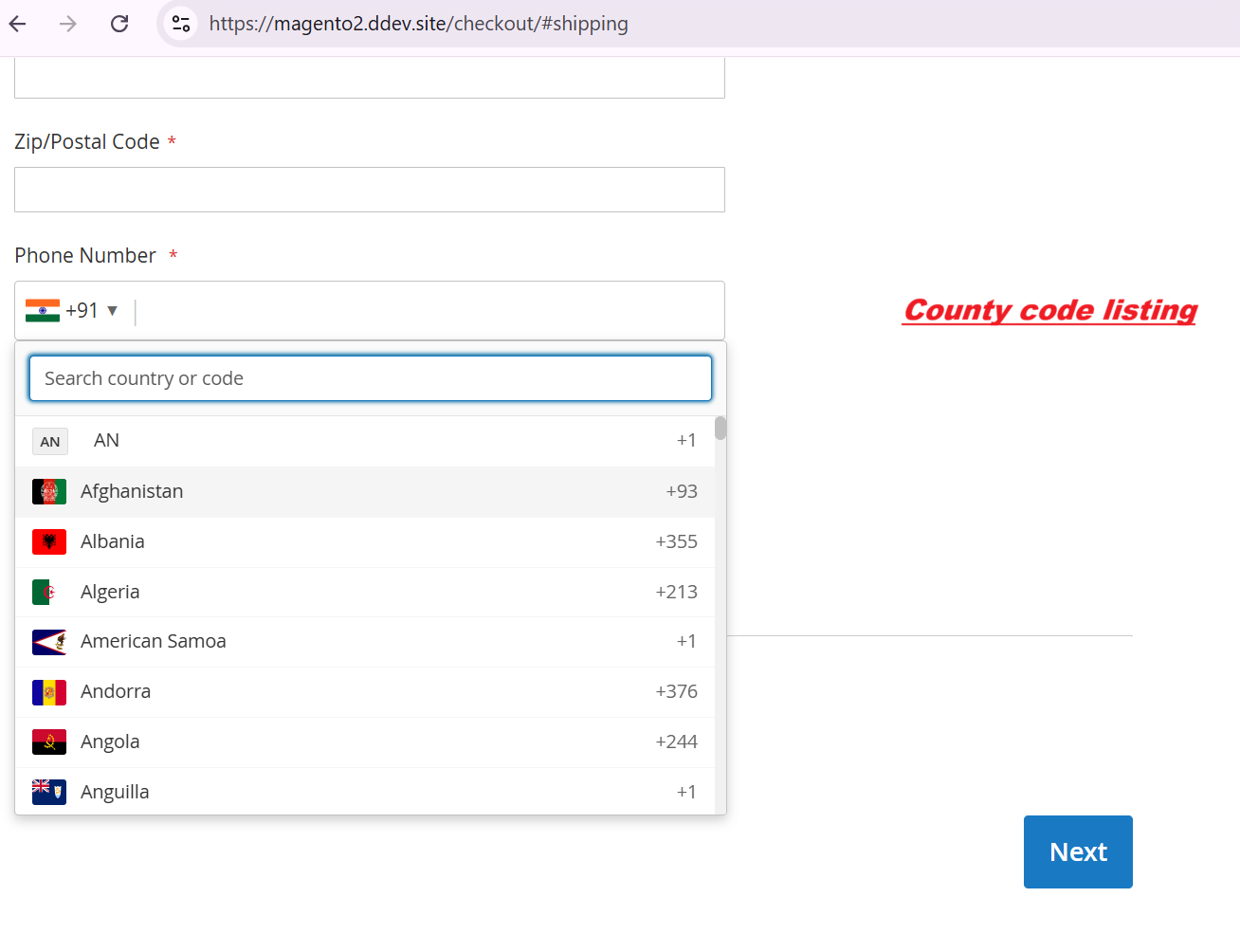
Checkout: Country Code Autocomplete Feature
What this shows: During checkout, a phone number field with a country code dropdown is visible, which allows users to search and select their country code easily.
During the checkout process, customers can utilize the country code autocomplete feature to quickly find and select the correct country code for their phone number. This streamlines their checkout experience and minimizes errors in phone number entries, contributing to accurate data collection.