Configuration Walkthrough
3 Configuration Walkthrough
Navigate to Stores → Configuration in Magento Admin and follow these steps:
Enable the Module
To enable the CountryPhone module, navigate to Stores > Configuration > Ewebecommerce Extensions. In the General Settings, toggle Enable Country Phone to ‘Yes’. Set the Default Country for convenience and decide if the country should be auto-detected.
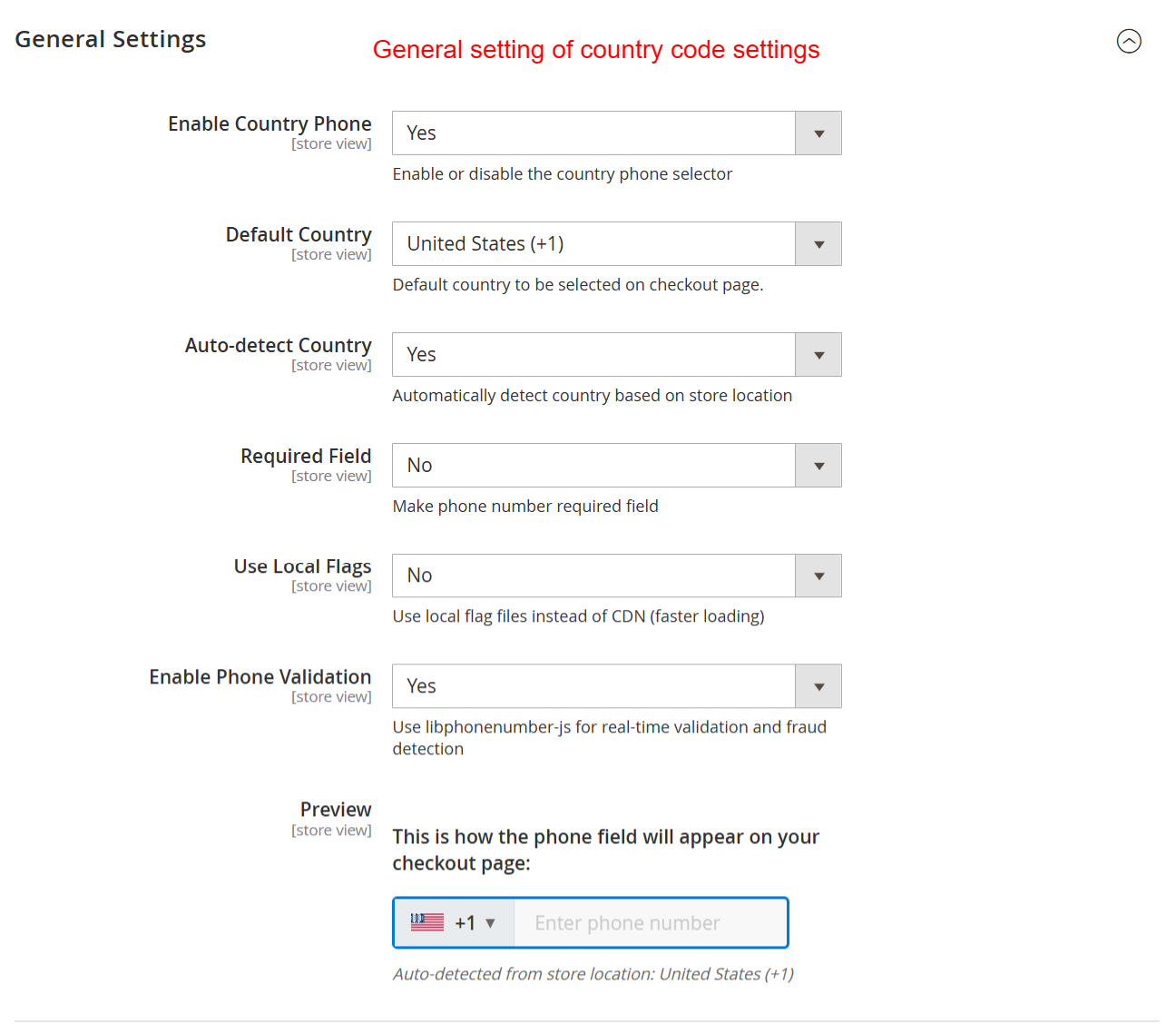
In the ‘General Settings’ screen, admins can enable the country phone selector, set the default country, and choose whether to auto-detect the country based on store location. It is crucial for configuring how phone numbers are handled in checkout, ensuring users have a seamless experience while entering their numbers.
Configure Fraud Detection
Within the same configuration section, open Fraud Detection Settings. Enable fraud detection by setting a Fraud Score Threshold and configuring how to handle VOIP numbers. Consider AI-based scoring to bolster rule-based detection for added security.
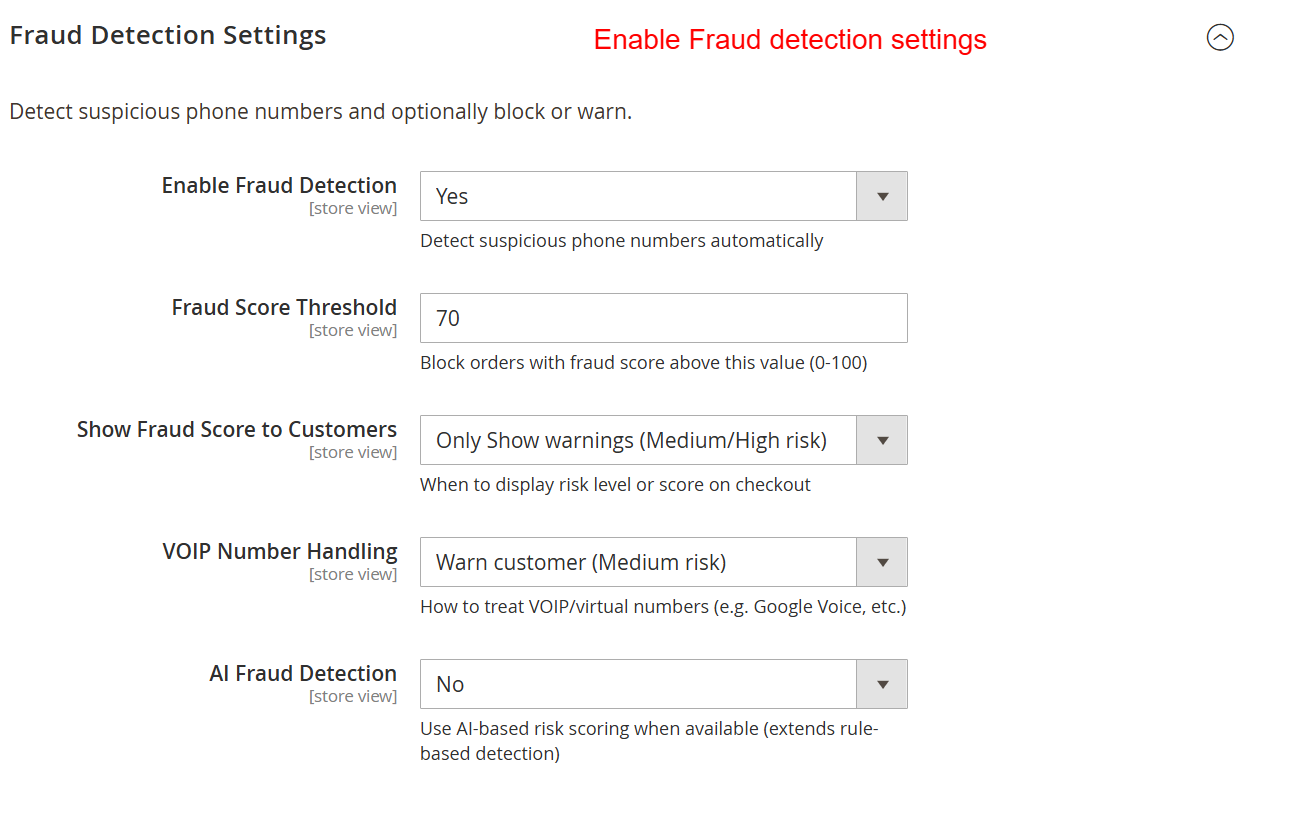
The ‘Fraud Detection Settings’ section allows you to configure how the system handles potentially fraudulent phone numbers by setting fraud score thresholds and displaying fraud scores to customers. This ensures that high-risk phone numbers are flagged, improving security during the checkout process.
Setup WhatsApp Integration
In WhatsApp Integration Settings, select Enable WhatsApp Field to allow users to input a WhatsApp number. Define the Default Country for WhatsApp and configure field requirements and validation feedback accordingly.
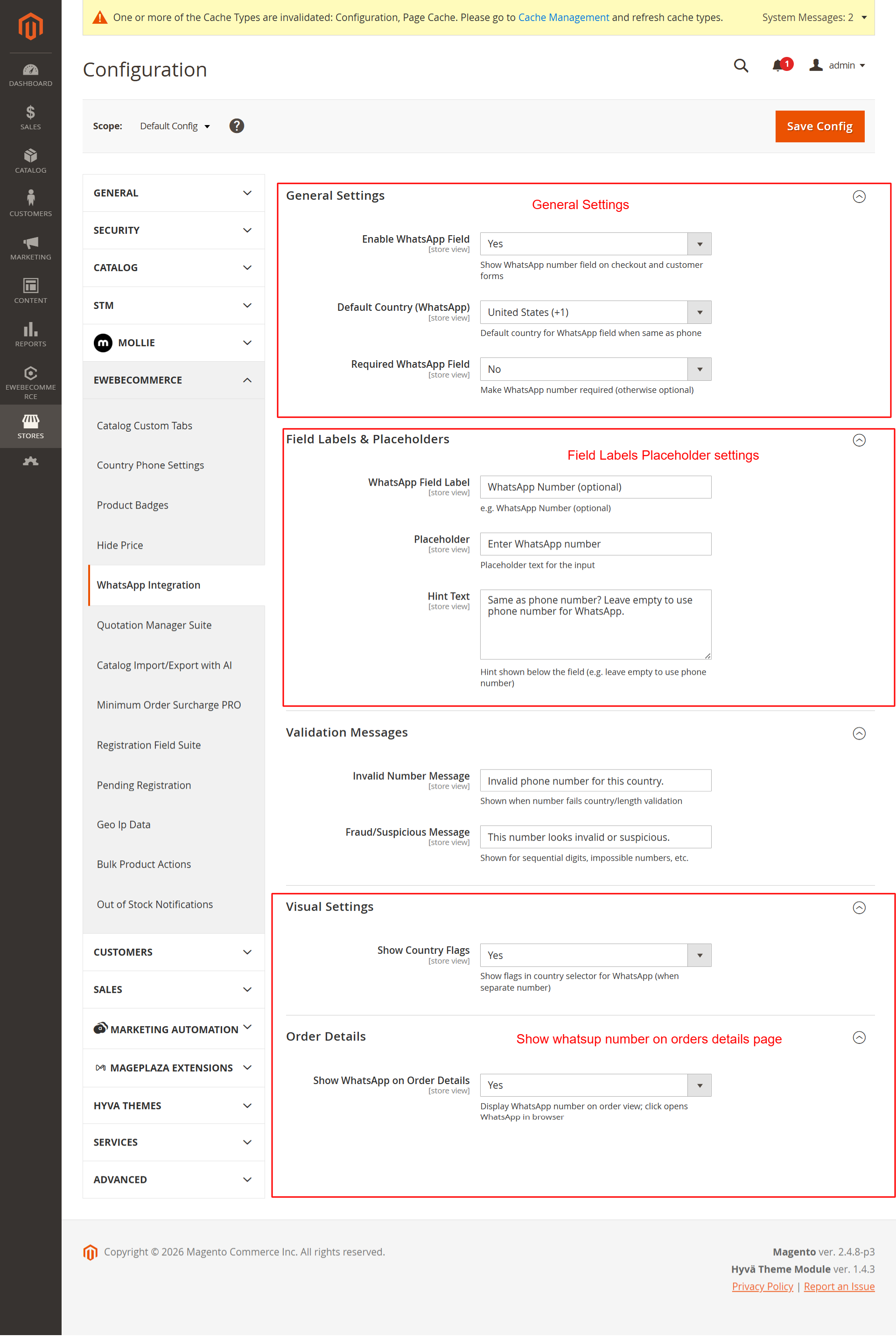
This screen is for configuring WhatsApp integration on checkout forms. Admins can enable the WhatsApp field, set a default country, and define validation messages. It adds convenience for customers to include their WhatsApp details, enhancing communication possibilities.
Customize WhatsApp Field
Within Field Labels & Placeholders, customize WhatsApp input with specific labels, a placeholder, and hint text to guide users clearly. This configurability helps align the interface with your store’s branding.
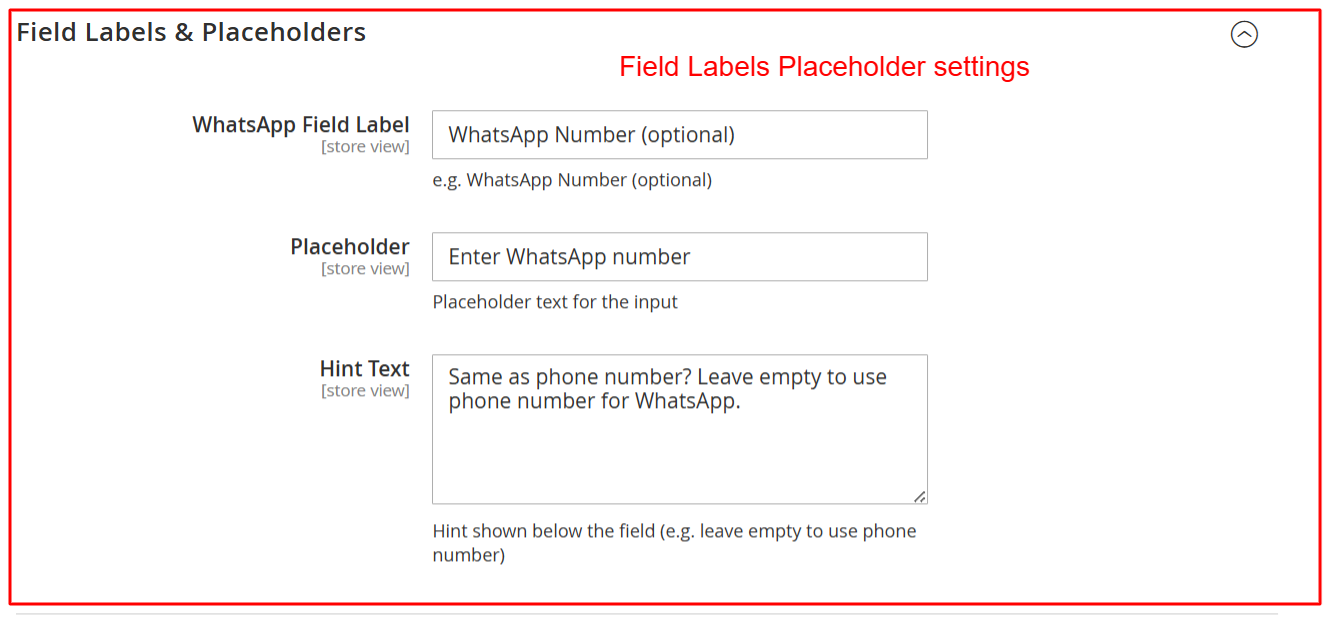
Use this screen to personalize the WhatsApp input field by setting its label, placeholder text, and hint text. This customization helps align the UI with the store’s branding and clarifies input expectations for customers.
Define Validation Messages
Under Validation Messages, specify the text for incorrect and suspicious input alerts. Customize messages for ‘Invalid Number’ and ‘Fraud/Suspicious’, tailoring customer notifications and ensuring input integrity.
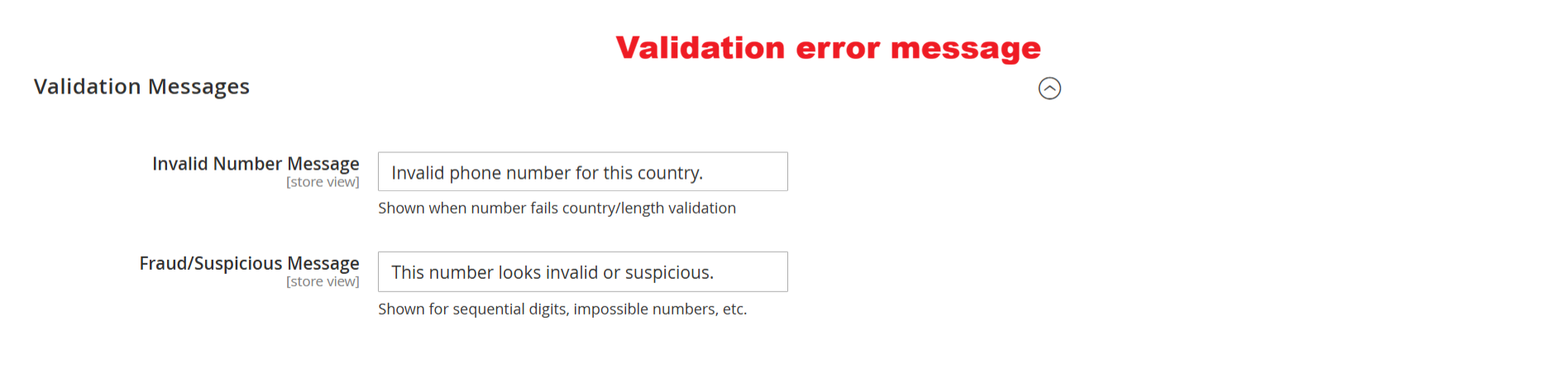
On this screen, admins can customize validation messages for incorrect or suspicious phone numbers. These messages appear when the number fails country-specific length checks or is deemed potentially fraudulent. Configuring these messages helps enhance user communication and prevent input errors during the checkout process.