Configuration Walkthrough
Navigate to Stores → Configuration in Magento Admin and follow these steps:
Enable the Module
To enable the Ewebecommerce_RegistrationFieldSuite, navigate to Stores > Configuration in the Magento admin panel. Under Customers > Registration Field Suite Settings, locate the ‘Enable Registration Fields’ setting in the ‘General Settings’ group. Use the dropdown to activate or deactivate the module functionality.
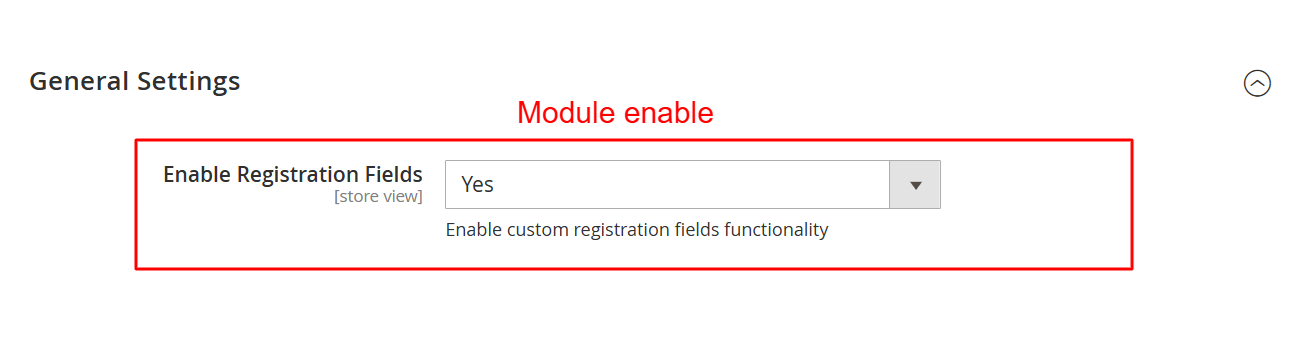
In this section, you enable or disable the custom registration fields provided by the Ewebecommerce_RegistrationFieldSuite module. Activating this feature introduces flexible form fields that can enhance the user registration process, allowing for a more customized user experience.
Configure Captcha Settings
Add an extra layer of security to your registration forms by configuring captcha settings within the Google reCAPTCHA (Storefront) group. Enter your site and secret keys for reCAPTCHA v2 and v3 keys.
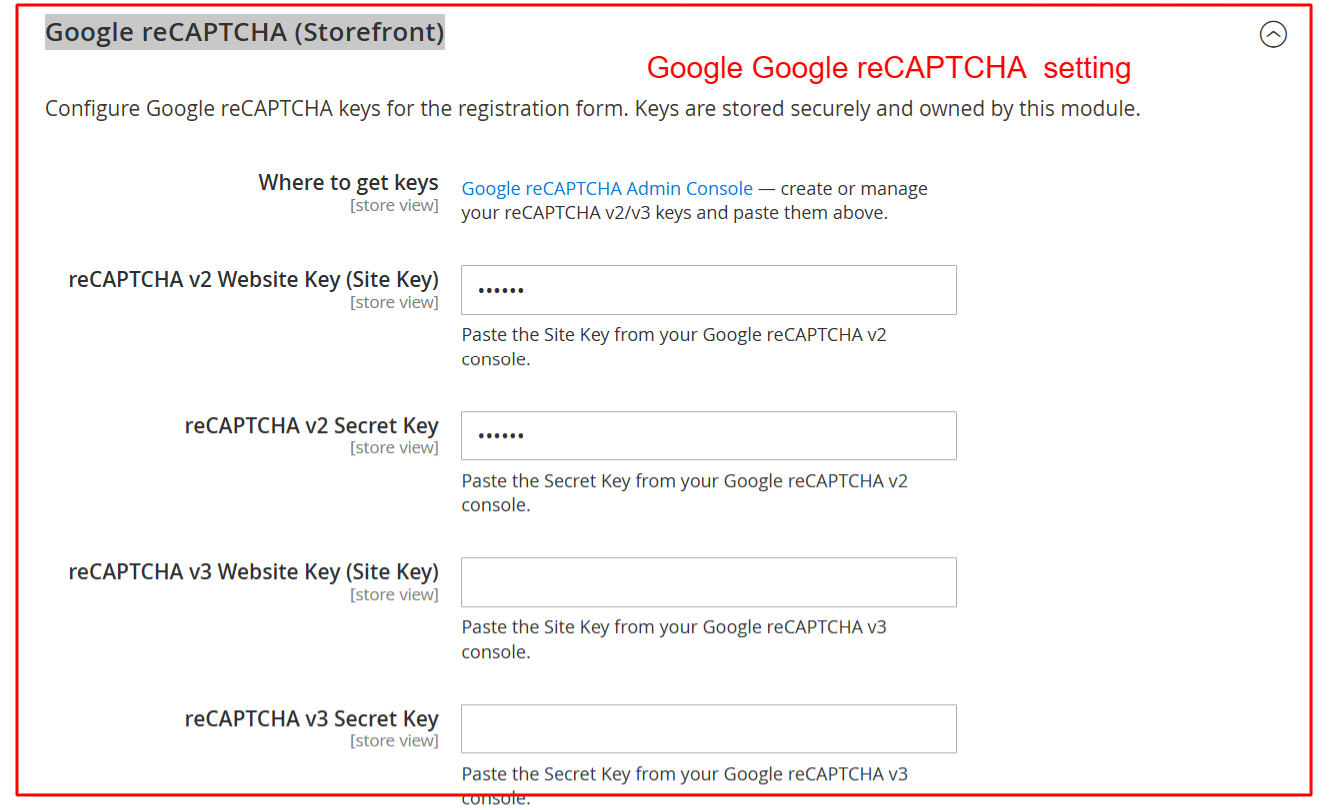
This configuration section allows you to enhance security by adding Google reCAPTCHA to the registration forms. By entering the necessary site and secret keys, you can protect your registration page from automated submissions, ensuring only legitimate user registrations.
Set Up AI Form Generator
Leverage AI for form creation under the AI Form Generator section. Here, you can select the AI provider and model, in addition to configuring the necessary API keys for services like OpenAI, Anthropic Claude, and Google Gemini.
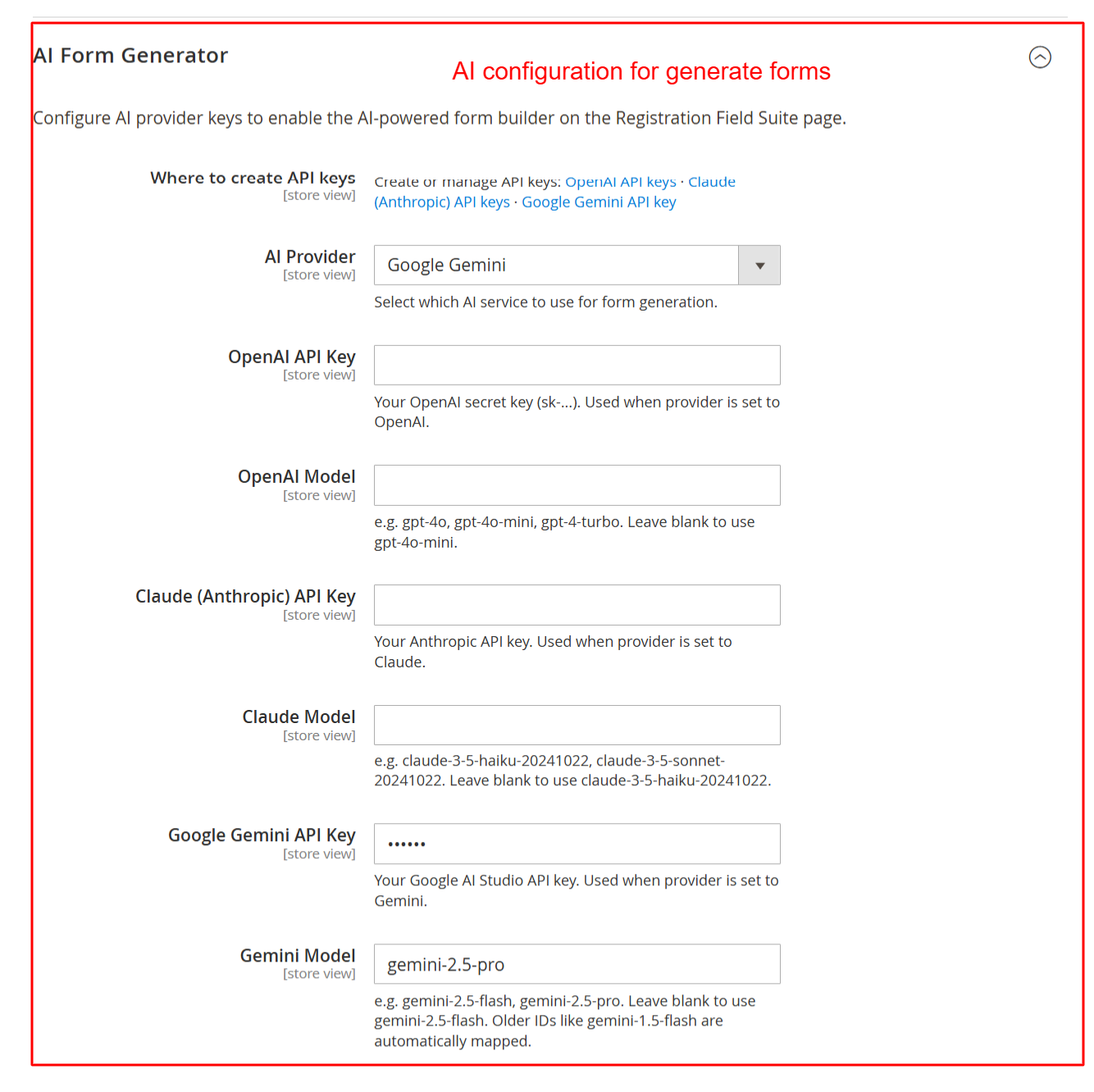
Configure API keys for various AI providers here to leverage AI-driven form generation features. Selecting the appropriate provider and model enables the dynamic generation of registration forms, which can adapt based on AI recommendations, facilitating efficient form setup.
Activate Pending Registrations
To control new registrations, activate the Pending Registration extension under its respective configuration section. Determine which customer groups should undergo manual approval processes for additional registration control.
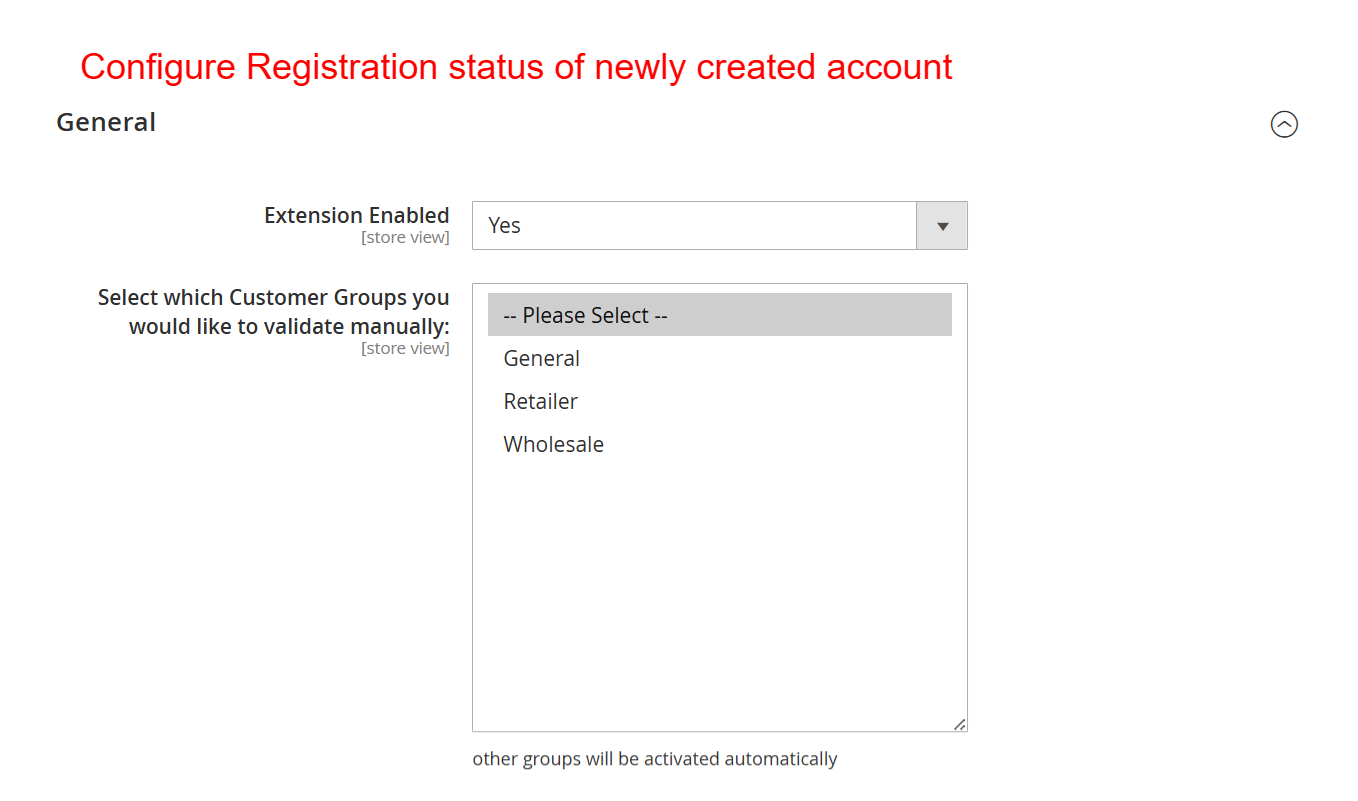
This configuration allows you to activate the Pending Registration feature and select which customer groups require manual validation. By controlling registration status through this setting, you ensure that certain user groups meet predefined criteria before gaining access, enhancing customer management.
Configure Email Notifications
Streamline communication by setting up email templates and senders under the Events group. Assign templates for admin alerts and customer notifications to keep stakeholders informed during registration events.
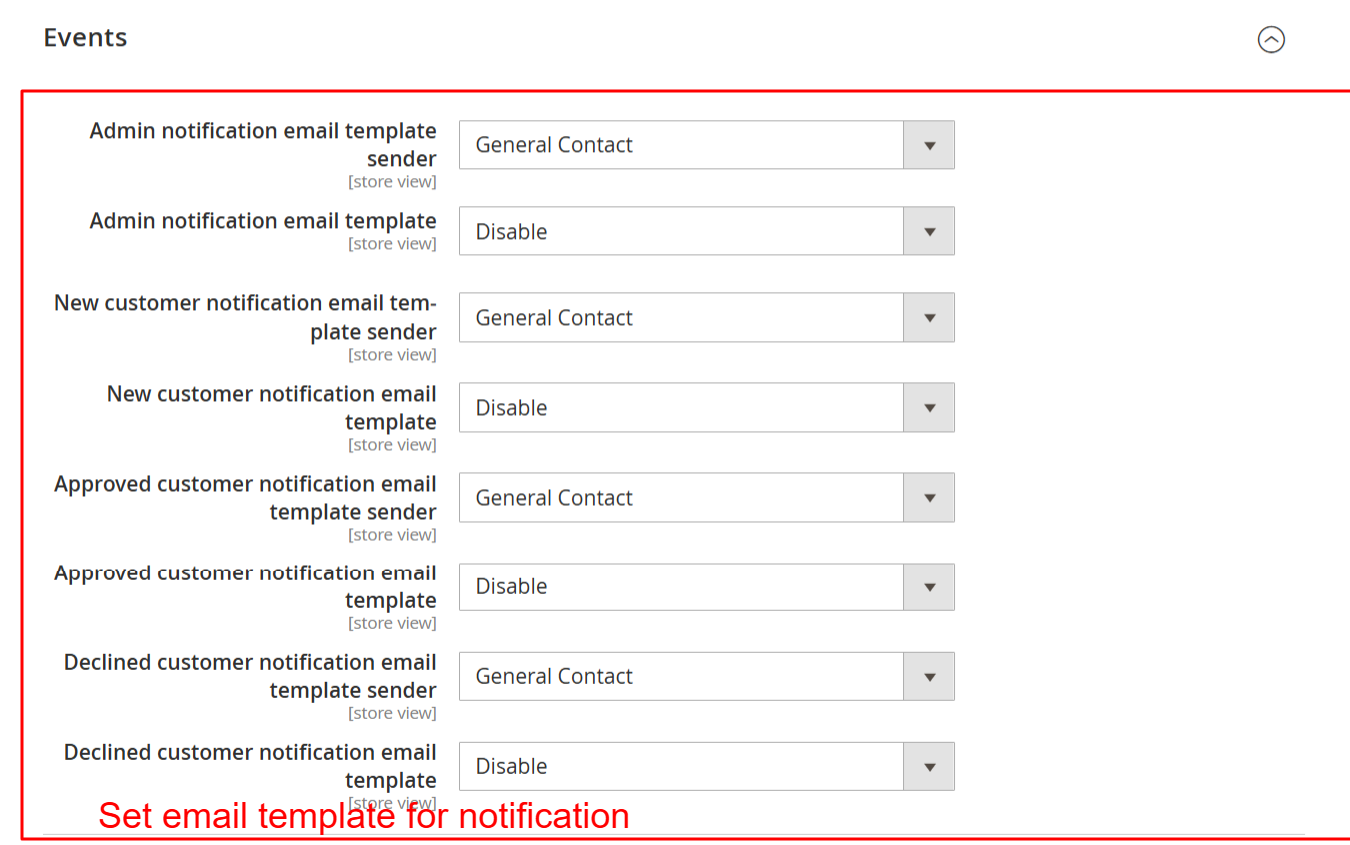
Setup automated email notifications for registration events by configuring templates and senders here. This ensures timely communication with both admins and customers regarding registration status updates, helping maintain clear and efficient communication channels.
Set Default Registration Status
Define how new registrations are handled by default using the Set Default Status of New Registrations feature. Use the dropdown to assign a default status such as Approved, Pending, or Declined for incoming user registrations.
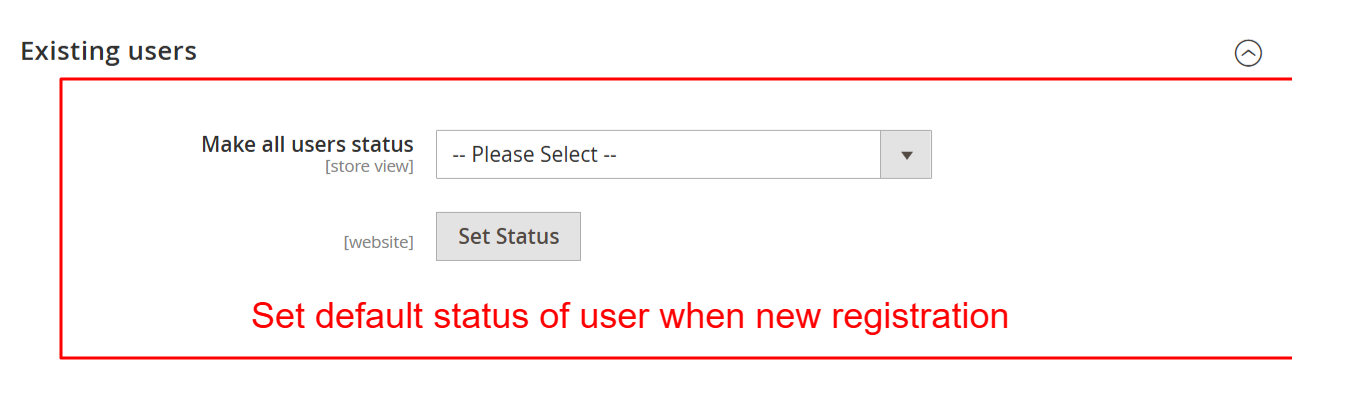
This setting defines the default status assigned to users after registration, allowing admins to control the access level or activation process. By determining this default, you ensure new users start with the appropriate status, facilitating smoother onboarding processes.