Step-by-Step Screenshot Reference
Every captured screen in setup order. Click any image to open the full-size version in a new tab.
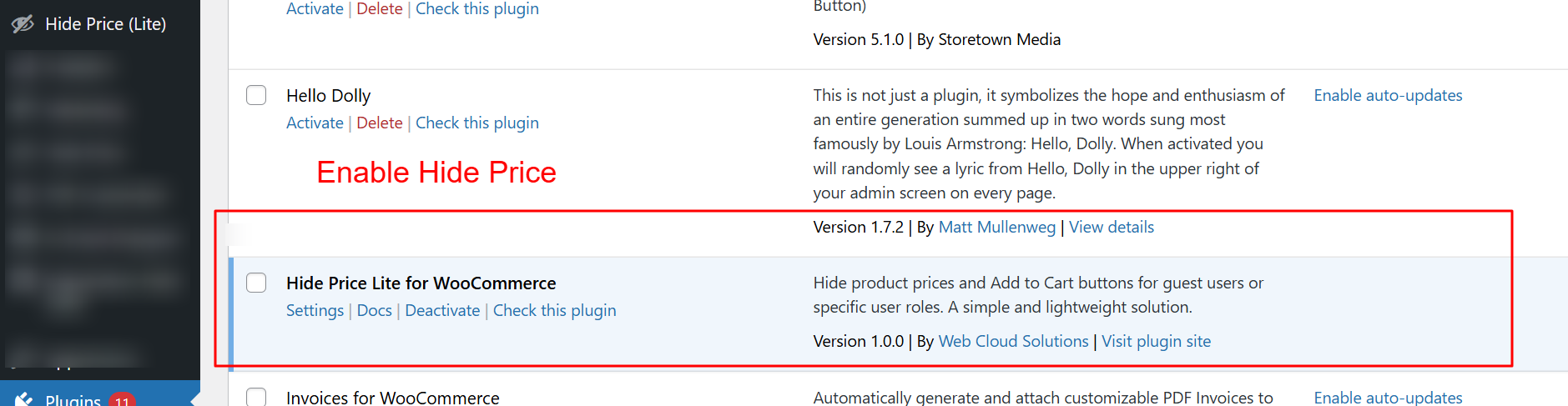
wp-admin: Activate Country Code Plugin
What this shows: The WordPress plugin page showing ‘Country Code Phone & WhatsApp Field for WooCommerce’ ready for activation, along with options for settings and deactivation.
To use the Country Code Phone & WhatsApp Field for WooCommerce plugin, you must first activate it. Navigate to the plugins page in the WordPress dashboard and locate the plugin. Click ‘Activate’ to enable its functionality. Activation is the first step to configure phone number fields with country codes on your WooCommerce checkout page.
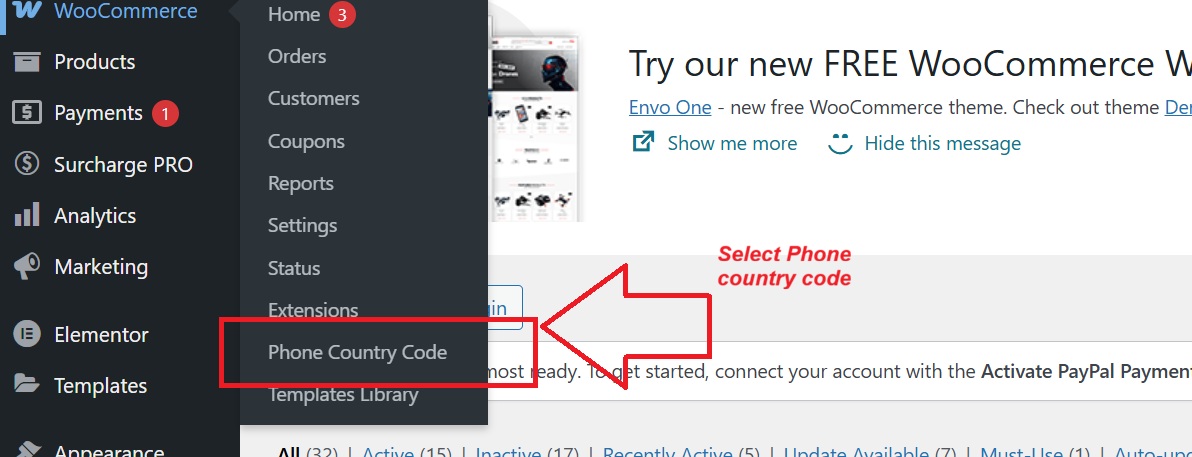
wp-admin: Phone Country Code Menu Access
What this shows: WooCommerce menu with the ‘Phone Country Code’ submenu highlighted, indicating where settings for the Country Code plugin can be accessed.
After activating the plugin, the ‘Phone Country Code’ menu becomes available under WooCommerce settings. Selecting this option allows you to access and modify how country codes and phone number fields are managed on your checkout page, ensuring a tailored experience based on your store’s needs.
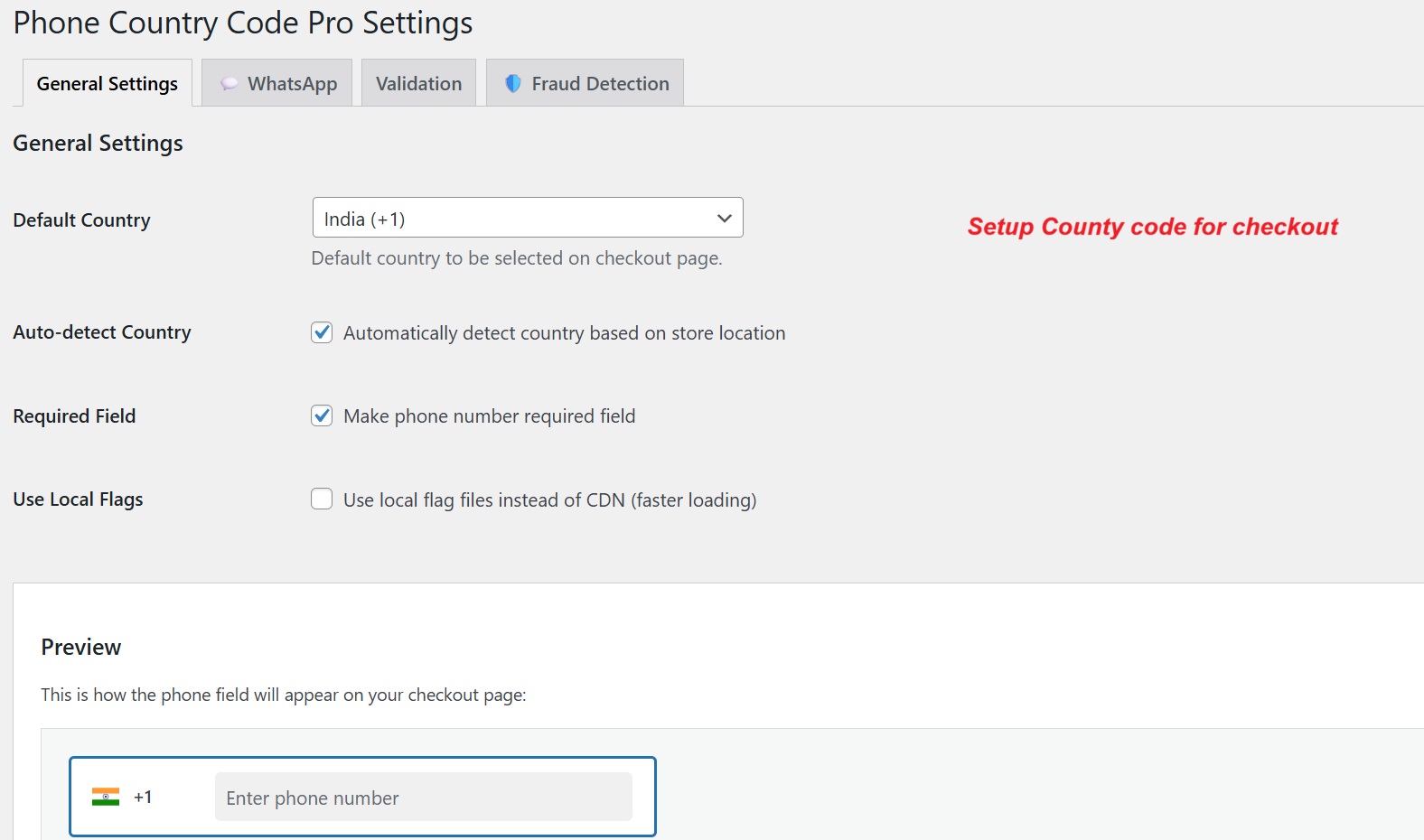
wp-admin: General Settings for Country Code
What this shows: The ‘General Settings’ tab of the Phone Country Code Pro Settings, showing default country selection and auto-detect country features.
Begin setting up your international phone number fields by configuring the general settings. Here, you can choose the default country for the phone field and enable the auto-detect feature to dynamically adjust based on the user’s location. Making the phone number a required field ensures that you collect the necessary contact details for order processing.
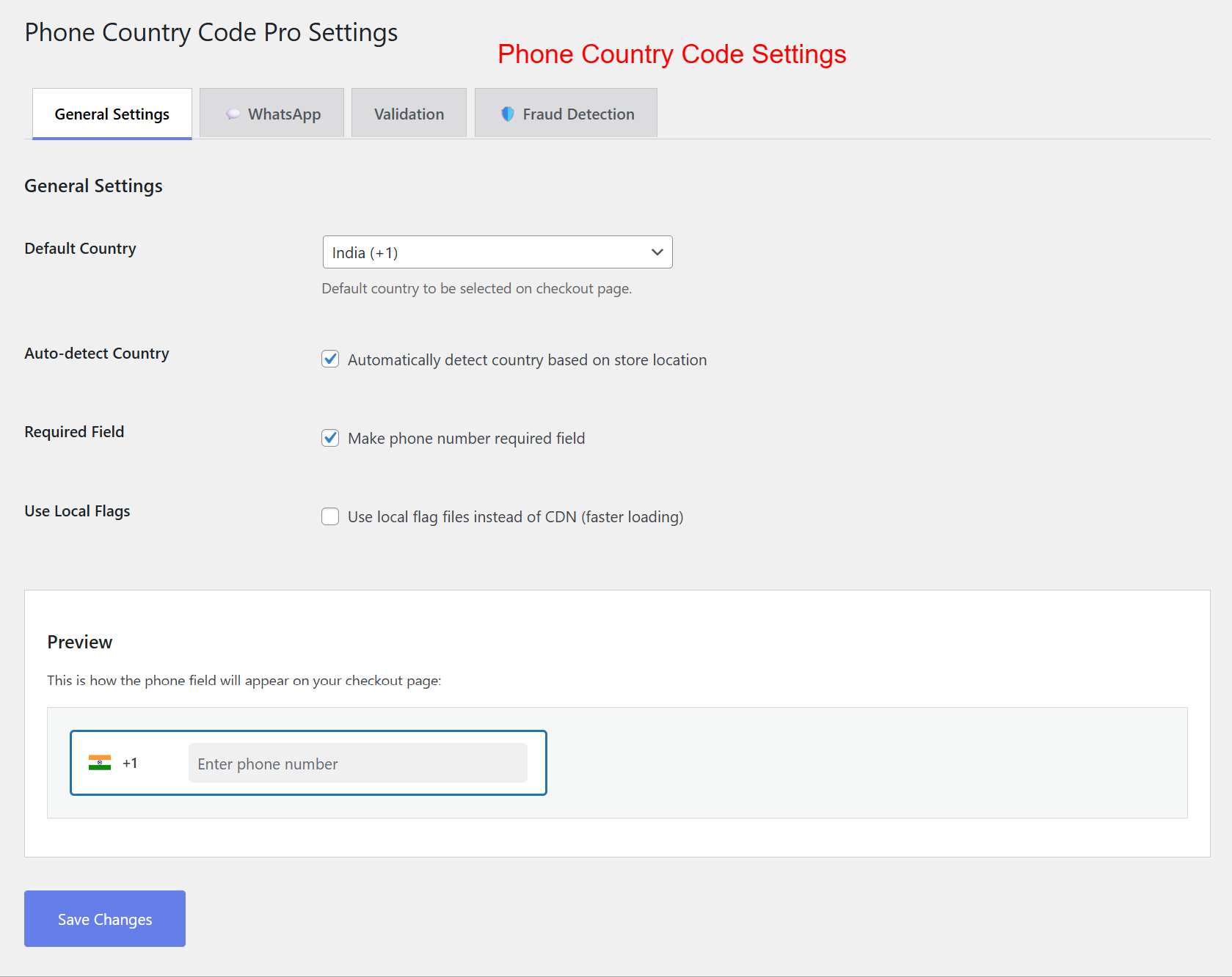
wp-admin: Configure Phone Settings
What this shows: The same ‘General Settings’ tab as before, with options for requiring phone numbers and using local flag files.
Ensure your customers provide complete information by marking the phone number as a required field. Decide whether to use local flag files for faster loading, which can enhance the checkout experience. Adjusting these settings allows for a smoother, more efficient checkout process, particularly for stores with a global customer base.
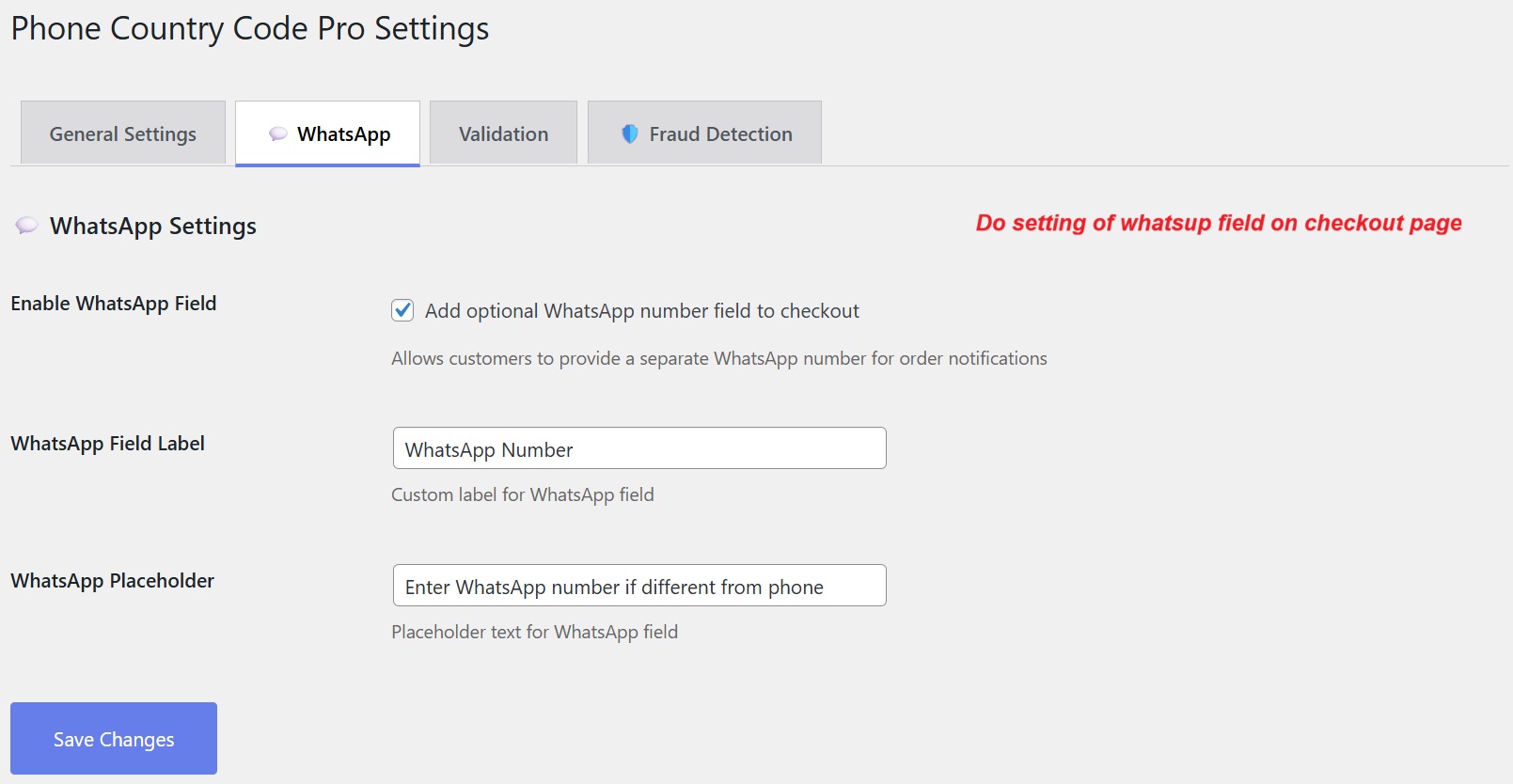
wp-admin: WhatsApp Field Settings
What this shows: The ‘WhatsApp’ tab in the Phone Country Code Pro Settings, enabling the addition of a WhatsApp field and customizing its label and placeholder.
Add a WhatsApp number field to your WooCommerce checkout to facilitate direct communication with customers via their preferred messaging app. Customize the field’s label and placeholder to fit your store’s branding. This feature can enhance customer engagement and streamline notifications.
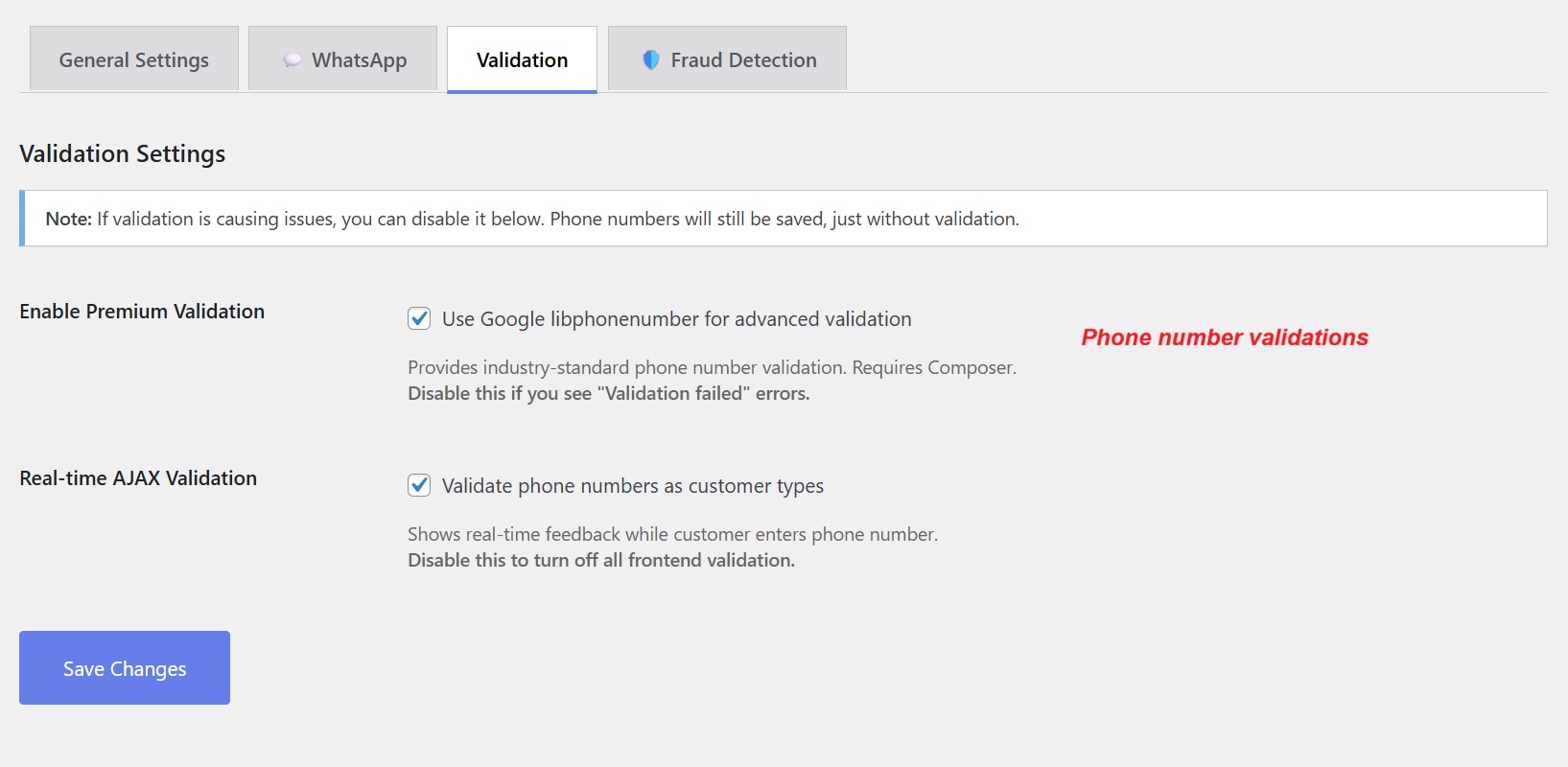
wp-admin: Phone Number Validation Settings
What this shows: The ‘Validation’ settings tab, offering options for enabling premium validation and real-time AJAX validation for phone numbers.
Improve data accuracy by enabling validation settings for phone numbers. Utilize Google libphonenumber for standard validation and real-time AJAX to provide instant feedback as customers enter their details. These features help ensure you collect valid and correctly formatted phone numbers, minimizing potential errors.
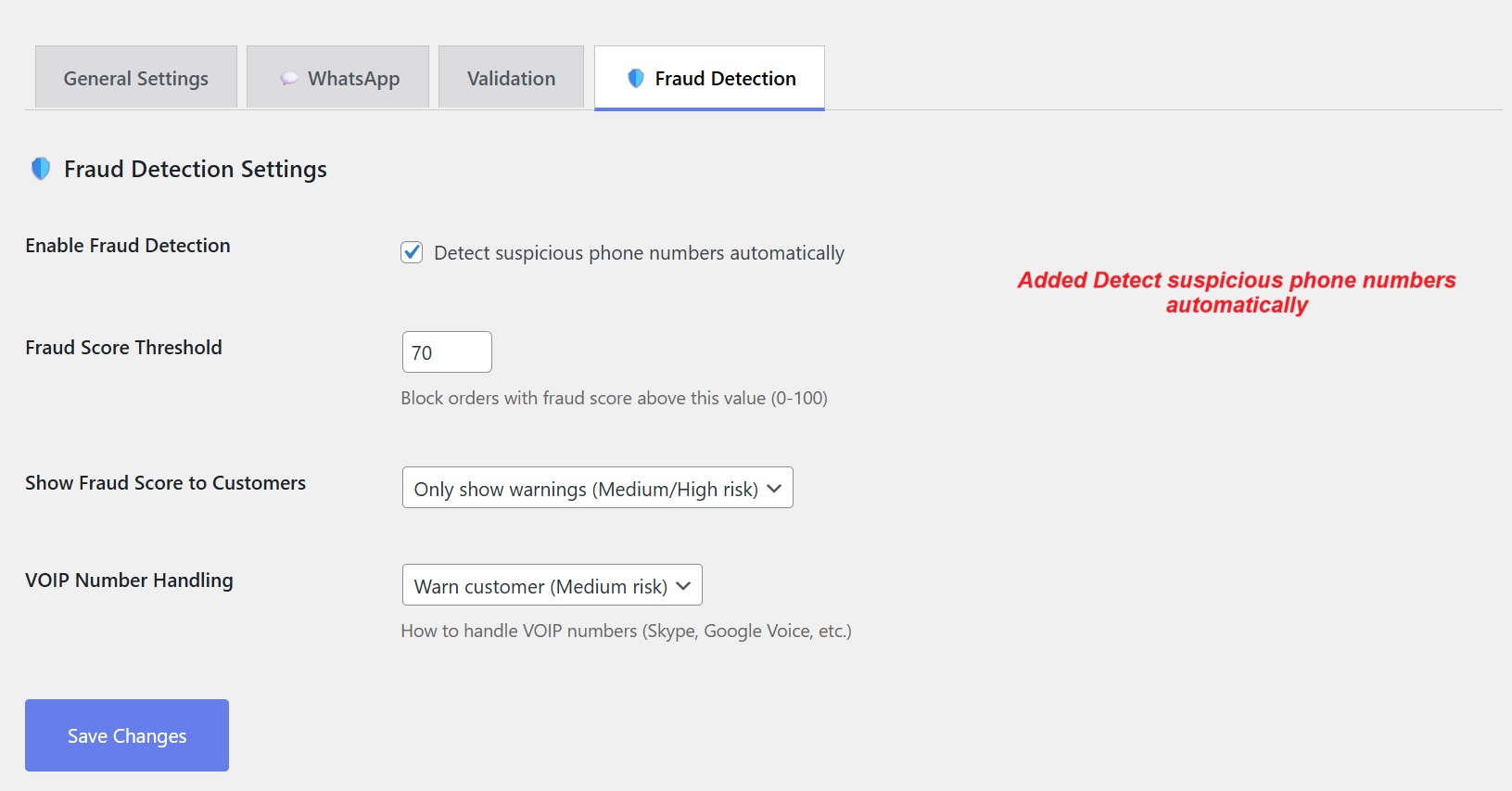
wp-admin: Fraud Detection Setup
What this shows: The ‘Fraud Detection’ tab shows options for enabling fraud detection, setting fraud score thresholds, and configuring VOIP number handling.
Enhance security by enabling fraud detection, which identifies suspicious phone numbers. Adjust the fraud score threshold to determine when an order is considered high risk. You can also customize how VOIP numbers are handled, adding an extra layer of protection against fraudulent activities.
Frontend: Checkout Phone Field with Country Codes
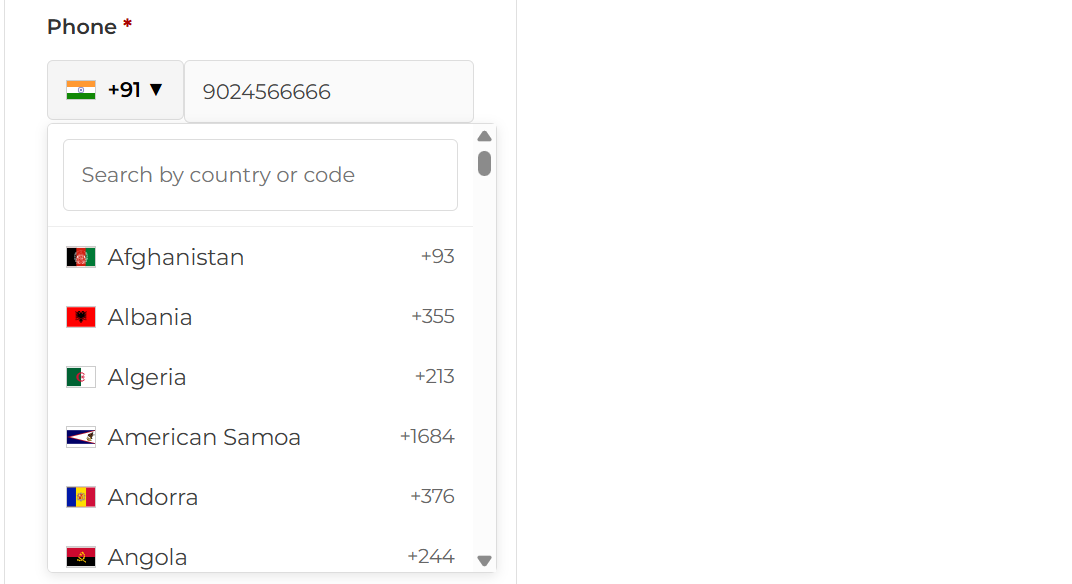
What this shows: The checkout page displaying a phone number field with a dropdown list of country codes and flags, enabling users to select their country code.
On the checkout page, customers can easily input their phone number with the help of a dropdown menu displaying country codes and flags for over 200 countries. This makes it simple for users from anywhere in the world to provide their contact information, enhancing the global accessibility of your WooCommerce store.
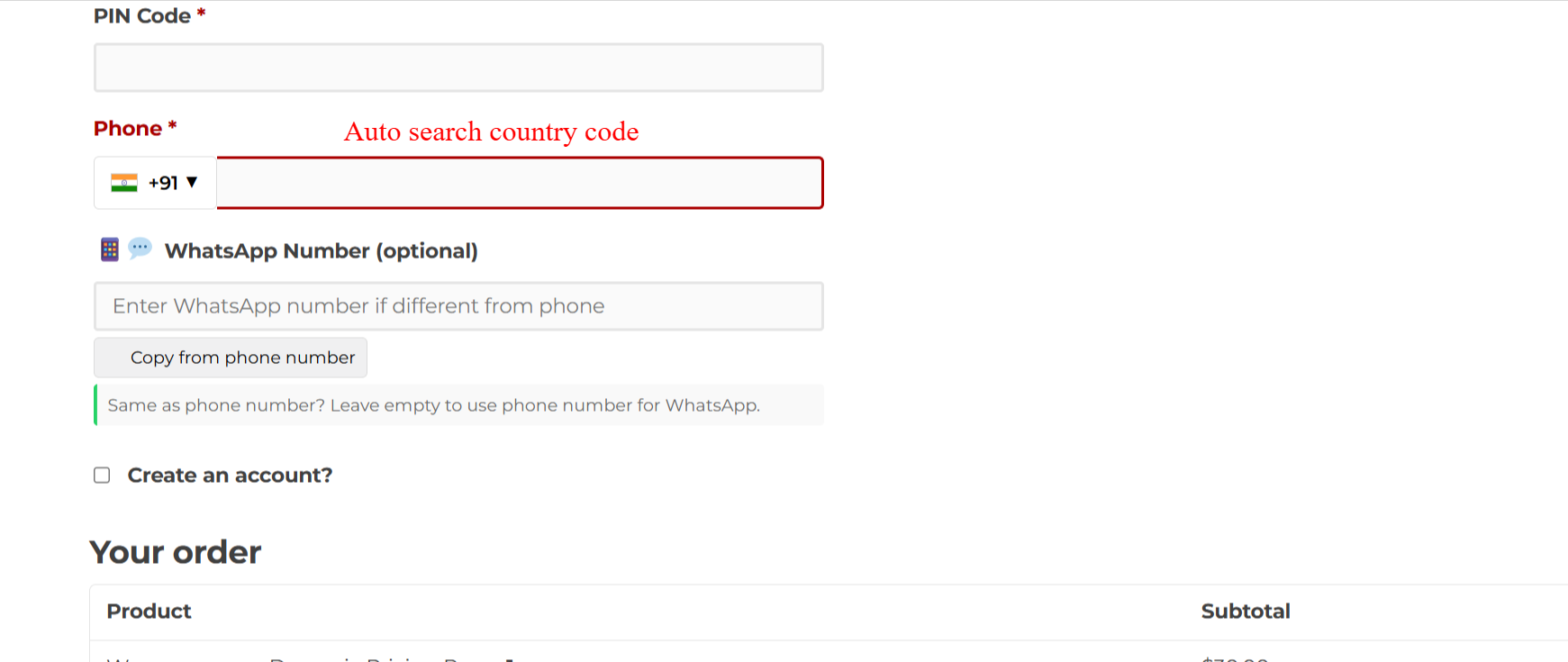
Checkout: Country Code Autocomplete Search
What this shows: The checkout page displays a phone number field with an autocomplete country code selector and an optional WhatsApp number field.
On this screen, users can enter their phone number with an international country code using the autocomplete feature. This ensures that customers provide accurate contact information necessary for order processing. The optional WhatsApp number field allows users to provide a contact method for communication through WhatsApp if preferred.
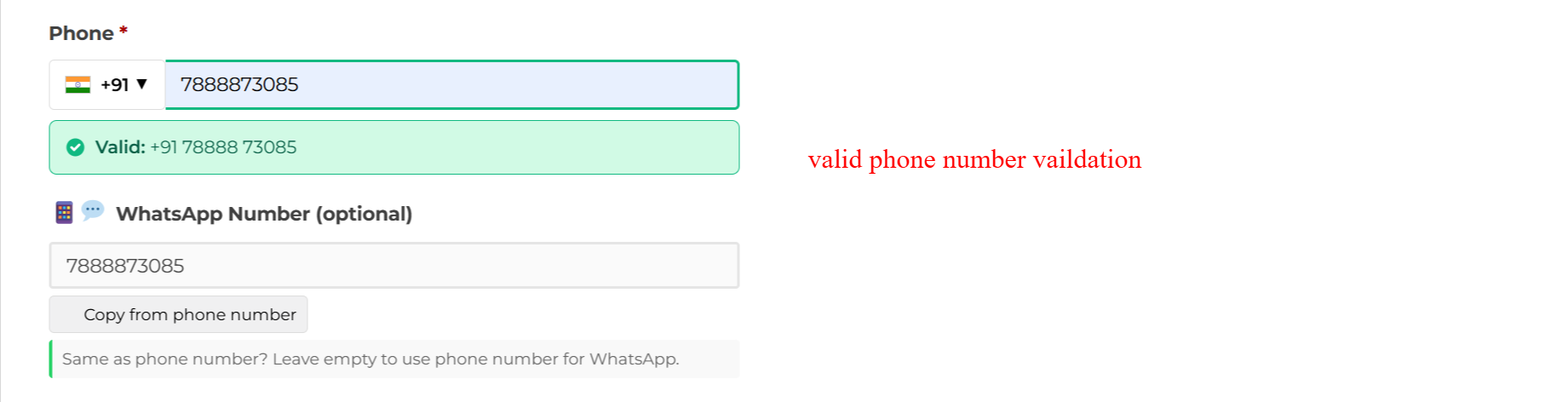
Checkout: Phone Number Validations
What this shows: The checkout form shows a validated phone number and an optional WhatsApp number field, featuring a ‘Valid’ confirmation for phone input.
This step verifies the phone number input in real-time, immediately notifying users of its validity. Accurate phone entries ensure seamless communication and support post-order processing. Users can also enter or copy the same number for WhatsApp, facilitating flexible contact options.
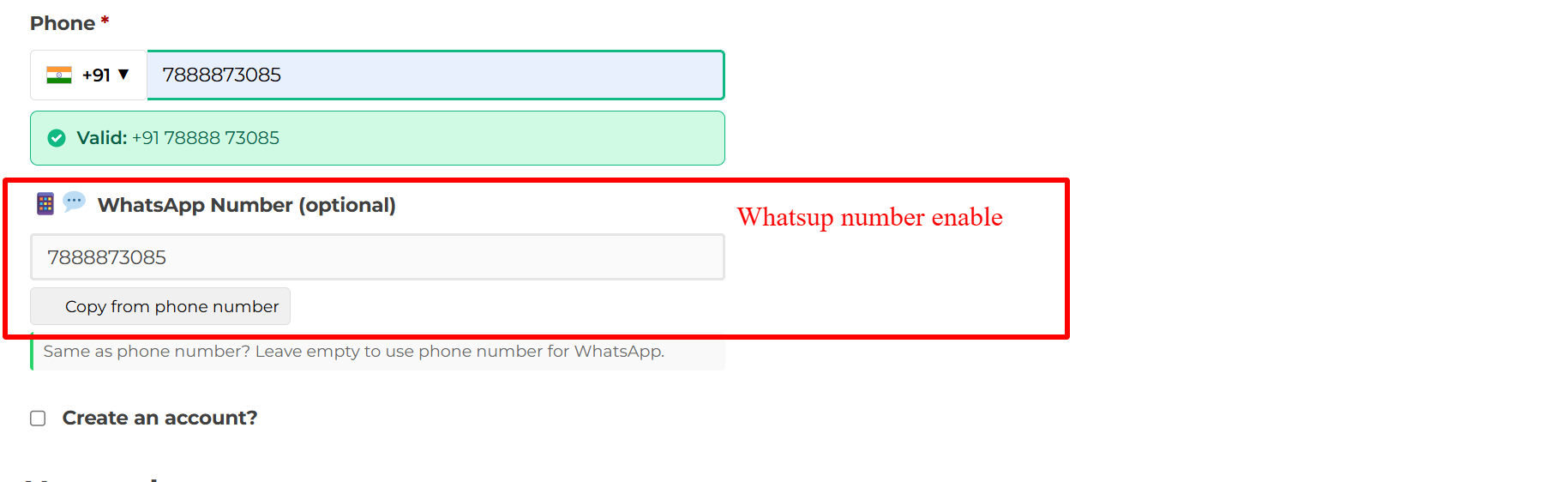
Checkout: WhatsApp Number Entry
What this shows: The checkout page allows users to enter a separate WhatsApp number with a ‘Copy from phone number’ button.
Here, customers can input a WhatsApp number distinct from their contact number, enhancing communication flexibility. The ‘Copy from phone number’ button speeds up this process for those who prefer using the same number, streamlining checkout efficiency.
Checkout: Invalid Phone Number Error
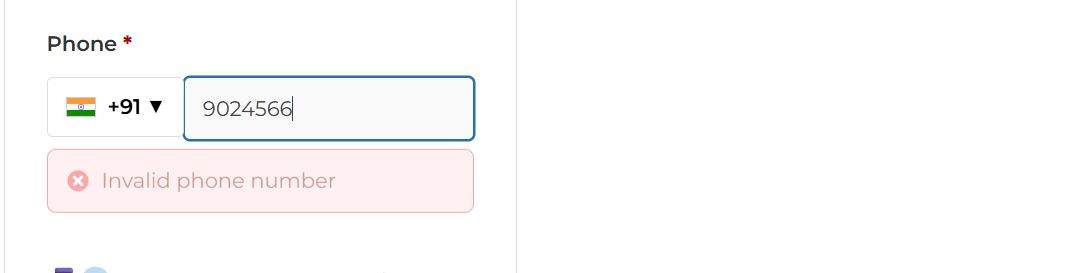
What this shows: The checkout form displays an error message ‘Invalid phone number’ beneath an incorrectly formatted phone entry.
This screen provides immediate feedback when an invalid phone number is entered, prompting users to correct mistakes before proceeding. Such real-time validation prevents future communication errors and guarantees that customer contact data is accurate and reliable.
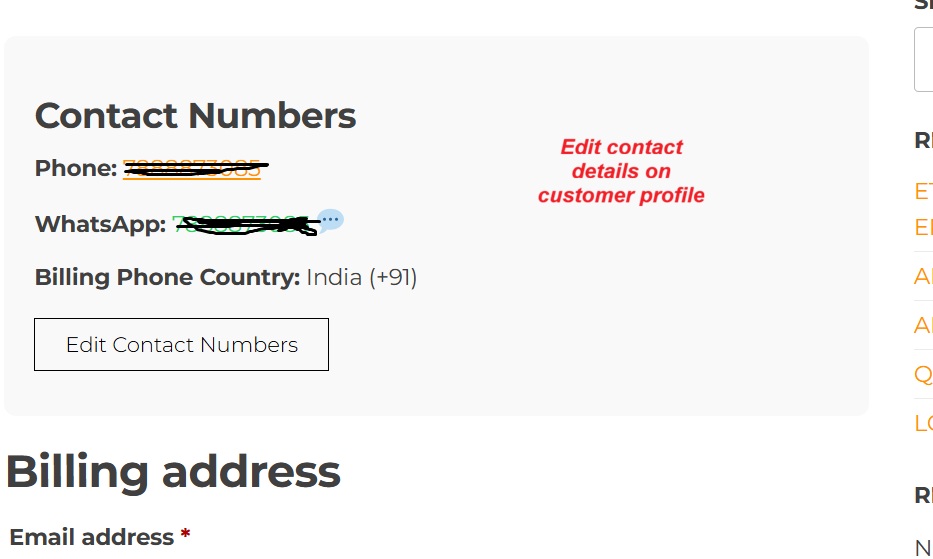
Account Dashboard: Display Contact Numbers
What this shows: The account dashboard displays the user’s phone and WhatsApp numbers with an option to edit them.
In the account dashboard, users can view and update their contact numbers, including both phone and WhatsApp details. This functionality allows for ongoing management of personal information, ensuring it remains current, which is crucial for order updates and communication.
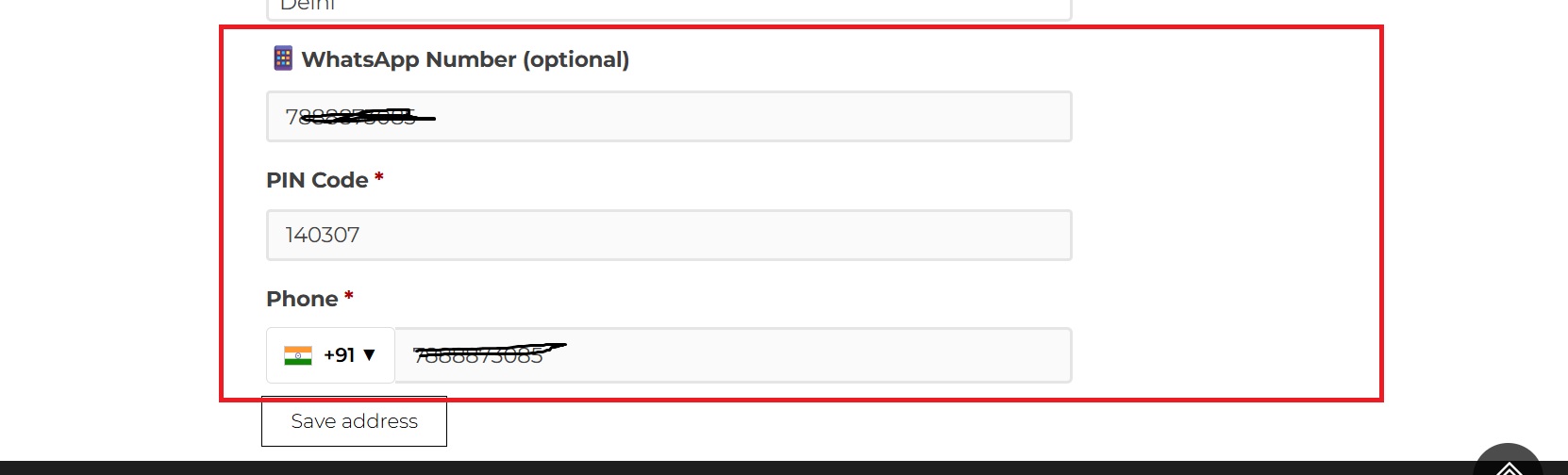
Account Details: Edit Contact Numbers
What this shows: The account details section presents editable fields for the WhatsApp number, PIN code, and phone number, along with a ‘Save address’ button.
Customers can modify their phone and WhatsApp numbers within the account details to keep contact information updated. This screen is vital for users who need to adjust their details due to changes in communication preferences or correcting previous entries.
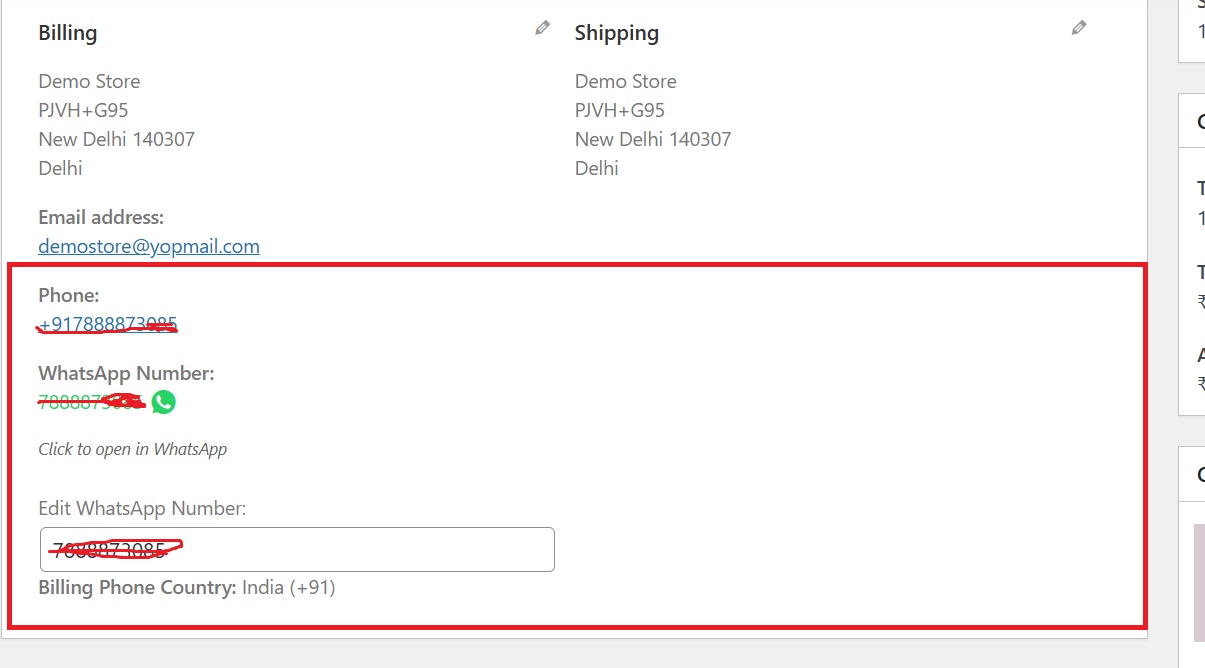
Order Details: Contact Information for Shipping
What this shows: Displays the billing and shipping contact information, including phone and WhatsApp numbers, with an option to edit the WhatsApp number.
This screen ensures that complete and accurate contact details are associated with each order. Users can review and edit their phone and WhatsApp numbers directly from the order details, facilitating any last-minute corrections before shipping. This step is crucial in maintaining efficient delivery processes and customer communication.