Configuration Walkthrough
Activate the Plugin
Navigate to WordPress Admin → Plugins and locate ‘Country Code Phone & WhatsApp Field for WooCommerce’. Click Activate to enable its features.
Visit WooCommerce → Settings → Phone Country Code to configure.
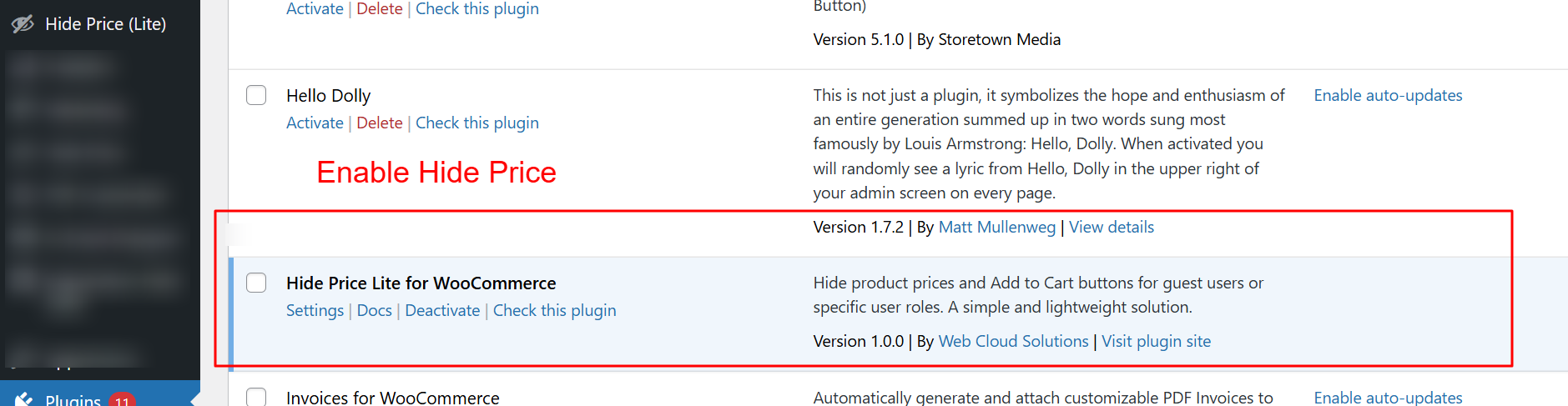
The WordPress plugin page showing ‘Country Code Phone & WhatsApp Field for WooCommerce’ ready for activation, along with options for settings and deactivation.
Access Phone Country Code Settings
Find the plugin settings under WooCommerce → Phone Country Code. This section allows fine-tuning your contact number fields to suit specific store requirements.
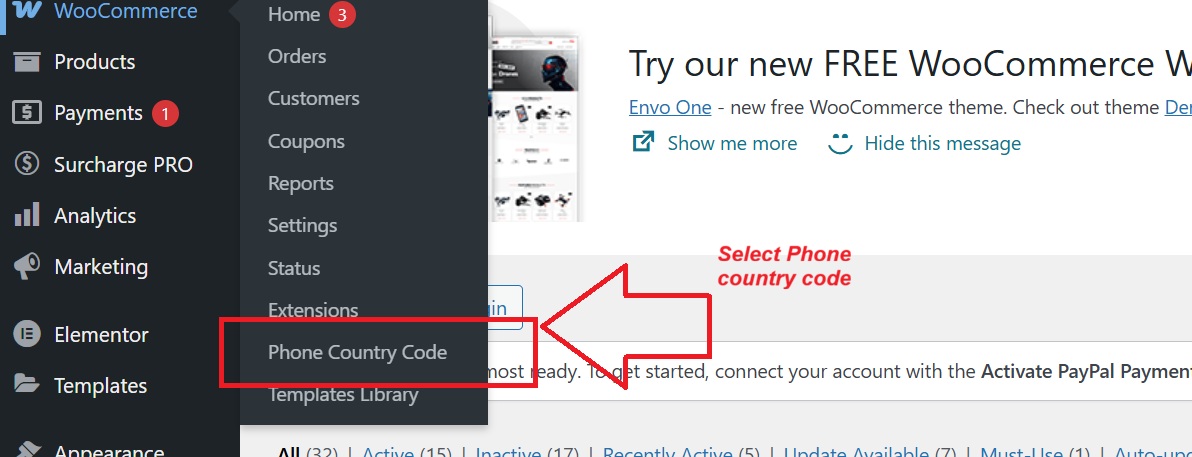
WooCommerce menu with the ‘Phone Country Code’ submenu highlighted, indicating where settings for the Country Code plugin can be accessed.
Set General Country Code Preferences
Within General Settings, select a default country and enable auto-detect to adjust based on the user’s location. Mark phone fields as required for comprehensive data collection.
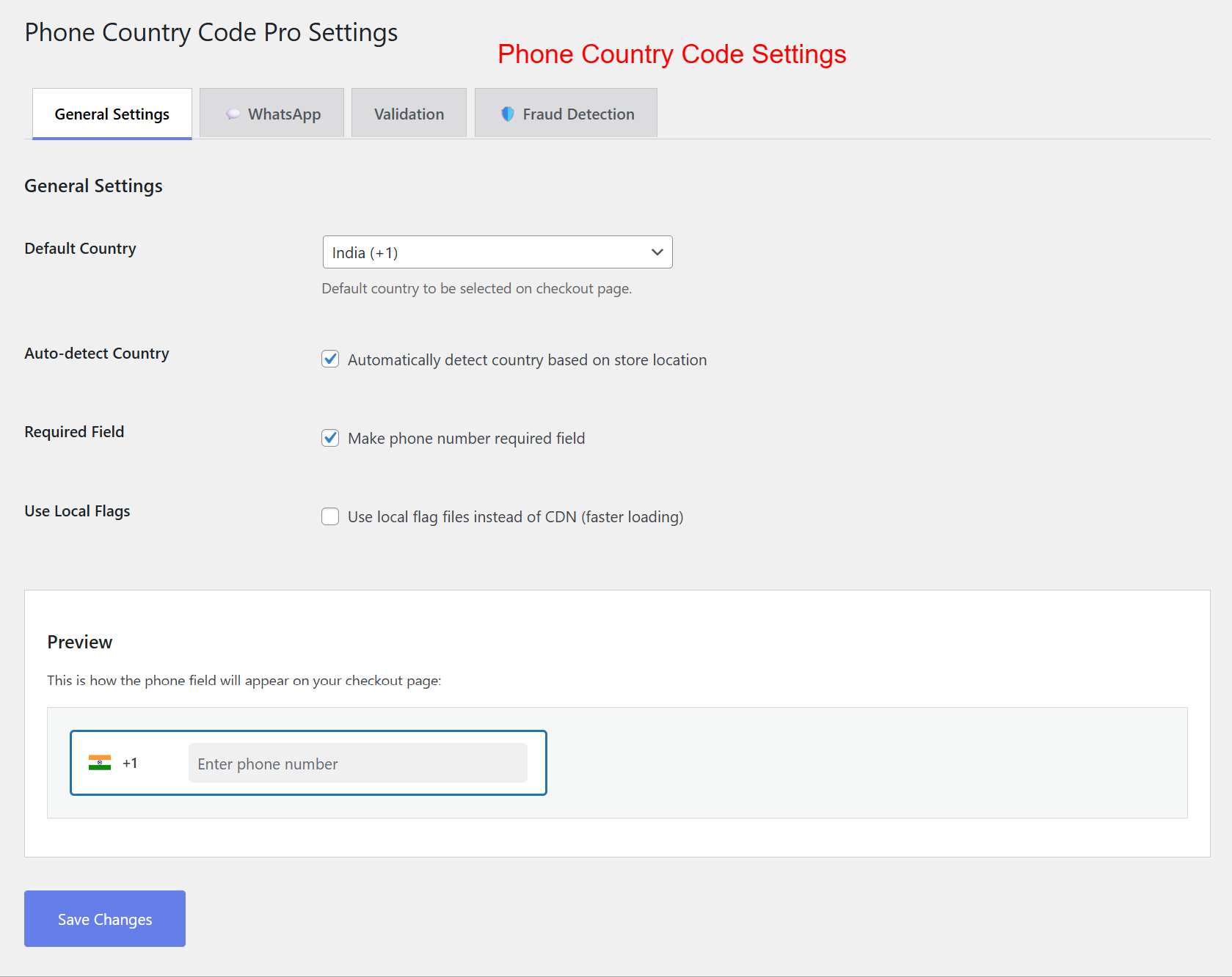
The ‘General Settings’ tab of the Phone Country Code Pro Settings, showing default country selection and auto-detect country features.
Configure Phone Field Requirements
Ensure complete customer information by mandating a phone number entry and opt for using local files to quicken load speeds.
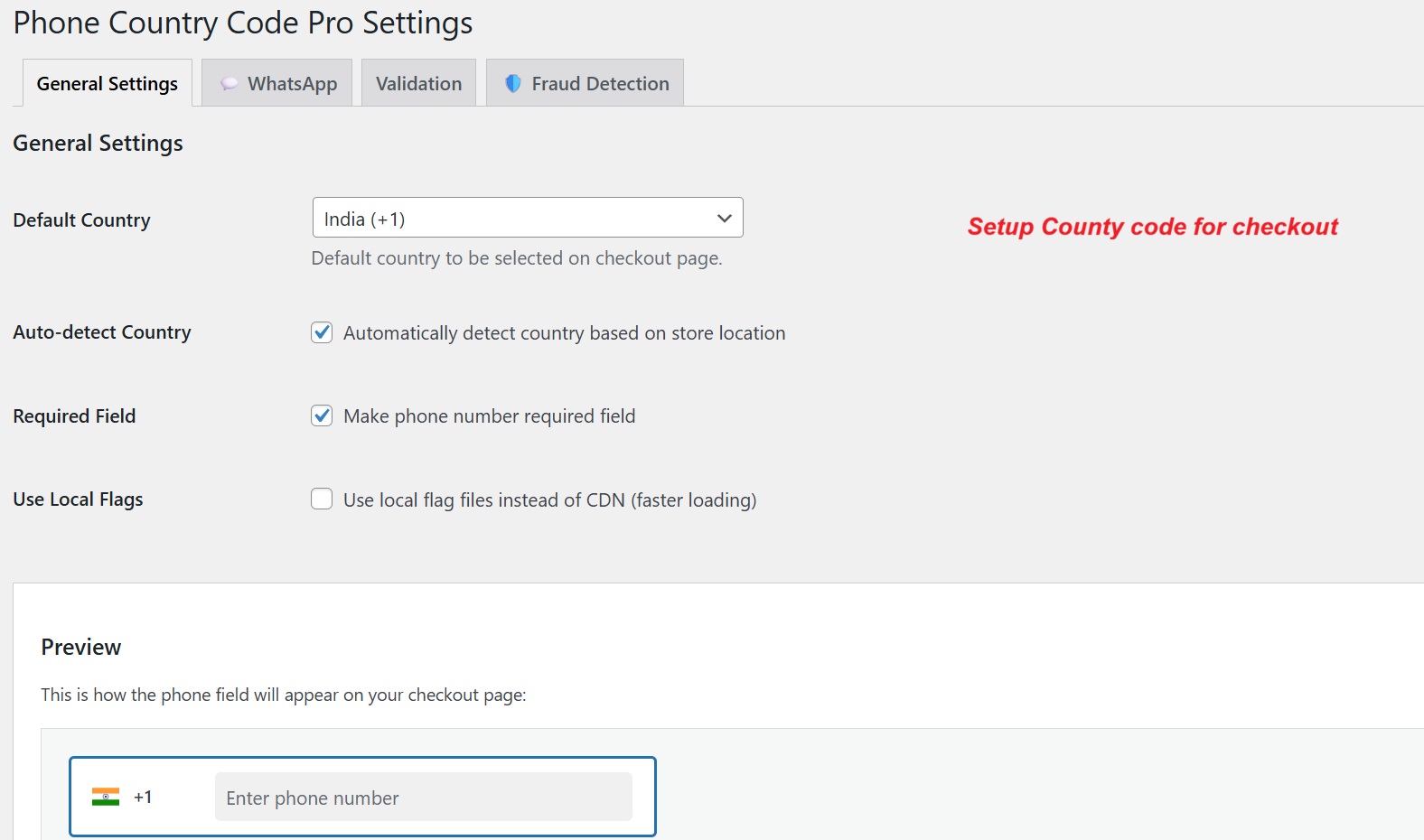
The same ‘General Settings’ tab as before, with options for requiring phone numbers and using local flag files.
Enable & Customize WhatsApp Field
Add a customizable WhatsApp field on checkout. Enable or disable by navigating to the ‘WhatsApp’ settings tab.
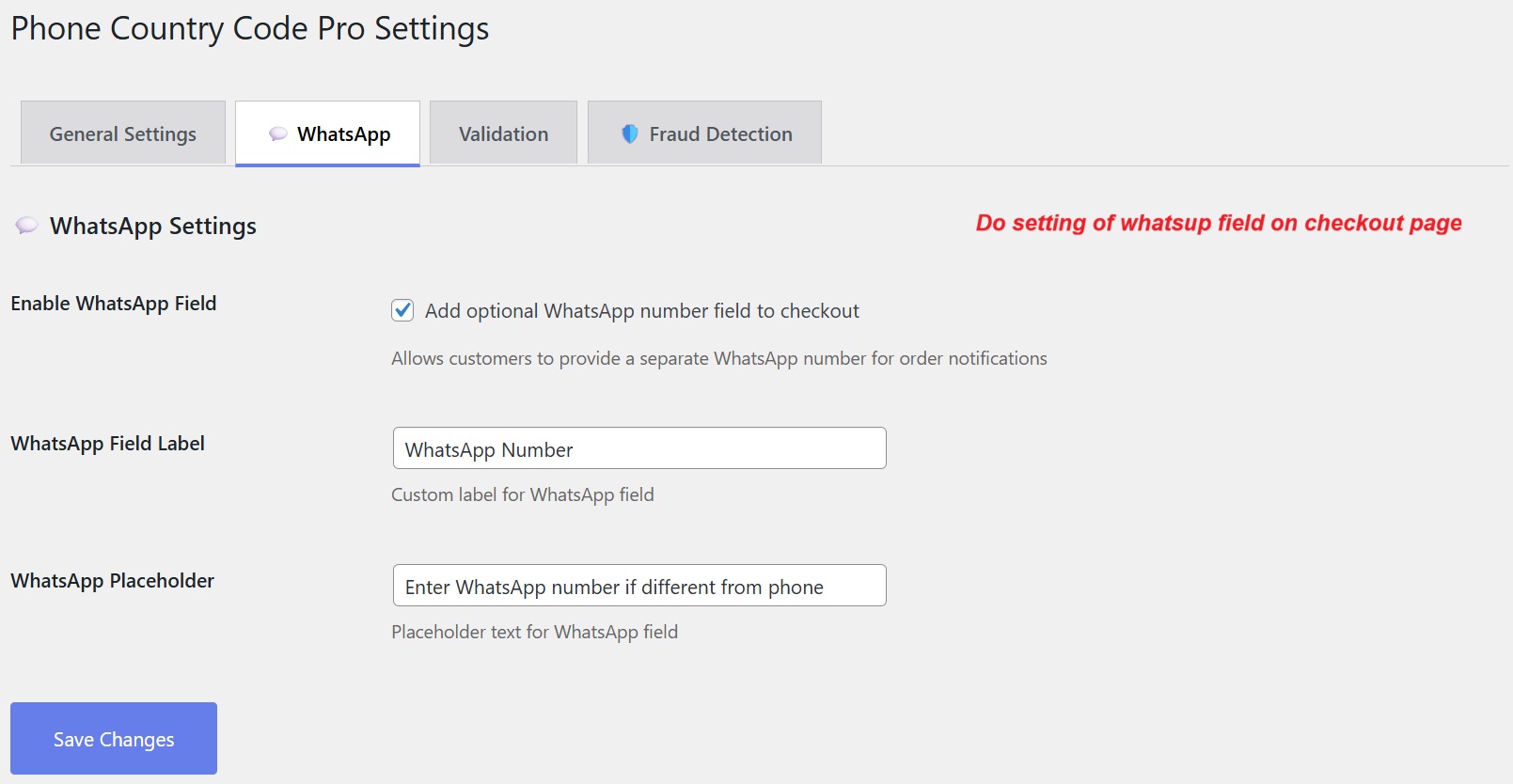
The ‘WhatsApp’ tab in the Phone Country Code Pro Settings, enabling the addition of a WhatsApp field and customizing its label and placeholder.
Set Up Validation
Within the ‘Validation’ tab, activate real-time AJAX and premium validation via libphonenumber-js for accurate phone input entries.
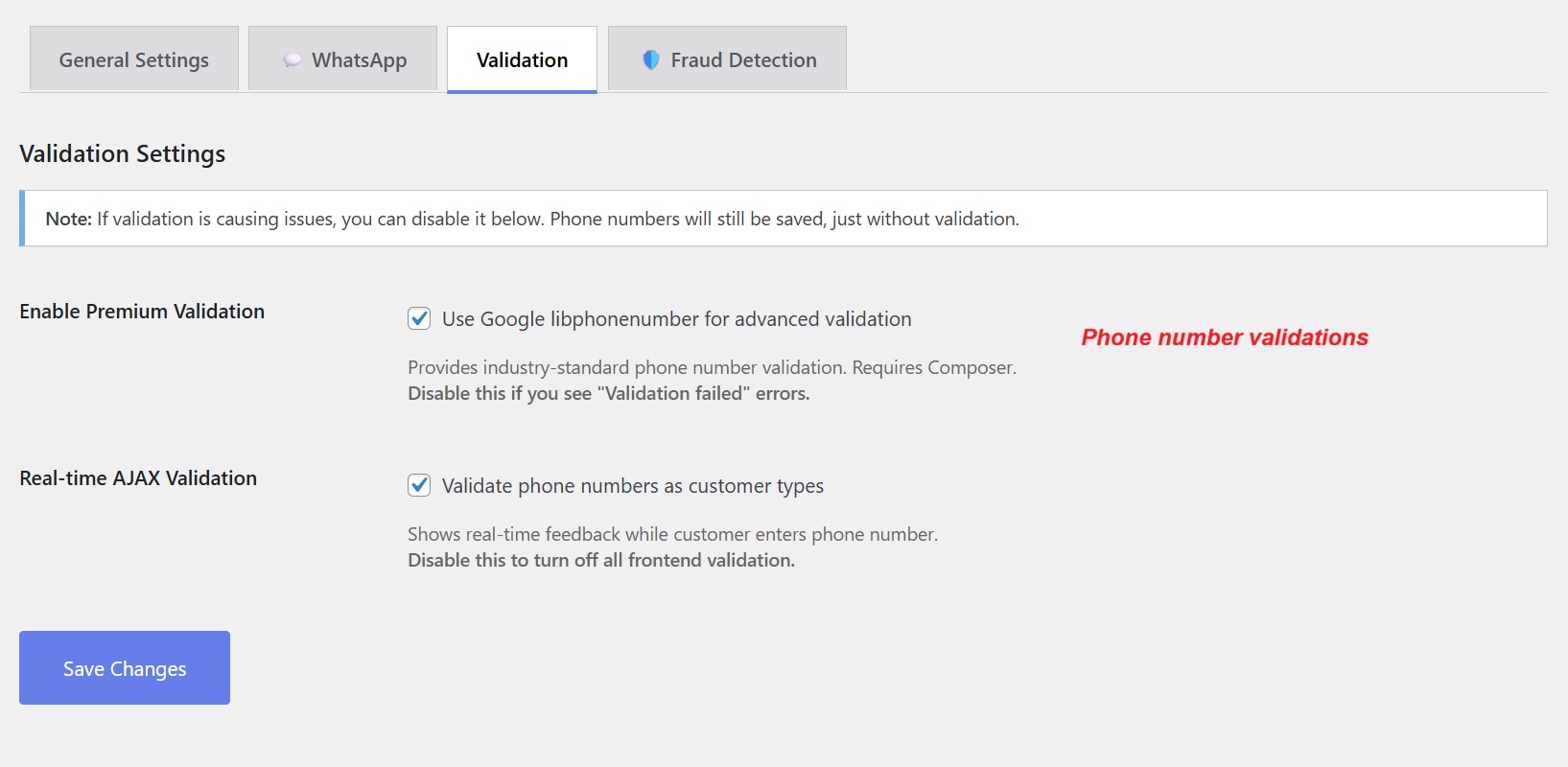
The ‘Validation’ settings tab, offering options for enabling premium validation and real-time AJAX validation for phone numbers.
Integrate Fraud Detection Measures
From the ‘Fraud Detection’ tab, toggle fraud identification and input your desired fraud score threshold. Adjust settings for VOIP numbers as needed.
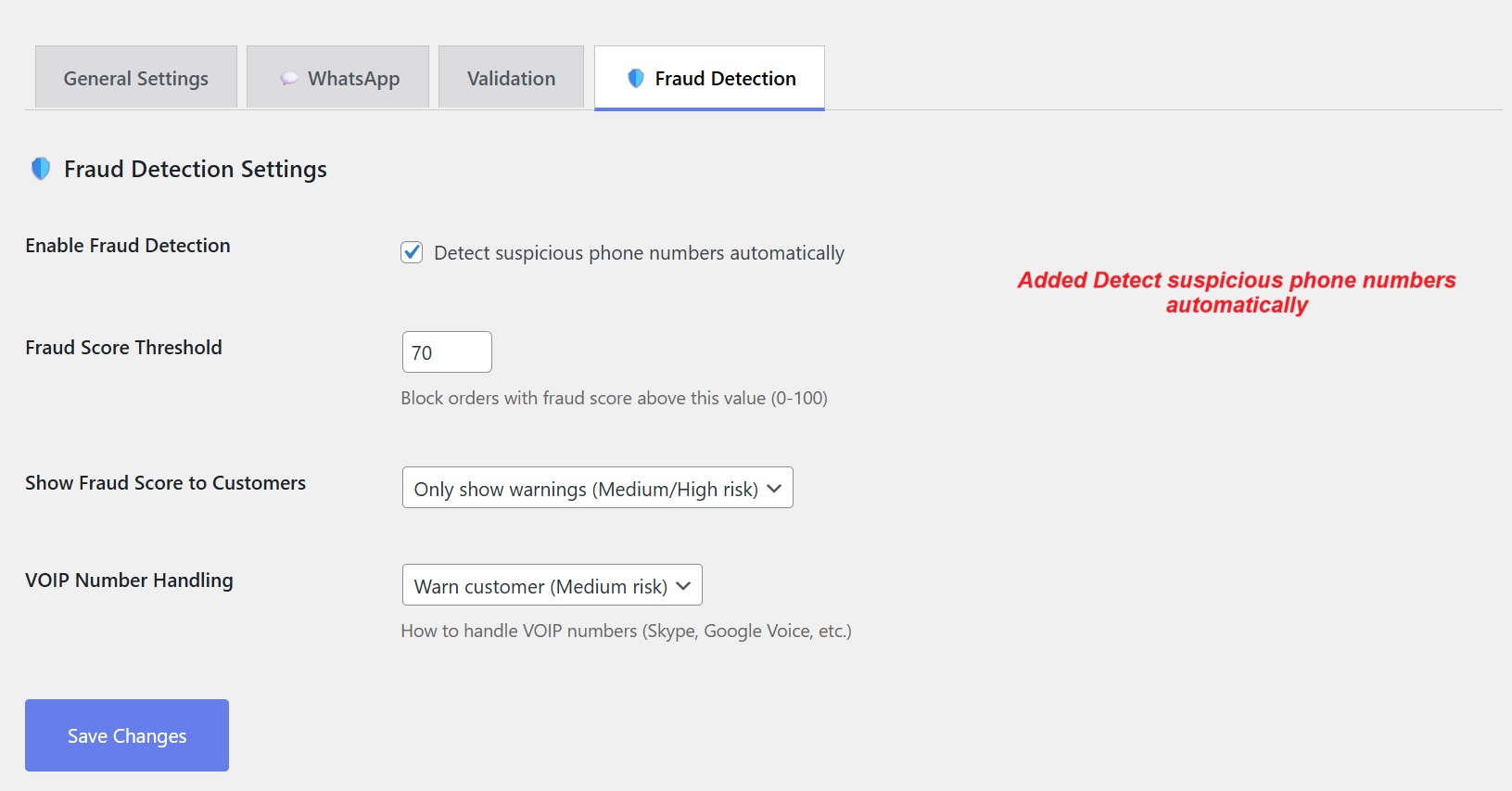
The ‘Fraud Detection’ tab shows options for enabling fraud detection, setting fraud score thresholds, and configuring VOIP number handling.