Step-by-Step Screenshot Reference
Every captured screen in setup order. Click any image to open the full-size version in a new tab.
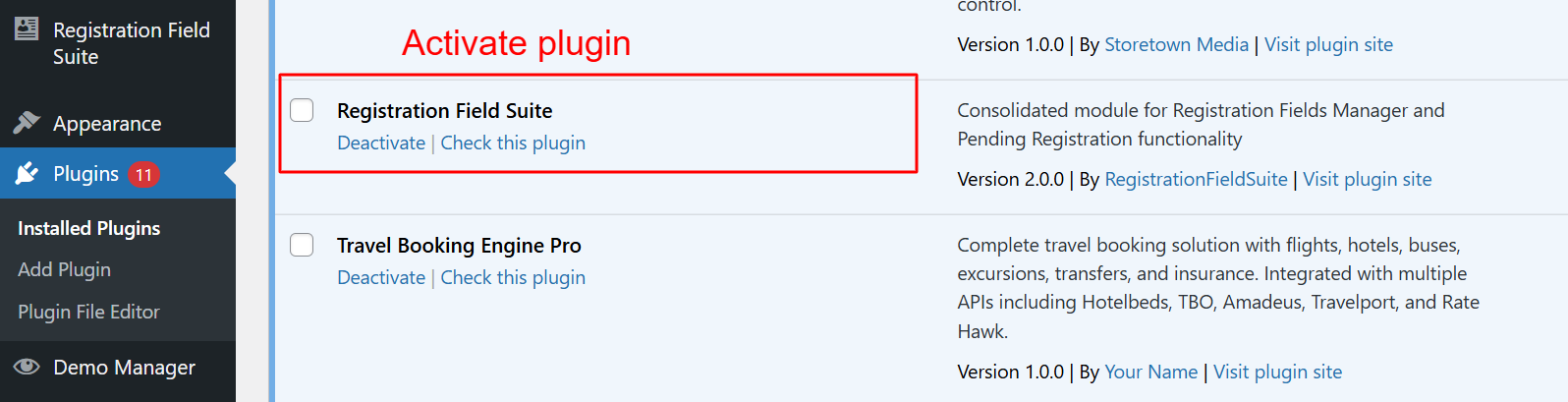
wp-admin: Plugins > Activate Registration Field Suite
What this shows: This screen shows the list of installed plugins with an option to activate the ‘Registration Field Suite’.
To begin using the features of the Registration Field Suite v2.0.0, administrators must first activate the plugin from the WordPress plugins page. This step is crucial as it enables the consolidated functionalities of custom registration fields and pending registration handling, which can then be configured according to the site’s needs.
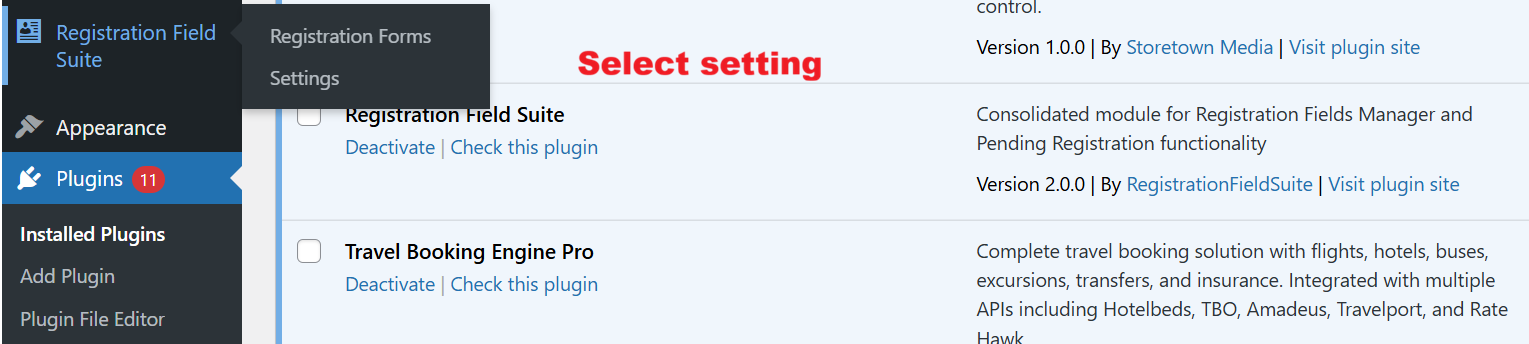
wp-admin: Registration Field Suite > Settings
What this shows: A menu with options ‘Registration Forms’ and ‘Settings’ under the plugin’s admin menu.
Once the Registration Field Suite is activated, navigate to its settings area to start managing registration forms and configuring general settings. Selecting ‘Settings’ opens up pathways to enable custom registration options, crucial for tailoring user registration experiences.
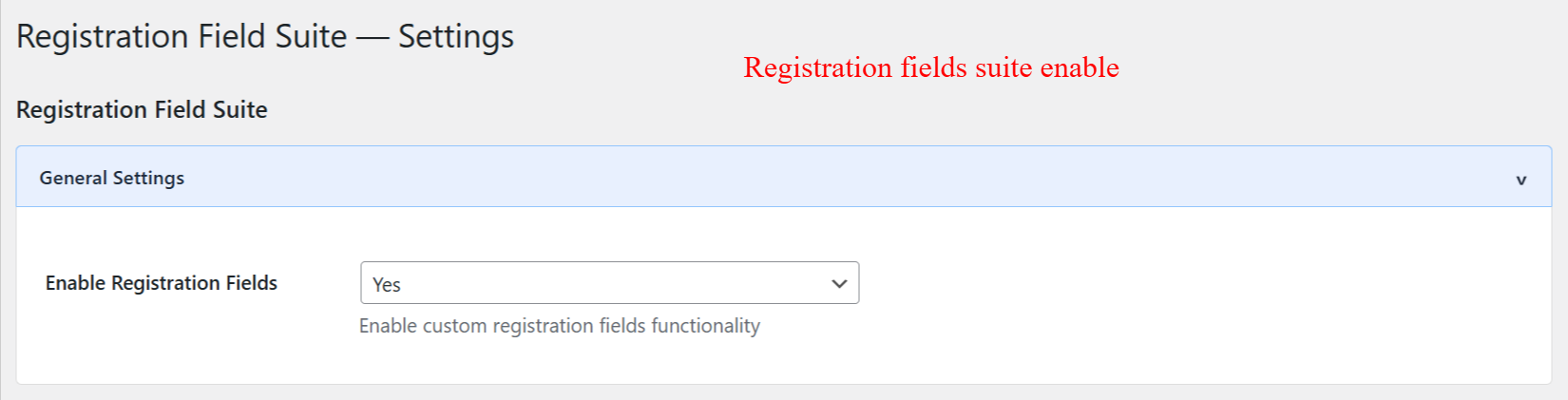
wp-admin: Registration Field Suite Settings > General
What this shows: A dropdown menu labeled ‘Enable Registration Fields’ with options to turn the feature on or off.
In the General Settings section, administrators can enable or disable the custom registration fields feature. Activating this setting allows customized fields to be included in the user registration process, offering a personalized registration experience tailored to the website’s specific data collection needs.
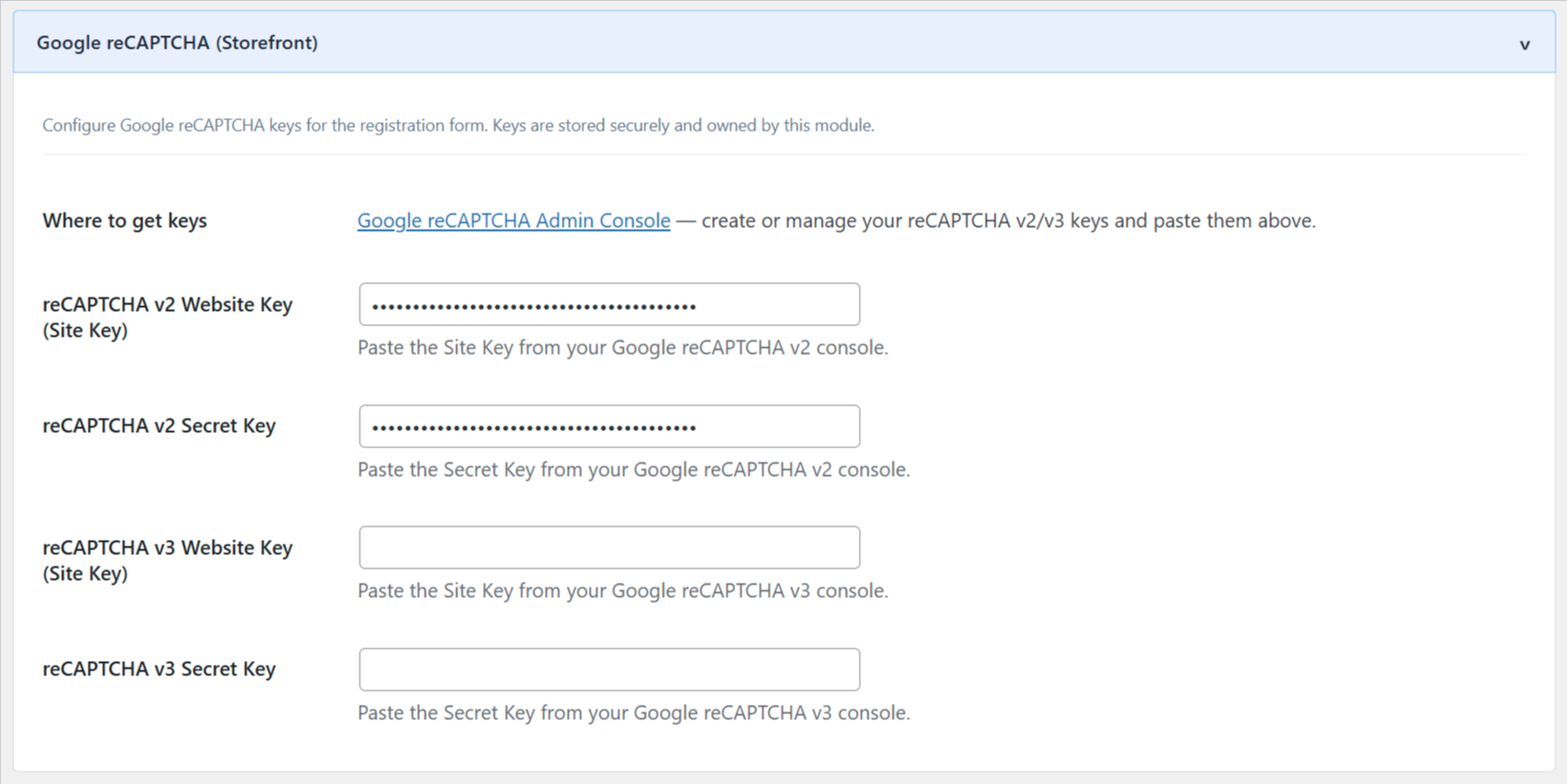
wp-admin: Registration Field Suite Settings > Google reCAPTCHA
What this shows: Form fields for entering Google reCAPTCHA v2 and v3 keys.
Security is paramount during user registration. In this section, administrators can enter their Google reCAPTCHA keys to protect forms from spam and abuse. Configuring these keys helps ensure that only legitimate users can complete registration, maintaining the integrity of the site’s user base.
wp-admin: Registration Field Suite Settings > AI Form Generator
What this shows: Fields for selecting AI provider and entering specific API keys for AI form generation.
This interface allows administrators to input API keys for AI services to leverage form generation capabilities powered by AI. By configuring these settings, users can utilize advanced AI tools like OpenAI’s ChatGPT, enhancing the functionality and responsiveness of registration forms within the suite.
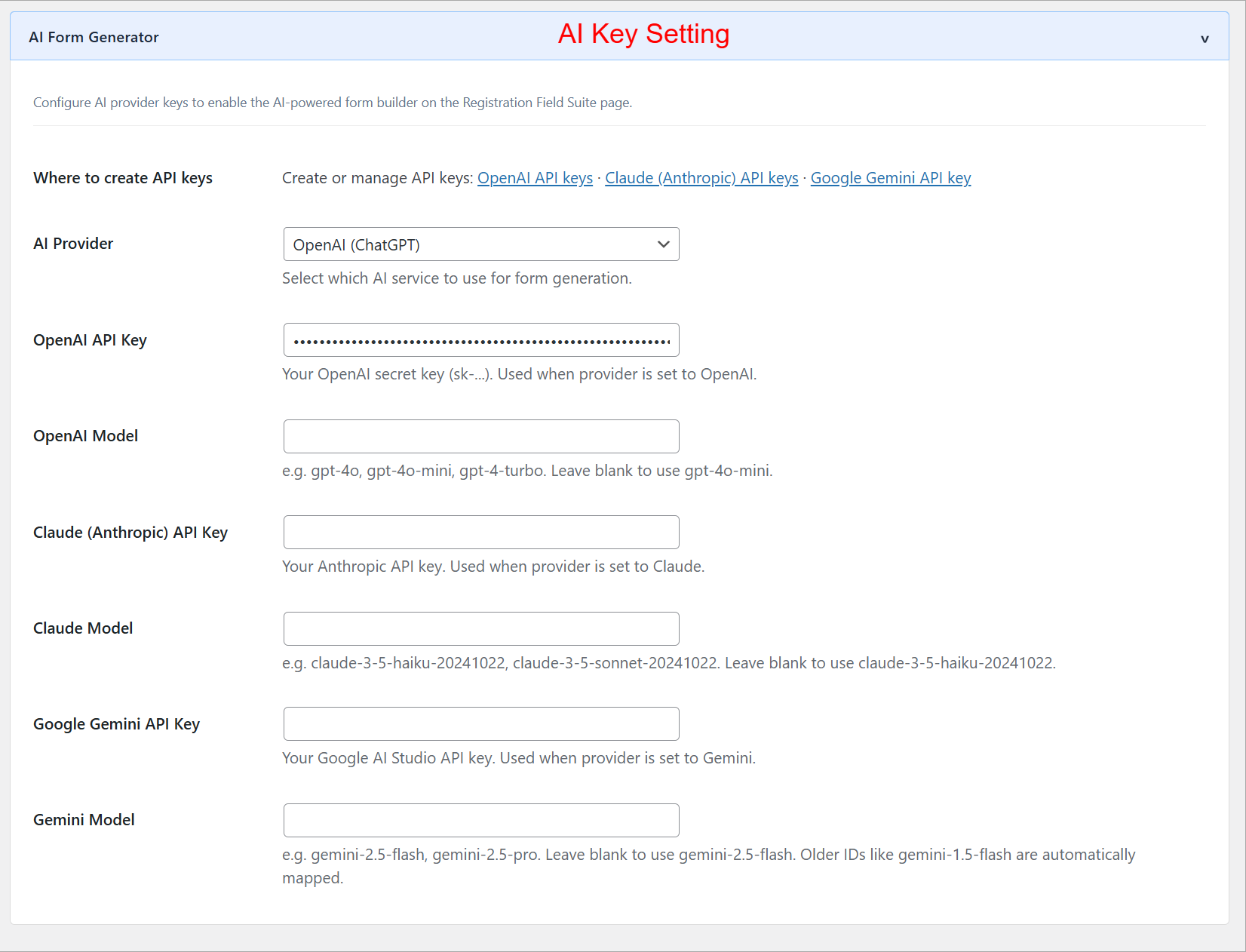
wp-admin: Registration Field Suite Settings > Pending Registration
What this shows: Options to enable the extension and manually validate customer groups.
Pending Registration settings are pivotal for managing new user entries that require approval. Administrators can choose which customer groups need manual validation, thus exercising control over who gets immediate access and ensuring that only pre-approved users join the platform.
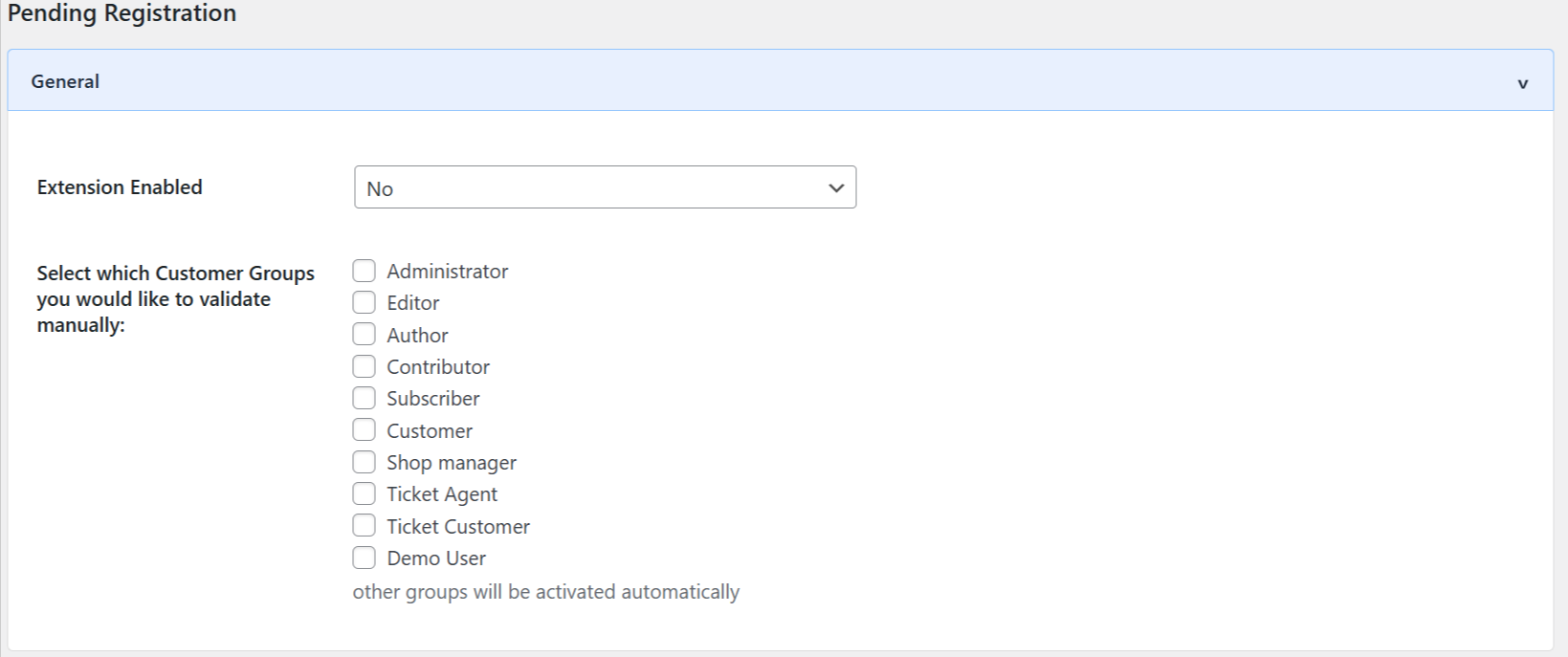
wp-admin: Registration Field Suite Settings > Email Notifications
What this shows: Email settings for sending notifications related to registration approval processes.
The Email Notifications settings let administrators configure email details for various registration events, ensuring both administrators and users are kept informed about account statuses. Configuring these notifications is essential for maintaining effective communication and efficiency in handling pending registrations.
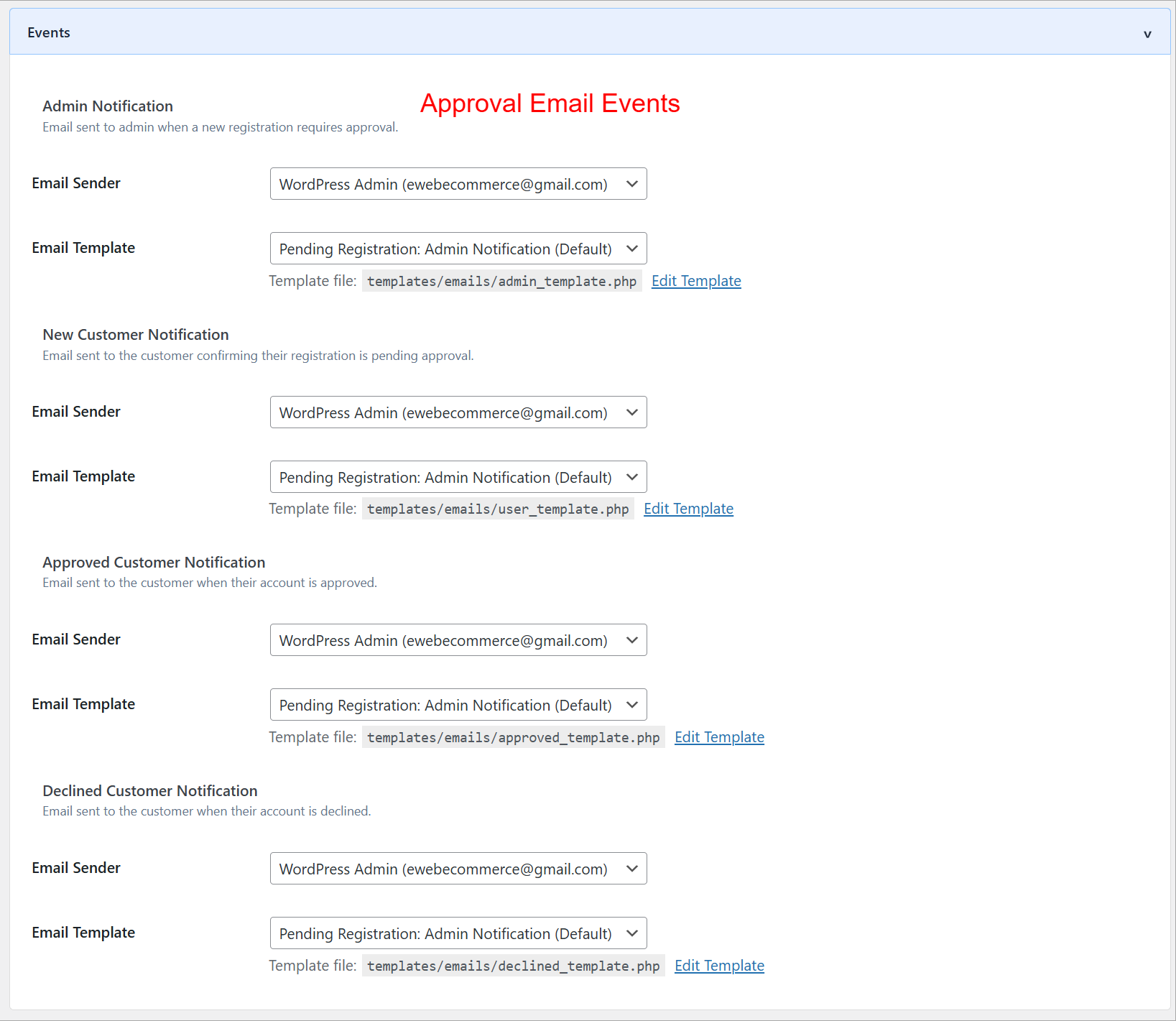
wp-admin: Registration Field Suite Email Templates
What this shows: Dropdown menu to select email templates and customize sender information.
This interface allows administrators to select and customize email templates for notifications triggered by registration events. Customizing these templates, including sender info, helps align communications with the site’s branding, ensuring consistent and professional interaction with users during the registration process.
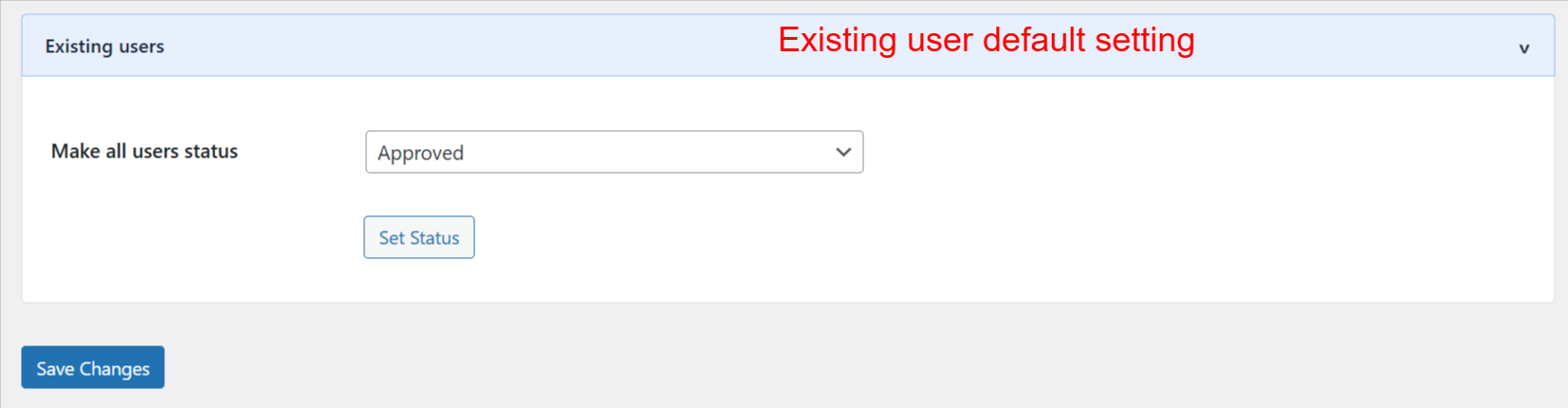
wp-admin: User Approval Settings
What this shows: This screen allows the admin to set the default status for existing users with a dropdown menu to select user status and a ‘Set Status’ button.
On this configuration screen, administrators can set the default approval status for all existing users. This feature is essential for maintaining standardized user statuses throughout the site. By selecting the desired status from the dropdown and clicking ‘Set Status,’ admins ensure consistency and visibility across user management operations.
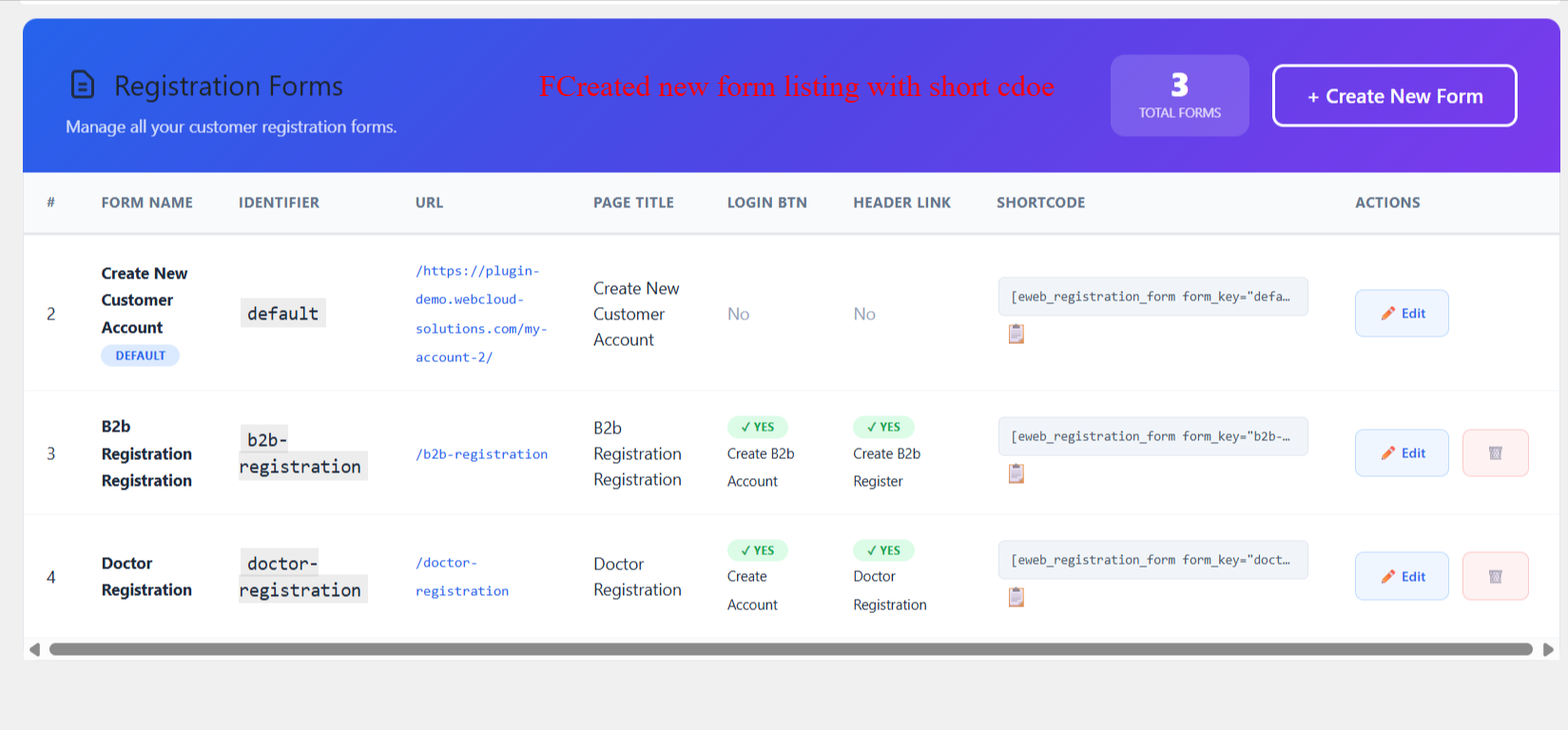
wp-admin: Registration Forms List View
What this shows: A grid listing of registration forms showing columns for Form Name, Identifier, URL, Page Title, Login BTN, Header Link, Shortcode, and Actions.
This interface displays all the created registration forms in a grid layout. Admins can view details such as form name, identifier, URL, and more. It helps in managing existing forms for quick edits or deletions. The forms are accessible using shortcodes, allowing seamless integration into pages.
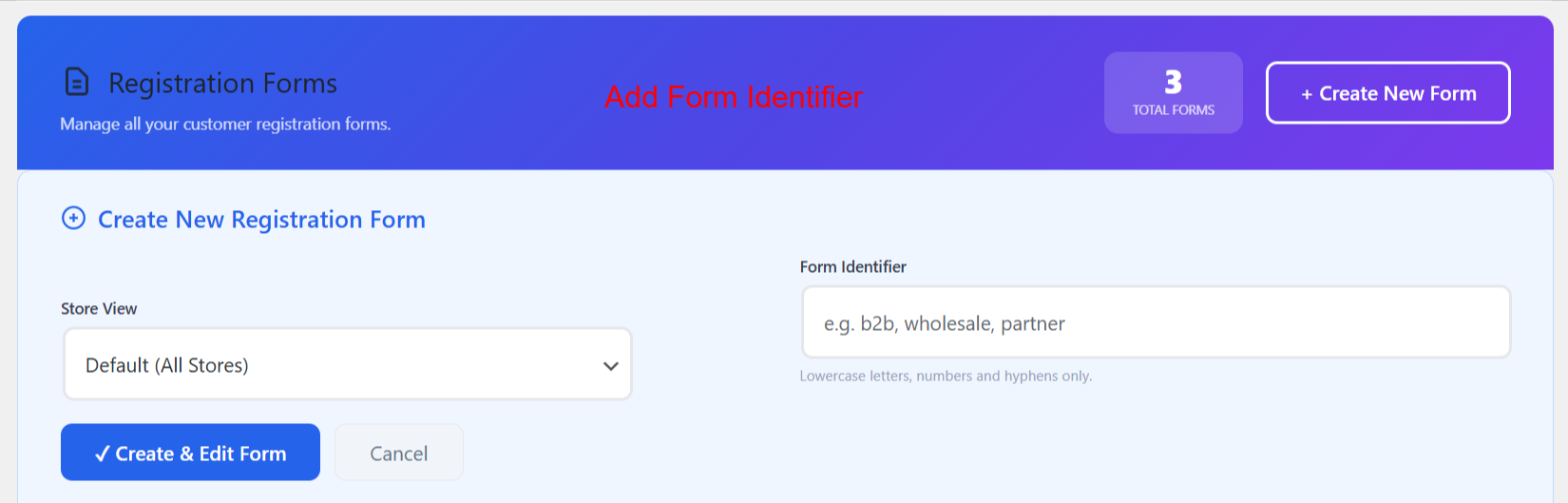
wp-admin: Create New Registration Form
What this shows: A form to create a new registration form, featuring fields for Store View and Form Identifier, and buttons for ‘Create & Edit Form’ and ‘Cancel’.
Here, admins can initiate the creation of a new customer registration form. By specifying a form identifier and selecting a store view, they can customize forms for different purposes. This screen is pivotal for expanding registration capabilities to suit varied business needs.
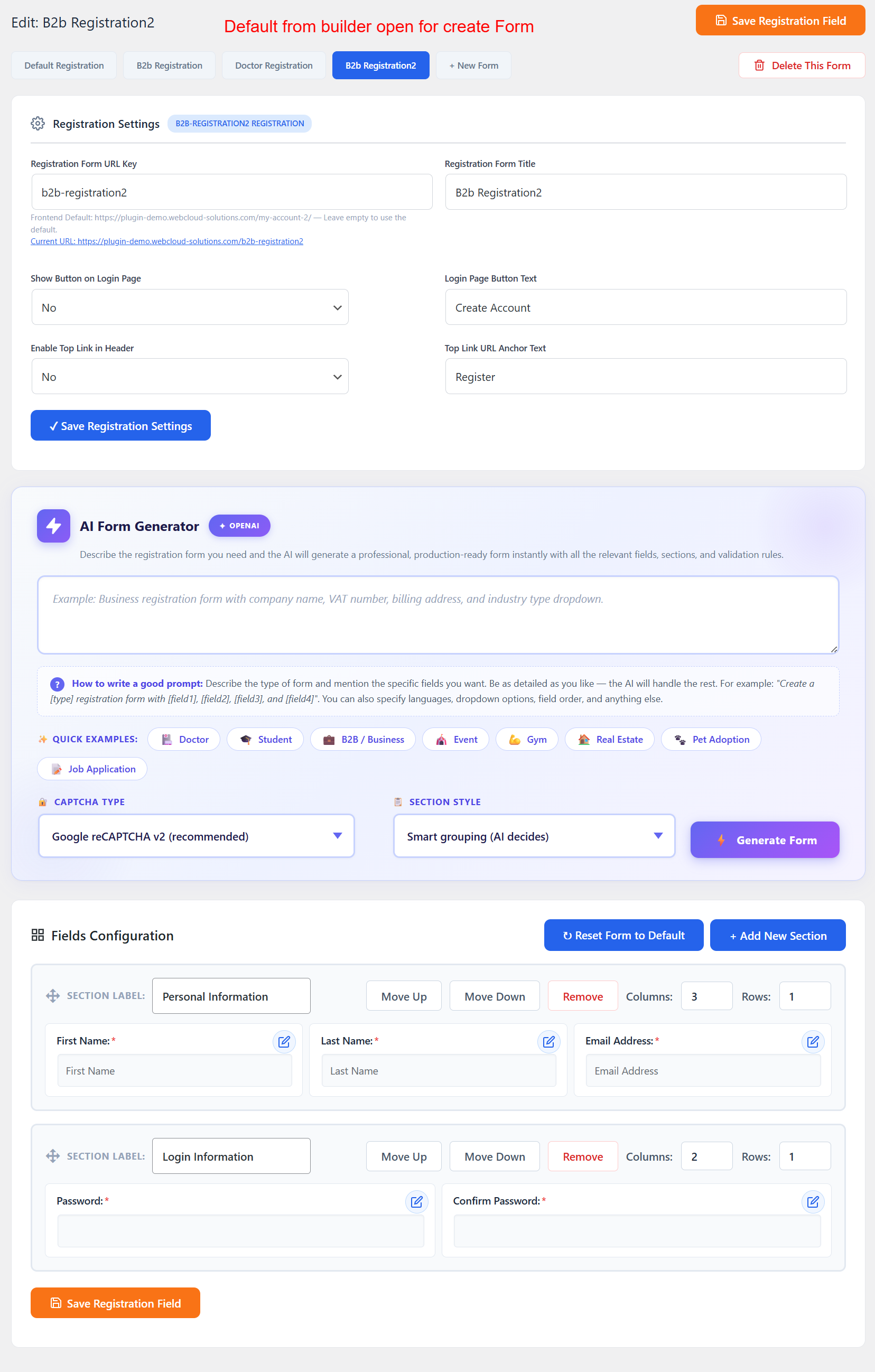
wp-admin: Registration Form Builder
What this shows: A registration form builder with fields for Registration Form URL Key, Title, Login Page Button Text, and more, along with AI Form Generator options.
This form builder interface allows admins to create customized registration forms with field-specific settings including URLs and button texts. The inclusion of the AI Form Generator enhances usability by suggesting field configurations, helping to streamline form creation.
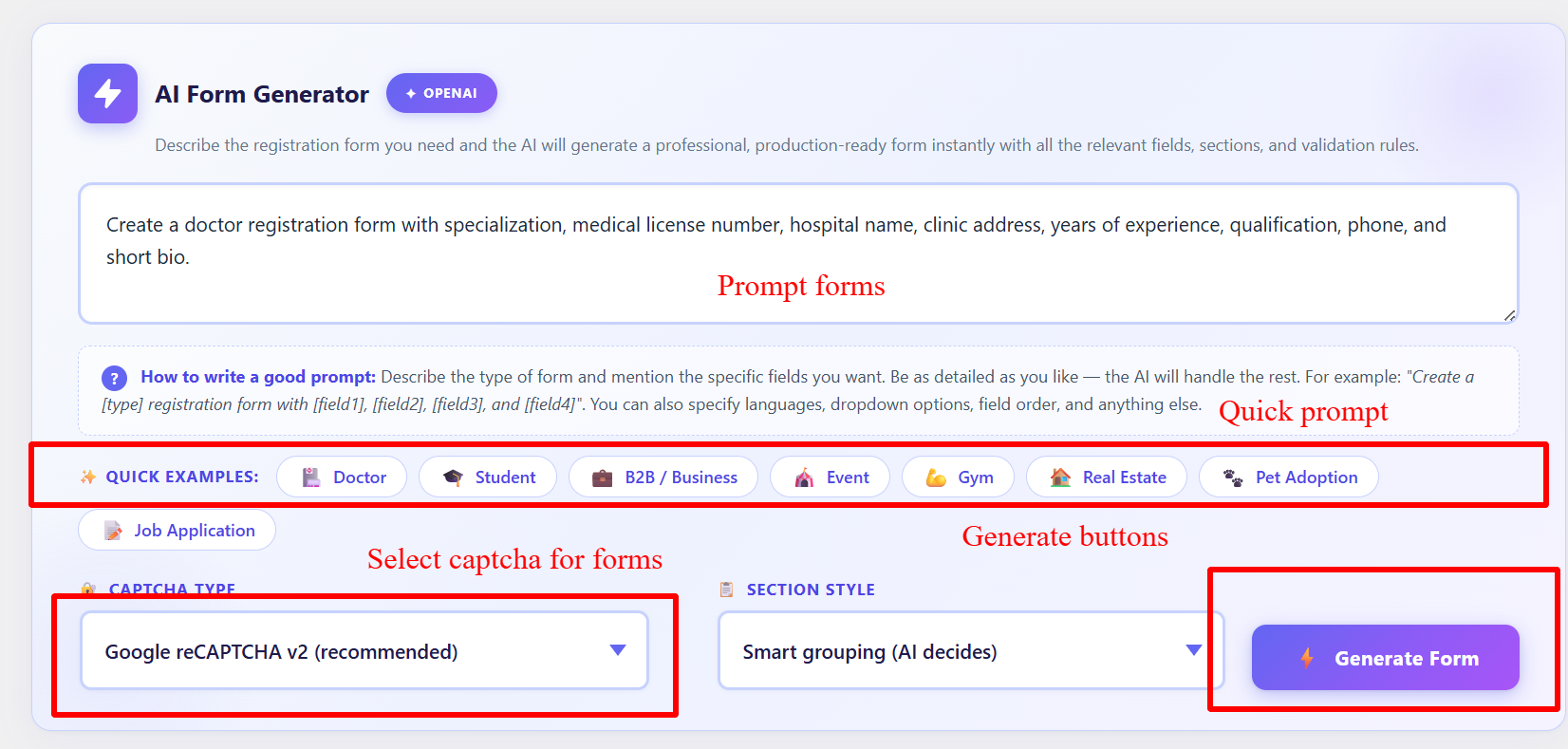
wp-admin: AI Form Generator Prompt
What this shows: The AI Form Generator section with a prompt input area, quick examples, CAPTCHA Type, and a ‘Generate Form’ button.
Admins can utilize this section to generate forms using AI by entering detailed prompts. With quick example buttons and CAPTCHA settings, the AI assists in creating professional forms efficiently. This feature supports admins with template ideas and ensures faster form deployment.
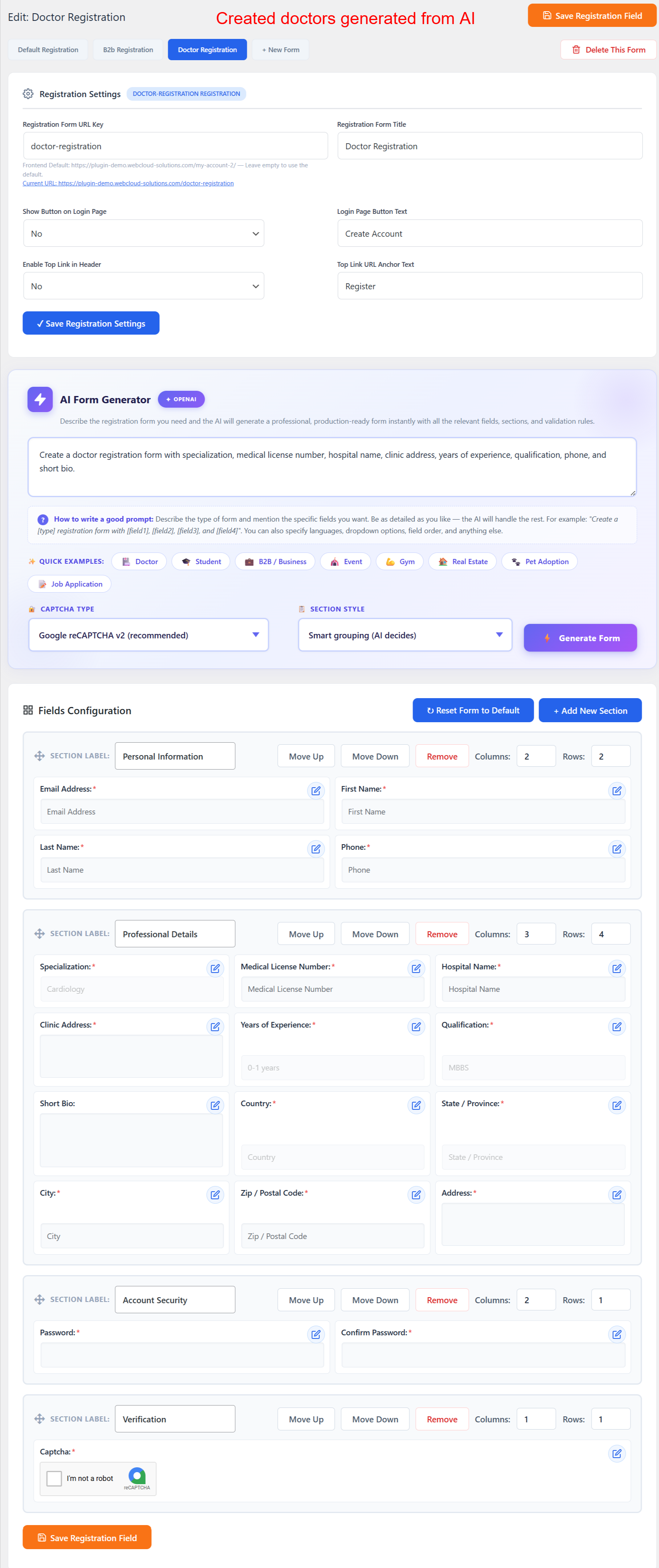
wp-admin: AI-Generated Form Fields
What this shows: An overview of AI-generated form fields under sections like Personal Information and Professional Details with options to edit or move fields.
The AI-generated fields result from input prompts and provide structured sections that admins can edit as needed. This feature simplifies the task of form design, allowing greater focus on content without worrying about complex layout issues.
wp-admin: B2B Registration Form Settings
What this shows: Interface for setting up B2B registration forms with fields for URL key, registration title, and AI Form Generator options.
This screen facilitates the setup of B2B registration forms, a significant feature for businesses target… [truncated]