Step-by-Step Screenshot Reference
Every captured screen in setup order. Click any image to open the full-size version in a new tab.
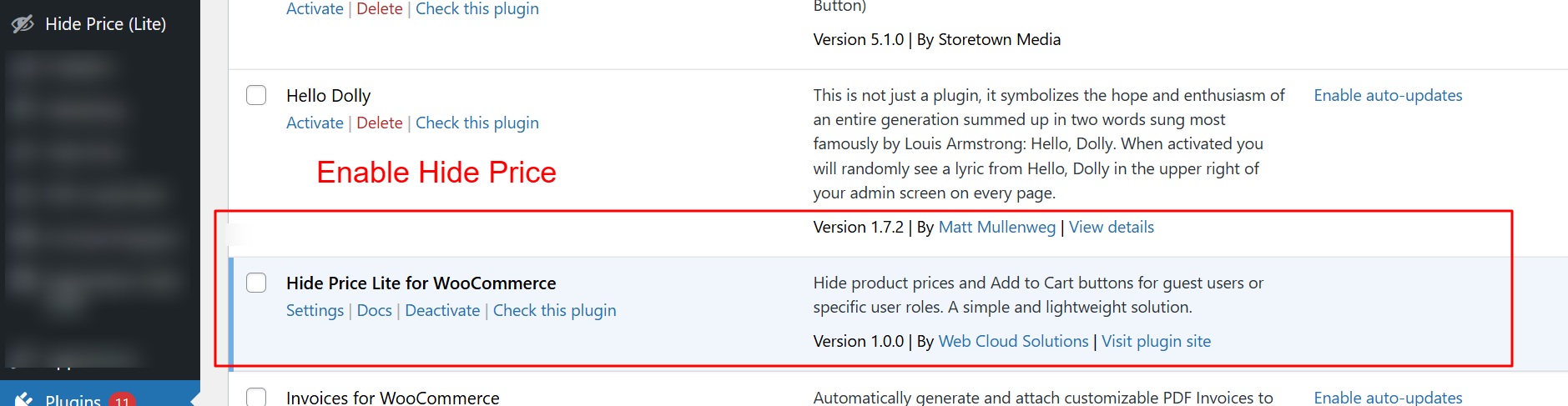
wp-admin: Plugins > Installed Plugins
What this shows: The screen shows the ‘Hide Price Lite for WooCommerce’ plugin with options to activate, deactivate, and access settings or documentation.
This screen allows you to manage the Hide Price Lite plugin, crucial for activating the feature that hides prices and Add to Cart buttons for specified user roles. Activating this plugin ensures your WooCommerce store can hide product prices from guest users, helping control who sees product pricing.
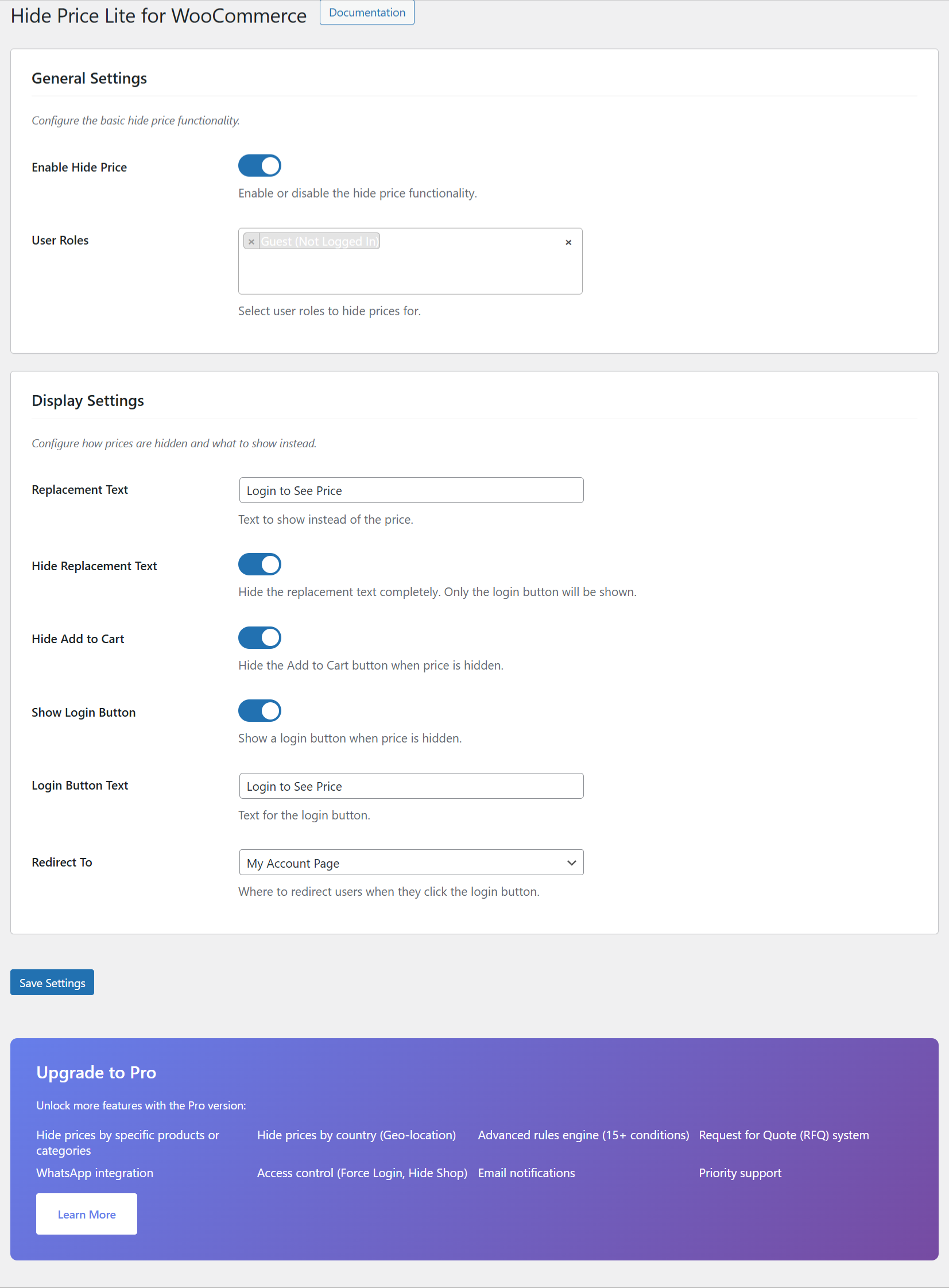
Settings: General and Display Configuration
What this shows: Shows sections for ‘General Settings’ and ‘Display Settings’ with toggles for enabling the plugin, selecting user roles, and setting display texts.
Here, you configure foundational settings for the plugin, such as enabling/disabling it and specifying which user roles should have prices hidden. Display settings allow customization of text displayed instead of prices, ensuring the interface aligns with your site’s branding while managing price visibility.
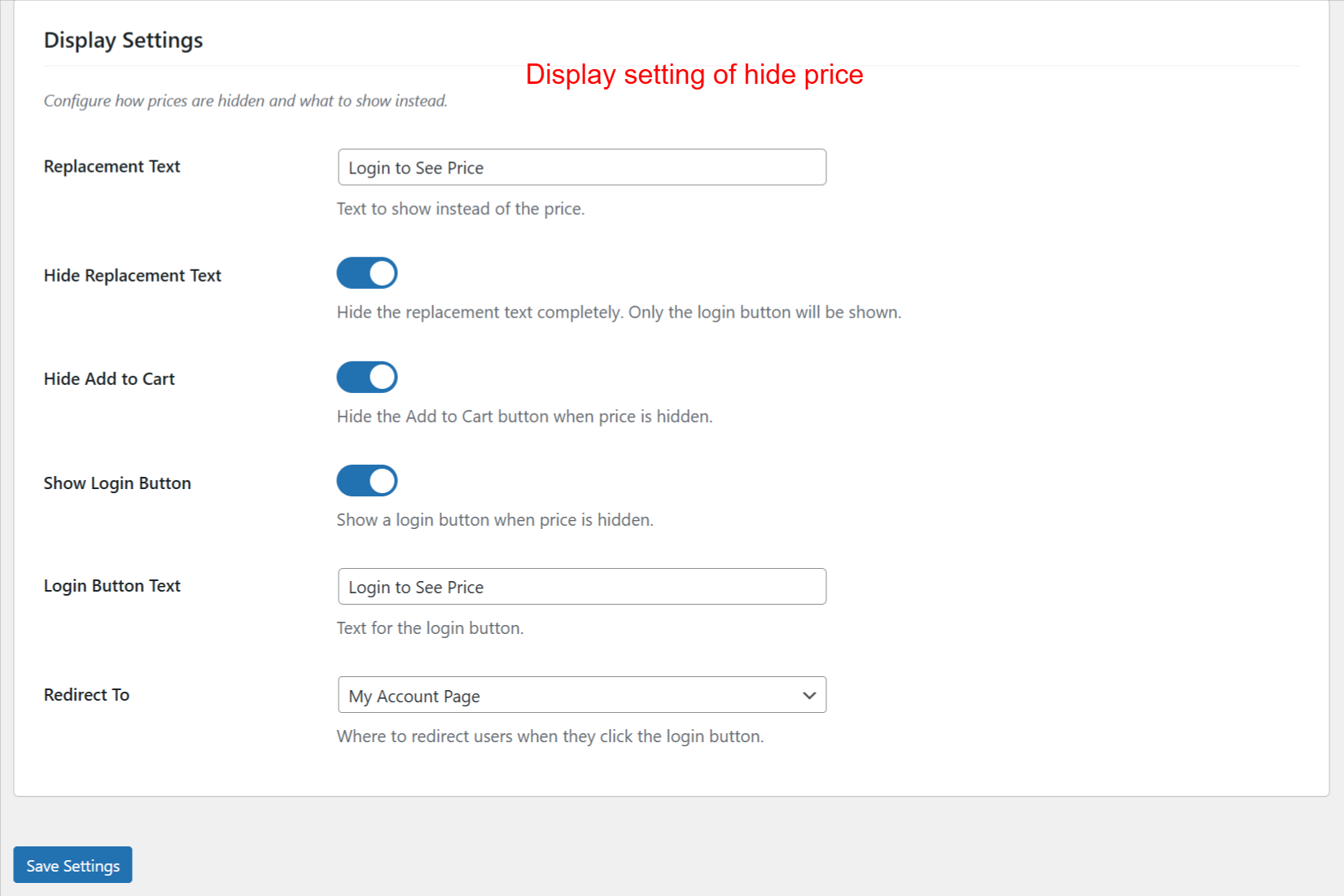
Display Settings Configuration
What this shows: Displays options for managing replacement text, hiding add to cart buttons, and setting login button text with corresponding toggles.
This screen is where you define how your product prices should be hidden and what users see instead. You can set replacement text and determine if ‘Add to Cart’ buttons remain visible. These settings refine user interactions and maintain consistent communication.
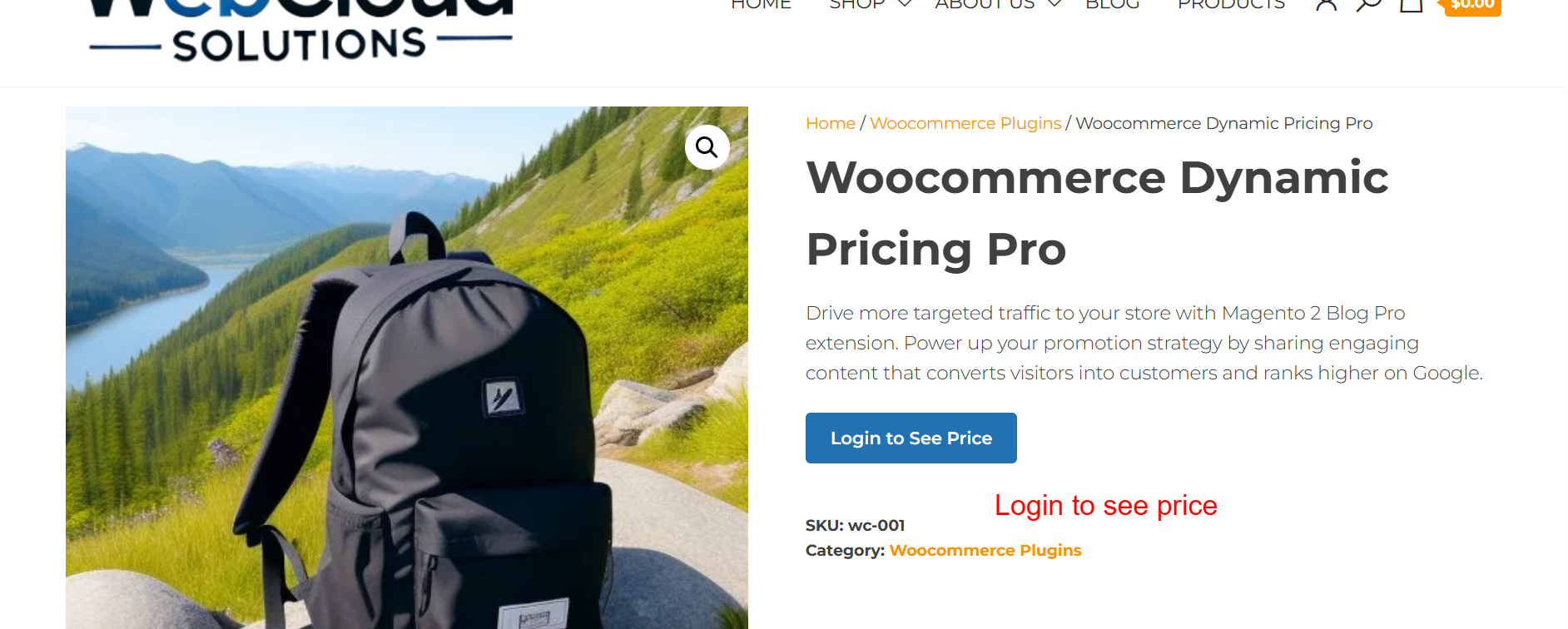
Frontend: Product Details with Login Prompt
What this shows: The storefront product page showing a ‘Login to See Price’ button instead of a price for guest users.
On the product detail pages, guest users are prompted to log in to view prices. This ensures that pricing details are only visible to entitled users, controlling the visibility of sensitive pricing information and encouraging user registration or login.
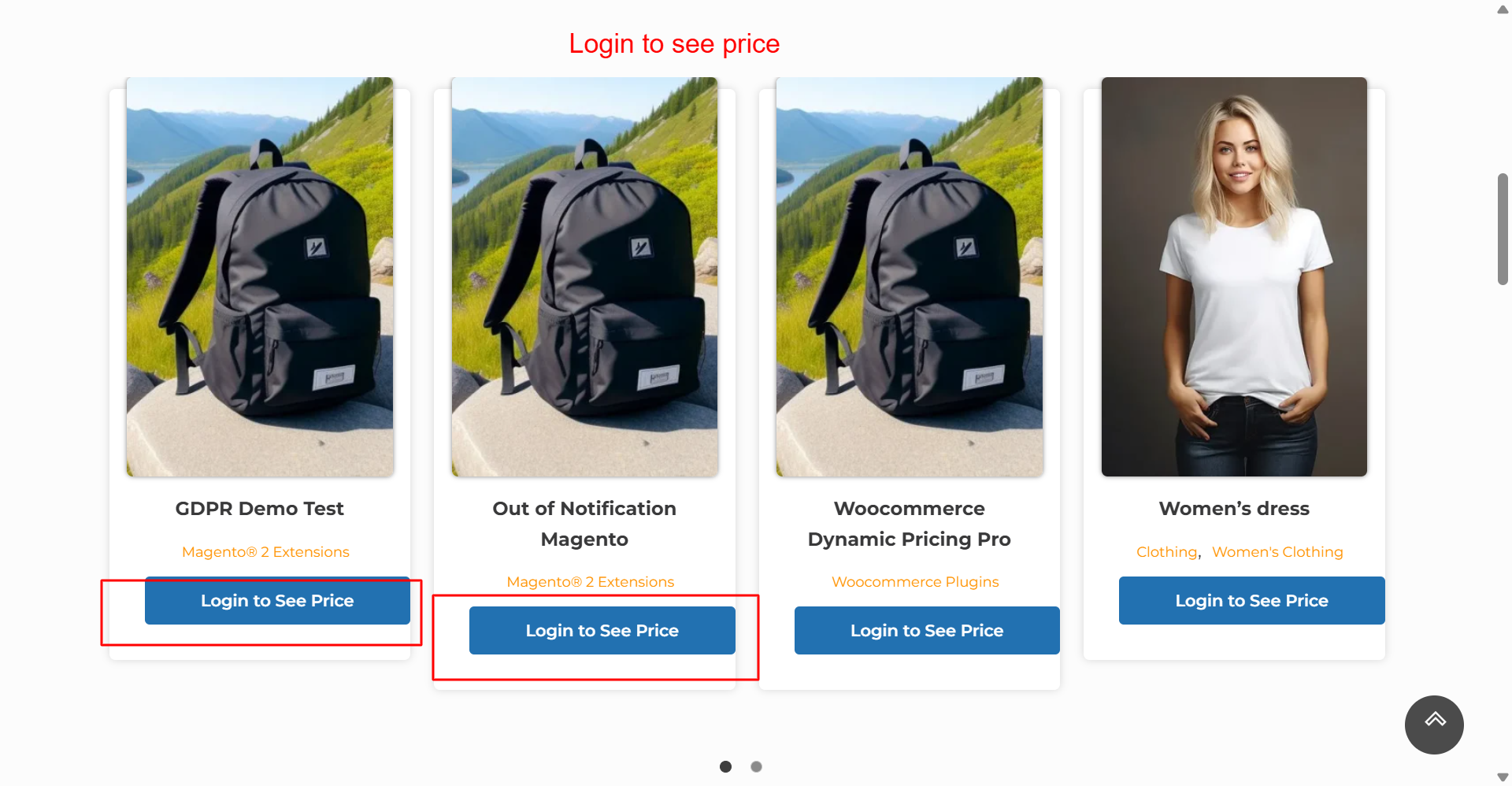
Frontend: Shop Page Product Listings
What this shows: Product listings with ‘Login to See Price’ buttons under each product for unauthenticated users.
The shop page is optimized to hide prices from guests, displaying a consistent ‘Login to See Price’ button. This reinforces your pricing strategy across multiple products, encouraging users to log in or create an account to access full product information.
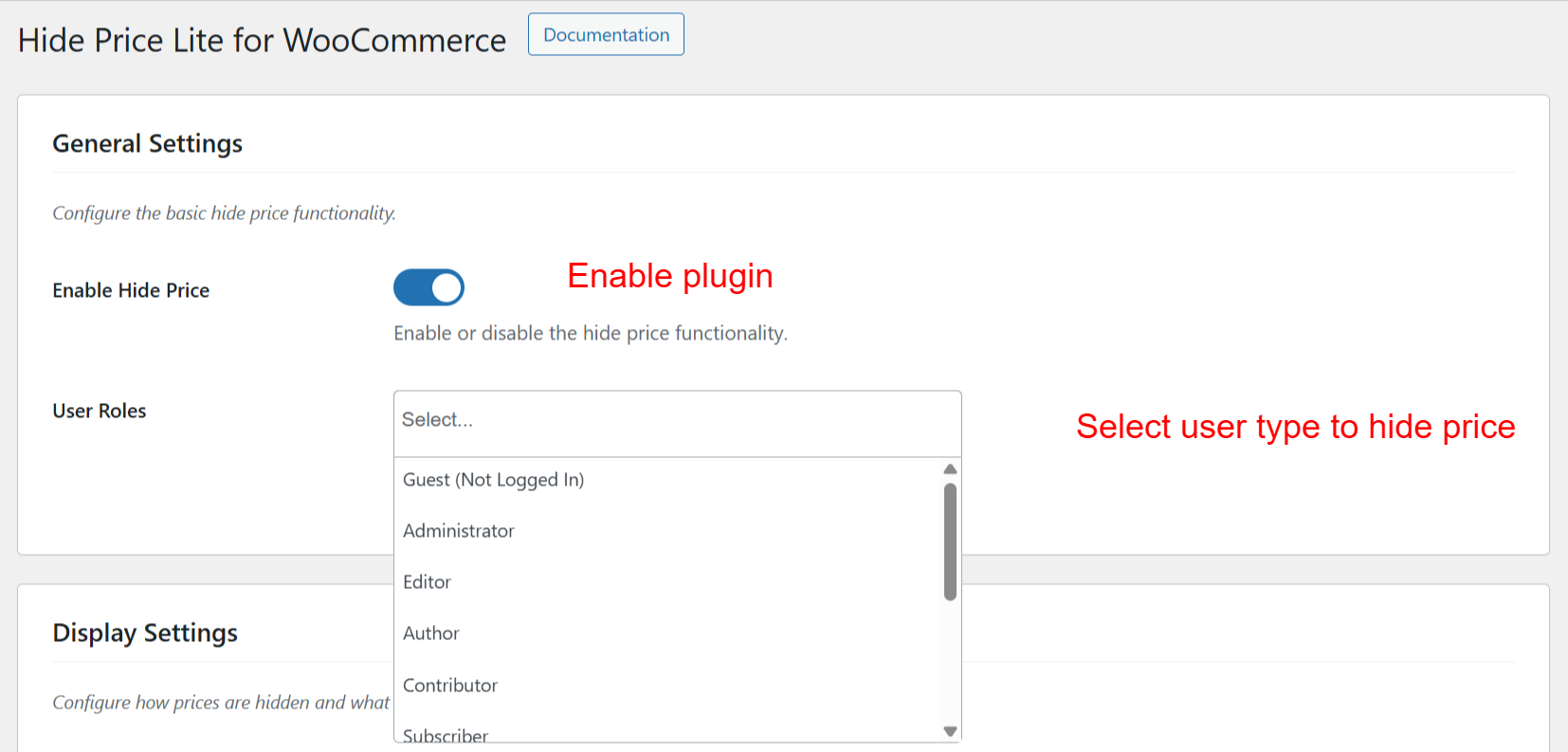
General Settings: Enable and User Role Selection
What this shows: Includes toggles for enabling the plugin and a dropdown for selecting user roles for price hiding.
This configuration screen is essential for activating the plugin and specifying which user roles should have restricted price access. Adjusting these settings aligns the plugin’s functionality with your store’s access policies, allowing for tailored visibility control.